User manualபயனர் கையேடு · Score: the salesman appScore: சேல்ஸ்மேன் ஆப்
Visitsசந்திப்புகள் (Visits)
Record a visit to a shop, with why there was no order, a follow-up date, and a photo when you are away from the shop.ஒரு கடைக்குப் போனதைப் பதிவு செய்யுங்க, ஏன் ஆர்டர் இல்லை, மறுபடி வர வேண்டிய தேதி, கடையில் இருந்து தொலைவில் இருந்தால் ஒரு போட்டோவுடன்.
- Where to find itஎங்கே இருக்கிறது
- Score → Score → Clients → Visit
- Who uses itயார் பயன்படுத்துவார்கள்
- Salesmen, collection staffசேல்ஸ்மேன்கள், வசூல் பணியாளர்கள்
Record a visit each time you go to a shop, even when there is no order. The office sees your visits, and some incentives pay for them.
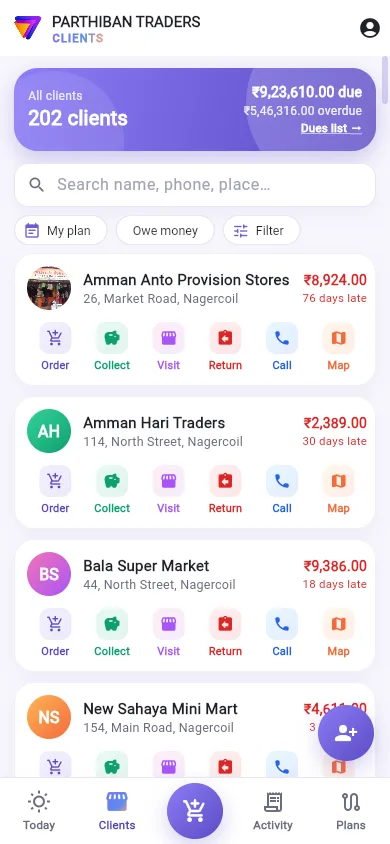
Record a visit
- Tap Visit on a client card or client page. Or tap Visit on the Today tab and choose the client.
- Score finds where you are. It shows one of these:
- You are at the shop.
- You are … from the shop — take a photo of the shop.
- This shop has no map pin — the visit is saved with where you are.
- Could not get your location — take a photo of the shop.
- Under Visited for, choose Sale, Order, Collection, Delivery, Just a visit or Other.
- Under Why no order?, tap a reason, such as Shop closed or Will order later. Or type your own in Reason (or type your own).
- Add Remarks if you like.
- Pick a date in Follow up on (optional) if you must come back.
- Take a photo if Score asks for one: Take a photo of the shop (needed). Otherwise Add a photo (optional).
- Tap Save visit.
You see Visit saved.
When a photo is needed
A photo is needed when the shop has a map pin and you are more than 50 metres from it, or Score cannot tell where you are. Without the photo, you see You are away from the shop — take a photo to save the visit.
To put a pin on a shop, stand at the shop, open the client page, tap the three-dot menu and choose Set the shop's location here. See Clients.
Visit incentive
If a visit incentive is set up for you, each client card shows it, for example This visit gives you ₹… incentive. Some pay more at the shop, within 50 metres.
See your visits
- On the client page, Visits lists the last visits to that shop, with any follow-up date.
- In Activity, the Visits tab lists your visits by date. Tap one for Visit details: date, purpose, reason, remarks, follow-up, how far from the shop, and the photo.
Good to know
- With no network, the visit is kept on the phone and sent later.
- The Visit button shows only if your role may create visits.
Related
ஒவ்வொரு முறை கடைக்குப் போகும் போதும், ஆர்டர் இல்லை என்றாலும், சந்திப்பைப் பதிவு செய்யுங்க. உங்கள் சந்திப்புகள் அலுவலகத்துக்குத் தெரியும், சில ஊக்கத்தொகைகள் அவற்றுக்கே கொடுக்கப்படும்.
சந்திப்பைப் பதிவு செய்தல்
- வாடிக்கையாளர் அட்டையில் அல்லது வாடிக்கையாளர் பக்கத்தில் சந்திப்பு (Visit) தட்டுங்க. அல்லது இன்று டேபில் சந்திப்பு (Visit) தட்டி வாடிக்கையாளரைத் தேர்ந்தெடுங்க.
- நீங்கள் எங்கே இருக்கீங்க என்று Score கண்டுபிடிக்கும். இவற்றில் ஒன்றைக் காட்டும்:
- நீங்கள் கடையில் உள்ளீர்கள். (You are at the shop.)
- நீங்கள் கடையிலிருந்து … தொலைவில் — கடையின் புகைப்படம் எடுங்கள். (You are … from the shop — take a photo of the shop.)
- இந்தக் கடைக்கு வரைபட இடம் இல்லை — நீங்கள் இருக்கும் இடத்துடன் வருகை சேமிக்கப்படும். (This shop has no map pin — the visit is saved with where you are.)
- உங்கள் இருப்பிடம் கிடைக்கவில்லை — கடையின் புகைப்படம் எடுங்கள். (Could not get your location — take a photo of the shop.)
- சந்திப்பு நோக்கம் (Visited for) கீழ், விற்பனை (Sale), ஆர்டர் (Order), வசூல் (Collection), டெலிவரி (Delivery), சும்மா சந்திப்பு (Just a visit) அல்லது மற்றவை (Other) தேர்ந்தெடுங்க.
- ஏன் ஆர்டர் இல்லை? (Why no order?) கீழ், கடை மூடியிருந்தது (Shop closed) அல்லது பின்னர் ஆர்டர் தருவார் (Will order later) போன்ற ஒரு காரணத்தைத் தட்டுங்க. அல்லது காரணம் (அல்லது நீங்களே எழுதுங்கள்) (Reason (or type your own)) இல் உங்கள் சொந்தக் காரணத்தை டைப் செய்யுங்க.
- விரும்பினால் குறிப்புகள் (Remarks) சேருங்க.
- மறுபடி வர வேண்டும் என்றால் பின்தொடர்வு தேதி (விருப்பம்) (Follow up on (optional)) இல் ஒரு தேதியைத் தேர்ந்தெடுங்க.
- Score கேட்டால் போட்டோ எடுங்க: கடையின் புகைப்படம் எடு (தேவை) (Take a photo of the shop (needed)). இல்லையென்றால் புகைப்படம் சேர் (விருப்பம்) (Add a photo (optional)).
- வருகையைச் சேமி (Save visit) தட்டுங்க.
சந்திப்பு சேமிக்கப்பட்டது (Visit saved) என்று வரும்.
போட்டோ எப்போது கட்டாயம்
கடைக்கு மேப் பின் இருந்து நீங்கள் அதில் இருந்து 50 மீட்டருக்கு மேல் தொலைவில் இருந்தாலோ, நீங்கள் எங்கே இருக்கீங்க என்று Score-க்குத் தெரியாவிட்டாலோ, போட்டோ கட்டாயம். போட்டோ இல்லாமல், நீங்கள் கடையிலிருந்து தொலைவில் உள்ளீர்கள் — வருகையைச் சேமிக்க புகைப்படம் எடுங்கள். (You are away from the shop — take a photo to save the visit.) என்று வரும்.
ஒரு கடைக்குப் பின் வைக்க, கடையிலேயே நின்று, வாடிக்கையாளர் பக்கத்தைத் திறந்து, மூன்று-புள்ளி மெனுவைத் தட்டி கடையின் இருப்பிடத்தை இங்கே அமை (Set the shop's location here) தேர்ந்தெடுங்க. பாருங்க: வாடிக்கையாளர்கள்.
சந்திப்பு ஊக்கத்தொகை
உங்களுக்கு சந்திப்பு ஊக்கத்தொகை அமைக்கப்பட்டிருந்தால், ஒவ்வொரு வாடிக்கையாளர் அட்டையும் அதைக் காட்டும், உதாரணமாக இந்த வருகைக்கு ₹… ஊக்கத்தொகை (This visit gives you ₹… incentive). சிலவை கடையிலேயே, 50 மீட்டருக்குள் இருந்தால் அதிகம் கொடுக்கும்.
உங்கள் சந்திப்புகளைப் பார்த்தல்
- வாடிக்கையாளர் பக்கத்தில், சந்திப்புகள் (Visits) அந்தக் கடைக்கான கடைசி சந்திப்புகளை, மறுபடி வர வேண்டிய தேதியுடன் பட்டியலிடும்.
- செயல்பாடு (Activity) இல், சந்திப்புகள் (Visits) டேப் உங்கள் சந்திப்புகளைத் தேதி வாரியாகப் பட்டியலிடும். வருகை விவரம் (Visit details) பார்க்க ஒன்றைத் தட்டுங்க: தேதி, நோக்கம், காரணம், குறிப்புகள், பின்தொடர்வு, கடையில் இருந்து எவ்வளவு தொலைவு, போட்டோ.
தெரிந்துகொள்ள வேண்டியது
- நெட்வொர்க் இல்லை என்றால், சந்திப்பு போனில் வைக்கப்பட்டு பிறகு அனுப்பப்படும்.
- உங்கள் பொறுப்புக்கு சந்திப்பு உருவாக்க அனுமதி இருந்தால் மட்டுமே சந்திப்பு (Visit) பட்டன் தெரியும்.
தொடர்புடையவை
- வாடிக்கையாளர்கள்: வாடிக்கையாளர் பக்கம், கடையின் பின்
- திட்டங்கள்: உங்கள் சுற்றில் எந்தக் கடைகளுக்குப் போயாச்சு
- சந்திப்புகள்: Office-இல் உங்கள் சந்திப்புகள்