User manualபயனர் கையேடு · Office: MastersOffice: முதன்மைப் பதிவுகள் (Masters)
Non Sellableவிற்க இயலாதவை (Non Sellable)
Count racks, freezers, crates and other things you do not sell, in your store and placed at clients.ரேக்குகள், ஃப்ரீசர்கள், கிரேட்டுகள் போன்ற நீங்க விற்காத பொருட்களை, உங்க கடையிலும் வாடிக்கையாளர்களிடம் வைத்திருப்பவையும், எண்ணி வையுங்க.
- Where to find itஎங்கே இருக்கிறது
- Office → Masters → Non Sellable
- Who uses itயார் பயன்படுத்துவார்கள்
- Owner, Admin, Warehouseஉரிமையாளர், நிர்வாகி, கிடங்கு
Non-sellable items are things you lend or place, not sell: display racks, freezers, crates, posters. This page counts how many are in your store and how many are at each client. They are never in your books.
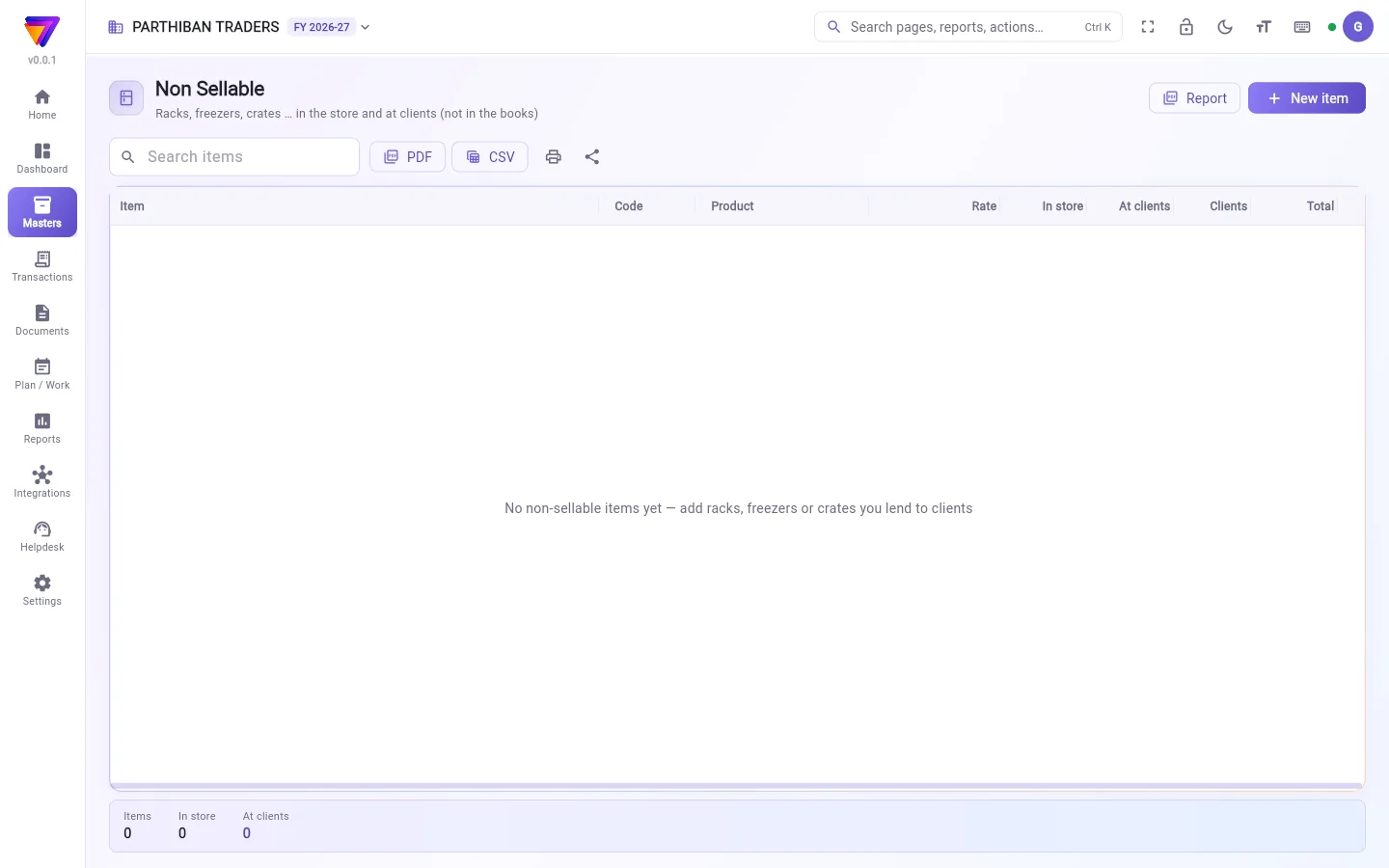
What you see
- A search box and PDF / CSV / print / share.
- A table with Item, Code, Product, Rate, In store, At clients, Clients and Total.
- At the bottom: Items, In store and At clients.
- Report and New item at the top right.
Add an item
- Click New item.
- Choose From a product to link a product you already have, or New item.
- For From a product, pick the Product. The name, code and rate fill in from it.
- Check the Name, Item code and Rate (value of one).
- Type How many in the store now.
- Click Save.
Place items at a client
- Click the item's row to select it.
- Click Place at a client.
- Pick the Client and type How many.
- Check the Date and add Remarks if you like.
- Click Save.
You cannot place more than are in the store.
Take items back
- Select the item and click Client stocks.
- Next to the client, click Return and type how many came back. Or click Return all.
- Click Save.
Add or correct the store count
- Add stock: type how many new ones came in.
- Correct stock: type what you Counted in the store. The count must be different from now.
See every move
- Click Report.
- Pick From and To.
- Read each move: Date, Item, What, Client, Location, Quantity and Remarks. Export it as PDF or CSV.
Who can do what
- The Warehouse role has full access. The Sales and Delivery roles can change counts and place or take back items, but cannot add new items.
- Delete shows only when nothing is in the store and nothing is at clients. The history of moves stays in the report.
Good to know
- Available on every plan.
- Salesmen and delivery staff can see and move these items at a client in the Score app.
- Rate is only the value of one item, for your records.
Related
- Client: the clients who hold your items.
- Product: link an item to a product.
- Clients in Score: items at a client, on the phone.
விற்க இயலாத பொருட்கள் என்பவை நீங்க விற்காமல், இரவல் கொடுக்கும் அல்லது வைக்கும் பொருட்கள்: டிஸ்ப்ளே ரேக்குகள், ஃப்ரீசர்கள், கிரேட்டுகள், போஸ்டர்கள். இந்தப் பக்கம் உங்க கடையில் எத்தனை உள்ளன, ஒவ்வொரு வாடிக்கையாளரிடமும் எத்தனை உள்ளன என்று எண்ணும். இவை ஒருபோதும் உங்க கணக்குப் புத்தகத்தில் வராது.
திரையில் என்ன தெரியும்
- ஒரு தேடல் பெட்டி, PDF / CSV / அச்சிடு / பகிர்.
- பொருள் (Item), குறியீடு (Code), பொருள் (Product), விலை (Rate), கடையில் (In store), வாடிக்கையாளர்களிடம் (At clients), வாடிக்கையாளர்கள் (Clients), மொத்தம் (Total) உள்ள ஒரு அட்டவணை.
- கீழே: பொருட்கள் (Items), கடையில் (In store), வாடிக்கையாளர்களிடம் (At clients).
- மேலே வலது பக்கம் அறிக்கை (Report), புதிய பொருள் (New item).
பொருள் சேர்க்க
- புதிய பொருள் (New item) கிளிக் செய்யுங்க.
- உங்களிடம் ஏற்கனவே உள்ள ஒரு பொருளை இணைக்க ஒரு பொருளிலிருந்து (From a product), அல்லது புதிய பொருள் (New item) தேர்வு செய்யுங்க.
- ஒரு பொருளிலிருந்து (From a product)-க்கு, பொருள் (Product) தேர்ந்தெடுங்க. பெயர், குறியீடு, விலை அதிலிருந்து நிரம்பும்.
- பெயர் (Name), பொருள் குறியீடு (Item code), விலை (ஒன்றின் மதிப்பு) (Rate (value of one)) சரிபாருங்க.
- இப்போது கடையில் எத்தனை (How many in the store now) டைப் செய்யுங்க.
- சேமி (Save) கிளிக் செய்யுங்க.
வாடிக்கையாளரிடம் பொருட்களை வைக்க
- பொருளின் வரியைக் கிளிக் செய்து தேர்ந்தெடுங்க.
- வாடிக்கையாளரிடம் வை (Place at a client) கிளிக் செய்யுங்க.
- வாடிக்கையாளர் (Client) தேர்ந்தெடுத்து எத்தனை (How many) டைப் செய்யுங்க.
- தேதி (Date) சரிபாருங்க, வேண்டுமென்றால் குறிப்புகள் (Remarks) சேருங்க.
- சேமி (Save) கிளிக் செய்யுங்க.
கடையில் உள்ளதை விட அதிகமாக வைக்க முடியாது.
பொருட்களைத் திரும்ப எடுக்க
- பொருளைத் தேர்ந்தெடுத்து வாடிக்கையாளர் இருப்புகள் (Client stocks) கிளிக் செய்யுங்க.
- வாடிக்கையாளருக்குப் பக்கத்தில், திருப்பம் (Return) கிளிக் செய்து எத்தனை திரும்ப வந்தது என்று டைப் செய்யுங்க. அல்லது அனைத்தையும் திருப்பு (Return all) கிளிக் செய்யுங்க.
- சேமி (Save) கிளிக் செய்யுங்க.
கடை எண்ணிக்கையைச் சேர்க்க அல்லது சரிசெய்ய
- இருப்பு சேர் (Add stock): புதிதாக எத்தனை வந்தது என்று டைப் செய்யுங்க.
- இருப்பைச் சரிசெய் (Correct stock): கடையில் எண்ணியது (Counted in the store) எவ்வளவு என்று டைப் செய்யுங்க. அந்த எண்ணிக்கை இப்போது உள்ளதிலிருந்து வேறாக இருக்க வேண்டும்.
ஒவ்வொரு நகர்வையும் பார்க்க
- அறிக்கை (Report) கிளிக் செய்யுங்க.
- முதல் (From), வரை (To) தேர்ந்தெடுங்க.
- ஒவ்வொரு நகர்வையும் பாருங்க: தேதி (Date), பொருள் (Item), என்ன (What), வாடிக்கையாளர் (Client), இருப்பிடம் (Location), அளவு (Quantity), குறிப்புகள் (Remarks). அதை PDF அல்லது CSV ஆக ஏற்றுமதி செய்யலாம்.
யார் என்ன செய்யலாம்
- கிடங்கு (Warehouse) பொறுப்புக்கு முழு அணுகல் உண்டு. விற்பனை (Sales), டெலிவரி (Delivery) பொறுப்புகள் எண்ணிக்கையை மாற்றலாம், பொருட்களை வைக்கலாம் அல்லது திரும்ப எடுக்கலாம், ஆனால் புதிய பொருட்களைச் சேர்க்க முடியாது.
- கடையிலும் எதுவும் இல்லாமல், வாடிக்கையாளர்களிடமும் எதுவும் இல்லாதபோது மட்டுமே நீக்கு (Delete) தெரியும். நகர்வுகளின் வரலாறு அறிக்கையில் அப்படியே இருக்கும்.
தெரிந்துகொள்ள வேண்டியது
- எல்லாத் திட்டங்களிலும் கிடைக்கும்.
- விற்பனைப் பிரதிநிதிகளும் டெலிவரி ஆட்களும் Score ஆப்-இல் ஒரு வாடிக்கையாளரிடம் உள்ள இந்தப் பொருட்களைப் பார்க்கலாம், நகர்த்தலாம்.
- விலை (Rate) என்பது ஒரு பொருளின் மதிப்பு மட்டுமே, உங்க பதிவுக்காக.
தொடர்புடையவை
- வாடிக்கையாளர் (Client): உங்க பொருட்களை வைத்திருக்கும் வாடிக்கையாளர்கள்.
- பொருள் (Product): ஒரு பொருளை ஒரு Product-உடன் இணைக்க.
- Score-இல் வாடிக்கையாளர்கள் (Clients in Score): ஒரு வாடிக்கையாளரிடம் உள்ள பொருட்கள், போனில்.