User manualபயனர் கையேடு · Score: the salesman appScore: சேல்ஸ்மேன் ஆப்
Deliveryடெலிவரி (Delivery)
See your trips, deliver the bills given to you, collect on them, and handle online orders.உங்கள் பயணங்களைப் பாருங்க, உங்களிடம் கொடுத்த பில்களை டெலிவரி செய்யுங்க, அவற்றில் வசூலியுங்க, ஆன்லைன் ஆர்டர்களைக் கவனியுங்க.
- Where to find itஎங்கே இருக்கிறது
- Score → Score → Plans → Deliveries
- Who uses itயார் பயன்படுத்துவார்கள்
- Delivery staff, drivers, cashiers, collection staffடெலிவரி பணியாளர்கள், டிரைவர்கள், காசாளர்கள், வசூல் பணியாளர்கள்
Bills the office gives you to deliver or collect show on the Plans tab under Deliveries. You mark each bill delivered or not, and collect money where it is due.
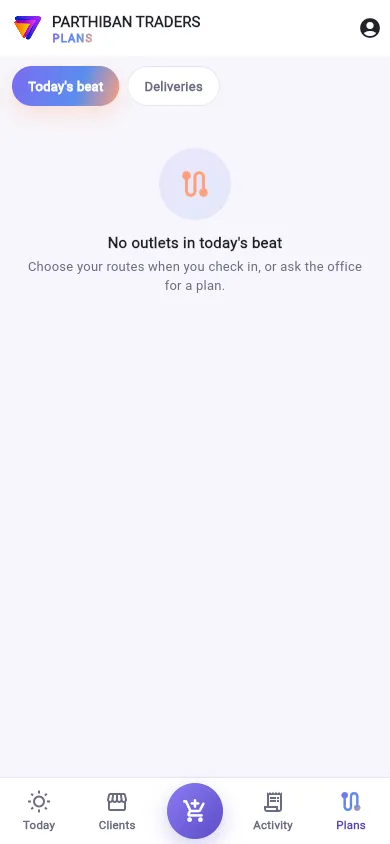
Open your deliveries
- Tap Plans at the bottom.
- Tap Deliveries. You can also tap Deliveries on the Today tab.
You see the parts your role allows: My trips, Bills to deliver, Bills to collect and Online orders.
My trips
My trips lists the delivery trips the office planned with you as driver, cashier or helper. Each shows the trip number, vehicle, date, number of bills and the cash expected. Tap a trip to open it.
If there are none, you see No delivery trips for you.
Deliver the bills (the delivery run)
Bills to deliver lists each bill given to you that is not delivered yet. Each card shows the client, the bill, what is still due, and its state.
- Tap Start delivery route to open Google Maps through the shops that have a map pin.
- At a shop, use the card's buttons: Map, Print, and Collect when money is due.
- When the goods are handed over, tap Delivered. Add Photo of the goods if you like, then tap Mark delivered.
- If you could not deliver, tap Not delivered. Pick a reason, such as Shop closed or Refused the goods, or type your own in Why (or type your own). Tap Save.
You see Marked delivered or Saved — the office sees why. Score saves where you were.
Collect on bills (the collect run)
Bills to collect lists bills given to you to collect, as the cashier of a delivery plan or the person on a collection plan. The top shows how many bills and the total. Each bill shows its number, date, how many days old, and what is left.
- Tap Map to find the shop.
- Tap Collect to open the Collect sheet for that bill. See Collect money.
A bill stays on the list until it is paid.
Online orders (the online run)
Online orders lists online orders given to you to deliver. Each shows who ordered, the address, and the items.
- Use Call, WhatsApp or Map to reach the customer.
- Tap Make the bill to put the order's products and rates in that client's cart. Score opens the Order tab. Save the bill there.
- When it is handed over, tap Delivered.
If the customer is not a client yet, you see Not a client yet — the office bills it.
Update a bill from Activity
You can also update a bill from Activity. Tap the three-dot menu on the bill and choose Update status (delivery, payment). Choose Delivered or Not delivered, add the Vehicle no. and a photo, and tap Update. Then tap Collect payment or Return if you need them.
Good to know
- With Photo proof in Score on, a photo is needed when a bill is delivered with money still due, or not delivered because the shop was closed or the goods came back.
- A cancelled bill, or one that came back, cannot be updated.
- Plan: delivery trips need Pro · Large Stockist or higher.
Related
- Plans: Today's beat
- Collect money: the Collect sheet
- Delivery Plan: how the office plans trips
- Collection Plan: bills given to you to collect
- Online Orders: orders from the online menu
டெலிவரி செய்யவோ வசூலிக்கவோ அலுவலகம் உங்களிடம் கொடுக்கும் பில்கள், திட்டங்கள் (Plans) டேபில் டெலிவரிகள் (Deliveries) கீழ் தெரியும். ஒவ்வொரு பில்லையும் டெலிவரி ஆனது அல்லது ஆகவில்லை என்று குறித்து, பணம் வர வேண்டிய இடத்தில் வசூலியுங்க.
உங்கள் டெலிவரிகளைத் திறத்தல்
- கீழே உள்ள திட்டங்கள் (Plans) தட்டுங்க.
- டெலிவரிகள் (Deliveries) தட்டுங்க. இன்று டேபில் உள்ள டெலிவரிகள் (Deliveries) தட்டியும் வரலாம்.
உங்கள் பொறுப்புக்கு அனுமதி உள்ள பகுதிகள் தெரியும்: என் பயணங்கள் (My trips), டெலிவரி செய்ய வேண்டிய பில்கள் (Bills to deliver), வசூலிக்க வேண்டிய பில்கள் (Bills to collect), ஆன்லைன் ஆர்டர்கள் (Online orders).
என் பயணங்கள்
என் பயணங்கள் (My trips) உங்களை டிரைவர், காசாளர் அல்லது உதவியாளராக வைத்து அலுவலகம் திட்டமிட்ட டெலிவரி பயணங்களைப் பட்டியலிடும். ஒவ்வொன்றும் பயண எண், வாகனம், தேதி, பில்களின் எண்ணிக்கை, எதிர்பார்க்கும் ரொக்கத்தைக் காட்டும். திறக்க ஒரு பயணத்தைத் தட்டுங்க.
எதுவும் இல்லை என்றால், உங்களுக்கு டெலிவரி பயணம் இல்லை (No delivery trips for you) என்று வரும்.
பில்களை டெலிவரி செய்தல் (டெலிவரி சுற்று)
டெலிவரி செய்ய வேண்டிய பில்கள் (Bills to deliver) உங்களிடம் கொடுத்த, இன்னும் டெலிவரி ஆகாத ஒவ்வொரு பில்லையும் பட்டியலிடும். ஒவ்வொரு அட்டையும் வாடிக்கையாளர், பில், இன்னும் வர வேண்டியது, அதன் நிலையைக் காட்டும்.
- மேப் பின் உள்ள கடைகள் வழியாக Google Maps திறக்க டெலிவரி வழித்தடத்தைத் தொடங்கு (Start delivery route) தட்டுங்க.
- கடையில், அட்டையின் பட்டன்களைப் பயன்படுத்துங்க: வரைபடம் (Map), அச்சிடு (Print), பணம் வர வேண்டியிருந்தால் வசூலி (Collect).
- சரக்கைக் கொடுத்ததும், டெலிவரி ஆனது (Delivered) தட்டுங்க. விரும்பினால் பொருட்களின் புகைப்படம் (Photo of the goods) சேர்த்து, டெலிவரி ஆனது எனக் குறி (Mark delivered) தட்டுங்க.
- டெலிவரி செய்ய முடியவில்லை என்றால், டெலிவரி ஆகவில்லை (Not delivered) தட்டுங்க. கடை மூடியிருந்தது (Shop closed) அல்லது பொருளை ஏற்கவில்லை (Refused the goods) போன்ற ஒரு காரணத்தைத் தேர்ந்தெடுங்க, அல்லது காரணம் (அல்லது நீங்களே எழுதுங்கள்) (Why (or type your own)) இல் உங்கள் சொந்தக் காரணத்தை டைப் செய்யுங்க. சேமி (Save) தட்டுங்க.
டெலிவரி ஆனது எனக் குறிக்கப்பட்டது (Marked delivered) அல்லது சேமிக்கப்பட்டது — காரணம் அலுவலகத்துக்குத் தெரியும் (Saved — the office sees why) என்று வரும். நீங்கள் எங்கே இருந்தீங்க என்பதை Score சேமிக்கும்.
பில்களில் வசூலித்தல் (வசூல் சுற்று)
வசூலிக்க வேண்டிய பில்கள் (Bills to collect) டெலிவரி திட்டத்தின் காசாளராகவோ வசூல் திட்டத்தில் உள்ள நபராகவோ உங்களிடம் வசூலிக்கக் கொடுத்த பில்களைப் பட்டியலிடும். மேலே எத்தனை பில்கள், மொத்தம் எவ்வளவு என்று தெரியும். ஒவ்வொரு பில்லும் அதன் எண், தேதி, எத்தனை நாள் பழையது, மீதி எவ்வளவு என்று காட்டும்.
- கடையைக் கண்டுபிடிக்க வரைபடம் (Map) தட்டுங்க.
- அந்த பில்லுக்கான வசூலி ஷீட்டைத் திறக்க வசூலி (Collect) தட்டுங்க. பாருங்க: பணம் வசூலித்தல்.
பணம் கட்டப்படும் வரை பில் பட்டியலில் இருக்கும்.
ஆன்லைன் ஆர்டர்கள் (ஆன்லைன் சுற்று)
ஆன்லைன் ஆர்டர்கள் (Online orders) உங்களிடம் டெலிவரி செய்யக் கொடுத்த ஆன்லைன் ஆர்டர்களைப் பட்டியலிடும். ஒவ்வொன்றும் யார் ஆர்டர் செய்தார், முகவரி, பொருட்களைக் காட்டும்.
- வாடிக்கையாளரைத் தொடர்புகொள்ள அழை (Call), WhatsApp அல்லது வரைபடம் (Map) பயன்படுத்துங்க.
- ஆர்டரின் பொருட்களையும் விலைகளையும் அந்த வாடிக்கையாளரின் கார்டில் போட பில் போடு (Make the bill) தட்டுங்க. Score ஆர்டர் டேபைத் திறக்கும். அங்கே பில்லைச் சேமியுங்க.
- கொடுத்து முடித்ததும், டெலிவரி ஆனது (Delivered) தட்டுங்க.
வாங்குபவர் இன்னும் வாடிக்கையாளராகச் சேர்க்கப்படவில்லை என்றால், இன்னும் வாடிக்கையாளர் அல்ல — அலுவலகம் பில் போடும் (Not a client yet — the office bills it) என்று வரும்.
செயல்பாட்டில் இருந்து பில்லைப் புதுப்பித்தல்
செயல்பாடு (Activity) இல் இருந்தும் பில்லைப் புதுப்பிக்கலாம். பில்லின் மூன்று-புள்ளி மெனுவைத் தட்டி நிலையைப் புதுப்பி (டெலிவரி, கட்டணம்) (Update status (delivery, payment)) தேர்ந்தெடுங்க. டெலிவரி ஆனது (Delivered) அல்லது டெலிவரி ஆகவில்லை (Not delivered) தேர்ந்தெடுத்து, வாகன எண் (Vehicle no.), ஒரு போட்டோ சேர்த்து, புதுப்பி (Update) தட்டுங்க. தேவைப்பட்டால் அதன் பிறகு கட்டணம் வசூல் செய் (Collect payment) அல்லது திருப்பம் (Return) தட்டுங்க.
தெரிந்துகொள்ள வேண்டியது
- Score-இல் புகைப்பட ஆதாரம் (Photo proof in Score) ஆன் ஆக இருந்தால், பணம் இன்னும் வர வேண்டிய நிலையில் பில் டெலிவரி ஆனாலோ, கடை மூடியிருந்ததால் அல்லது சரக்கு திரும்பி வந்ததால் டெலிவரி ஆகாவிட்டாலோ, போட்டோ கட்டாயம்.
- ரத்து செய்த பில்லையோ, திரும்பி வந்த பில்லையோ புதுப்பிக்க முடியாது.
- பிளான்: டெலிவரி பயணங்களுக்கு Pro · பெரிய ஸ்டாக்கிஸ்ட் (Pro · Large Stockist) அல்லது அதற்கு மேல் வேண்டும்.
தொடர்புடையவை
- திட்டங்கள்: இன்றைய சுற்று
- பணம் வசூலித்தல்: வசூலி ஷீட்
- டெலிவரி திட்டம்: அலுவலகம் பயணங்களை எப்படித் திட்டமிடுகிறது
- வசூல் திட்டம்: உங்களிடம் வசூலிக்கக் கொடுத்த பில்கள்
- ஆன்லைன் ஆர்டர்கள்: ஆன்லைன் மெனுவில் இருந்து வரும் ஆர்டர்கள்