User manualபயனர் கையேடு · Office: MastersOffice: முதன்மைப் பதிவுகள் (Masters)
Price Levelsவிலை நிலைகள் (Price Levels)
Make client types such as Retailer or Wholesaler, so each type can get its own product rates.Retailer, Wholesaler போன்ற வாடிக்கையாளர் வகைகளை உருவாக்க, ஒவ்வொரு வகைக்கும் தனிப் பொருள் விலைகள் கொடுக்க.
- Where to find itஎங்கே இருக்கிறது
- Office → Masters → Price Levels
- Who uses itயார் பயன்படுத்துவார்கள்
- Owner, Adminஉரிமையாளர், நிர்வாகி
A price level is a client type, for example Retailer, Wholesaler or Modern trade. You give each client a type, and you can give each product a different rate for each type.
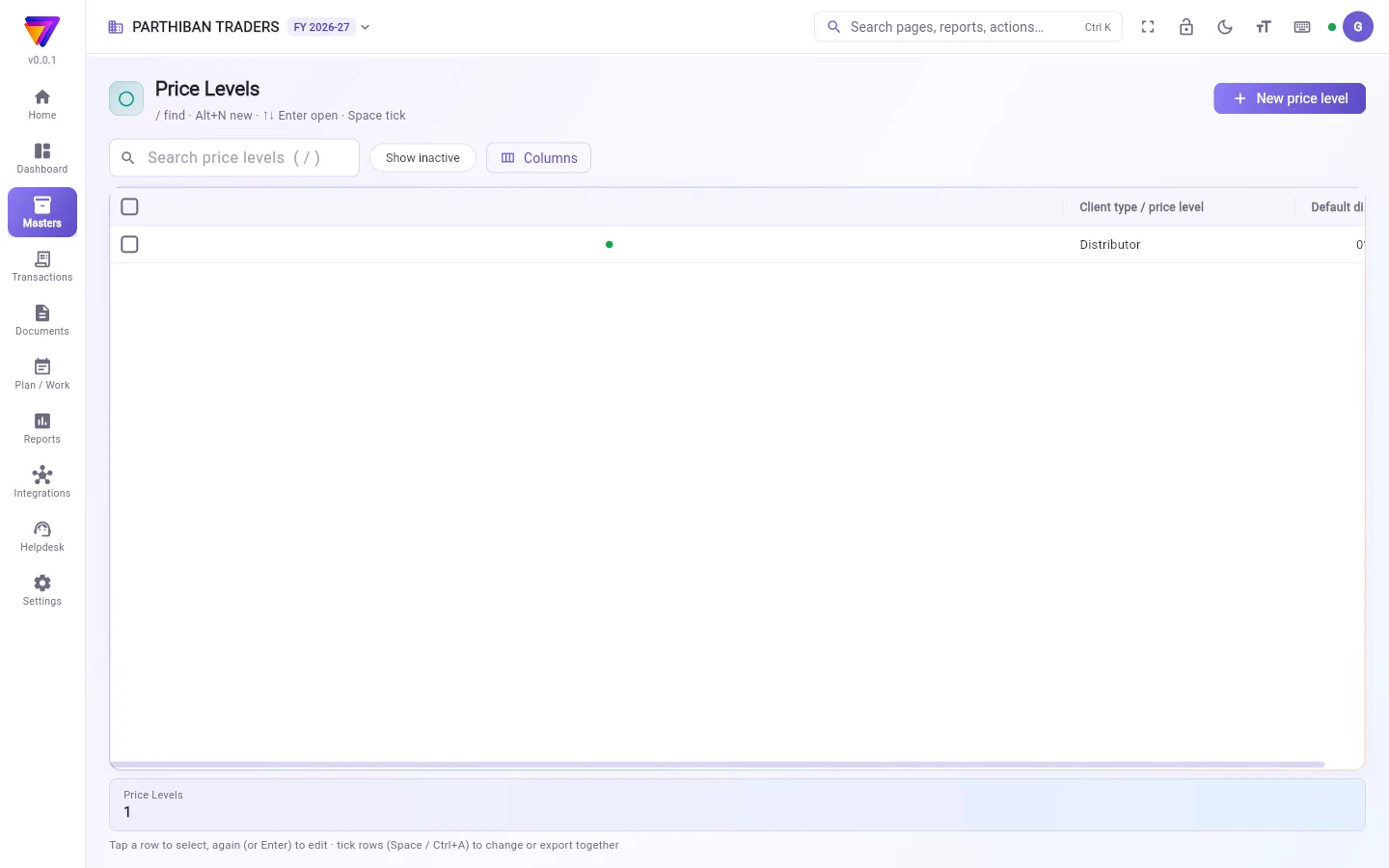
What you see
- New price level at the top right.
- A search box, Show inactive and Columns.
- The table shows Client type / price level and Default discount on MRP / selling rate %.
Add a client type
- Click New price level.
- Type the name in Client type / price level, for example Wholesaler. It is required.
- Fill in the other fields if you need them.
- Click Add price level.
You can also add a client type while you fill in a client: in Client type (price level), type a new name and pick New client type.
Fields
| Field | What to enter |
|---|---|
| Client type / price level * | The name of the type: Retailer, Wholesaler, Modern trade … |
| Default discount on MRP / selling rate % | A discount % for this type. |
| Notes | Anything else. |
| Active | Off hides the type from pickers. |
Set the rates for a client type
The rates themselves are kept on each product and batch, not here.
- Go to Masters → Product and open a product.
- Under Prices (per base unit), find Price by client type. There is one box for each active client type.
- Type the rate for each type and click Save.
A batch has the same boxes under Selling rate by client type. For a bigger quantity, Quantity prices (bigger quantity, better rate) on a product can also be set for one client type.
How a bill picks the rate
- A client with a client type gets the product's rate for that type.
- If the product has no rate for that type, the client gets the normal selling rate.
- A client with no type gets the normal selling rate (shown as Standard rate).
- For batches, the switch Use the batch's selling rate for every client decides whether the batch rate or the client-type rate wins.
Who can do what
- The Sales role can view client types but not add or change them.
- Typing rates per client type on a product needs Change rates.
Good to know
- Price Levels is part of every plan, including Basic.
- A client type cannot be deleted. Tick it and click Make inactive instead.
- If you have client types, the Score app asks for one when a new client is added there, unless that switch is off.
Related
விலை நிலை என்பது ஒரு வாடிக்கையாளர் வகை — உதாரணமா Retailer, Wholesaler அல்லது Modern trade. ஒவ்வொரு வாடிக்கையாளருக்கும் ஒரு வகை கொடுக்கலாம், ஒவ்வொரு பொருளுக்கும் ஒவ்வொரு வகைக்கு வேற வேற விலை கொடுக்கலாம்.
திரையில் என்ன தெரியும்
- மேல் வலது மூலையில் New price level (புதிய விலை நிலை).
- ஒரு தேடல் பெட்டி, செயலற்றவற்றையும் காட்டு (Show inactive), நெடுவரிசைகள் (Columns).
- அட்டவணையில் வாடிக்கையாளர் வகை / விலை நிலை (Client type / price level), MRP / விற்பனை விலையில் இயல்புத் தள்ளுபடி % (Default discount on MRP / selling rate %) தெரியும்.
ஒரு வாடிக்கையாளர் வகையைச் சேர்க்க
- New price level (புதிய விலை நிலை) கிளிக் பண்ணுங்க.
- வாடிக்கையாளர் வகை / விலை நிலை (Client type / price level)-இல் பெயரை டைப் பண்ணுங்க, உதாரணமா Wholesaler. இது கட்டாயம்.
- தேவைப்பட்டா மற்ற புலங்களை நிரப்புங்க.
- Add price level (விலை நிலையைச் சேர்) கிளிக் பண்ணுங்க.
ஒரு வாடிக்கையாளரை நிரப்பும்போதே வாடிக்கையாளர் வகையைச் சேர்க்கலாம்: வாடிக்கையாளர் வகை (விலை நிலை) (Client type (price level))-இல் புதிய பெயரை டைப் பண்ணி புதிய வாடிக்கையாளர் வகை (New client type) தேர்ந்தெடுங்க.
புலங்கள் (Fields)
| புலம் | என்ன உள்ளிடணும் |
|---|---|
| வாடிக்கையாளர் வகை / விலை நிலை (Client type / price level) * | வகையின் பெயர்: Retailer, Wholesaler, Modern trade … |
| MRP / விற்பனை விலையில் இயல்புத் தள்ளுபடி % (Default discount on MRP / selling rate %) | இந்த வகைக்கான ஒரு தள்ளுபடி %. |
| குறிப்புகள் (Notes) | வேற ஏதாவது. |
| செயலில் (Active) | ஆஃப் பண்ணா, தேர்வுப் பட்டியல்களில் வகை மறைஞ்சிடும். |
ஒரு வாடிக்கையாளர் வகைக்கு விலைகளை அமைக்க
விலைகள் இங்கே இல்லை, ஒவ்வொரு பொருளிலும் பேட்ச்சிலும்தான் வைக்கப்படுது.
- முதன்மைப் பதிவுகள் → பொருள் (Masters → Product) போய் ஒரு பொருளைத் திறங்க.
- விலைகள் (அடிப்படை அலகுக்கு) (Prices (per base unit)) கீழ், வாடிக்கையாளர் வகைப்படி விலை (Price by client type) பாருங்க. செயலில் உள்ள ஒவ்வொரு வாடிக்கையாளர் வகைக்கும் ஒரு பெட்டி இருக்கும்.
- ஒவ்வொரு வகைக்கும் விலையை டைப் பண்ணி சேமி (Save) கிளிக் பண்ணுங்க.
ஒரு பேட்ச்சிலும் வாடிக்கையாளர் வகைப்படி விற்பனை விலை (Selling rate by client type) கீழ் இதே பெட்டிகள் இருக்கு. அதிக அளவுக்கு, பொருளில் உள்ள அளவு விலைகள் (அதிக அளவு, குறைந்த விலை) (Quantity prices (bigger quantity, better rate))-ஐயும் ஒரு வாடிக்கையாளர் வகைக்கு மட்டும் அமைக்கலாம்.
பில் விலையை எப்படித் தேர்ந்தெடுக்கும்
- வாடிக்கையாளர் வகை உள்ள வாடிக்கையாளருக்கு, அந்த வகைக்கான பொருள் விலை போகும்.
- அந்த வகைக்குப் பொருளில் விலை இல்லைன்னா, வழக்கமான விற்பனை விலை போகும்.
- வகை இல்லாத வாடிக்கையாளருக்கு வழக்கமான விற்பனை விலை போகும் (வழக்கமான விலை (Standard rate) என்று காட்டப்படும்).
- பேட்ச்களுக்கு, எல்லா வாடிக்கையாளர்களுக்கும் பேட்சின் விற்பனை விலையைப் பயன்படுத்து (Use the batch's selling rate for every client) சுவிட்ச்தான் பேட்ச் விலையா, வாடிக்கையாளர் வகை விலையான்னு முடிவு செய்யும்.
யார் என்ன செய்யலாம்
- விற்பனை பணிப்பொறுப்பு வாடிக்கையாளர் வகைகளைப் பார்க்கலாம், ஆனா சேர்க்கவோ மாற்றவோ முடியாது.
- ஒரு பொருளில் வாடிக்கையாளர் வகைவாரியா விலைகளை டைப் பண்ண விலைகளை மாற்று (Change rates) அனுமதி வேணும்.
தெரிந்துகொள்ள வேண்டியது
- Basic உட்பட எல்லா பிளான்களிலும் விலை நிலைகள் பக்கம் இருக்கு.
- வாடிக்கையாளர் வகையை நீக்க முடியாது. அதுக்குப் பதிலா அதை டிக் பண்ணி செயலற்றதாக்கு (Make inactive) கிளிக் பண்ணுங்க.
- உங்ககிட்ட வாடிக்கையாளர் வகைகள் இருந்தா, Score செயலியில் புதிய வாடிக்கையாளரைச் சேர்க்கும்போது ஒரு வகை கேட்கும் — அந்தச் சுவிட்ச் ஆஃப்ல இருந்தா தவிர.
தொடர்புடையவை
- வாடிக்கையாளர் (Client): ஒவ்வொரு வாடிக்கையாளருக்கும் ஒரு வகை கொடுக்க
- பொருள் (Product): வாடிக்கையாளர் வகைப்படி விலை (Price by client type) அமைக்க
- பேட்ச் (Batch): வாடிக்கையாளர் வகைவாரியான பேட்ச் விலைகள்