User manualபயனர் கையேடு · Office: Helpdesk and SettingsOffice: உதவி மையம், அமைப்புகள்
Financial Year & Locksநிதியாண்டு & பூட்டுகள் (Financial Year & Locks)
Lock old dates so no one changes them, close a finished financial year, and check that your books add up.பழைய தேதிகளை யாரும் மாற்றாதபடி பூட்டுங்க, முடிந்த நிதியாண்டை முடியுங்க, உங்கள் கணக்குகள் சரியாகக் கூடுகின்றனவா என்று சரிபாருங்க.
- Where to find itஎங்கே இருக்கிறது
- Office → Settings → Financial Year & Locks
- Who uses itயார் பயன்படுத்துவார்கள்
- Owner, Admin, Accountantஉரிமையாளர், நிர்வாகி, கணக்காளர்
This page protects your past accounts. You can lock the books up to a date, close a financial year once it ends, and run a health check on the books.
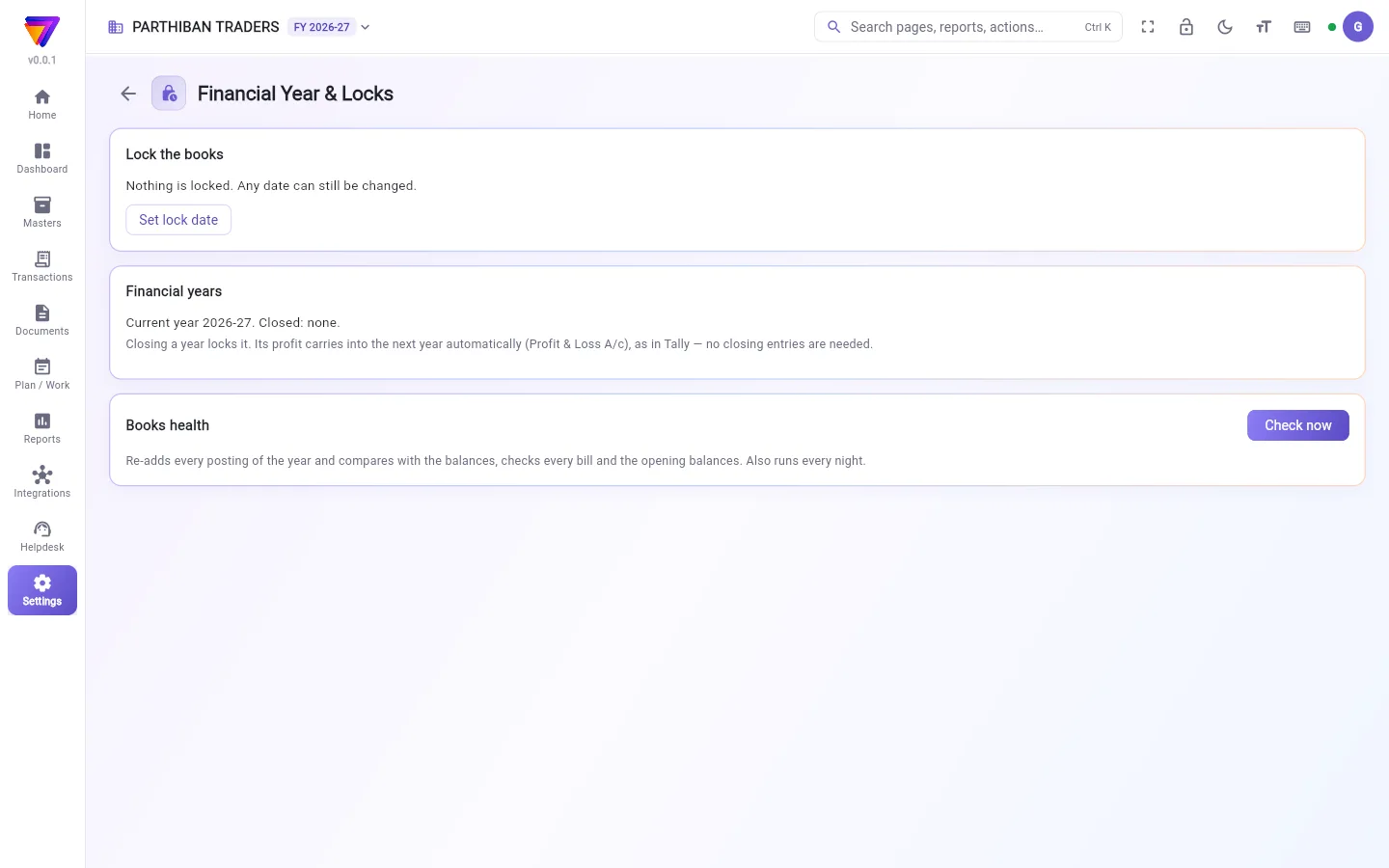
What you see
- Lock the books: the current lock. With no lock it reads Nothing is locked. Any date can still be changed. The Set lock date button sets one.
- Financial years: the current year and the years already closed.
- Books health: a Check now button that checks every posting of the year.
- Backup: only the owner sees this card. Download a backup gives one file with every client, product, account, voucher, bill and setting of the company.
Lock the books up to a date
- Click Set lock date.
- Pick the date in Lock up to. The latest date you can pick is yesterday.
- Click OK.
The card now reads "Locked up to" your date. Nobody can add, change or cancel a voucher on or before that date. To take the lock off, click Remove lock.
Close a financial year
After a year ends, a Close button for that year shows in Financial years (for example, Close 2025-26).
- Click the Close button.
- Read the message. Nothing dated in that year can be added, changed or cancelled after this.
- Click Close year.
You do not need closing entries. The year's profit carries into the next year by itself (Profit & Loss A/c), as in Tally. Closing a year also moves the lock to the year's last day.
Reopen a closed year
Only the owner can do this.
- Click the Reopen button for the last closed year.
- In Why? (kept in the audit log), type the reason.
- Click Reopen.
Check the books
- Click Check now in Books health.
- Wait while it reads Checking….
- A green line means all postings add up. A red box lists each problem found.
The check re-adds every posting of the year, compares it with the balances, and checks every bill and the opening balances. It also runs every night.
Who can do what
- Set lock date and Remove lock need the edit permission on this page. Owner, Admin and Accountant have it.
- Closing a year needs the approve permission. Owner and Admin have it; Accountant does not.
- Only the owner can reopen a year or download a backup.
Good to know
- Plan: Pro, Pro · Large Stockist and Enterprise (the Accounts module).
- A year can be closed only after it has ended. If some vouchers in the year are still posting, try again in a minute.
- Only the last closed year can be reopened. To reopen an older year, reopen the later ones first.
- While a year is closed, you cannot move the lock to a date before that year's end, and you cannot remove the lock. Reopen the year first.
- The backup link works for 30 days. Making a backup changes nothing.
Related
- Company: the date your books start and your financial year month.
- Journal: corrections inside an open period.
- Users & Roles: who may lock and close.
- Reports: see the accounts of the year.
இந்தப் பக்கம் உங்கள் பழைய கணக்குகளைப் பாதுகாக்கும். ஒரு தேதி வரை கணக்குகளைப் பூட்டலாம், நிதியாண்டு முடிந்ததும் அதை முடிக்கலாம், கணக்குகளின் நிலையைச் சரிபார்க்கலாம்.
திரையில் என்ன தெரியும்
- கணக்குகளைப் பூட்டு (Lock the books): இப்போதுள்ள பூட்டு. பூட்டு இல்லையென்றால் எதுவும் பூட்டப்படவில்லை. எந்தத் தேதியையும் இன்னும் மாற்றலாம். (Nothing is locked. Any date can still be changed.) என்று இருக்கும். பூட்டுத் தேதியை அமை (Set lock date) பொத்தான் பூட்டை அமைக்கும்.
- நிதியாண்டுகள் (Financial years): நடப்பு ஆண்டும் ஏற்கனவே முடிக்கப்பட்ட ஆண்டுகளும்.
- கணக்குகளின் நிலை (Books health): ஆண்டின் ஒவ்வொரு பதிவையும் சரிபார்க்கும் இப்போது சரிபார் (Check now) பொத்தான்.
- காப்புப்பிரதி (Backup): இந்த அட்டை உரிமையாளருக்கு மட்டுமே தெரியும். காப்புப்பிரதியைப் பதிவிறக்கு (Download a backup) நிறுவனத்தின் ஒவ்வொரு வாடிக்கையாளர், பொருள், கணக்கு, வவுச்சர், பில், அமைப்பு அனைத்தும் உள்ள ஒரே கோப்பைத் தரும்.
ஒரு தேதி வரை கணக்குகளைப் பூட்ட
- பூட்டுத் தேதியை அமை (Set lock date) கிளிக் செய்யுங்க.
- இது வரை பூட்டு (Lock up to) பெட்டியில் தேதியைத் தேர்ந்தெடுங்க. அதிகபட்சம் நேற்றைய தேதி வரைதான் தேர்ந்தெடுக்க முடியும்.
- சரி (OK) கிளிக் செய்யுங்க.
இப்போது அட்டையில் உங்கள் தேதி "வரை பூட்டப்பட்டது" (Locked up to) என்று இருக்கும். அந்தத் தேதி அல்லது அதற்கு முன் யாரும் வவுச்சரைச் சேர்க்கவோ, மாற்றவோ, ரத்து செய்யவோ முடியாது. பூட்டை எடுக்க பூட்டை நீக்கு (Remove lock) கிளிக் செய்யுங்க.
ஒரு நிதியாண்டை முடிக்க
ஒரு ஆண்டு முடிந்த பிறகு, நிதியாண்டுகள் (Financial years) அட்டையில் அந்த ஆண்டுக்கு ஒரு மூடு (Close) பொத்தான் தெரியும் (உதாரணமாக 2025-26 ஐ முடி (Close 2025-26)).
- அந்த மூடு (Close) பொத்தானைக் கிளிக் செய்யுங்க.
- செய்தியைப் படியுங்க. இதற்குப் பிறகு அந்த ஆண்டுத் தேதியிட்ட எதையும் சேர்க்கவோ, மாற்றவோ, ரத்து செய்யவோ முடியாது.
- ஆண்டை முடி (Close year) கிளிக் செய்யுங்க.
முடிவுப் பதிவுகள் (closing entries) தேவையில்லை. ஆண்டின் லாபம் தானாகவே அடுத்த ஆண்டுக்குப் போகும் (லாப நஷ்டக் கணக்கு, Profit & Loss A/c), Tally-யில் உள்ளது போலவே. ஆண்டை முடிக்கும்போது பூட்டும் அந்த ஆண்டின் கடைசி நாளுக்கு நகரும்.
முடிக்கப்பட்ட ஆண்டை மீண்டும் திறக்க
இதை உரிமையாளர் மட்டுமே செய்ய முடியும்.
- கடைசியாக முடிக்கப்பட்ட ஆண்டுக்கான மீண்டும் திற (Reopen) பொத்தானைக் கிளிக் செய்யுங்க.
- ஏன்? (தணிக்கைப் பதிவில் வைக்கப்படும்) (Why? (kept in the audit log)) பெட்டியில் காரணத்தை டைப் செய்யுங்க.
- மீண்டும் திற (Reopen) கிளிக் செய்யுங்க.
கணக்குகளைச் சரிபார்க்க
- கணக்குகளின் நிலை (Books health) அட்டையில் இப்போது சரிபார் (Check now) கிளிக் செய்யுங்க.
- சரிபார்க்கிறது… (Checking…) என்று இருக்கும்போது காத்திருங்க.
- பச்சை வரி வந்தால் எல்லாப் பதிவுகளும் சரியாகக் கூடுகின்றன. சிவப்புப் பெட்டி வந்தால் கண்டுபிடித்த ஒவ்வொரு பிரச்சனையும் அதில் பட்டியலிடப்படும்.
இந்தச் சரிபார்ப்பு ஆண்டின் ஒவ்வொரு பதிவையும் மறுபடி கூட்டி, இருப்புத் தொகைகளுடன் ஒப்பிடும், ஒவ்வொரு பில்லையும் தொடக்க இருப்புத் தொகைகளையும் சரிபார்க்கும். இது ஒவ்வொரு இரவும் தானாகவும் ஓடும்.
யார் என்ன செய்யலாம்
- பூட்டுத் தேதியை அமை (Set lock date), பூட்டை நீக்கு (Remove lock) இரண்டுக்கும் இந்தப் பக்கத்தில் திருத்து (edit) அனுமதி வேண்டும். உரிமையாளர், நிர்வாகி, கணக்காளர் ஆகியோருக்கு அது உண்டு.
- ஆண்டை முடிக்க அங்கீகரி (approve) அனுமதி வேண்டும். உரிமையாளர், நிர்வாகிக்கு அது உண்டு; கணக்காளருக்கு இல்லை.
- ஆண்டை மீண்டும் திறக்கவும் காப்புப்பிரதியைப் பதிவிறக்கவும் உரிமையாளரால் மட்டுமே முடியும்.
தெரிந்துகொள்ள வேண்டியது
- திட்டம்: Pro, Pro · பெரிய ஸ்டாக்கிஸ்ட், என்டர்பிரைஸ் (கணக்குகள் தொகுதி, Accounts module).
- ஆண்டு முடிந்த பிறகுதான் அதை முடிக்க முடியும். அந்த ஆண்டின் சில வவுச்சர்கள் இன்னும் பதிவாகிக்கொண்டிருந்தால், ஒரு நிமிடம் கழித்து மறுபடி முயற்சி செய்யுங்க.
- கடைசியாக முடிக்கப்பட்ட ஆண்டை மட்டுமே மீண்டும் திறக்க முடியும். அதற்கு முந்தைய ஆண்டைத் திறக்க, முதலில் அதற்குப் பிந்தைய ஆண்டுகளைத் திறங்க.
- ஒரு ஆண்டு முடிக்கப்பட்டிருக்கும்போது, பூட்டை அந்த ஆண்டின் கடைசி நாளுக்கு முந்தைய தேதிக்கு நகர்த்த முடியாது, பூட்டை நீக்கவும் முடியாது. முதலில் அந்த ஆண்டை மீண்டும் திறங்க.
- காப்புப்பிரதி இணைப்பு 30 நாட்களுக்குச் செல்லும். காப்புப்பிரதி எடுப்பதால் எதுவும் மாறாது.
தொடர்புடையவை
- நிறுவனம்: கணக்குகள் தொடங்கும் தேதியும் நிதியாண்டு மாதமும்.
- குறிப்பேடு பதிவு: திறந்திருக்கும் காலத்துக்குள் திருத்தங்கள்.
- பயனர்கள் & பொறுப்புகள்: யார் பூட்டலாம், யார் ஆண்டை முடிக்கலாம்.
- அறிக்கைகள்: ஆண்டின் கணக்குகளைப் பார்க்க.