User manualபயனர் கையேடு · Office: MastersOffice: முதன்மைப் பதிவுகள் (Masters)
Employeeபணியாளர் (Employee)
Keep your staff list: who they are, their routes and shift, what the Score app lets them do, and their salary details.உங்க பணியாளர் பட்டியலை வைத்திருங்க: யார் யார், அவர்களின் வழித்தடங்கள், ஷிஃப்ட், Score ஆப்-இல் என்ன செய்யலாம், சம்பள விவரங்கள்.
- Where to find itஎங்கே இருக்கிறது
- Office → Masters → Employee
- Who uses itயார் பயன்படுத்துவார்கள்
- Owner, Adminஉரிமையாளர், நிர்வாகி
Every person who works for you goes here: salesmen, delivery staff, drivers and office staff. Routes, attendance, payslips and incentives all read from this list.
What you see
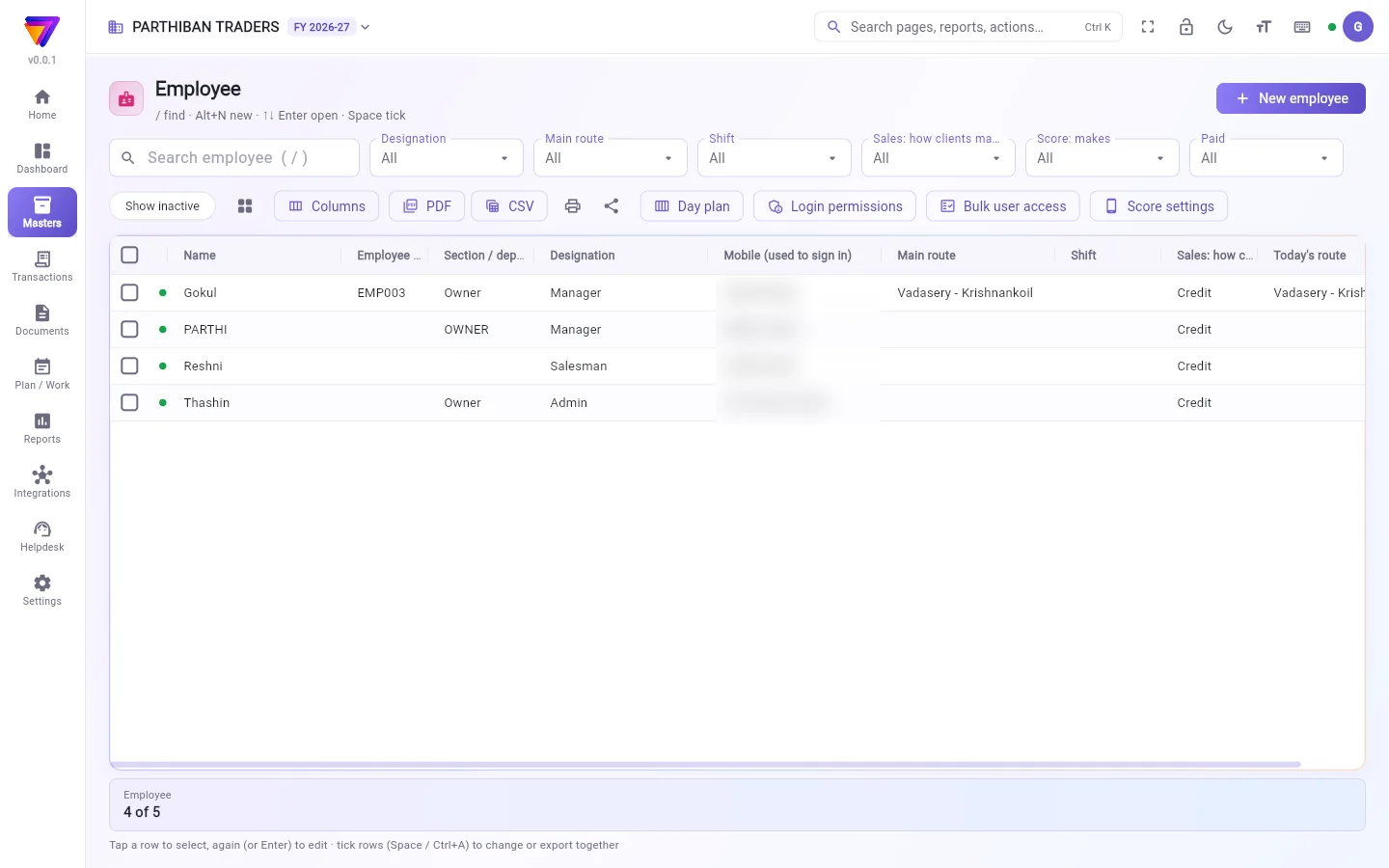
- A search box and filters: Designation, Main route, Shift, Sales: how clients may pay this person, Score: makes and Paid.
- Show inactive, a button to switch between table and cards, Columns, and PDF / CSV / print / share.
- Day plan: which route each person works on each weekday, or on one date.
- Login permissions: what each login may do. See below.
- Bulk user access: every person's Score switches in one grid.
- Score settings: the company switches for the Score app and approvals.
- The table shows Name, Employee code, Section / department, Designation, Mobile (used to sign in), Main route, Shift and Today's route.
Add an employee
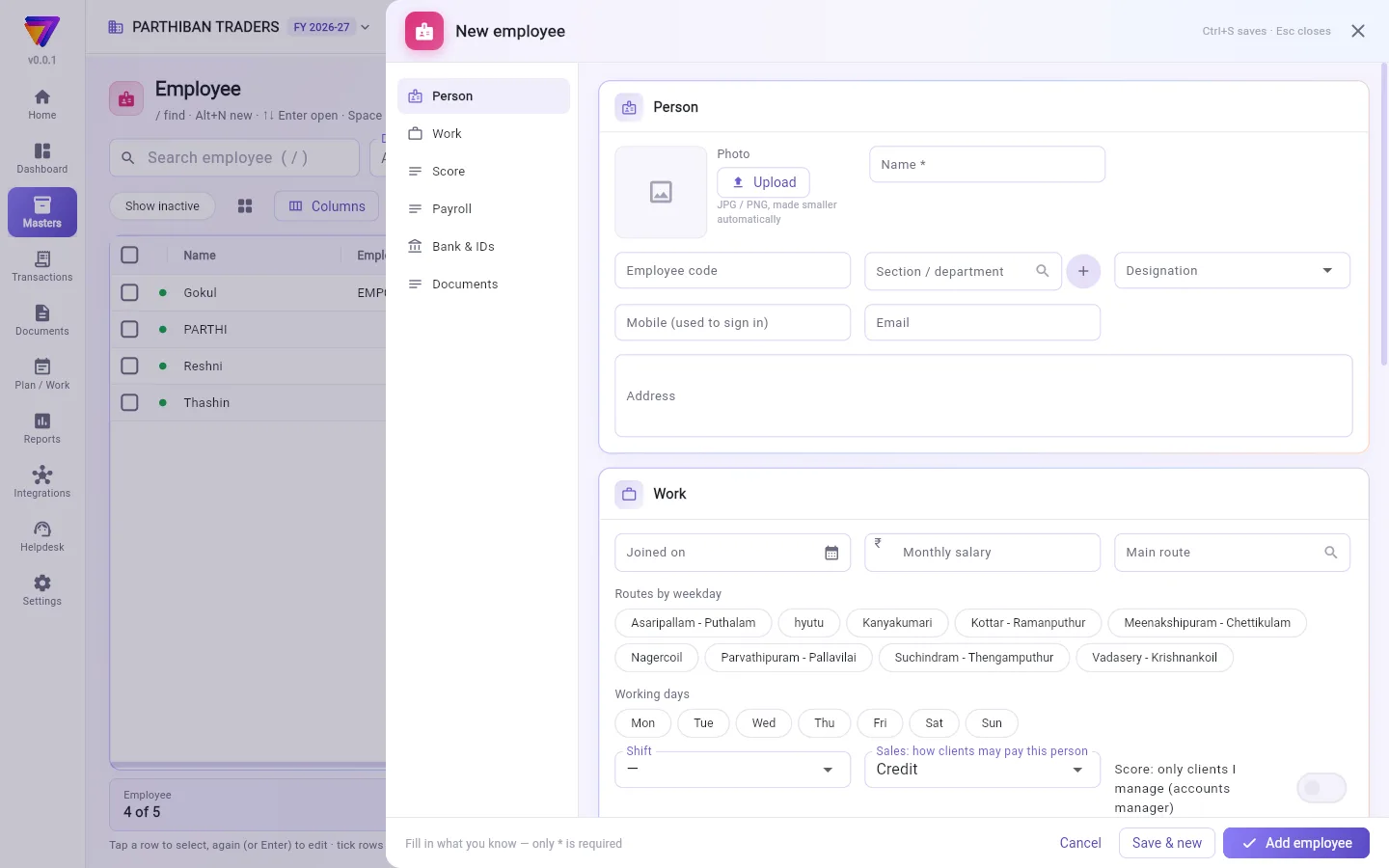
- Click New employee (or press Alt+N).
- Type the Name. It is the only required field.
- Type the Mobile (used to sign in). A login is matched to its employee by this number.
- Pick the Designation, for example Salesman or Delivery.
- Under Work, pick the Main route, the Shift and the Working days.
- Under Score, check the switches for what this person may do in the Score app.
- If you can see salary fields, fill in Payroll and Bank & IDs.
- Click Add employee.
Fields
| Field | What to enter |
|---|---|
| Name (required) | The person's name. |
| Employee code | Your own code, if you use one. |
| Section / department | For example Sales, Delivery, Office. |
| Designation | Admin, Salesman, Delivery, Driver, Accountant, Store keeper, Manager or Other. |
| Mobile (used to sign in) | The number they sign in with. |
| Main route | The route they usually work. Routes by weekday adds others. |
| Working days | Days they work. Other days count as off in attendance. |
| Shift | From Shifts. Used for overtime. |
| Sales: how clients may pay this person | Credit, Advance or On the spot. |
| Credit limit (dues on their bills) | The most their clients may owe on their bills. |
| Can change saved bills for (days; 0 = as Settings) | How long they can edit a saved bill. |
| Score: makes | Bills and orders, Bills only or Orders only. |
| Score: … switches | For example Score: change the bill date or Score: only today's routes (not every client). |
| Monthly salary | Their pay for a full month. |
| Fixed total salary (split by Settings → Payroll %) | A total that is split into Basic, HRA and DA when you save. |
| Paid | Monthly salary, Per day or Per hour. |
| PF (employee) % of basic + DA, ESI (employee) % of gross | Deduction rates for payslips. |
| Documents (Aadhaar, PAN card, licence …) | Photos of their papers. |
| Active | Untick when the person leaves. |
Give a login its permissions
- Click Login permissions.
- Find the login. Each login is matched to its employee by mobile number.
- Tick or untick what it may do, or pick a Role.
- Click Save.
A changed tick gives that login its own role, named "… (own access)". New logins are invited under Settings → Users & Roles.
Who can do what
- Payroll, bank and ID fields, Daily allowance (travel / food) and Monthly salary show only to people with the "See salary details" permission.
- Login permissions needs access to Users & Roles. Score settings needs edit access to Company settings.
- Delete works only for a person who was never used. Otherwise make them inactive.
Good to know
- Comes with the Pro · Large Stockist plan and above.
- The Score switches here only narrow what a person can do. Their login's role still has to allow it.
- Today's route comes from the day plan for today, or else the main route.
- If you fill Fixed total salary and Settings → Payroll has percentages, Basic, HRA and DA are worked out again each time you save.
Related
- Routes: the routes you give to salesmen.
- Shifts: working hours for overtime.
- Attendance & Payslips: mark days and make payslips.
- Incentive: rules for what staff earn.
- Users & Roles: invite logins.
உங்களிடம் வேலை செய்யும் ஒவ்வொருவரும் இங்கே வருவார்கள்: விற்பனைப் பிரதிநிதிகள், டெலிவரி ஆட்கள், ஓட்டுநர்கள், அலுவலக ஊழியர்கள். வழித்தடங்கள், வருகைப் பதிவு, சம்பளச் சீட்டுகள், ஊக்கத்தொகைகள் எல்லாமே இந்தப் பட்டியலிலிருந்துதான் எடுக்கும்.
திரையில் என்ன தெரியும்
- ஒரு தேடல் பெட்டியும் வடிகட்டிகளும்: பதவி (Designation), முக்கிய வழித்தடம் (Main route), ஷிஃப்ட் (Shift), விற்பனை: வாடிக்கையாளர்கள் இவரிடம் செலுத்தும் முறை (Sales: how clients may pay this person), Score: உருவாக்குவது (Score: makes), செலுத்தப்பட்டது (Paid).
- செயலற்றவற்றையும் காட்டு (Show inactive), அட்டவணைக்கும் கார்டுகளுக்கும் இடையே மாற ஒரு பட்டன், நெடுவரிசைகள் (Columns), மற்றும் PDF / CSV / அச்சிடு / பகிர்.
- நாள் திட்டம் (Day plan): ஒவ்வொருவரும் ஒவ்வொரு வார நாளிலும், அல்லது ஒரு குறிப்பிட்ட தேதியில், எந்த வழித்தடத்தில் வேலை செய்கிறார்கள்.
- உள்நுழைவு அனுமதிகள் (Login permissions): ஒவ்வொரு உள்நுழைவும் என்ன செய்யலாம். கீழே பாருங்க.
- மொத்த பயனர் அணுகல் (Bulk user access): எல்லாருடைய Score சுவிட்சுகளும் ஒரே கட்டத்தில்.
- Score அமைப்புகள் (Score settings): Score ஆப் மற்றும் அங்கீகாரங்களுக்கான நிறுவன சுவிட்சுகள்.
- அட்டவணையில் பெயர் (Name), பணியாளர் குறியீடு (Employee code), பிரிவு / துறை (Section / department), பதவி (Designation), மொபைல் (உள்நுழைய பயன்படும்) (Mobile (used to sign in)), முக்கிய வழித்தடம் (Main route), ஷிஃப்ட் (Shift), இன்றைய வழித்தடம் (Today's route) தெரியும்.
பணியாளர் சேர்க்க
- புதிய பணியாளர் (New employee)-ஐ கிளிக் செய்யுங்க (அல்லது Alt+N அழுத்துங்க).
- பெயர் (Name) டைப் செய்யுங்க. கட்டாயமான புலம் இது ஒன்றுதான்.
- மொபைல் (உள்நுழைய பயன்படும்) (Mobile (used to sign in)) டைப் செய்யுங்க. உள்நுழைவு இந்த எண்ணை வைத்தே அதன் பணியாளருடன் பொருத்தப்படும்.
- பதவி (Designation) தேர்ந்தெடுங்க, உதாரணமாக விற்பனைப் பிரதிநிதி (Salesman) அல்லது டெலிவரி (Delivery).
- வேலை (Work) பகுதியில், முக்கிய வழித்தடம் (Main route), ஷிஃப்ட் (Shift), வேலை நாட்கள் (Working days) தேர்ந்தெடுங்க.
- Score பகுதியில், இவர் Score ஆப்-இல் என்ன செய்யலாம் என்பதற்கான சுவிட்சுகளைச் சரிபாருங்க.
- சம்பளப் புலங்கள் உங்களுக்குத் தெரிந்தால், சம்பளப் பட்டியல் (Payroll), வங்கி & அடையாளங்கள் (Bank & IDs) நிரப்புங்க.
- பணியாளர் சேர் (Add employee) கிளிக் செய்யுங்க.
புலங்கள் (Fields)
| புலம் | என்ன நிரப்ப வேண்டும் |
|---|---|
| பெயர் (Name) (கட்டாயம்) | அவருடைய பெயர். |
| பணியாளர் குறியீடு (Employee code) | நீங்க பயன்படுத்தினால், உங்க சொந்தக் குறியீடு. |
| பிரிவு / துறை (Section / department) | உதாரணமாக Sales, Delivery, Office. |
| பதவி (Designation) | நிர்வாகி (Admin), விற்பனைப் பிரதிநிதி (Salesman), டெலிவரி (Delivery), ஓட்டுநர் (Driver), கணக்காளர் (Accountant), கிடங்குப் பொறுப்பாளர் (Store keeper), மேலாளர் (Manager) அல்லது மற்றவை (Other). |
| மொபைல் (உள்நுழைய பயன்படும்) (Mobile (used to sign in)) | அவர் உள்நுழையும் எண். |
| முக்கிய வழித்தடம் (Main route) | அவர் வழக்கமாக வேலை செய்யும் வழித்தடம். வார நாள்படி வழித்தடங்கள் (Routes by weekday) மற்றவற்றைச் சேர்க்கும். |
| வேலை நாட்கள் (Working days) | அவர் வேலை செய்யும் நாட்கள். மற்ற நாட்கள் வருகைப் பதிவில் ஓய்வாகக் கணக்கிடப்படும். |
| ஷிஃப்ட் (Shift) | பணி நேரங்கள் (Shifts)-இலிருந்து. கூடுதல் நேரத்துக்குப் பயன்படும். |
| விற்பனை: வாடிக்கையாளர்கள் இவரிடம் செலுத்தும் முறை (Sales: how clients may pay this person) | கடன் (Credit), முன்பணம் (Advance) அல்லது அந்த இடத்திலேயே (On the spot). |
| கடன் வரம்பு (இவரது பில்களின் நிலுவை) (Credit limit (dues on their bills)) | இவருடைய பில்களில் இவரின் வாடிக்கையாளர்கள் அதிகபட்சம் எவ்வளவு நிலுவை வைக்கலாம். |
| சேமித்த பில்களை மாற்றக்கூடிய நாட்கள் (0 = அமைப்புகளின்படி) (Can change saved bills for (days; 0 = as Settings)) | சேமித்த பில்லை எவ்வளவு நாள் வரை திருத்தலாம். |
| Score: உருவாக்குவது (Score: makes) | பில்களும் ஆர்டர்களும் (Bills and orders), பில்கள் மட்டும் (Bills only) அல்லது ஆர்டர்கள் மட்டும் (Orders only). |
| Score: … சுவிட்சுகள் | உதாரணமாக Score: பில் தேதியை மாற்றுதல் (Score: change the bill date) அல்லது Score: இன்றைய வழித்தடங்கள் மட்டும் (எல்லா வாடிக்கையாளரும் அல்ல) (Score: only today's routes (not every client)). |
| மாதச் சம்பளம் (Monthly salary) | முழு மாதத்துக்கான சம்பளம். |
| நிலையான மொத்த சம்பளம் (அமைப்புகள் → சம்பள % படி பிரிக்கப்படும்) (Fixed total salary (split by Settings → Payroll %)) | நீங்க சேமிக்கும்போது Basic, HRA, DA ஆகப் பிரிக்கப்படும் மொத்தத் தொகை. |
| செலுத்தப்பட்டது (Paid) | மாதச் சம்பளம் (Monthly salary), நாளுக்கு (Per day) அல்லது மணிக்கு (Per hour). |
| PF (பணியாளர்) அடிப்படை + DA-வில் % (PF (employee) % of basic + DA), ESI (பணியாளர்) மொத்தச் சம்பளத்தில் % (ESI (employee) % of gross) | சம்பளச் சீட்டுகளுக்கான பிடித்த விகிதங்கள். |
| ஆவணங்கள் (ஆதார், PAN அட்டை, உரிமம் …) (Documents (Aadhaar, PAN card, licence …)) | அவருடைய ஆவணங்களின் புகைப்படங்கள். |
| செயலில் (Active) | அவர் வேலையை விட்டுப் போனால் டிக்கை எடுங்க. |
உள்நுழைவுக்கு அனுமதிகள் கொடுக்க
- உள்நுழைவு அனுமதிகள் (Login permissions) கிளிக் செய்யுங்க.
- அந்த உள்நுழைவைக் கண்டுபிடியுங்க. ஒவ்வொரு உள்நுழைவும் மொபைல் எண்ணை வைத்து அதன் பணியாளருடன் பொருத்தப்படும்.
- அது என்ன செய்யலாம் என்பதை டிக் செய்யுங்க அல்லது டிக்கை எடுங்க, அல்லது ஒரு பொறுப்பு (Role) தேர்ந்தெடுங்க.
- சேமி (Save) கிளிக் செய்யுங்க.
ஒரு டிக்கை மாற்றினால், அந்த உள்நுழைவுக்கு "… (own access)" என்ற பெயரில் தனிப் பொறுப்பு உருவாகும். புதிய உள்நுழைவுகளை அமைப்புகள் → பயனர்கள் & பொறுப்புகள் (Settings → Users & Roles)-இல் அழையுங்க.
யார் என்ன செய்யலாம்
- சம்பளப் பட்டியல், வங்கி, அடையாளப் புலங்கள், தினசரிப் படி (பயணம் / உணவு) (Daily allowance (travel / food)), மாதச் சம்பளம் (Monthly salary) ஆகியவை "See salary details" (சம்பள விவரங்களைப் பார்) அனுமதி உள்ளவர்களுக்கு மட்டுமே தெரியும்.
- உள்நுழைவு அனுமதிகள் (Login permissions)-க்கு பயனர்கள் & பொறுப்புகள் (Users & Roles) அணுகல் வேண்டும். Score அமைப்புகள் (Score settings)-க்கு நிறுவன அமைப்புகளைத் (Company settings) திருத்தும் அணுகல் வேண்டும்.
- நீக்கு (Delete) ஒருமுறை கூடப் பயன்படுத்தப்படாத நபருக்கு மட்டுமே வேலை செய்யும். இல்லையென்றால் அவரைச் செயலற்றவராக மாற்றுங்க.
தெரிந்துகொள்ள வேண்டியது
- Pro · பெரிய ஸ்டாக்கிஸ்ட் (Pro · Large Stockist) பிளானிலும் அதற்கு மேலும் கிடைக்கும்.
- இங்கே உள்ள Score சுவிட்சுகள் ஒருவர் செய்யக்கூடியதைக் குறைக்க மட்டுமே. அவருடைய உள்நுழைவின் பொறுப்பும் அதை அனுமதிக்க வேண்டும்.
- இன்றைய வழித்தடம் (Today's route) இன்றைய நாள் திட்டத்திலிருந்து வரும், இல்லையென்றால் முக்கிய வழித்தடத்திலிருந்து.
- நிலையான மொத்த சம்பளம் (Fixed total salary) நிரப்பி, அமைப்புகள் → சம்பளப் பட்டியல் (Settings → Payroll)-இல் சதவீதங்கள் இருந்தால், ஒவ்வொரு முறை சேமிக்கும்போதும் Basic, HRA, DA மீண்டும் கணக்கிடப்படும்.
தொடர்புடையவை
- வழித்தடங்கள் (Routes): விற்பனைப் பிரதிநிதிகளுக்குக் கொடுக்கும் வழித்தடங்கள்.
- பணி நேரங்கள் (Shifts): கூடுதல் நேரத்துக்கான வேலை நேரங்கள்.
- வருகைப் பதிவு & சம்பளச் சீட்டுகள் (Attendance & Payslips): நாட்களைக் குறித்து சம்பளச் சீட்டுகள் உருவாக்க.
- ஊக்கத்தொகை (Incentive): ஊழியர்கள் சம்பாதிப்பதற்கான விதிகள்.
- பயனர்கள் & பொறுப்புகள் (Users & Roles): உள்நுழைவுகளை அழைக்க.