User manualபயனர் கையேடு · Office: MastersOffice: முதன்மைப் பதிவுகள் (Masters)
Incentiveஊக்கத்தொகை (Incentive)
Set the rules for what your staff earn, work out what they earned, then approve and pay it.ஊழியர்கள் என்ன சம்பாதிக்கிறார்கள் என்பதற்கான விதிகளை அமைங்க, அவர்கள் சம்பாதித்ததைக் கணக்கிடுங்க, பிறகு அங்கீகரித்துச் செலுத்துங்க.
- Where to find itஎங்கே இருக்கிறது
- Office → Masters → Incentive
- Who uses itயார் பயன்படுத்துவார்கள்
- Owner, Adminஉரிமையாளர், நிர்வாகி
An incentive rule (a "configuration") says what a person earns, for example 1% of net sales or a fixed amount for no leave in a month. This page keeps the rules, works out what people earned, and lets you approve and pay it.
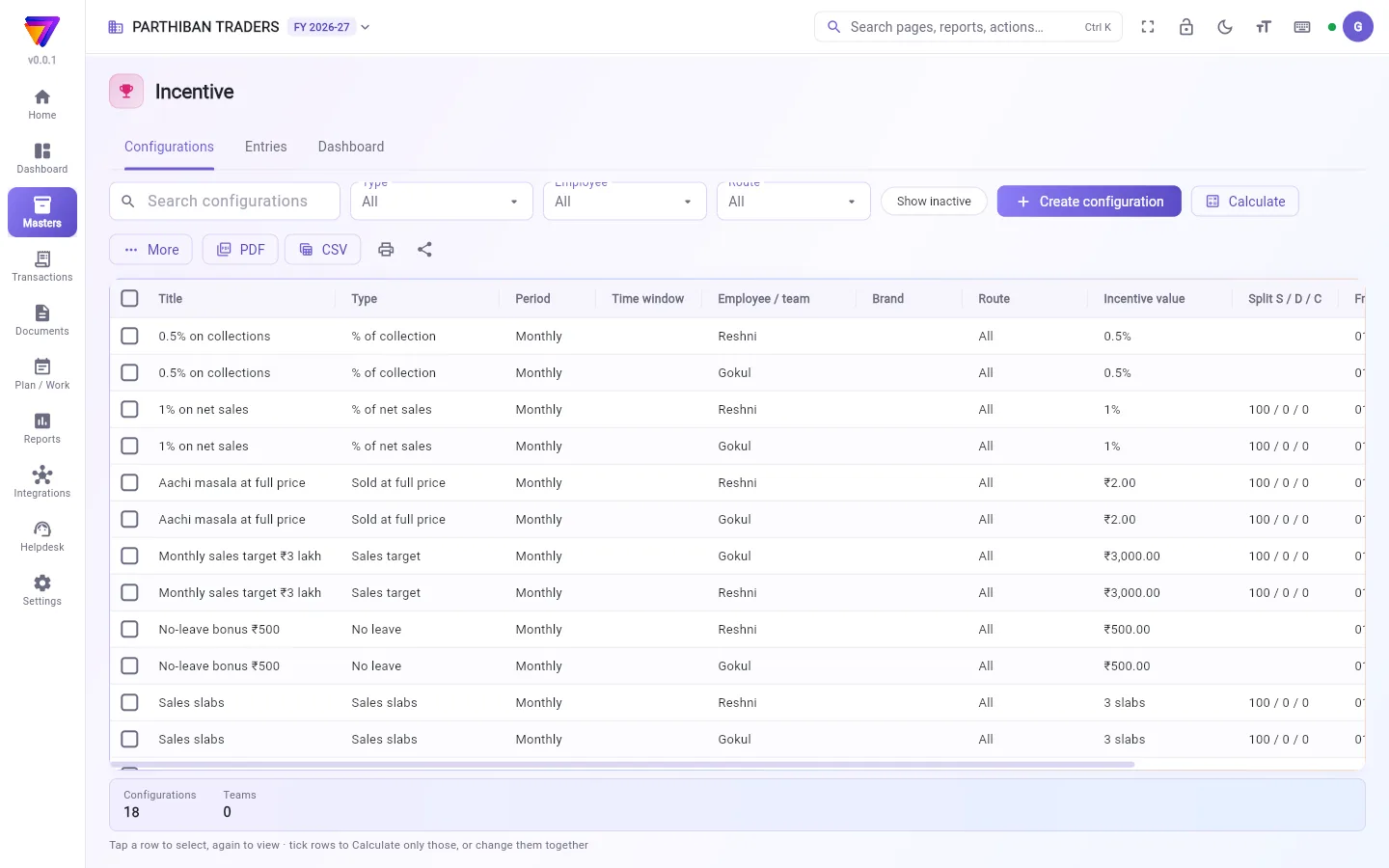
What you see
Three tabs:
- Configurations: the rules. Filters for Type, Employee and Route, Show inactive, Create configuration, Calculate, More, and PDF / CSV / print / share. The table shows Title, Type, Period, Time window, Employee / team, Brand, Route, Incentive value, Split S / D / C, the dates and Status.
- Entries: what people earned, waiting to be approved and paid.
- Dashboard: the month by section and person.
The strip at the bottom counts Configurations and Teams.
Create a rule
- On Configurations, click Create configuration.
- Type the Configuration title.
- Pick the Incentive type, for example % of net sales, Per bill, Sales target, Sales slabs or No leave.
- Under Who gets this incentive, pick the Employee or a Team.
- Fill in how much: Incentive % or Incentive ₹, or add slabs with Add slab.
- Pick the Period: Monthly, Weekly, Daily, Yearly or Whole period.
- If needed, limit it with Routes (none = all), a brand, Eligible products (none = all) or a time window.
- For sales types, set the split: Sale person %, Delivery person % and Collection (cashier) %. They must total 100%.
- Click Save.
To give the same rule to many people, open More → Bulk create (one per employee). To add a person to rules that exist, use More → Add employee to existing.
Work out and pay incentives
- On Configurations, click Calculate. To work out only some rules, tick them first.
- Choose the period and rules, then click Work out.
- Check the people and amounts, then click Save as entries.
- Open Entries. The new entries show as Eligible.
- Tick entries and click Approve, or Reject with a reason.
- For approved entries, click Release payment, choose Cash or Bank transfer, and confirm.
Approving posts an Incentive Settlement for each person: Incentives Dr, the employee's account Cr. Paying posts one Payment for each person: the employee's account Dr, cash or bank Cr.
Who can do what
- Entries and Dashboard show only to people who can view Incentive Settlement.
- Calculate needs create on Incentive Settlement. Approve needs approve on it. Paying needs create on Payments.
- Delete of a rule needs the cancel permission. Entries already worked out stay.
Good to know
- Comes with the Pro · Large Stockist plan and above.
- Two active rules of the same type, title, person, routes and brand are not allowed. Give the new one another title, or make the old one inactive.
- Calculating again replaces eligible entries. Approved and paid entries are never changed.
- Monthly and weekly rules are judged on the whole month or week.
- When a bill has no delivery person or cashier, that share goes to the company. It is approved to the Company Incentive account and never paid.
- Under Score settings on the Employee page, Work out incentives by themselves (once a day) saves this month's entries as eligible each day. Approving and paying stay by hand.
- Staff see their rules and progress in the Score app.
Related
- Incentive Settlement: the vouchers that approving posts.
- Payments: the vouchers that paying posts.
- Employee: the people rules are for.
- Attendance & Payslips: pay approved incentives with the salary.
- Goals and incentives in Score: what staff see.
ஊக்கத்தொகை விதி (ஒரு "configuration") ஒருவர் என்ன சம்பாதிப்பார் என்று சொல்லும், உதாரணமாக நிகர விற்பனையில் 1% அல்லது ஒரு மாதம் முழுக்க விடுப்பு எடுக்காமல் இருந்தால் ஒரு நிலையான தொகை. இந்தப் பக்கம் விதிகளை வைத்திருக்கும், ஒவ்வொருவரும் சம்பாதித்ததைக் கணக்கிடும், அதை அங்கீகரித்துச் செலுத்தவும் உதவும்.
திரையில் என்ன தெரியும்
மூன்று தாவல்கள்:
- ஊக்க விதிகள் (Configurations): விதிகள். வகை (Type), பணியாளர் (Employee), வழித்தடம் (Route) வடிகட்டிகள், செயலற்றவற்றையும் காட்டு (Show inactive), விதியை உருவாக்கு (Create configuration), கணக்கிடு (Calculate), மேலும் (More), மற்றும் PDF / CSV / அச்சிடு / பகிர். அட்டவணையில் தலைப்பு (Title), வகை (Type), காலம் (Period), நேர வரம்பு (Time window), பணியாளர் / குழு (Employee / team), பிராண்ட் (Brand), வழித்தடம் (Route), ஊக்கத்தொகை மதிப்பு (Incentive value), பங்கு வி / டெ / வ (Split S / D / C), தேதிகள், நிலை (Status) தெரியும்.
- பதிவுகள் (Entries): ஊழியர்கள் சம்பாதித்தது, அங்கீகரிக்கவும் செலுத்தவும் காத்திருக்கிறது.
- டாஷ்போர்டு (Dashboard): பிரிவு வாரியாகவும் நபர் வாரியாகவும் அந்த மாதம்.
கீழே உள்ள பட்டை ஊக்க விதிகள் (Configurations), குழுக்கள் (Teams) எண்ணிக்கையைக் காட்டும்.
விதி உருவாக்க
- ஊக்க விதிகள் (Configurations)-இல், விதியை உருவாக்கு (Create configuration) கிளிக் செய்யுங்க.
- விதியின் தலைப்பு (Configuration title) டைப் செய்யுங்க.
- ஊக்கத்தொகை வகை (Incentive type) தேர்ந்தெடுங்க, உதாரணமாக நிகர விற்பனையில் % (% of net sales), ஒரு பில்லுக்கு (Per bill), விற்பனை இலக்கு (Sales target), விற்பனை அடுக்குகள் (Sales slabs) அல்லது விடுப்பு இல்லை (No leave).
- இந்த ஊக்கத்தொகை யாருக்கு (Who gets this incentive) பகுதியில், பணியாளர் (Employee) அல்லது ஒரு குழு (Team) தேர்ந்தெடுங்க.
- எவ்வளவு என்று நிரப்புங்க: ஊக்கத்தொகை % (Incentive %) அல்லது ஊக்கத்தொகை ₹ (Incentive ₹), அல்லது அடுக்கைச் சேர் (Add slab) மூலம் அடுக்குகள் சேருங்க.
- காலம் (Period) தேர்ந்தெடுங்க: மாதாந்திரம் (Monthly), வாராந்திரம் (Weekly), தினசரி (Daily), வருடாந்திரம் (Yearly) அல்லது முழு காலம் (Whole period).
- தேவைப்பட்டால், வழித்தடங்கள் (எதுவும் இல்லை = அனைத்தும்) (Routes (none = all)), ஒரு பிராண்ட், தகுதியான பொருட்கள் (எதுவும் இல்லை = அனைத்தும்) (Eligible products (none = all)) அல்லது ஒரு நேர வரம்பு மூலம் கட்டுப்படுத்துங்க.
- விற்பனை வகைகளுக்கு, பங்கை அமைங்க: விற்பனையாளர் % (Sale person %), டெலிவரி செய்பவர் % (Delivery person %), வசூல் (காசாளர்) % (Collection (cashier) %). மொத்தம் 100% ஆக இருக்க வேண்டும்.
- சேமி (Save) கிளிக் செய்யுங்க.
அதே விதியைப் பலருக்குக் கொடுக்க, மேலும் (More) → மொத்தமாக உருவாக்கு (ஒருவருக்கு ஒன்று) (Bulk create (one per employee)) திறங்க. ஏற்கனவே உள்ள விதிகளில் ஒருவரைச் சேர்க்க, மேலும் (More) → உள்ளவற்றில் பணியாளரைச் சேர் (Add employee to existing) பயன்படுத்துங்க.
ஊக்கத்தொகையைக் கணக்கிட்டுச் செலுத்த
- ஊக்க விதிகள் (Configurations)-இல், கணக்கிடு (Calculate) கிளிக் செய்யுங்க. சில விதிகளை மட்டும் கணக்கிட, முதலில் அவற்றை டிக் செய்யுங்க.
- காலத்தையும் விதிகளையும் தேர்வு செய்து, கணக்கிடு (Work out) கிளிக் செய்யுங்க.
- நபர்களையும் தொகைகளையும் சரிபார்த்து, பதிவுகளாகச் சேமி (Save as entries) கிளிக் செய்யுங்க.
- பதிவுகள் (Entries) திறங்க. புதிய பதிவுகள் தகுதியானது (Eligible) என்று தெரியும்.
- பதிவுகளை டிக் செய்து அங்கீகரி (Approve) கிளிக் செய்யுங்க, அல்லது காரணத்துடன் நிராகரி (Reject) செய்யுங்க.
- அங்கீகரித்த பதிவுகளுக்கு, பணம் விடுவி (Release payment) கிளிக் செய்து, ரொக்கம் (Cash) அல்லது வங்கிப் பரிமாற்றம் (Bank transfer) தேர்வு செய்து, உறுதிப்படுத்துங்க.
அங்கீகரித்தால் ஒவ்வொருவருக்கும் ஒரு ஊக்கத்தொகைத் தீர்வு (Incentive Settlement) பதிவாகும்: Incentives Dr, பணியாளரின் கணக்கு Cr. செலுத்தினால் ஒவ்வொருவருக்கும் ஒரு பணம் செலுத்துதல் (Payment) பதிவாகும்: பணியாளரின் கணக்கு Dr, ரொக்கம் அல்லது வங்கி Cr.
யார் என்ன செய்யலாம்
- பதிவுகள் (Entries), டாஷ்போர்டு (Dashboard) ஊக்கத்தொகைத் தீர்வு (Incentive Settlement) பார்க்கும் அனுமதி உள்ளவர்களுக்கு மட்டுமே தெரியும்.
- கணக்கிடு (Calculate)-க்கு ஊக்கத்தொகைத் தீர்வில் உருவாக்கும் அனுமதி வேண்டும். அங்கீகரி (Approve)-க்கு அதில் அங்கீகரிக்கும் அனுமதி வேண்டும். செலுத்த, பணம் செலுத்துதல்கள் (Payments)-இல் உருவாக்கும் அனுமதி வேண்டும்.
- ஒரு விதியை நீக்கு (Delete) செய்ய ரத்து செய்யும் அனுமதி வேண்டும். ஏற்கனவே கணக்கிட்ட பதிவுகள் அப்படியே இருக்கும்.
தெரிந்துகொள்ள வேண்டியது
- Pro · பெரிய ஸ்டாக்கிஸ்ட் (Pro · Large Stockist) பிளானிலும் அதற்கு மேலும் கிடைக்கும்.
- ஒரே வகை, தலைப்பு, நபர், வழித்தடங்கள், பிராண்ட் கொண்ட இரண்டு செயலில் உள்ள விதிகள் அனுமதிக்கப்படாது. புதியதுக்கு வேறு தலைப்பு கொடுங்க, அல்லது பழையதைச் செயலற்றதாக மாற்றுங்க.
- மீண்டும் கணக்கிட்டால் தகுதியான பதிவுகள் மாற்றப்படும். அங்கீகரித்த, செலுத்திய பதிவுகள் ஒருபோதும் மாறாது.
- மாதாந்திர, வாராந்திர விதிகள் முழு மாதம் அல்லது முழு வாரத்தை வைத்தே கணக்கிடப்படும்.
- ஒரு பில்லுக்கு டெலிவரி நபரோ காசாளரோ இல்லையென்றால், அந்தப் பங்கு நிறுவனத்துக்குப் போகும். அது Company Incentive கணக்கில் அங்கீகரிக்கப்படும், ஒருபோதும் செலுத்தப்படாது.
- பணியாளர் பக்கத்தில் Score அமைப்புகளின் கீழ், ஊக்கத்தொகையைத் தானாகக் கணக்கிடு (நாளுக்கு ஒருமுறை) (Work out incentives by themselves (once a day)) ஒவ்வொரு நாளும் இந்த மாதப் பதிவுகளைத் தகுதியானவையாகச் சேமிக்கும். அங்கீகரிப்பதும் செலுத்துவதும் கையால்தான்.
- ஊழியர்கள் தங்கள் விதிகளையும் முன்னேற்றத்தையும் Score ஆப்-இல் பார்க்கலாம்.
தொடர்புடையவை
- ஊக்கத்தொகைத் தீர்வு (Incentive Settlement): அங்கீகரிக்கும்போது பதிவாகும் வவுச்சர்கள்.
- பணம் செலுத்துதல்கள் (Payments): செலுத்தும்போது பதிவாகும் வவுச்சர்கள்.
- பணியாளர் (Employee): விதிகள் யாருக்கானவை.
- வருகைப் பதிவு & சம்பளச் சீட்டுகள் (Attendance & Payslips): அங்கீகரித்த ஊக்கத்தொகையைச் சம்பளத்துடன் செலுத்த.
- Score-இல் இலக்குகளும் ஊக்கத்தொகைகளும் (Goals and incentives in Score): ஊழியர்கள் பார்ப்பது.