User manualபயனர் கையேடு · Score: the salesman appScore: சேல்ஸ்மேன் ஆப்
Clientsவாடிக்கையாளர்கள் (Clients)
Find your shops, see who owes money, add a new client, and open a client's page to collect, remind or check history.உங்கள் கடைகளைக் கண்டுபிடிங்க, யார் பணம் தர வேண்டும் என்று பாருங்க, புதிய வாடிக்கையாளரைச் சேருங்க, வாடிக்கையாளர் பக்கத்தைத் திறந்து வசூலிக்க, நினைவூட்ட அல்லது வரலாற்றைப் பார்க்கலாம்.
- Where to find itஎங்கே இருக்கிறது
- Score → Score → Clients
- Who uses itயார் பயன்படுத்துவார்கள்
- Salesmen, collection staffசேல்ஸ்மேன்கள், வசூல் பணியாளர்கள்
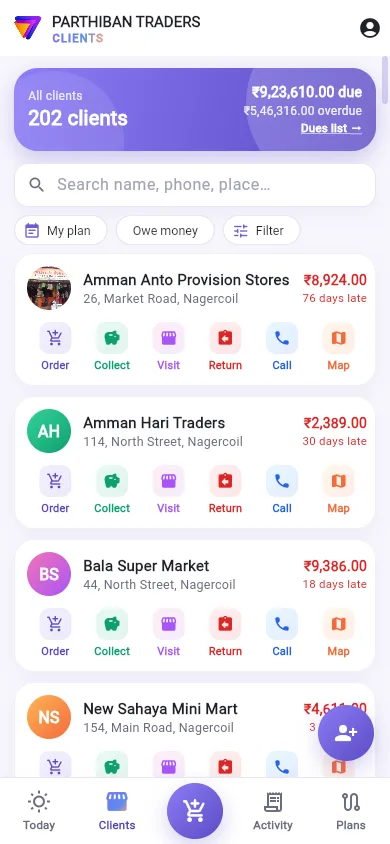
The Clients tab lists your shops with what each one owes. From here you order, collect, visit, take goods back, call or open the map for any shop.
What you see
- The top card: Today's routes or All clients, the number of clients, the total due, the overdue part, and Dues list →.
- Search name, phone, place…: search the list.
- Filter chips: Today's routes and All clients (when you chose routes at check in), My plan, Owe money and Filter.
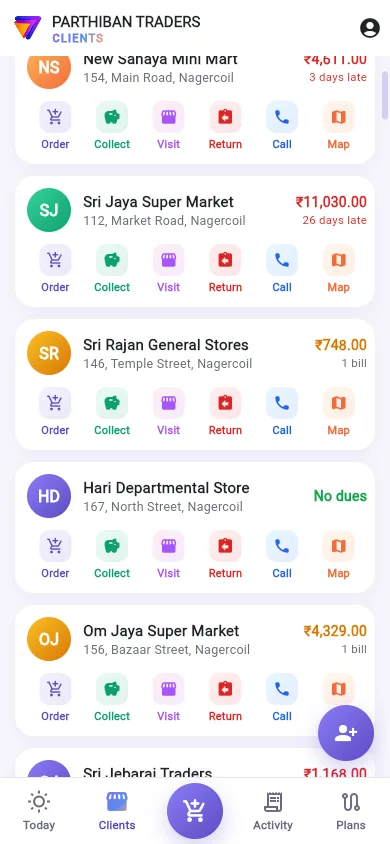
- A card for each client: name, address, and what they owe. Red means some bills are late, with how many days late. No dues shows in green. Billed today shows when the shop has a bill today.
- The action buttons on each card: Order, Collect, Visit, Return, Call and Map. You see only the ones your role allows. Call needs a phone number and Map needs a map pin or address.
Narrow the list
- Today's routes shows the clients on the routes you chose at check in. All clients shows everyone.
- My plan shows only today's planned clients.
- Owe money shows only clients with dues.
- Filter opens Client filter. Choose Routes, Client type and Visit day, then tap Apply. Clear filter removes it.
See who owes what
- Tap Dues list → on the top card.
- The list shows each client that owes, with the amount and how many days late.
- Tap Download outstanding PDF, WhatsApp or Print.
Add a new client
- Tap the round add-person button at the bottom right.
- Fill in the client form and save it.
If you chose one route at check in, the new client gets that route. The button shows only if your role may add clients.
Open a client's page
Tap a client card.
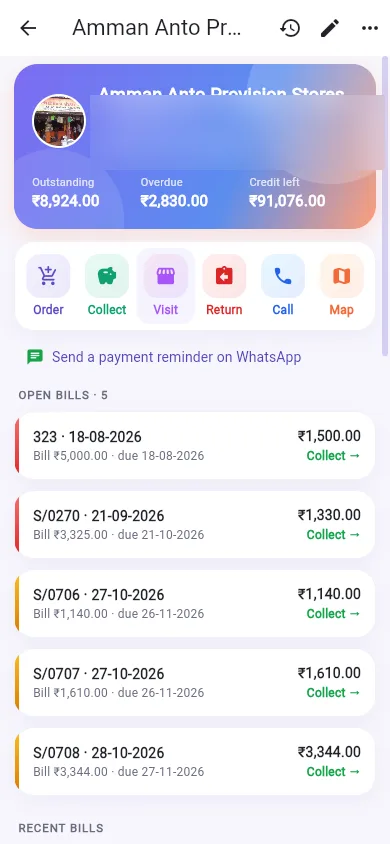
- The top card: name, address, route, and three figures: Outstanding, Overdue, and Credit left (or Open bills when the client has no credit limit).
- The action buttons, as on the card.
- Send a payment reminder on WhatsApp: opens WhatsApp with a reminder of the dues. It shows only when the client owes money and has a WhatsApp number.
- Open bills: each unpaid bill with its number, date, bill amount, due date and what is left. A red edge means the bill is past its due date. Tap a bill, or Collect →, to collect against that bill. See Collect money.
- Recent bills, Collections, Racks & freezers at this shop and Visits further down.
The buttons at the top of the client page
- The clock button opens History. Choose This month, Last 3 months or Last 6 months to see Sales, Collected, Returns and Visits as one list.
- The pencil button opens Edit client (if your role may edit clients).
- The three-dot menu has Set the shop's location here (or Move the shop's location to here). Stand at the shop when you use it. Visits are then checked against this place.
- Delete this client shows in the same menu only when the client owes nothing and your role may delete clients.
Good to know
- Your office may show you only the clients you manage (Score: staff see only the clients they manage).
- Your office may need a route and a client type for every new client (Score: a new client needs a route and a client type).
- With Score: start the Clients list on my plan on, the list opens on My plan.
Related
- Take an order: the Order button
- Collect money: the Collect button
- Visits: the Visit button
- Returns: the Return button
- Client: the client record in Office
வாடிக்கையாளர்கள் (Clients) டேப் உங்கள் கடைகளை, ஒவ்வொன்றும் எவ்வளவு தர வேண்டும் என்பதுடன் பட்டியலிடும். இங்கிருந்தே எந்தக் கடைக்கும் ஆர்டர் எடுக்கலாம், வசூலிக்கலாம், சந்திக்கலாம், சரக்கைத் திரும்ப எடுக்கலாம், போன் செய்யலாம் அல்லது மேப் திறக்கலாம்.
திரையில் என்ன தெரியும்
- The top card (மேல் அட்டை): இன்றைய வழித்தடங்கள் (Today's routes) அல்லது எல்லா வாடிக்கையாளர்களும் (All clients), வாடிக்கையாளர்களின் எண்ணிக்கை, மொத்த நிலுவை (due), அதில் தாமதம் (overdue) ஆன பகுதி, நிலுவைப் பட்டியல் → (Dues list →).
- பெயர், போன், இடம் தேடு… (Search name, phone, place…): பட்டியலில் தேட.
- Filter chips (வடிகட்டி சிப்கள்): இன்றைய வழித்தடங்கள் (Today's routes), எல்லா வாடிக்கையாளர்களும் (All clients) (வருகை பதிவின் போது வழித்தடங்களைத் தேர்ந்தெடுத்திருந்தால்), என் திட்டம் (My plan), பணம் தர வேண்டியவர்கள் (Owe money), வடிகட்டி (Filter).
- A card for each client (ஒவ்வொரு வாடிக்கையாளருக்கும் ஒரு அட்டை): பெயர், முகவரி, அவர்கள் தர வேண்டியது. சிவப்பு என்றால் சில பில்கள் தாமதம், எத்தனை நாள் தாமதம் (days late) என்பதுடன். நிலுவை இல்லை (No dues) பச்சையில் தெரியும். கடைக்கு இன்று பில் போட்டிருந்தால் இன்று பில் செய்யப்பட்டது (Billed today) தெரியும்.
- ஒவ்வொரு அட்டையிலும் உள்ள The action buttons (செயல் பட்டன்கள்): ஆர்டர் (Order), வசூலி (Collect), சந்திப்பு (Visit), திருப்பம் (Return), அழை (Call), வரைபடம் (Map). உங்கள் பொறுப்புக்கு அனுமதி உள்ளவை மட்டுமே தெரியும். அழை (Call) வேலை செய்ய போன் எண் வேண்டும், வரைபடம் (Map) வேலை செய்ய மேப் பின் அல்லது முகவரி வேண்டும்.
பட்டியலைச் சுருக்குதல்
- இன்றைய வழித்தடங்கள் (Today's routes) வருகை பதிவின் போது நீங்கள் தேர்ந்தெடுத்த வழித்தடங்களில் உள்ள வாடிக்கையாளர்களைக் காட்டும். எல்லா வாடிக்கையாளர்களும் (All clients) எல்லோரையும் காட்டும்.
- என் திட்டம் (My plan) இன்றைக்குத் திட்டமிட்ட வாடிக்கையாளர்களை மட்டும் காட்டும்.
- பணம் தர வேண்டியவர்கள் (Owe money) நிலுவை உள்ள வாடிக்கையாளர்களை மட்டும் காட்டும்.
- வடிகட்டி (Filter) தட்டினால் வாடிக்கையாளர் வடிகட்டி (Client filter) திறக்கும். வழித்தடங்கள் (Routes), வாடிக்கையாளர் வகை (Client type), வருகை நாள் (Visit day) தேர்ந்தெடுத்து, பயன்படுத்து (Apply) தட்டுங்க. வடிகட்டியை அழி (Clear filter) அதை நீக்கும்.
யார் எவ்வளவு தர வேண்டும் என்று பார்த்தல்
- மேல் அட்டையில் நிலுவைப் பட்டியல் → (Dues list →) தட்டுங்க.
- பணம் தர வேண்டிய ஒவ்வொரு வாடிக்கையாளரும், தொகையுடனும் எத்தனை நாள் தாமதம் என்பதுடனும் பட்டியலில் வருவார்கள்.
- நிலுவைப் பட்டியல் PDF பதிவிறக்கு (Download outstanding PDF), WhatsApp அல்லது அச்சிடு (Print) தட்டுங்க.
புதிய வாடிக்கையாளரைச் சேர்த்தல்
- கீழே வலது பக்கம் உள்ள வட்டமான ஆள்-சேர் பட்டனைத் தட்டுங்க.
- வாடிக்கையாளர் படிவத்தை நிரப்பிச் சேமியுங்க.
வருகை பதிவின் போது ஒரே ஒரு வழித்தடத்தைத் தேர்ந்தெடுத்திருந்தால், புதிய வாடிக்கையாளருக்கு அந்த வழித்தடம் வந்துவிடும். உங்கள் பொறுப்புக்கு வாடிக்கையாளரைச் சேர்க்க அனுமதி இருந்தால் மட்டுமே இந்த பட்டன் தெரியும்.
வாடிக்கையாளர் பக்கத்தைத் திறத்தல்
ஒரு வாடிக்கையாளர் அட்டையைத் தட்டுங்க.
- The top card (மேல் அட்டை): பெயர், முகவரி, வழித்தடம், மூன்று எண்கள்: நிலுவை (Outstanding), காலம் கடந்தது (Overdue), மீதமுள்ள கடன் வரம்பு (Credit left) (வாடிக்கையாளருக்குக் கடன் வரம்பு இல்லை என்றால் நிலுவை பில்கள் (Open bills)).
- The action buttons (செயல் பட்டன்கள்), அட்டையில் உள்ளது போலவே.
- வாட்ஸ்அப்பில் பணம் நினைவூட்டல் அனுப்பு (Send a payment reminder on WhatsApp): நிலுவை பற்றிய நினைவூட்டலுடன் WhatsApp திறக்கும். வாடிக்கையாளர் பணம் தர வேண்டியிருந்து, WhatsApp எண்ணும் இருந்தால் மட்டுமே தெரியும்.
- நிலுவை பில்கள் (Open bills): கட்டப்படாத ஒவ்வொரு பில்லும் அதன் எண், தேதி, பில் தொகை, கட்ட வேண்டிய தேதி, மீதி தொகையுடன். சிவப்பு ஓரம் என்றால் பில் கட்ட வேண்டிய தேதியைத் தாண்டிவிட்டது. அந்த பில்லுக்கு எதிராக வசூலிக்க, பில்லை அல்லது வசூல் → (Collect →) தட்டுங்க. பாருங்க: பணம் வசூலித்தல்.
- கீழே சமீபத்திய பில்கள் (Recent bills), வசூல்கள் (Collections), இந்தக் கடையில் உள்ள ரேக்குகள் & ஃப்ரீசர்கள் (Racks & freezers at this shop), சந்திப்புகள் (Visits).
வாடிக்கையாளர் பக்கத்தின் மேலே உள்ள பட்டன்கள்
- கடிகார பட்டன் வரலாறு (History) திறக்கும். இந்த மாதம் (This month), கடந்த 3 மாதங்கள் (Last 3 months) அல்லது கடந்த 6 மாதங்கள் (Last 6 months) தேர்ந்தெடுத்தால் விற்பனை (Sales), வசூலானது (Collected), திருப்பங்கள் (Returns), சந்திப்புகள் (Visits) எல்லாம் ஒரே பட்டியலாகத் தெரியும்.
- பென்சில் பட்டன் வாடிக்கையாளரைத் திருத்து (Edit client) திறக்கும் (உங்கள் பொறுப்புக்கு வாடிக்கையாளரைத் திருத்த அனுமதி இருந்தால்).
- மூன்று-புள்ளி மெனுவில் கடையின் இருப்பிடத்தை இங்கே அமை (Set the shop's location here) (அல்லது கடையின் இருப்பிடத்தை இங்கே மாற்று (Move the shop's location to here)) இருக்கும். இதைப் பயன்படுத்தும் போது கடையிலேயே நில்லுங்க. அதன் பிறகு சந்திப்புகள் இந்த இடத்தை வைத்துச் சரிபார்க்கப்படும்.
- வாடிக்கையாளர் எதுவும் தர வேண்டியதில்லை என்றால் மட்டும், உங்கள் பொறுப்புக்கு வாடிக்கையாளரை நீக்க அனுமதி இருந்தால் மட்டும், அதே மெனுவில் இந்த வாடிக்கையாளரை நீக்கு (Delete this client) தெரியும்.
தெரிந்துகொள்ள வேண்டியது
- நீங்கள் நிர்வகிக்கும் வாடிக்கையாளர்களை மட்டும் உங்களுக்குக் காட்டும்படி உங்கள் அலுவலகம் வைக்கலாம் (Score: ஊழியர்கள் தாங்கள் நிர்வகிக்கும் வாடிக்கையாளர்களை மட்டும் பார்ப்பார்கள் (Score: staff see only the clients they manage)).
- ஒவ்வொரு புதிய வாடிக்கையாளருக்கும் வழித்தடமும் வாடிக்கையாளர் வகையும் கட்டாயம் என்று உங்கள் அலுவலகம் வைக்கலாம் (Score: புதிய வாடிக்கையாளருக்கு ரூட்டும் வாடிக்கையாளர் வகையும் தேவை (Score: a new client needs a route and a client type)).
- Score: வாடிக்கையாளர் பட்டியலை என் திட்டத்தில் தொடங்கு (Score: start the Clients list on my plan) ஆன் ஆக இருந்தால், பட்டியல் என் திட்டம் (My plan) இல் திறக்கும்.
தொடர்புடையவை
- ஆர்டர் எடுத்தல்: ஆர்டர் (Order) பட்டன்
- பணம் வசூலித்தல்: வசூலி (Collect) பட்டன்
- சந்திப்புகள்: சந்திப்பு (Visit) பட்டன்
- திருப்பங்கள்: திருப்பம் (Return) பட்டன்
- வாடிக்கையாளர்: Office-இல் வாடிக்கையாளர் பதிவு