User manualபயனர் கையேடு · Office: Helpdesk and SettingsOffice: உதவி மையம், அமைப்புகள்
Bill Designsபில் வடிவமைப்புகள் (Bill Designs)
Choose which bill layouts show in the PDF box, and design your own bill for sales, returns and purchases.PDF பெட்டியில் எந்த பில் வடிவங்கள் தெரிய வேண்டும் என்று தேர்ந்தெடுங்க, விற்பனை, திருப்பங்கள், கொள்முதலுக்கு உங்கள் சொந்த பில்லை வடிவமையுங்க.
- Where to find itஎங்கே இருக்கிறது
- Office → Settings → Bill Designs
- Who uses itயார் பயன்படுத்துவார்கள்
- Owner, Adminஉரிமையாளர், நிர்வாகி
Every bill has a PDF box in Office and Score with a button for each bill layout. This page decides which buttons show there. You can also design your own bill step by step and see it as you go.
What you see
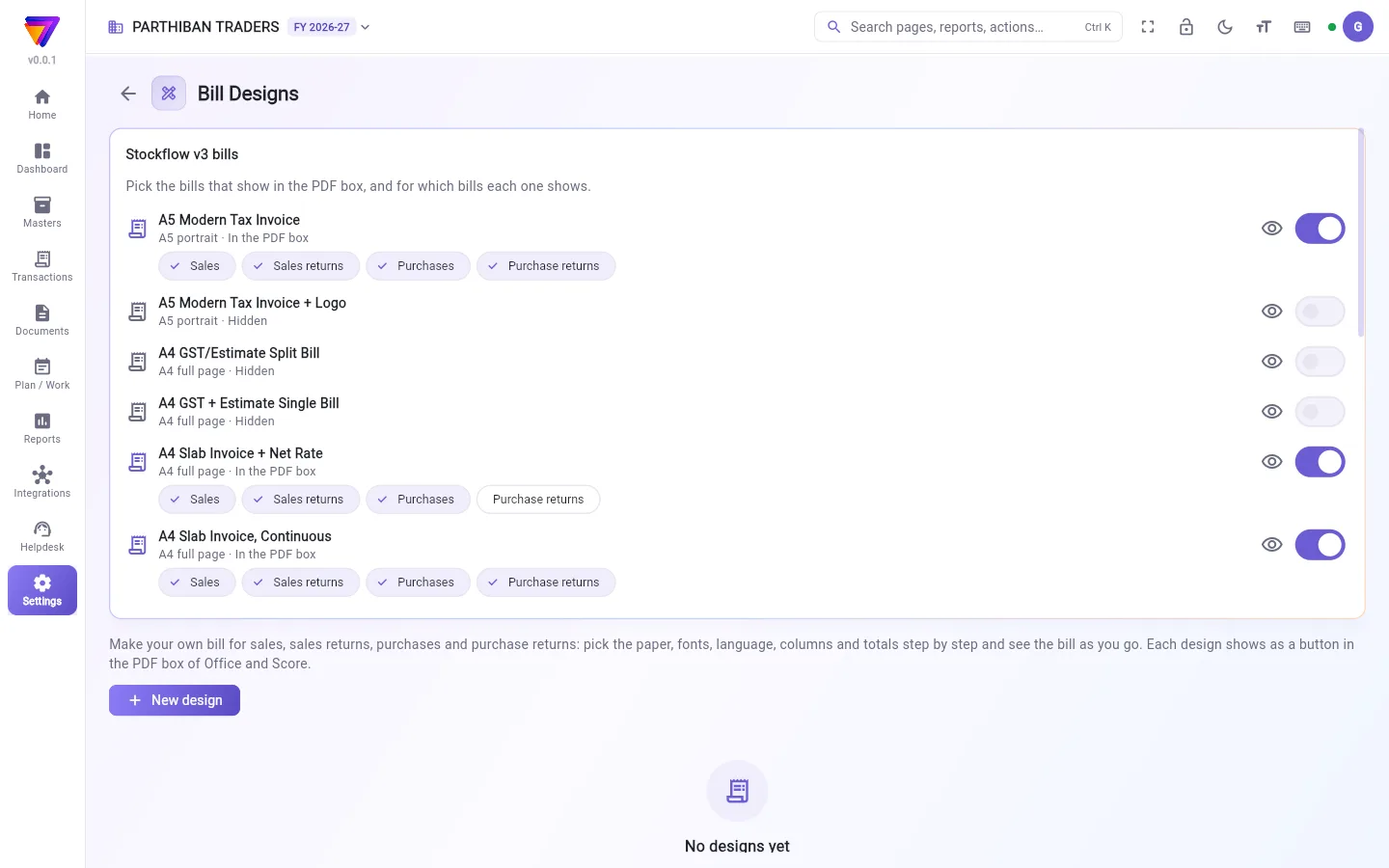
- Stockflow v3 bills: ready-made layouts set up for your company, if any. Each row shows the paper and In the PDF box or Hidden. It has an eye button to view it and a switch. When a layout is on, chips show the bills it is used for: Sales, Sales returns, Purchases and Purchase returns.
- New design: makes your own bill. Your designs are listed under it. With none, you see No designs yet.
- Report designs: formats for the Order, Load and Collection reports.
Choose which bills show in the PDF box
- In Stockflow v3 bills, turn on the switch of a layout you want. Turn off the ones you do not want.
- Under a layout that is on, click a chip to tick or untick it. A layout shows only for the bills that are ticked.
- Click the eye button to see the layout drawn with your latest posted bill.
These changes save at once.
Make your own bill
- Click New design.
- In Start from, pick Blank bill or one of the ready-made bills.
- The designer opens with the bill drawn beside the steps. Work through the steps, clicking Next after each:
- Name and paper: the Button name shown in the PDF box, Paper, Look, Copies, and which bills it is for.
- Fonts and colour: font, sizes, colour and margins.
- Language and titles: Tamil or English labels, item names, title and copy names.
- Company header: what the top of the bill shows.
- Party and bill details: the Bill to block and the Bill details block.
- Columns: pick, rename, order and size the item columns. Click Change the columns to start, and Add a column to add one.
- Totals and GST: the totals box and the GST summary.
- Footer: amount in words, bank, QR, signatures, terms and notes.
- Click Save on the last step, or Save at the top at any time. You see Saved.
The new design shows as a button in the PDF box of Office and Score.
To place blocks by hand, switch from Step by step to Free layout at the top of the designer. On a narrow screen, click Preview PDF to see the bill and Steps to go back.
Change, copy or remove a design
Each design in your list has a switch and three buttons:
- The switch shows or hides it in the PDF box.
- Edit opens the designer.
- Make a copy saves a copy named with "(2)" at the end.
- Delete removes it after you confirm Delete this design?
Who can do what
- New design, the switches, the chips and the edit, copy and delete buttons need the edit permission on this page. Owner and Admin have it.
- Without it, you can see the list and view the v3 bills, but not change them.
Good to know
- Available on every plan.
- The Stockflow v3 bills card shows only when Stockflow has set up v3 bills for your company.
- The designer draws your latest posted sale. If you have no sale yet, it draws a sample bill.
- A design for a return or a purchase prints the same layout with its own title.
- If Terms in the footer step is empty, the bill prints the terms from Settings → Company → Printing.
- Free layout does not offer thermal rolls. A thermal design moved to Free layout changes to A4.
- After you change the paper in Free layout, the blocks do not move. Use "Start the layout again" for the new paper.
Related
Office, Score இரண்டிலும் ஒவ்வொரு பில்லுக்கும் ஒரு PDF பெட்டி இருக்கும், அதில் ஒவ்வொரு பில் வடிவத்துக்கும் ஒரு பொத்தான் இருக்கும். அங்கே எந்தப் பொத்தான்கள் தெரிய வேண்டும் என்பதை இந்தப் பக்கம் முடிவு செய்யும். உங்கள் சொந்த பில்லைப் படிப்படியாக வடிவமைத்து, செய்யும்போதே அதைப் பார்க்கவும் முடியும்.
திரையில் என்ன தெரியும்
- Stockflow v3 பில்கள் (Stockflow v3 bills): உங்கள் நிறுவனத்துக்காக அமைக்கப்பட்ட தயார் வடிவங்கள், இருந்தால். ஒவ்வொரு வரியிலும் காகிதமும் PDF பெட்டியில் உள்ளது (In the PDF box) அல்லது மறைக்கப்பட்டது (Hidden) என்பதும் தெரியும். அதைப் பார்க்க ஒரு கண் பொத்தானும் ஒரு சுவிட்சும் இருக்கும். ஒரு வடிவம் ஆனில் இருக்கும்போது, அது எந்த பில்களுக்குப் பயன்படுகிறது என்று சிப்கள் காட்டும்: விற்பனை (Sales), விற்பனை திருப்பங்கள் (Sales returns), கொள்முதல்கள் (Purchases), கொள்முதல் திருப்பங்கள் (Purchase returns).
- புதிய வடிவமைப்பு (New design): உங்கள் சொந்த பில்லை உருவாக்கும். உங்கள் வடிவமைப்புகள் அதன் கீழே பட்டியலிடப்படும். ஒன்றும் இல்லையென்றால் இன்னும் வடிவமைப்புகள் இல்லை (No designs yet) என்று தெரியும்.
- அறிக்கை வடிவமைப்புகள் (Report designs): ஆர்டர், லோடு, வசூல் அறிக்கைகளுக்கான வடிவங்கள்.
PDF பெட்டியில் எந்த பில்கள் தெரிய வேண்டும் என்று தேர்ந்தெடுக்க
- Stockflow v3 பில்கள் (Stockflow v3 bills) அட்டையில், உங்களுக்கு வேண்டிய வடிவத்தின் சுவிட்சை ஆன் செய்யுங்க. வேண்டாதவற்றை ஆஃப் செய்யுங்க.
- ஆனில் உள்ள வடிவத்தின் கீழே, ஒரு சிப்பைக் கிளிக் செய்து டிக் செய்யுங்க அல்லது டிக்கை எடுங்க. டிக் செய்த பில்களுக்கு மட்டுமே அந்த வடிவம் தெரியும்.
- உங்கள் கடைசியாகப் பதிவான பில்லுடன் அந்த வடிவம் எப்படி இருக்கும் என்று பார்க்க கண் பொத்தானைக் கிளிக் செய்யுங்க.
இந்த மாற்றங்கள் உடனே சேமிக்கப்படும்.
உங்கள் சொந்த பில்லை உருவாக்க
- புதிய வடிவமைப்பு (New design) கிளிக் செய்யுங்க.
- இதிலிருந்து தொடங்கு (Start from) பெட்டியில் வெற்று பில் (Blank bill) அல்லது ஏதாவது ஒரு தயார் பில்லைத் தேர்ந்தெடுங்க.
- படிகளுக்கு அருகில் பில் வரையப்பட்ட நிலையில் வடிவமைப்பான் திறக்கும். ஒவ்வொரு படிக்குப் பிறகும் அடுத்து (Next) கிளிக் செய்து படிகளை முடியுங்க:
- பெயரும் காகிதமும் (Name and paper): PDF பெட்டியில் தெரியும் பொத்தான் பெயர் (Button name), காகிதம் (Paper), தோற்றம் (Look), பிரதிகள் (Copies), எந்த பில்களுக்கு என்பது.
- எழுத்துருவும் நிறமும் (Fonts and colour): எழுத்துரு, அளவுகள், நிறம், ஓரங்கள்.
- மொழியும் தலைப்புகளும் (Language and titles): தமிழ் அல்லது ஆங்கில லேபிள்கள், பொருள் பெயர்கள், தலைப்பு, பிரதிப் பெயர்கள்.
- நிறுவனத் தலைப்பு (Company header): பில்லின் மேல் பகுதியில் என்ன தெரியும்.
- வாடிக்கையாளரும் பில் விவரங்களும் (Party and bill details): பில் பெறுபவர் (Bill to) பகுதியும் பில் விவரங்கள் (Bill details) பகுதியும்.
- நெடுவரிசைகள் (Columns): பொருள் நெடுவரிசைகளைத் தேர்ந்தெடுக்க, பெயர் மாற்ற, வரிசைப்படுத்த, அளவு மாற்ற. தொடங்க நெடுவரிசைகளை மாற்று (Change the columns) கிளிக் செய்யுங்க, ஒன்றைச் சேர்க்க நெடுவரிசை சேர் (Add a column) கிளிக் செய்யுங்க.
- மொத்தங்களும் GST-யும் (Totals and GST): மொத்தப் பெட்டியும் GST சுருக்கமும்.
- அடிப்பகுதி (Footer): எழுத்தில் தொகை, வங்கி, QR, கையொப்பங்கள், நிபந்தனைகள், குறிப்புகள்.
- கடைசிப் படியில் சேமி (Save) கிளிக் செய்யுங்க, அல்லது எப்போது வேண்டுமானாலும் மேலே உள்ள சேமி (Save) கிளிக் செய்யுங்க. சேமிக்கப்பட்டது (Saved) என்று தெரியும்.
புதிய வடிவமைப்பு Office, Score இரண்டின் PDF பெட்டியிலும் ஒரு பொத்தானாகத் தெரியும்.
பகுதிகளைக் கையால் வைக்க, வடிவமைப்பானின் மேலே படிப்படியாக (Step by step) என்பதிலிருந்து சுதந்திர வடிவமைப்பு (Free layout) என்பதற்கு மாறுங்க. சிறிய திரையில், பில்லைப் பார்க்க PDF முன்னோட்டம் (Preview PDF) கிளிக் செய்யுங்க, திரும்பப் போக படிகள் (Steps) கிளிக் செய்யுங்க.
ஒரு வடிவமைப்பை மாற்ற, நகலெடுக்க அல்லது நீக்க
உங்கள் பட்டியலில் உள்ள ஒவ்வொரு வடிவமைப்புக்கும் ஒரு சுவிட்சும் மூன்று பொத்தான்களும் இருக்கும்:
- சுவிட்ச் அதை PDF பெட்டியில் காட்டும் அல்லது மறைக்கும்.
- திருத்து (Edit) வடிவமைப்பானைத் திறக்கும்.
- நகல் எடு (Make a copy) பெயரின் கடைசியில் "(2)" சேர்த்து ஒரு நகலைச் சேமிக்கும்.
- நீக்கு (Delete): இந்த வடிவமைப்பை நீக்கவா? (Delete this design?) என்று நீங்கள் உறுதிசெய்த பிறகு அதை நீக்கும்.
யார் என்ன செய்யலாம்
- புதிய வடிவமைப்பு (New design), சுவிட்சுகள், சிப்கள், திருத்து, நகல், நீக்கு பொத்தான்கள் ஆகியவற்றுக்கு இந்தப் பக்கத்தில் திருத்து (edit) அனுமதி வேண்டும். உரிமையாளர், நிர்வாகிக்கு அது உண்டு.
- அது இல்லாமல், பட்டியலைப் பார்க்கலாம், v3 பில்களையும் பார்க்கலாம், ஆனால் மாற்ற முடியாது.
தெரிந்துகொள்ள வேண்டியது
- எல்லாத் திட்டங்களிலும் உண்டு.
- உங்கள் நிறுவனத்துக்கு Stockflow v3 பில்களை அமைத்திருந்தால் மட்டுமே Stockflow v3 பில்கள் (Stockflow v3 bills) அட்டை தெரியும்.
- வடிவமைப்பான் உங்கள் கடைசியாகப் பதிவான விற்பனையை வரைந்து காட்டும். இன்னும் விற்பனை இல்லையென்றால் ஒரு மாதிரி பில்லை வரையும்.
- திருப்பம் அல்லது கொள்முதலுக்கான வடிவமைப்பு அதே வடிவத்தை அதன் சொந்தத் தலைப்புடன் அச்சிடும்.
- அடிப்பகுதி படியில் நிபந்தனைகள் (Terms) காலியாக இருந்தால், பில் அமைப்புகள் → நிறுவனம் → அச்சிடுதல் (Settings → Company → Printing) பக்கத்தில் உள்ள நிபந்தனைகளை அச்சிடும்.
- சுதந்திர வடிவமைப்பு (Free layout) thermal ரோல்களை வழங்காது. thermal வடிவமைப்பை சுதந்திர வடிவமைப்பு (Free layout) க்கு மாற்றினால் அது A4 ஆக மாறும்.
- சுதந்திர வடிவமைப்பு (Free layout) இல் காகிதத்தை மாற்றிய பிறகு பகுதிகள் நகராது. புதிய காகிதத்துக்கு "வடிவமைப்பை மீண்டும் தொடங்கு" (Start the layout again) பயன்படுத்துங்க.
தொடர்புடையவை
- நிறுவனம்: லோகோ, கையொப்பம், வங்கி, UPI, அச்சிடுதல் அட்டை.
- விற்பனை: PDF பெட்டியிலிருந்து பில்லை அச்சிட அல்லது பகிர.
- கொள்முதல்: கொள்முதல் பில்களும் வடிவமைப்புகளைப் பயன்படுத்தும்.
- அறிக்கைகள்: அறிக்கை வடிவங்கள் பயன்படும் இடம்.