User manualபயனர் கையேடு · Score: the salesman appScore: சேல்ஸ்மேன் ஆப்
Getting around ScoreScore-இல் வழி அறிதல் (Getting around Score)
Sign in to Score with your mobile number, find your way around the five tabs, and use the profile menu.உங்கள் மொபைல் எண்ணை வைத்து Score-இல் உள்நுழையுங்க, கீழே உள்ள ஐந்து டேப்களில் எது எங்கே என்று பாருங்க, புரொஃபைல் மெனுவைப் பயன்படுத்துங்க.
- Where to find itஎங்கே இருக்கிறது
- Score → Score → sign in, tabs and profile
- Who uses itயார் பயன்படுத்துவார்கள்
- Salesmen, delivery staff, collection staffசேல்ஸ்மேன்கள், டெலிவரி பணியாளர்கள், வசூல் பணியாளர்கள்
Score is the phone app for your field staff. You sign in with your mobile number and a code, and then you work from five tabs along the bottom.
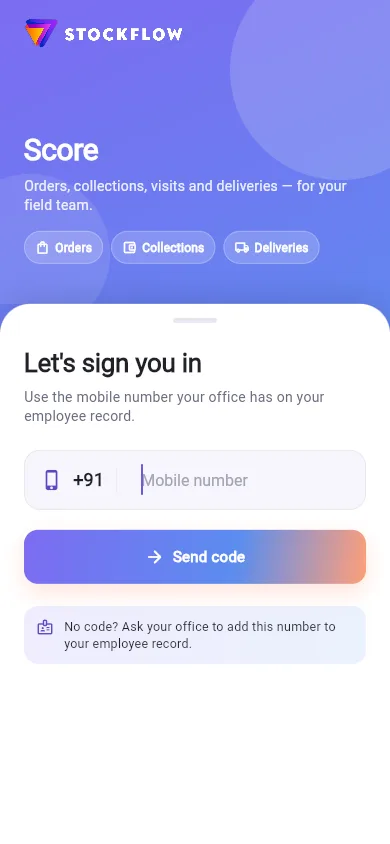
Sign in
Score signs you in by mobile number. Your office must first put your number on your employee record in Office (Masters → Employee).
- Type your 10-digit number in Mobile number.
- Tap Send code.
- Type the 6-digit code from the SMS.
- Tap Verify & sign in.
If the code does not come, wait for Resend code, or tap Change number to fix the number. If your number is on no employee, Score says No code? Ask your office to add this number to your employee record.
If your number is on employees in more than one company, Score asks Which business are you working for today? Tap the company. If a company has switched your login off, or all its logins are in use, Score shows the reason under the list.
The tabs
The bar at the bottom has five places:
- Today: check in and out, your shortcuts and the day's money. See Start and end the day.
- Clients: your shops, what they owe, and the actions for each. See Clients.
- The round button in the middle opens Order. A number on it shows how many clients have an open cart. See Take an order.
- Activity: your bills, collections, returns, expenses, deliveries and visits. See Activity.
- Plans: Today's beat and Deliveries. See Plans.
The top bar shows the company name and the tab you are on. Tap the logo on the left to show the company's Payment QR (when it has a UPI id) or its Company QR code.
You see only the buttons your role allows. For example, if you may not collect money, there is no Collect button.
The profile menu
Tap the person icon at the top right. The menu shows your name, the company and your number, and then:
- Bluetooth printer: choose the printer, Test print or Disconnect. See Printing.
- Notifications: switch app notifications on or off.
- Payment QR: the company's UPI QR, so a client can scan and pay.
- Send the company's contact: send the company's details on WhatsApp.
- My leave requests: your requests with Waiting, Approved or Rejected.
- Menu card (online ordering): send the online ordering link to a client (only when the company has one).
- தமிழ் (Tamil) and Dark theme.
- Bills from: Sale or Load (only if you are in charge of a van). See Van sales.
- Product names in the local language, Small product tiles, Cart A to Z and Goods at shops in the catalogue: settings for this phone only.
- Switch company (only if you work for more than one) and Log out.
Working without a connection
You can save bills, orders, collections and returns when the phone has no network. A bar over the tabs then says Offline — 1 entry is kept on this phone and goes when the connection is back. When the network returns, the bar says Sending 1 entry… and goes away once the server has the entry.
After you save, Score tells you what happened:
- The entry is in the books. No message, or the saved screen.
- Sent for approval — it posts once approved.
- Saved on this device — it will post when the connection is back.
- The server refused it, with the reason.
Check in, check out and leave requests need a connection.
Good to know
- In a browser, Score runs in one tab only. A second tab offers to move it there.
- The app version shows at the bottom of the profile menu. Give it to support when you ask for help.
Related
- The apps: how Score and Office share the books
- Employee: where the office puts your mobile number
- Users & Roles: what each role may do
Score என்பது உங்கள் ஃபீல்டு பணியாளர்களுக்கான போன் ஆப். மொபைல் எண்ணும் ஒரு குறியீடும் கொடுத்து உள்நுழைவீங்க. அதன் பிறகு கீழே உள்ள ஐந்து டேப்களில் இருந்து வேலை செய்வீங்க.
உள்நுழைவு
Score உங்களை மொபைல் எண் மூலம் உள்நுழைய வைக்கிறது. முதலில் உங்கள் அலுவலகம் Office-இல் உங்கள் பணியாளர் பதிவில் (முதன்மைப் பதிவுகள் → பணியாளர் (Masters → Employee)) உங்கள் எண்ணைச் சேர்த்திருக்க வேண்டும்.
- மொபைல் எண் (Mobile number) இடத்தில் உங்கள் 10 இலக்க எண்ணை டைப் செய்யுங்க.
- குறியீடு அனுப்பு (Send code) தட்டுங்க.
- SMS-இல் வந்த 6 இலக்கக் குறியீட்டை டைப் செய்யுங்க.
- சரிபார்த்து உள்நுழை (Verify & sign in) தட்டுங்க.
குறியீடு வரவில்லை என்றால், குறியீட்டை மீண்டும் அனுப்பு (Resend code) வரும் வரை காத்திருங்க, அல்லது எண்ணைத் திருத்த எண்ணை மாற்று (Change number) தட்டுங்க. உங்கள் எண் எந்தப் பணியாளர் பதிவிலும் இல்லை என்றால், Score குறியீடு வரவில்லையா? இந்த எண்ணை உங்கள் பணியாளர் பதிவில் சேர்க்க அலுவலகத்திடம் கேளுங்கள். (No code? Ask your office to add this number to your employee record.) என்று காட்டும்.
உங்கள் எண் ஒன்றுக்கு மேற்பட்ட நிறுவனங்களில் பணியாளராக இருந்தால், Score இன்று எந்த நிறுவனத்திற்காக வேலை செய்கிறீர்கள்? (Which business are you working for today?) என்று கேட்கும். நிறுவனத்தைத் தட்டுங்க. ஒரு நிறுவனம் உங்கள் லாகினை நிறுத்தி வைத்திருந்தாலோ, அதன் எல்லா லாகின்களும் ஏற்கனவே பயன்பாட்டில் இருந்தாலோ, Score அதற்கான காரணத்தை பட்டியலுக்குக் கீழே காட்டும்.
டேப்கள்
கீழே உள்ள பட்டையில் ஐந்து இடங்கள் உள்ளன:
- இன்று (Today): வருகை பதிவு, வெளியேறும் பதிவு, உங்கள் ஷார்ட்கட்கள், அன்றைய பணம். பாருங்க: நாளைத் தொடங்குதல், முடித்தல்.
- வாடிக்கையாளர்கள் (Clients): உங்கள் கடைகள், அவர்கள் தர வேண்டிய தொகை, ஒவ்வொருவருக்குமான செயல்கள். பாருங்க: வாடிக்கையாளர்கள்.
- நடுவில் உள்ள வட்ட பட்டன் ஆர்டர் (Order) திறக்கும். அதன் மேல் உள்ள எண், எத்தனை வாடிக்கையாளர்களுக்கு கார்ட் திறந்திருக்கிறது என்று காட்டும். பாருங்க: ஆர்டர் எடுத்தல்.
- செயல்பாடு (Activity): உங்கள் பில்கள், வசூல்கள், திருப்பங்கள், செலவுகள், டெலிவரிகள், சந்திப்புகள். பாருங்க: செயல்பாடு.
- திட்டங்கள் (Plans): இன்றைய சுற்று (Today's beat), டெலிவரிகள் (Deliveries). பாருங்க: திட்டங்கள்.
மேலே உள்ள பட்டையில் நிறுவனத்தின் பெயரும், நீங்கள் இருக்கும் டேபும் தெரியும். இடது பக்கம் உள்ள லோகோவைத் தட்டினால் நிறுவனத்தின் பணம் செலுத்தும் QR (Payment QR) (UPI id இருந்தால்) அல்லது நிறுவன QR குறியீடு (Company QR code) தெரியும்.
உங்கள் பொறுப்புக்கு (role) அனுமதி உள்ள பட்டன்கள் மட்டுமே உங்களுக்குத் தெரியும். உதாரணமாக, பணம் வசூலிக்க உங்களுக்கு அனுமதி இல்லை என்றால், வசூலி (Collect) பட்டன் இருக்காது.
புரொஃபைல் மெனு
மேலே வலது பக்கம் உள்ள நபர் ஐகானைத் தட்டுங்க. மெனுவில் உங்கள் பெயர், நிறுவனம், உங்கள் எண் தெரியும், அதன் பிறகு:
- புளூடூத் பிரிண்டர் (Bluetooth printer): பிரிண்டரைத் தேர்ந்தெடுக்க, சோதனை அச்சு (Test print) அல்லது துண்டி (Disconnect). பாருங்க: அச்சிடுதல்.
- அறிவிப்புகள் (Notifications): ஆப் அறிவிப்புகளை ஆன் அல்லது ஆஃப் செய்ய.
- பணம் செலுத்தும் QR (Payment QR): நிறுவனத்தின் UPI QR, வாடிக்கையாளர் ஸ்கேன் செய்து பணம் கட்டலாம்.
- நிறுவனத்தின் தொடர்பு விவரத்தை அனுப்பு (Send the company's contact): நிறுவனத்தின் விவரங்களை WhatsApp-இல் அனுப்ப.
- என் விடுப்பு கோரிக்கைகள் (My leave requests): உங்கள் கோரிக்கைகள், காத்திருப்பு (Waiting), அங்கீகரிக்கப்பட்டது (Approved) அல்லது நிராகரிக்கப்பட்டது (Rejected) என்ற நிலையுடன்.
- மெனு கார்டு (ஆன்லைன் ஆர்டர்) (Menu card (online ordering)): ஆன்லைன் ஆர்டர் லிங்கை வாடிக்கையாளருக்கு அனுப்ப (நிறுவனத்திடம் அது இருந்தால் மட்டும்).
- தமிழ் (Tamil), இருண்ட தீம் (Dark theme).
- பில்கள் முதல் (Bills from): விற்பனை (Sale) அல்லது லோடு (Load) (நீங்கள் ஒரு வேனுக்குப் பொறுப்பாக இருந்தால் மட்டும்). பாருங்க: வேன் விற்பனை.
- பொருள் பெயர்கள் உள்ளூர் மொழியில் (Product names in the local language), சிறிய பொருள் அட்டைகள் (Small product tiles), கார்ட் A முதல் Z வரை (Cart A to Z), கடைகளில் உள்ள பொருட்கள் பட்டியலில் (Goods at shops in the catalogue): இந்த போனுக்கு மட்டுமான அமைப்புகள்.
- நிறுவனத்தை மாற்று (Switch company) (ஒன்றுக்கு மேற்பட்ட நிறுவனத்தில் வேலை செய்தால் மட்டும்), வெளியேறு (Log out).
இணைப்பு இல்லாமல் வேலை செய்தல்
போனில் நெட்வொர்க் இல்லாத போதும் பில்கள், ஆர்டர்கள், வசூல்கள், திருப்பங்களைச் சேமிக்கலாம். அப்போது டேப்களுக்கு மேலே ஒரு பட்டை இணைப்பு இல்லை — 1 பதிவு இந்த போனில் உள்ளது, இணைப்பு வந்ததும் அனுப்பப்படும் (Offline — 1 entry is kept on this phone and goes when the connection is back) என்று காட்டும். நெட்வொர்க் திரும்ப வந்ததும், பட்டை 1 பதிவு அனுப்பப்படுகிறது… (Sending 1 entry…) என்று காட்டும், சர்வருக்குப் பதிவு போய்ச் சேர்ந்ததும் மறைந்துவிடும்.
சேமித்த பிறகு, என்ன நடந்தது என்று Score சொல்லும்:
- பதிவு கணக்கில் ஏறிவிட்டது. எந்தச் செய்தியும் வராது, அல்லது சேமித்த திரை வரும்.
- ஒப்புதலுக்கு அனுப்பப்பட்டது — அங்கீகரித்ததும் பதிவாகும். (Sent for approval — it posts once approved.)
- இந்தச் சாதனத்தில் சேமிக்கப்பட்டது — இணைப்பு வந்ததும் பதிவாகும். (Saved on this device — it will post when the connection is back.)
- சர்வர் அதை ஏற்கவில்லை, காரணத்துடன்.
வருகை பதிவு, வெளியேறும் பதிவு, விடுப்பு கோரிக்கைகளுக்கு இணைப்பு தேவை.
தெரிந்துகொள்ள வேண்டியது
- பிரவுசரில், Score ஒரே ஒரு டேபில் மட்டுமே ஓடும். இரண்டாவது டேப் திறந்தால், அங்கே மாற்றிக்கொள்ளலாமா என்று கேட்கும்.
- ஆப் வெர்ஷன் புரொஃபைல் மெனுவின் கீழே தெரியும். உதவி கேட்கும் போது அதை சப்போர்ட்டிடம் சொல்லுங்க.
தொடர்புடையவை
- ஆப்கள்: Score-உம் Office-உம் ஒரே கணக்குப் புத்தகத்தை எப்படிப் பகிர்கின்றன
- பணியாளர்: அலுவலகம் உங்கள் மொபைல் எண்ணைச் சேர்க்கும் இடம்
- பயனர்கள் & பொறுப்புகள்: ஒவ்வொரு பொறுப்புக்கும் என்ன அனுமதி