User manualபயனர் கையேடு · Office: MastersOffice: முதன்மைப் பதிவுகள் (Masters)
Shiftsபணி நேரங்கள் (Shifts)
Set your working hours, so attendance can show overtime for each person.உங்க வேலை நேரங்களை அமைங்க, அப்போதுதான் வருகைப் பதிவு ஒவ்வொருவரின் கூடுதல் நேரத்தையும் காட்டும்.
- Where to find itஎங்கே இருக்கிறது
- Office → Masters → Shifts
- Who uses itயார் பயன்படுத்துவார்கள்
- Owner, Adminஉரிமையாளர், நிர்வாகி
A shift is a set of working hours, such as a day shift from 09:30 to 18:30. You give a shift to each employee. Attendance then counts any time beyond the shift as overtime.
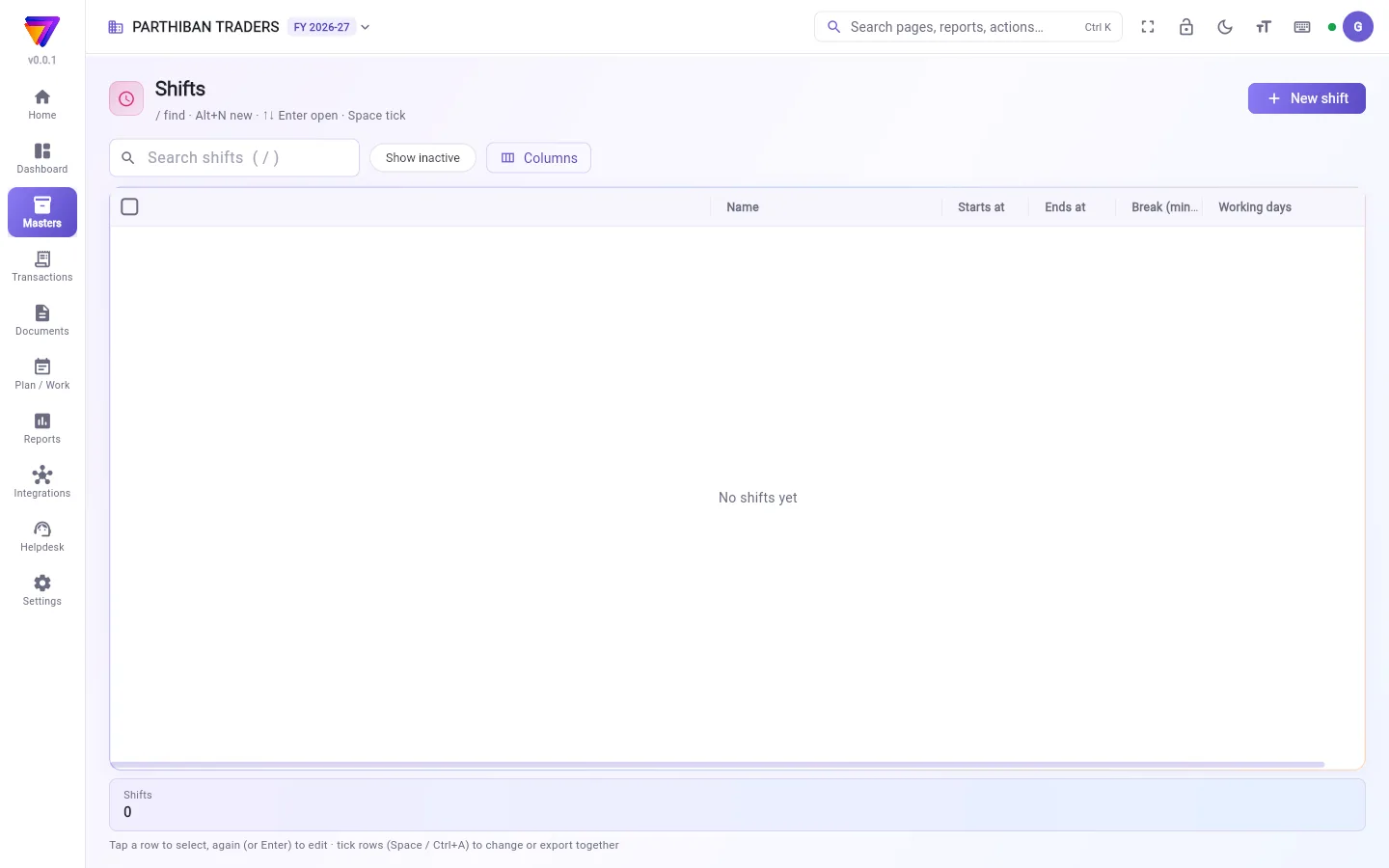
What you see
- A search box, Show inactive and Columns.
- A table with Name, Starts at, Ends at, Break (minutes) and Working days.
- New shift at the top right.
Add a shift
- Click New shift (or press Alt+N).
- Type the Name, for example "Day".
- Type Starts at and Ends at as hours and minutes, like 09:30 and 18:30.
- Type the Break (minutes).
- Click Add shift.
Give a shift to an employee
- Open Employee.
- Open the person and pick the shift in Shift.
- Click Save.
Fields
| Field | What to enter |
|---|---|
| Name (required) | For example Day, Night, Morning half. |
| Starts at (required) | Start time, like 09:30. |
| Ends at (required) | End time, like 18:30. A night shift can end after midnight. |
| Break (minutes) | Break time inside the shift. |
| Late after (minutes of grace) | Minutes of grace after the start. |
| Working days | The days this shift runs. |
| Active | Untick to retire the shift. |
How overtime is counted
- The shift length is Ends at minus Starts at minus Break (minutes).
- On the Attendance Day tab, a person's hours are Out minus In minus their break.
- Any time beyond the shift length shows as overtime.
A person with no shift gets no overtime.
Good to know
- Comes with the Pro · Large Stockist plan and above.
- Type times as hours and minutes, like 09:30 or 9.30. If a time cannot be read, the shift has no length and no overtime is shown.
- Shifts cannot be deleted. Make a shift inactive instead.
- The days a person works are set on the employee in Working days. Attendance uses those, not the shift's days.
Related
- Employee: give each person a shift.
- Attendance & Payslips: hours and overtime each day.
ஷிஃப்ட் என்பது ஒரு வேலை நேரம், உதாரணமாக 09:30 முதல் 18:30 வரை பகல் ஷிஃப்ட். ஒவ்வொரு பணியாளருக்கும் ஒரு ஷிஃப்ட் கொடுப்பீங்க. அதன் பிறகு, ஷிஃப்டைத் தாண்டிய நேரத்தை வருகைப் பதிவு கூடுதல் நேரமாகக் கணக்கிடும்.
திரையில் என்ன தெரியும்
- ஒரு தேடல் பெட்டி, செயலற்றவற்றையும் காட்டு (Show inactive), நெடுவரிசைகள் (Columns).
- பெயர் (Name), தொடங்கும் நேரம் (Starts at), முடியும் நேரம் (Ends at), இடைவேளை (நிமிடங்கள்) (Break (minutes)), வேலை நாட்கள் (Working days) உள்ள ஒரு அட்டவணை.
- மேலே வலது பக்கம் புதிய ஷிஃப்ட் (New shift).
ஷிஃப்ட் சேர்க்க
- புதிய ஷிஃப்ட் (New shift)-ஐ கிளிக் செய்யுங்க (அல்லது Alt+N அழுத்துங்க).
- பெயர் (Name) டைப் செய்யுங்க, உதாரணமாக "Day".
- தொடங்கும் நேரம் (Starts at), முடியும் நேரம் (Ends at) இரண்டையும் மணி, நிமிடமாக டைப் செய்யுங்க, 09:30, 18:30 போல.
- இடைவேளை (நிமிடங்கள்) (Break (minutes)) டைப் செய்யுங்க.
- ஷிஃப்ட் சேர் (Add shift) கிளிக் செய்யுங்க.
பணியாளருக்கு ஷிஃப்ட் கொடுக்க
- பணியாளர் (Employee) திறங்க.
- அந்த நபரைத் திறந்து ஷிஃப்ட் (Shift)-இல் ஷிஃப்டைத் தேர்ந்தெடுங்க.
- சேமி (Save) கிளிக் செய்யுங்க.
புலங்கள் (Fields)
| புலம் | என்ன நிரப்ப வேண்டும் |
|---|---|
| பெயர் (Name) (கட்டாயம்) | உதாரணமாக Day, Night, Morning half. |
| தொடங்கும் நேரம் (Starts at) (கட்டாயம்) | தொடங்கும் நேரம், 09:30 போல. |
| முடியும் நேரம் (Ends at) (கட்டாயம்) | முடியும் நேரம், 18:30 போல. இரவு ஷிஃப்ட் நள்ளிரவுக்குப் பிறகு முடியலாம். |
| இடைவேளை (நிமிடங்கள்) (Break (minutes)) | ஷிஃப்டுக்குள் உள்ள இடைவேளை நேரம். |
| தாமதம் (சலுகை நிமிடங்களுக்குப் பிறகு) (Late after (minutes of grace)) | தொடக்க நேரத்துக்குப் பிறகு கொடுக்கும் சலுகை நிமிடங்கள். |
| வேலை நாட்கள் (Working days) | இந்த ஷிஃப்ட் ஓடும் நாட்கள். |
| செயலில் (Active) | ஷிஃப்டை நிறுத்த டிக்கை எடுங்க. |
கூடுதல் நேரம் எப்படிக் கணக்கிடப்படுகிறது
- ஷிஃப்ட் நீளம் = முடியும் நேரம் (Ends at) கழித்தல் தொடங்கும் நேரம் (Starts at) கழித்தல் இடைவேளை (நிமிடங்கள்) (Break (minutes)).
- வருகைப் பதிவின் நாள் (Day) தாவலில், ஒருவரின் நேரம் = வெளியே (Out) கழித்தல் வரவு (In) கழித்தல் அவருடைய இடைவேளை.
- ஷிஃப்ட் நீளத்தைத் தாண்டிய நேரம் கூடுதல் நேரமாகத் தெரியும்.
ஷிஃப்ட் இல்லாத ஒருவருக்கு கூடுதல் நேரம் கிடையாது.
தெரிந்துகொள்ள வேண்டியது
- Pro · பெரிய ஸ்டாக்கிஸ்ட் (Pro · Large Stockist) பிளானிலும் அதற்கு மேலும் கிடைக்கும்.
- நேரங்களை மணி, நிமிடமாக டைப் செய்யுங்க, 09:30 அல்லது 9.30 போல. ஒரு நேரத்தைப் படிக்க முடியவில்லை என்றால், ஷிஃப்டுக்கு நீளம் இருக்காது, கூடுதல் நேரமும் தெரியாது.
- ஷிஃப்டுகளை நீக்க முடியாது. பதிலாக ஷிஃப்டைச் செயலற்றதாக மாற்றுங்க.
- ஒருவர் வேலை செய்யும் நாட்கள் பணியாளர் பக்கத்தில் வேலை நாட்கள் (Working days)-இல் அமைக்கப்படும். வருகைப் பதிவு அவற்றைத்தான் பயன்படுத்தும், ஷிஃப்டின் நாட்களை அல்ல.
தொடர்புடையவை
- பணியாளர் (Employee): ஒவ்வொருவருக்கும் ஒரு ஷிஃப்ட் கொடுக்க.
- வருகைப் பதிவு & சம்பளச் சீட்டுகள் (Attendance & Payslips): ஒவ்வொரு நாளின் நேரமும் கூடுதல் நேரமும்.