User manualபயனர் கையேடு · Office: Helpdesk and SettingsOffice: உதவி மையம், அமைப்புகள்
Companyநிறுவனம் (Company)
Your business details, tax numbers, bank and UPI, default accounts, billing rules and what prints on your bills.உங்கள் வணிக விவரங்கள், வரி எண்கள், வங்கி, UPI, இயல்பான கணக்குகள், பில் விதிகள், பில்லில் என்ன அச்சாகும் என்பவை.
- Where to find itஎங்கே இருக்கிறது
- Office → Settings → Company
- Who uses itயார் பயன்படுத்துவார்கள்
- Owner, Adminஉரிமையாளர், நிர்வாகி
The Company page holds everything about your business that Stockflow prints or uses: name, address, tax numbers, bank details, and the rules that decide how bills behave. Set it up once before you start billing.
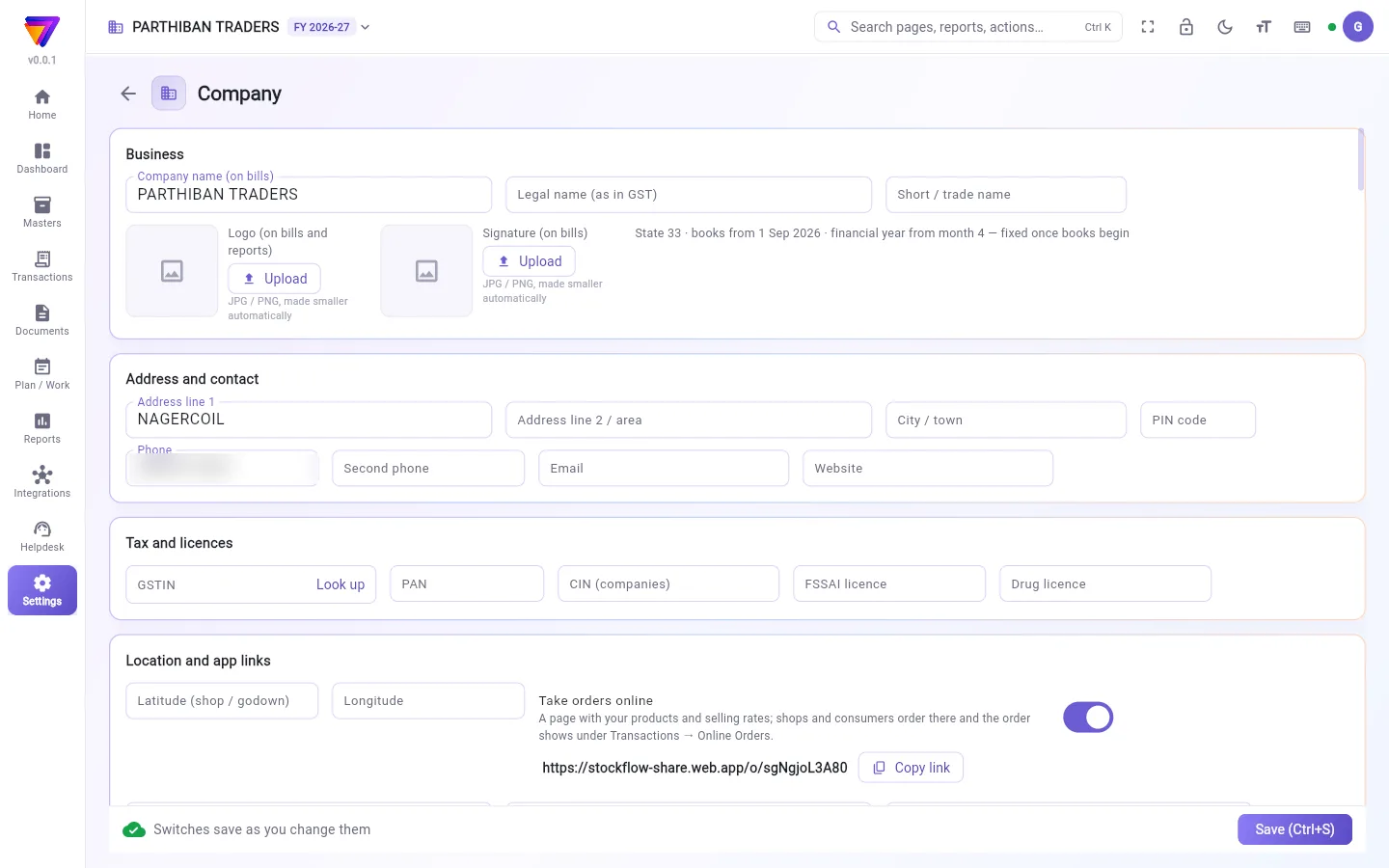
What you see
The page is a long list of cards. From top to bottom:
- Business: Company name (on bills), Legal name (as in GST), Short / trade name, Logo (on bills and reports) and Signature (on bills). A grey line shows your state code, the date your books start and the month your financial year starts. These are fixed once books begin.
- Address and contact: address, City / town, PIN code, Phone, Second phone, Email and Website.
- Tax and licences: GSTIN with a Look up button, PAN, CIN (companies), FSSAI licence and Drug licence.
- Location and app links: the map point of your shop or godown, the Take orders online switch, and links to your apps.
- Bank and UPI (printed on bills): account details and UPI ID (for QR on bills).
- Defaults on new entries: the cash account, bank account and warehouse a new entry starts with, and similar starting choices.
- Billing rules: switches for stock, credit, approvals, discounts, the Score app and editing old entries.
- Sales and collections (v3 options), Purchases (v3 options), Payroll % (v3 options) and Products (v3 options): more switches for the same areas.
- Loyalty points & wallet, E-invoice and e-way bill, Posting accounts.
- Printing: terms, declaration, footer, bill size, copies and print language.
- Lists to pick from: your own lists, such as Return reasons, Expense tags, Vehicle numbers and Client types (price levels: their own rates and discount).
A bar at the foot of the page holds Save (Ctrl+S).
Fill in your business details
- Open Settings → Company.
- In Business, type the Company name (on bills). This is the only required field.
- Click Upload under Logo (on bills and reports) and pick a JPG or PNG. Do the same for Signature (on bills) if you want it printed.
- Fill in Address and contact.
- In Tax and licences, type your GSTIN and click Look up to fill details from the GST record.
- Fill in Bank and UPI (printed on bills) so clients can pay you.
- Click Save (Ctrl+S). A Saved message shows.
Change a billing rule
- Scroll to Billing rules or one of the (v3 options) cards.
- Read the grey line under the switch. It says what happens when the switch is on or off.
- Turn the switch on or off. It saves at once.
Some rules worth knowing:
- Allow billing more than the stock on hand: when off, the server refuses a bill that takes stock below zero.
- A bill that takes a client over the credit limit: choose Allow it, Warn, then allow or Stop it (checked by the server).
- Sales need approval, Collections need approval, Purchases need approval: when on, an entry saved by a login without the approve permission waits as Awaiting approval until someone approves it in the register.
- A saved entry can be changed for: how many days after its date an entry can still be changed.
- Stop selling below purchase cost: when on, a bill below cost cannot be saved, except by a login allowed to "Sell below cost".
Fields
| Field | What to enter |
|---|---|
| Company name (on bills) | Required. The name printed at the top of every bill. |
| GSTIN | 15 characters. It must be valid and must belong to your company's state. |
| PAN | 10 characters, such as five letters, four digits, one letter. |
| PIN code | 6 digits. |
| UPI ID (for QR on bills) | In the form name@bank. It prints as a QR on bills. |
| Latitude (shop / godown), Longitude | Your shop's map point. It is used for distances to clients. |
| Terms printed at the bottom | The terms on your bills. |
| Bill size | A4, A5, A5 landscape or a thermal roll. |
| Print bills in | English or தமிழ். |
| Copies | One, Original + duplicate or Original, duplicate, triplicate. |
If a field is wrong, Save shows a red message, such as GSTIN is not valid or PIN code is 6 digits, and nothing is saved.
Who can do what
- Anyone who can open the page can see it.
- Only a login whose role has edit ticked for Company (in Users & Roles) can change anything. Without it, every box and switch is greyed out and the Save bar is hidden.
- The built-in Owner and Admin roles have it.
Good to know
- Available on every plan.
- Not everything saves the same way. The switches and choices in Billing rules and the (v3 options) cards save the moment you change them. Typed boxes, percent boxes, the accounts and warehouse in Defaults on new entries, the Printing card, Loyalty points & wallet, Posting accounts and most Lists to pick from wait for Save (Ctrl+S). While something waits, the bar reads Changes not saved yet.
- Take orders online turns on a web page with your products and selling rates. Shops and consumers order there, and the order shows under Transactions → Online Orders. Click Copy link to share it.
- Client types in Lists to pick from are your price levels. Adding or removing one saves at once.
- E-invoice and e-way bill keeps your GST portal API login. The password stays on the server; nobody can see it here again.
Related
- Financial Year & Locks: lock old dates and close a year.
- Bill Designs: choose or design the bill PDF.
- Users & Roles: who may change these settings.
- Online Orders: orders from your order page.
- Price Levels: rates for each client type.
Stockflow அச்சிடும் அல்லது பயன்படுத்தும் உங்கள் வணிகத்தின் எல்லா விவரங்களும் நிறுவனம் பக்கத்தில் இருக்கும்: பெயர், முகவரி, வரி எண்கள், வங்கி விவரங்கள், பில்கள் எப்படி நடந்துகொள்ள வேண்டும் என்ற விதிகள். பில் போடத் தொடங்கும் முன் ஒருமுறை இதை அமைத்துவிடுங்க.
திரையில் என்ன தெரியும்
இந்தப் பக்கம் ஒரு நீண்ட அட்டைப் பட்டியல். மேலிருந்து கீழாக:
- வணிகம் (Business): நிறுவனப் பெயர் (பில்களில்) (Company name (on bills)), சட்டப்பூர்வ பெயர் (GST-இல் உள்ளபடி) (Legal name (as in GST)), சுருக்கப் / வணிகப் பெயர் (Short / trade name), லோகோ (பில்கள், அறிக்கைகளில்) (Logo (on bills and reports)), கையொப்பம் (பில்களில்) (Signature (on bills)). ஒரு சாம்பல் நிற வரியில் உங்கள் மாநிலக் குறியீடு, கணக்குகள் தொடங்கும் தேதி, நிதியாண்டு தொடங்கும் மாதம் தெரியும். கணக்குகள் தொடங்கியதும் இவற்றை மாற்ற முடியாது.
- முகவரி, தொடர்பு (Address and contact): முகவரி, நகரம் / ஊர் (City / town), PIN குறியீடு (PIN code), தொலைபேசி (Phone), இரண்டாவது தொலைபேசி (Second phone), மின்னஞ்சல் (Email), இணையதளம் (Website).
- வரி, உரிமங்கள் (Tax and licences): தேடிப் பார் (Look up) பொத்தானுடன் GSTIN, PAN, CIN (நிறுவனங்கள்) (CIN (companies)), FSSAI உரிமம் (FSSAI licence), மருந்து உரிமம் (Drug licence).
- இருப்பிடம், செயலி இணைப்புகள் (Location and app links): உங்கள் கடை அல்லது கிடங்கின் வரைபடப் புள்ளி, ஆன்லைனில் ஆர்டர் பெறு (Take orders online) சுவிட்ச், உங்கள் செயலிகளுக்கான இணைப்புகள்.
- வங்கி, UPI (பில்களில் அச்சாகும்) (Bank and UPI (printed on bills)): கணக்கு விவரங்களும் UPI ID (பில்லில் QR-க்கு) (UPI ID (for QR on bills)).
- புதிய பதிவுகளுக்கான இயல்புநிலைகள் (Defaults on new entries): புதிய பதிவு தொடங்கும்போது வரும் ரொக்கக் கணக்கு, வங்கிக் கணக்கு, கிடங்கு, இதுபோன்ற தொடக்கத் தேர்வுகள்.
- பில் விதிகள் (Billing rules): இருப்பு, கடன், ஒப்புதல்கள், தள்ளுபடிகள், Score செயலி, பழைய பதிவுகளைத் திருத்துவது ஆகியவற்றுக்கான சுவிட்சுகள்.
- விற்பனை மற்றும் வசூல் (v3 விருப்பங்கள்) (Sales and collections (v3 options)), கொள்முதல் (v3 விருப்பங்கள்) (Purchases (v3 options)), சம்பள % (v3 விருப்பங்கள்) (Payroll % (v3 options)), பொருட்கள் (v3 விருப்பங்கள்) (Products (v3 options)): இதே பகுதிகளுக்கான கூடுதல் சுவிட்சுகள்.
- லாயல்டி புள்ளிகள் & வாலட் (Loyalty points & wallet), e-invoice மற்றும் e-way bill (E-invoice and e-way bill), பதிவுக் கணக்குகள் (Posting accounts).
- அச்சிடுதல் (Printing): நிபந்தனைகள், அறிவிப்பு (declaration), அடிக்குறிப்பு, பில் அளவு, பிரதிகள், அச்சிடும் மொழி.
- தேர்ந்தெடுக்கும் பட்டியல்கள் (Lists to pick from): உங்கள் சொந்தப் பட்டியல்கள், உதாரணமாக திருப்பக் காரணங்கள் (Return reasons), செலவுக் குறிச்சொற்கள் (Expense tags), வாகன எண்கள் (Vehicle numbers), வாடிக்கையாளர் வகைகள் (விலை நிலைகள்: தனி விலை, தள்ளுபடி) (Client types (price levels: their own rates and discount)).
பக்கத்தின் அடியில் உள்ள பட்டையில் சேமி (Ctrl+S) (Save (Ctrl+S)) இருக்கும்.
உங்கள் வணிக விவரங்களை நிரப்ப
- அமைப்புகள் → நிறுவனம் (Settings → Company) திறங்க.
- வணிகம் (Business) அட்டையில் நிறுவனப் பெயர் (பில்களில்) (Company name (on bills)) டைப் செய்யுங்க. கட்டாயமான புலம் இது ஒன்றுதான்.
- லோகோ (பில்கள், அறிக்கைகளில்) (Logo (on bills and reports)) கீழே உள்ள பதிவேற்று (Upload) கிளிக் செய்து JPG அல்லது PNG தேர்ந்தெடுங்க. கையொப்பம் அச்சாக வேண்டும் என்றால் கையொப்பம் (பில்களில்) (Signature (on bills)) பகுதிக்கும் இதையே செய்யுங்க.
- முகவரி, தொடர்பு (Address and contact) நிரப்புங்க.
- வரி, உரிமங்கள் (Tax and licences) அட்டையில் உங்கள் GSTIN டைப் செய்து தேடிப் பார் (Look up) கிளிக் செய்யுங்க. GST பதிவிலிருந்து விவரங்கள் நிரம்பும்.
- வாடிக்கையாளர்கள் உங்களுக்குப் பணம் செலுத்த வசதியாக வங்கி, UPI (பில்களில் அச்சாகும்) (Bank and UPI (printed on bills)) நிரப்புங்க.
- சேமி (Ctrl+S) (Save (Ctrl+S)) கிளிக் செய்யுங்க. சேமிக்கப்பட்டது (Saved) என்ற செய்தி தெரியும்.
ஒரு பில் விதியை மாற்ற
- பில் விதிகள் (Billing rules) அல்லது ஏதாவது ஒரு (v3 விருப்பங்கள்) ((v3 options)) அட்டை வரை கீழே போங்க.
- சுவிட்சுக்குக் கீழே உள்ள சாம்பல் நிற வரியைப் படியுங்க. சுவிட்ச் ஆன் அல்லது ஆஃப் ஆக இருக்கும்போது என்ன நடக்கும் என்று அது சொல்லும்.
- சுவிட்சை ஆன் அல்லது ஆஃப் செய்யுங்க. அது உடனே சேமிக்கப்படும்.
தெரிந்துகொள்ள வேண்டிய சில விதிகள்:
- கையிருப்பை விட அதிகமாக பில் போட அனுமதி (Allow billing more than the stock on hand): இது ஆஃப் ஆக இருந்தால், இருப்பை பூஜ்ஜியத்துக்குக் கீழே கொண்டுபோகும் பில்லை சர்வர் ஏற்காது.
- வாடிக்கையாளரைக் கடன் வரம்பைத் தாண்ட வைக்கும் பில் (A bill that takes a client over the credit limit): அனுமதி (Allow it), எச்சரித்து, பின் அனுமதி (Warn, then allow) அல்லது தடு (சர்வர் சரிபார்க்கும்) (Stop it (checked by the server)) தேர்ந்தெடுங்க.
- விற்பனைக்கு ஒப்புதல் தேவை (Sales need approval), வசூலுக்கு ஒப்புதல் தேவை (Collections need approval), கொள்முதலுக்கு ஒப்புதல் தேவை (Purchases need approval): இவை ஆன் ஆக இருந்தால், அங்கீகரிக்கும் அனுமதி இல்லாத உள்நுழைவு சேமிக்கும் பதிவு, பதிவேட்டில் யாராவது அங்கீகரிக்கும் வரை ஒப்புதலுக்குக் காத்திருக்கிறது (Awaiting approval) நிலையில் இருக்கும்.
- சேமித்த பதிவை மாற்றக்கூடிய காலம் (A saved entry can be changed for): பதிவின் தேதியிலிருந்து எத்தனை நாட்கள் வரை அதை மாற்றலாம் என்பது.
- கொள்முதல் விலைக்குக் கீழ் விற்பதை நிறுத்து (Stop selling below purchase cost): இது ஆன் ஆக இருந்தால், அடக்க விலைக்குக் கீழே உள்ள பில்லைச் சேமிக்க முடியாது. "அடக்கவிலைக்குக் கீழ் விற்பனை செய்" (Sell below cost) அனுமதி உள்ள உள்நுழைவு மட்டும் விதிவிலக்கு.
புலங்கள் (Fields)
| புலம் | என்ன நிரப்ப வேண்டும் |
|---|---|
| நிறுவனப் பெயர் (பில்களில்) (Company name (on bills)) | கட்டாயம். ஒவ்வொரு பில்லின் மேலேயும் அச்சாகும் பெயர். |
| GSTIN | 15 எழுத்துகள். சரியானதாகவும் உங்கள் நிறுவனத்தின் மாநிலத்துக்கு உரியதாகவும் இருக்க வேண்டும். |
| PAN | 10 எழுத்துகள்: ஐந்து எழுத்துகள், நான்கு இலக்கங்கள், ஒரு எழுத்து. |
| PIN குறியீடு (PIN code) | 6 இலக்கங்கள். |
| UPI ID (பில்லில் QR-க்கு) (UPI ID (for QR on bills)) | name@bank வடிவில். பில்களில் QR ஆக அச்சாகும். |
| அட்சரேகை (கடை / கிடங்கு) (Latitude (shop / godown)), தீர்க்கரேகை (Longitude) | உங்கள் கடையின் வரைபடப் புள்ளி. வாடிக்கையாளர்களுக்கான தூரத்தைக் கணக்கிட இது பயன்படும். |
| கீழே அச்சிடப்படும் நிபந்தனைகள் (Terms printed at the bottom) | உங்கள் பில்களில் வரும் நிபந்தனைகள். |
| பில் அளவு (Bill size) | A4, A5, A5 landscape அல்லது thermal ரோல். |
| பில் அச்சிடும் மொழி (Print bills in) | English அல்லது தமிழ். |
| பிரதிகள் (Copies) | ஒன்று (One), அசல் + நகல் (Original + duplicate) அல்லது அசல், நகல், மூன்றாம் நகல் (Original, duplicate, triplicate). |
ஒரு புலம் தவறாக இருந்தால், சேமிக்கும்போது GSTIN சரியானது இல்லை (GSTIN is not valid) அல்லது PIN குறியீடு 6 இலக்கங்கள் (PIN code is 6 digits) போன்ற சிவப்புச் செய்தி வரும், எதுவும் சேமிக்கப்படாது.
யார் என்ன செய்யலாம்
- இந்தப் பக்கத்தைத் திறக்கக்கூடிய எவரும் இதைப் பார்க்கலாம்.
- பயனர்கள் & பொறுப்புகள் பக்கத்தில் நிறுவனம் (Company) என்பதற்கு திருத்து (edit) டிக் செய்யப்பட்ட பொறுப்பு உள்ள உள்நுழைவு மட்டுமே எதையும் மாற்ற முடியும். அது இல்லையென்றால் எல்லாப் பெட்டிகளும் சுவிட்சுகளும் சாம்பல் நிறத்தில் இருக்கும், சேமி பட்டை மறைந்திருக்கும்.
- உள்ளமைந்த உரிமையாளர், நிர்வாகி பொறுப்புகளுக்கு இந்த அனுமதி உண்டு.
தெரிந்துகொள்ள வேண்டியது
- எல்லாத் திட்டங்களிலும் உண்டு.
- எல்லாமே ஒரே மாதிரி சேமிக்கப்படுவதில்லை. பில் விதிகள் (Billing rules), (v3 விருப்பங்கள்) ((v3 options)) அட்டைகளில் உள்ள சுவிட்சுகளும் தேர்வுகளும் மாற்றிய உடனே சேமிக்கப்படும். டைப் செய்யும் பெட்டிகள், சதவீதப் பெட்டிகள், புதிய பதிவுகளுக்கான இயல்புநிலைகள் (Defaults on new entries) அட்டையில் உள்ள கணக்குகளும் கிடங்கும், அச்சிடுதல் (Printing) அட்டை, லாயல்டி புள்ளிகள் & வாலட் (Loyalty points & wallet), பதிவுக் கணக்குகள் (Posting accounts), பெரும்பாலான தேர்ந்தெடுக்கும் பட்டியல்கள் (Lists to pick from) ஆகியவை சேமி (Ctrl+S) (Save (Ctrl+S)) அழுத்தும் வரை காத்திருக்கும். ஏதாவது காத்திருக்கும்போது பட்டையில் மாற்றங்கள் இன்னும் சேமிக்கப்படவில்லை (Changes not saved yet) என்று இருக்கும்.
- ஆன்லைனில் ஆர்டர் பெறு (Take orders online) உங்கள் பொருட்களும் விற்பனை விலைகளும் உள்ள ஒரு இணையப் பக்கத்தை இயக்கும். கடைகளும் நுகர்வோரும் அங்கே ஆர்டர் செய்வார்கள், அந்த ஆர்டர் பரிவர்த்தனைகள் → ஆன்லைன் ஆர்டர்கள் (Transactions → Online Orders) கீழ் தெரியும். பகிர இணைப்பை நகலெடு (Copy link) கிளிக் செய்யுங்க.
- தேர்ந்தெடுக்கும் பட்டியல்கள் (Lists to pick from) அட்டையில் உள்ள வாடிக்கையாளர் வகைகள் (Client types) தான் உங்கள் விலை நிலைகள். ஒன்றைச் சேர்த்தாலும் நீக்கினாலும் உடனே சேமிக்கப்படும்.
- e-invoice மற்றும் e-way bill (E-invoice and e-way bill) உங்கள் GST போர்டல் API உள்நுழைவை வைத்திருக்கும். கடவுச்சொல் சர்வரில் மட்டும் இருக்கும்; இங்கே அதை மறுபடி யாரும் பார்க்க முடியாது.
தொடர்புடையவை
- நிதியாண்டு & பூட்டுகள்: பழைய தேதிகளைப் பூட்டுவது, ஒரு ஆண்டை முடிப்பது.
- பில் வடிவமைப்புகள்: பில் PDF-ஐத் தேர்ந்தெடுப்பது அல்லது வடிவமைப்பது.
- பயனர்கள் & பொறுப்புகள்: இந்த அமைப்புகளை யார் மாற்றலாம்.
- ஆன்லைன் ஆர்டர்கள்: உங்கள் ஆர்டர் பக்கத்திலிருந்து வரும் ஆர்டர்கள்.
- விலை நிலைகள்: ஒவ்வொரு வாடிக்கையாளர் வகைக்கும் விலைகள்.