User manualபயனர் கையேடு · Getting startedதொடங்குவது எப்படி
Finding your wayவழி கண்டறிதல் (Finding your way)
The left menu, the section pages, the top bar buttons and the keyboard shortcuts in Office.Office-இன் இடது மெனு, பகுதிப் பக்கங்கள், மேல் பட்டை பட்டன்கள், விசைப்பலகை குறுக்குவழிகள்.
- Where to find itஎங்கே இருக்கிறது
- Getting started → Finding your way
- Who uses itயார் பயன்படுத்துவார்கள்
- Everyoneஎல்லோரும்
Every Office page has the same frame: a menu down the left, a top bar, and the page in the middle. This page explains each part.
The left menu
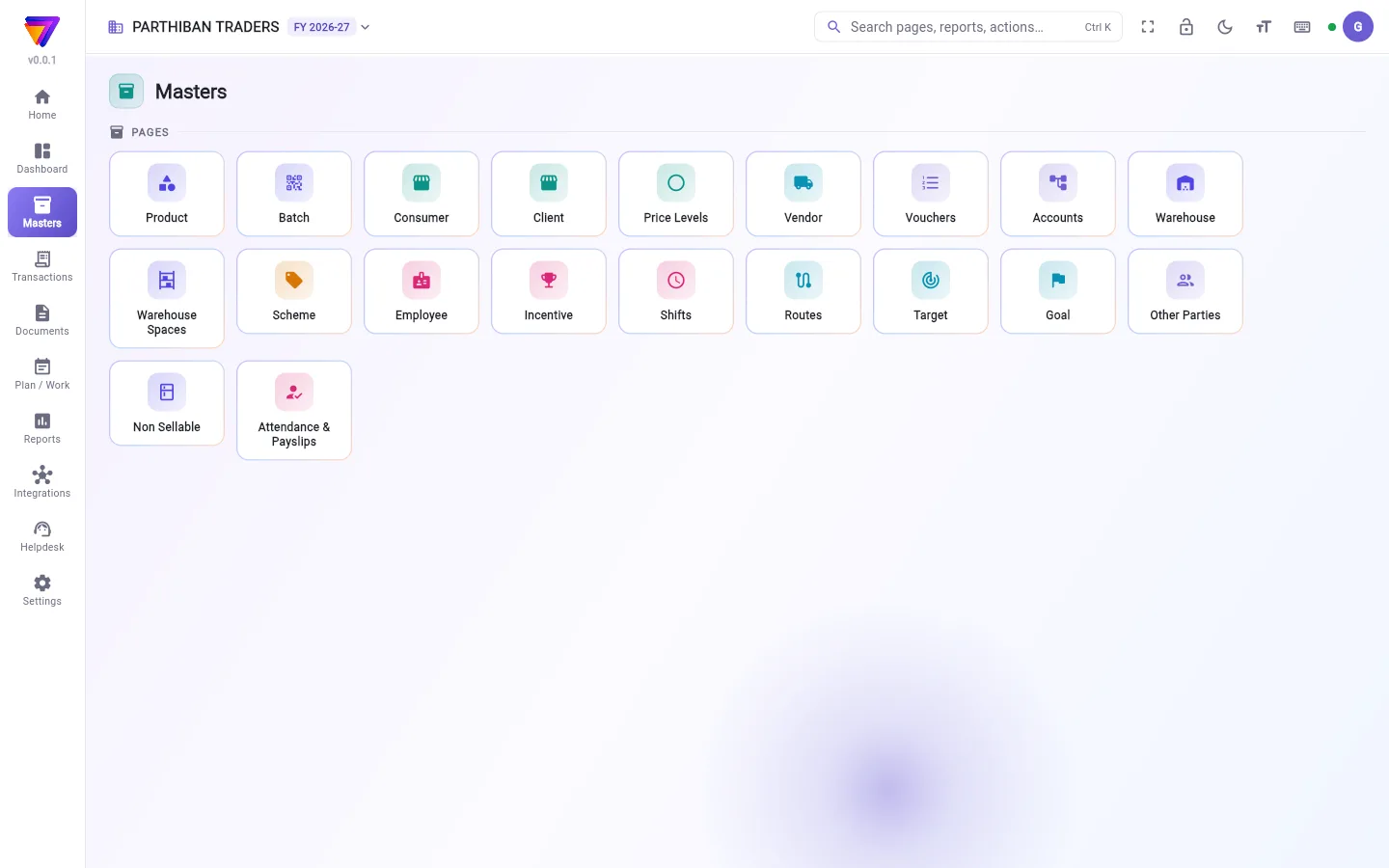
The left menu has up to 10 sections: Home, Dashboard, Masters, Transactions, Documents, Plan / Work, Reports, Integrations, Helpdesk and Settings. The one you are in is coloured.
You see a section only if your role can see at least one page in it. A red number on Helpdesk means support has replied to your ticket.
On a phone, Home, Transactions, Masters and Reports sit along the bottom. All sections are in the menu at the top left.
Section pages
Click a section to see its pages as tiles. For example, Masters shows Product, Batch, Client, Vendor and the rest.
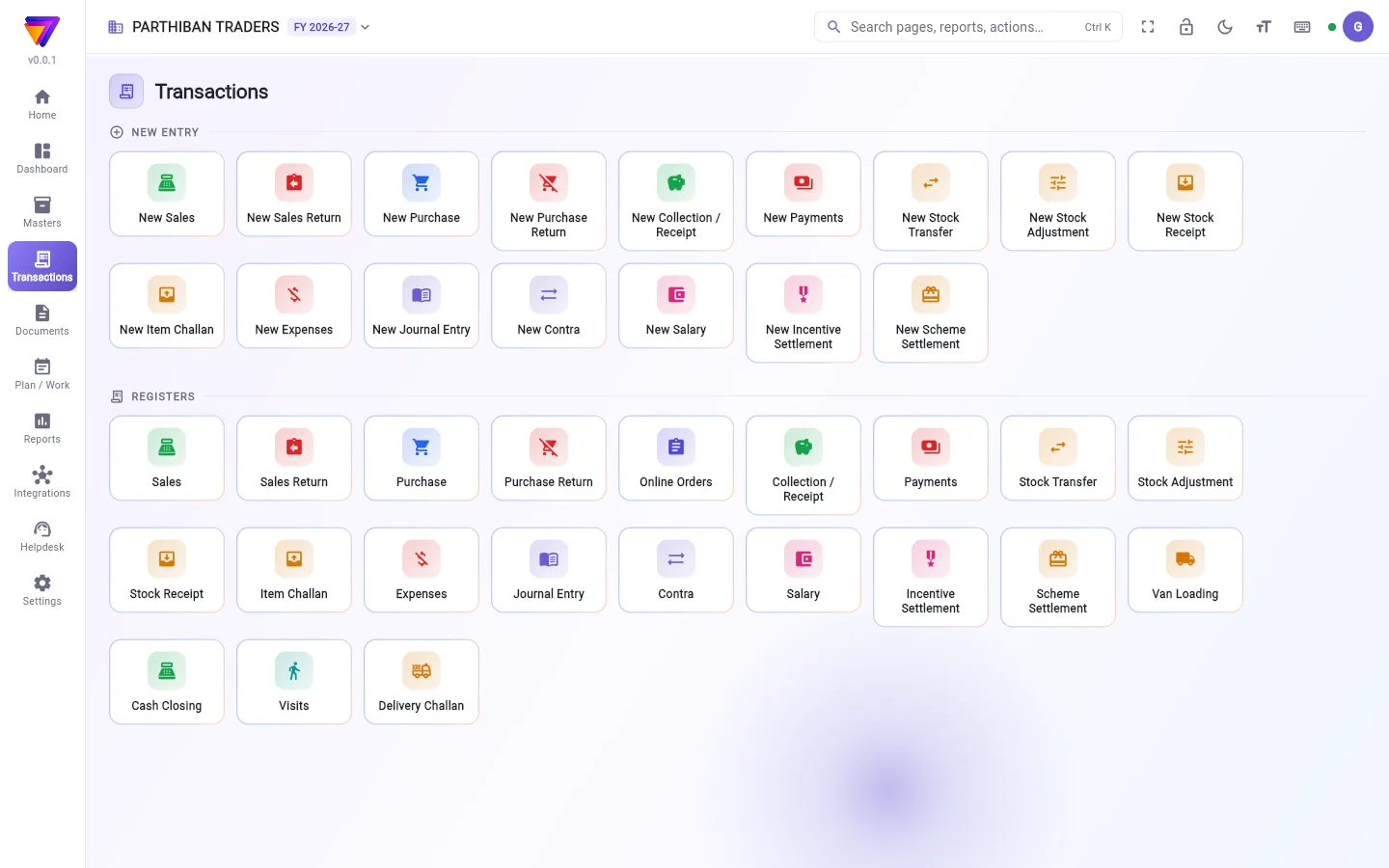
Transactions and Documents show two rows of tiles. New entry starts a new bill or voucher, such as New Sales. Registers opens the list of saved entries, such as Sales.
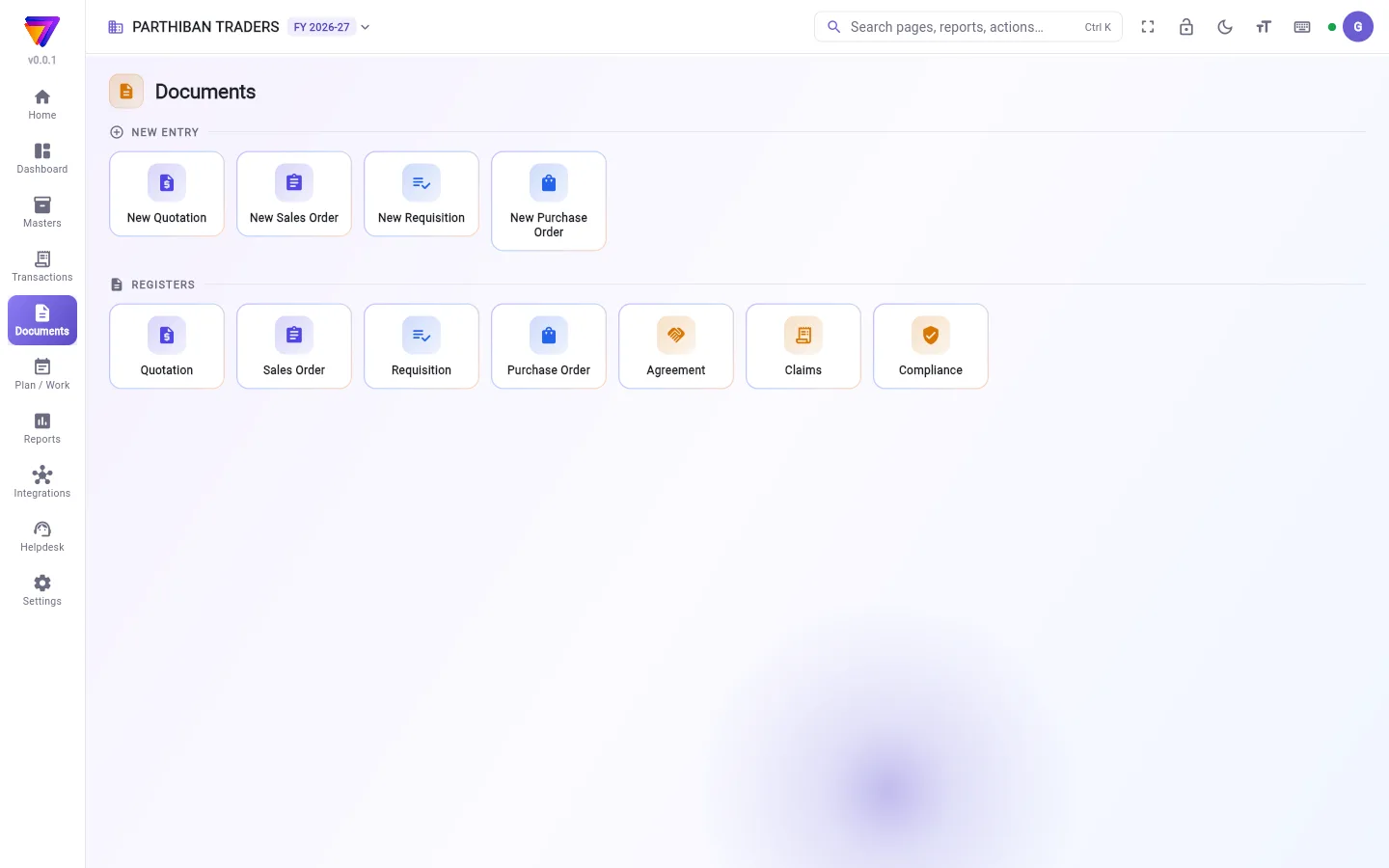
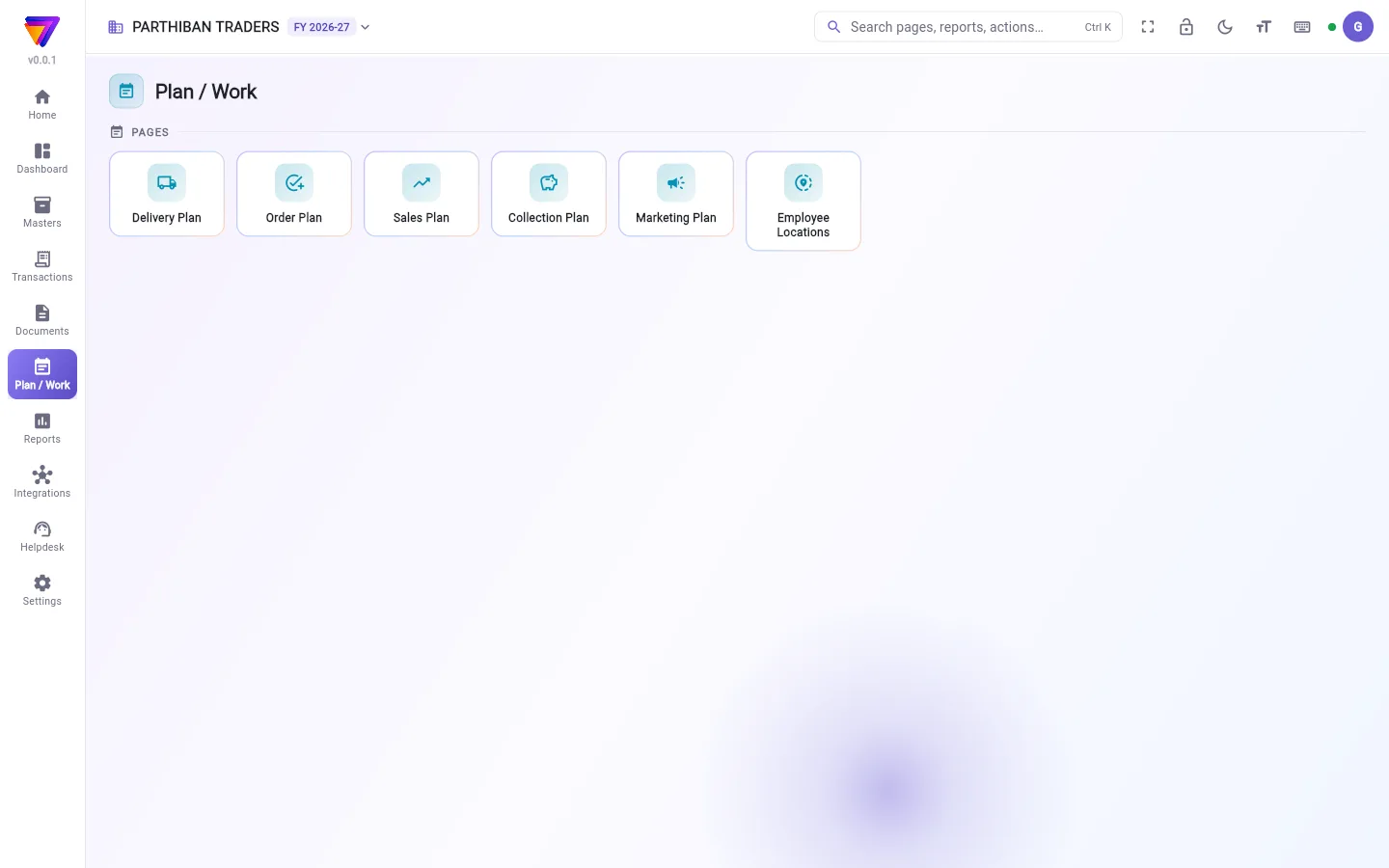
The other section pages look the same:
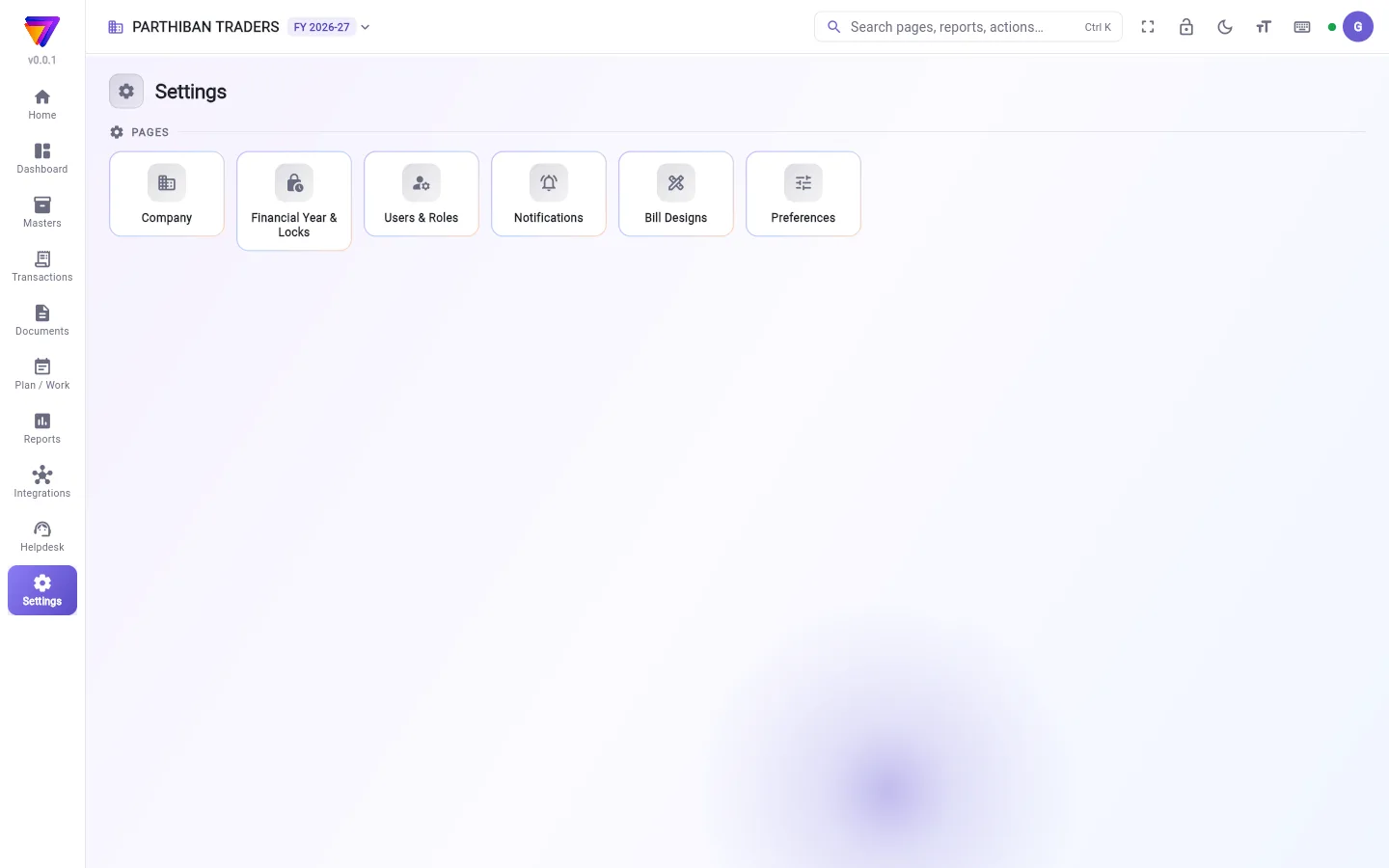
A tile with a lock is in a higher plan. Clicking it says so. See Plans and roles.
The top bar
From left to right:
- Company name and FY. The label shows the current financial year, for example FY 2026-27. If you belong to more than one company, click the name to switch company.
- Search pages, reports, actions… (Ctrl K). Type a page, a report, a client, a vendor, a product, or "new sale". Choose Open a bill / voucher by number… to open a bill by its number.
- Full screen. Fills the screen with Office. Press Esc or the button again to leave. It shows only where the browser allows it.
- Lock. The first time, it asks you to set a PIN of 4 to 8 digits for this device, and Lock when idle (Never, 5, 15 or 30 minutes). After that it locks the screen. Ctrl L does the same.
- Dark look / Light look. Switches between a light and a dark screen.
- Text size. Makes the text bigger or smaller. Reset goes back to 100%.
- Keyboard shortcuts (F1). Lists all shortcuts.
- The dot. Green means Online. Blue means Syncing…. Amber means you are offline: you work from this device, and changes sync when the connection is back.
- Your initial. Opens Preferences, the Tamil or English switch, Switch company, Add company and Sign out.
When a trial or plan has 7 days or less left, a bar under the top bar says so, with See plan.
Keyboard shortcuts
Press F1 at any time for the full list. The main ones:
| Key | What it does |
|---|---|
| Ctrl K | Search pages, reports and actions |
| Alt 1 … 9 | Go to a section |
| Alt 0 | Jump to the left menu, then ↑ ↓ and Enter |
| F8 / F9 | New sale / new purchase |
| F6 / F5 | New receipt / new payment |
| F7 / F4 | New journal / new contra |
| Ctrl Q | New quotation |
| F12 | Calculator (Enter copies the answer) |
| Ctrl L | Lock the screen |
| Esc | Back to the page before (when no entry is open) |
In an open entry: Ctrl S saves, Ctrl P saves and prints, Alt M minimizes, Alt O brings back the next minimized entry. In lists and reports: / finds, Alt N or Insert adds new.
Good to know
- An entry opens as a window over the page. When you move to another page, it waits in the bar at the bottom. Click it to go back to it.
- A shortcut for a new entry works only if your role can create that entry.
Related
- Home: quick actions and all your pages in one place
- Plans and roles: why a page is locked or missing
- Helpdesk: how-tos and support tickets
Office-இன் ஒவ்வொரு பக்கத்துக்கும் ஒரே சட்டகம்: இடதுபுறம் கீழ்நோக்கி ஒரு மெனு, மேலே ஒரு பட்டை, நடுவில் பக்கம். இந்தப் பக்கம் ஒவ்வொரு பகுதியையும் விளக்குகிறது.
இடது மெனு
இடது மெனுவில் அதிகபட்சம் 10 பகுதிகள் இருக்கும்: முகப்பு (Home), டாஷ்போர்டு (Dashboard), முதன்மைப் பதிவுகள் (Masters), பரிவர்த்தனைகள் (Transactions), ஆவணங்கள் (Documents), திட்டம் / வேலை (Plan / Work), அறிக்கைகள் (Reports), இணைப்புகள் (Integrations), உதவி மையம் (Helpdesk), அமைப்புகள் (Settings). நீங்கள் இருக்கும் பகுதி வண்ணத்தில் தெரியும்.
உங்கள் பொறுப்பு அந்தப் பகுதியில் குறைந்தது ஒரு பக்கத்தையாவது பார்க்க முடிந்தால் மட்டுமே அந்தப் பகுதி தெரியும். உதவி மையம் (Helpdesk)-இல் சிவப்பு எண் இருந்தால், உங்கள் டிக்கெட்டுக்கு ஆதரவுக் குழு பதில் சொல்லியிருக்கிறது.
போனில், முகப்பு (Home), பரிவர்த்தனைகள் (Transactions), முதன்மைப் பதிவுகள் (Masters), அறிக்கைகள் (Reports) கீழ்ப் பட்டையில் இருக்கும். எல்லாப் பகுதிகளும் மேல் இடது மெனுவில் இருக்கும்.
பகுதிப் பக்கங்கள்
ஒரு பகுதியைக் கிளிக் செய்தால் அதன் பக்கங்கள் டைல்களாகத் தெரியும். உதாரணமாக, முதன்மைப் பதிவுகள் (Masters)-இல் பொருள் (Product), பேட்ச் (Batch), வாடிக்கையாளர் (Client), சப்ளையர் (Vendor) மற்றவையும் தெரியும்.
பரிவர்த்தனைகள் (Transactions), ஆவணங்கள் (Documents) இரண்டு வரிசை டைல்களைக் காட்டும். புதிய பதிவு (New entry) புதிய பில் அல்லது வவுச்சரைத் தொடங்கும், உதாரணமாக புதிய விற்பனை (New Sales). பதிவேடுகள் (Registers) சேமித்த பதிவுகளின் பட்டியலைத் திறக்கும், உதாரணமாக விற்பனை (Sales).
மற்ற பகுதிப் பக்கங்களும் இதே மாதிரிதான்:
பூட்டுக் குறி உள்ள டைல் உயர் திட்டத்தில் உள்ளது. கிளிக் செய்தால் அதைச் சொல்லும். பார்க்க: திட்டங்களும் பொறுப்புகளும்.
மேல் பட்டை
இடமிருந்து வலமாக:
- நிறுவனப் பெயரும் நிதியாண்டும் (Company name and FY). லேபிள் நடப்பு நிதியாண்டைக் காட்டும், உதாரணமாக FY 2026-27. ஒன்றுக்கு மேற்பட்ட நிறுவனங்களில் இருந்தால், நிறுவனத்தை மாற்றப் பெயரைக் கிளிக் செய்யுங்க.
- பக்கங்கள், அறிக்கைகள், செயல்களைத் தேடு… (Ctrl K) (Search pages, reports, actions… (Ctrl K)). ஒரு பக்கம், அறிக்கை, வாடிக்கையாளர், சப்ளையர், பொருள், அல்லது "new sale" என்று தட்டச்சு செய்யுங்க. எண்ணைக் கொண்டு பில்லைத் திறக்க பில் / பதிவை எண் மூலம் திற… (Open a bill / voucher by number…) தேர்ந்தெடுங்க.
- முழுத் திரை (Full screen.). Office-ஐத் திரை முழுக்கக் காட்டும். வெளியே வர Esc அல்லது அதே பட்டனை மீண்டும் அழுத்துங்க. பிரவுசர் அனுமதிக்கும் இடத்தில் மட்டுமே இது தெரியும்.
- பூட்டு (Lock). முதல் முறை, இந்தச் சாதனத்துக்கு 4 முதல் 8 இலக்க PIN அமைக்கவும், பயன்பாடு இல்லாதபோது பூட்டு (Lock when idle) (ஒருபோதும் இல்லை (Never), 5, 15 அல்லது 30 நிமிடம்) தேர்ந்தெடுக்கவும் கேட்கும். அதன் பிறகு திரையைப் பூட்டும். Ctrl L-உம் இதையே செய்யும்.
- இருண்ட தோற்றம் / வெளிர் தோற்றம் (Dark look / Light look.). வெளிர் திரைக்கும் இருண்ட திரைக்கும் இடையே மாற்றும்.
- எழுத்து அளவு (Text size.). எழுத்தைப் பெரிதாக்கும் அல்லது சிறிதாக்கும். மீட்டமை (Reset) 100%-க்குத் திரும்பக் கொண்டுவரும்.
- விசைப்பலகை குறுக்குவழிகள் (F1) (Keyboard shortcuts (F1).). எல்லாக் குறுக்குவழிகளையும் பட்டியலிடும்.
- புள்ளி (The dot). பச்சை என்றால் இணைப்பில் உள்ளது (Online). நீலம் என்றால் ஒத்திசைக்கிறது… (Syncing…). மஞ்சள் என்றால் இணையம் இல்லை: இந்தச் சாதனத்திலிருந்தே வேலை செய்கிறீர்கள், இணைப்பு திரும்பியதும் மாற்றங்கள் ஒத்திசைக்கப்படும்.
- உங்கள் முதல் எழுத்து (Your initial). விருப்பங்கள் (Preferences), தமிழ் / ஆங்கில மாற்றம், நிறுவனத்தை மாற்று (Switch company), நிறுவனத்தைச் சேர் (Add company), வெளியேறு (Sign out) இவற்றைத் திறக்கும்.
சோதனைக் காலம் அல்லது திட்டம் முடிய 7 நாள் அல்லது அதற்கும் குறைவாக இருந்தால், மேல் பட்டையின் கீழ் ஒரு பட்டை திட்டத்தைப் பார் (See plan) உடன் அதைச் சொல்லும்.
விசைப்பலகை குறுக்குவழிகள்
முழுப் பட்டியலுக்கு எப்போது வேண்டுமானாலும் F1 அழுத்துங்க. முக்கியமானவை:
| விசை | என்ன செய்யும் |
|---|---|
| Ctrl K | பக்கங்கள், அறிக்கைகள், செயல்களைத் தேடு |
| Alt 1 … 9 | ஒரு பகுதிக்குப் போ |
| Alt 0 | இடது மெனுவுக்குத் தாவு, பிறகு ↑ ↓, Enter |
| F8 / F9 | புதிய விற்பனை / புதிய கொள்முதல் |
| F6 / F5 | புதிய வசூல் / புதிய பணம் செலுத்துதல் |
| F7 / F4 | புதிய குறிப்பேடு பதிவு / புதிய கான்ட்ரா |
| Ctrl Q | புதிய மதிப்பீடு (quotation) |
| F12 | கால்குலேட்டர் (Enter விடையை நகலெடுக்கும்) |
| Ctrl L | திரையைப் பூட்டு |
| Esc | முந்தைய பக்கத்துக்குத் திரும்பு (எந்தப் பதிவும் திறந்திருக்காதபோது) |
திறந்த பதிவில்: Ctrl S சேமிக்கும், Ctrl P சேமித்து அச்சிடும், Alt M சிறிதாக்கும், Alt O அடுத்த சிறிதாக்கிய பதிவைத் திரும்பக் கொண்டுவரும். பட்டியல்களிலும் அறிக்கைகளிலும்: / தேடும், Alt N அல்லது Insert புதியதைச் சேர்க்கும்.
தெரிந்துகொள்ள வேண்டியது
- பதிவு பக்கத்தின் மேல் ஒரு சாளரமாகத் திறக்கும். வேறு பக்கத்துக்குப் போனால், அது கீழ்ப் பட்டையில் காத்திருக்கும். அதற்குத் திரும்ப அதைக் கிளிக் செய்யுங்க.
- புதிய பதிவுக்கான குறுக்குவழி, உங்கள் பொறுப்பு அந்தப் பதிவை உருவாக்க அனுமதித்தால் மட்டுமே வேலை செய்யும்.
தொடர்புடையவை
- முகப்பு: விரைவுச் செயல்களும் உங்கள் எல்லாப் பக்கங்களும் ஒரே இடத்தில்
- திட்டங்களும் பொறுப்புகளும்: ஒரு பக்கம் ஏன் பூட்டியிருக்கிறது அல்லது ஏன் இல்லை
- உதவி மையம்: எப்படிச் செய்வது, ஆதரவு டிக்கெட்டுகள்