User manualபயனர் கையேடு · Office: DocumentsOffice: ஆவணங்கள் (Documents)
Claimsகோரிக்கைகள் (Claims)
Claim scheme discounts and free goods back from vendors, and follow each claim from draft to sent to settled.திட்டத் தள்ளுபடிகளையும் இலவசப் பொருட்களையும் சப்ளையர்களிடம் திரும்பக் கோருங்க; ஒவ்வொரு கோரிக்கையையும் வரைவு, அனுப்பியது, தீர்க்கப்பட்டது வரை பின்தொடருங்க.
- Where to find itஎங்கே இருக்கிறது
- Office → Documents → Claims
- Who uses itயார் பயன்படுத்துவார்கள்
- Accountant, ownerகணக்காளர், உரிமையாளர்
When a company runs a scheme, you give the discount or free goods to your clients and claim it back from the company. Claims builds that claim from your sale bills and follows it until the money comes in.
What you see
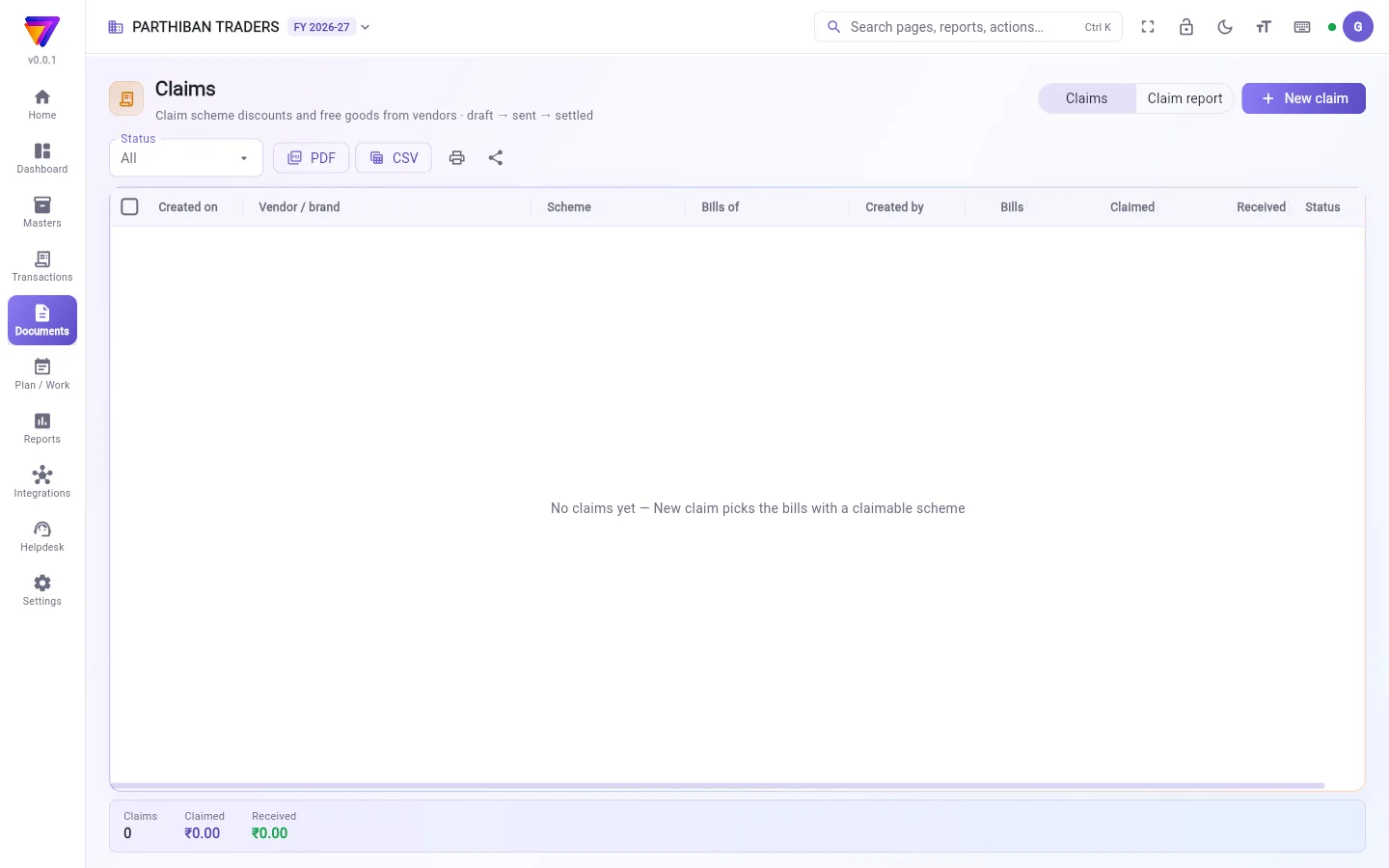
The page has two tabs: Claims and Claim report.
On Claims, each row shows Created on, Vendor / brand, Scheme, Bills of (the bill dates), Created by, Bills, Claimed, Received and Status. Filter by Status: Draft, Sent or Settled. The strip shows Claims, Claimed and Received.
Before you start
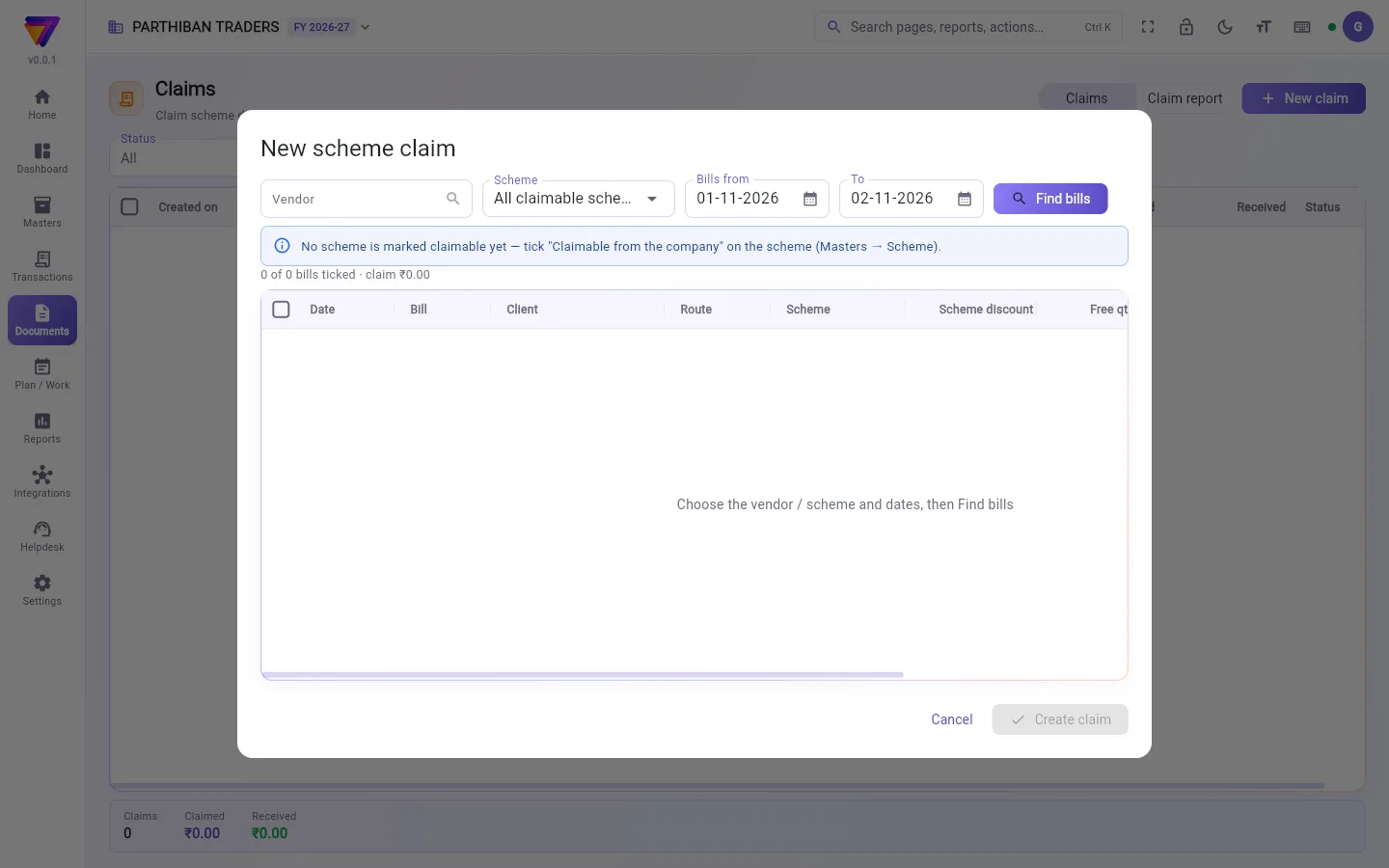
Only schemes marked claimable are picked up. Open the scheme in Masters → Scheme and tick Claimable from the company.
Make a claim
- Click New claim.
- Choose the Vendor and the Scheme, or leave All claimable schemes.
- Set Bills from and To.
- Click Find bills. Each line shows Date, Bill, Client, Route, Scheme, Scheme discount, Free qty, Free goods (cost) and Claim.
- All lines start ticked. Untick the ones you do not want to claim.
- Click Create claim. It is saved as Draft.
A bill already on another claim for the same scheme is left out, and the page tells you how many.
Send and settle
- Tick the claim.
- Click Print claim to print the list of bills for the vendor.
- Click Sent when you send it.
- When the money comes, click Settled. Type the Amount received and the Settled on date, then click Settle.
To undo, click Back to draft. Only a draft claim can be deleted.
The Claim report
Set Claims made from and To. Each vendor shows Claims, Draft, Sent, waiting, Claimed, Received and Short received. Short received is what a settled claim got less than it asked for.
Who can do what
- The Accountant role can do everything on this page.
- Sent, Settled and Back to draft need the edit permission. Delete needs the cancel permission.
- PDF and CSV need the export permission.
Good to know
- Available on the Pro plan and above.
- When you settle several claims together, each is marked received at its full amount. Settle one at a time to enter a smaller amount.
- A claim does not touch your books. Enter the money you receive as a collection or receipt.
- The claim counts free goods at cost.
Related
- Scheme: mark a scheme as claimable.
- Scheme Settlement: settle scheme amounts in your books.
- Collection / Receipt: enter the money the vendor pays.
- Vendor: the companies you claim from.
ஒரு நிறுவனம் திட்டம் (scheme) நடத்தும்போது, நீங்கள் உங்கள் வாடிக்கையாளர்களுக்குத் தள்ளுபடியோ இலவசப் பொருட்களோ கொடுத்து, அதை நிறுவனத்திடம் திரும்பக் கோருகிறீர்கள். கோரிக்கைகள் பக்கம் உங்கள் விற்பனை பில்களிலிருந்து அந்தக் கோரிக்கையைத் தயார் செய்து, பணம் வரும் வரை பின்தொடரும்.
திரையில் என்ன தெரியும்
பக்கத்தில் இரண்டு டேப்கள் உண்டு: கோரிக்கைகள் (Claims), கோரிக்கை அறிக்கை (Claim report).
கோரிக்கைகள் (Claims)-இல் ஒவ்வொரு வரிசையும் உருவாக்கிய தேதி (Created on), சப்ளையர் / பிராண்ட் (Vendor / brand), திட்டம் (Scheme), பில்கள் காலம் (Bills of) (பில் தேதிகள்), உருவாக்கியவர் (Created by), பில்கள் (Bills), கோரியது (Claimed), பெறப்பட்டது (Received), நிலை (Status) காட்டும். நிலை (Status) கொண்டு வடிகட்டுங்க: வரைவு (Draft), அனுப்பப்பட்டது (Sent) அல்லது தீர்க்கப்பட்டது (Settled). சுருக்கப் பட்டை கோரிக்கைகள் (Claims), கோரியது (Claimed), பெறப்பட்டது (Received) காட்டும்.
தொடங்கும் முன்
கோரக்கூடியது என்று குறித்த திட்டங்கள் மட்டுமே எடுத்துக்கொள்ளப்படும். முதன்மைப் பதிவுகள் → திட்டம் (Masters → Scheme)-இல் திட்டத்தைத் திறந்து நிறுவனத்திடம் கோரலாம் (Claimable from the company) டிக் செய்யுங்க.
கோரிக்கை போடுவது
- புதிய கோரிக்கை (New claim) கிளிக் செய்யுங்க.
- சப்ளையர் (Vendor), திட்டம் (Scheme) தேர்ந்தெடுங்க, அல்லது கோரக்கூடிய அனைத்து திட்டங்களும் (All claimable schemes) என்றே விடுங்க.
- பில்கள் முதல் (Bills from), வரை (To) அமையுங்க.
- பில்களைத் தேடு (Find bills) கிளிக் செய்யுங்க. ஒவ்வொரு வரியும் தேதி (Date), பில் (Bill), வாடிக்கையாளர் (Client), வழித்தடம் (Route), திட்டம் (Scheme), திட்டத் தள்ளுபடி (Scheme discount), இலவச அளவு (Free qty), இலவசப் பொருட்கள் (அடக்கவிலை) (Free goods (cost)), கோரிக்கை (Claim) காட்டும்.
- எல்லா வரிகளும் டிக் செய்த நிலையில் தொடங்கும். கோர வேண்டாதவற்றை அன்டிக் செய்யுங்க.
- கோரிக்கையை உருவாக்கு (Create claim) கிளிக் செய்யுங்க. அது வரைவு (Draft) ஆகச் சேமிக்கப்படும்.
அதே திட்டத்துக்கு ஏற்கனவே வேறொரு கோரிக்கையில் உள்ள பில் விடப்படும்; எத்தனை விடப்பட்டன என்று பக்கம் சொல்லும்.
அனுப்புவதும் தீர்ப்பதும்
- கோரிக்கையை டிக் செய்யுங்க.
- சப்ளையருக்கான பில் பட்டியலை அச்சிட கோரிக்கையை அச்சிடு (Print claim) கிளிக் செய்யுங்க.
- அனுப்பியதும் அனுப்பப்பட்டது (Sent) கிளிக் செய்யுங்க.
- பணம் வந்ததும் தீர்க்கப்பட்டது (Settled) கிளிக் செய்யுங்க. பெற்ற தொகை (Amount received), தீர்த்த தேதி (Settled on) டைப் செய்து, தீர் (Settle) கிளிக் செய்யுங்க.
திரும்பப் பழைய நிலைக்குக் கொண்டுவர வரைவுக்குத் திருப்பு (Back to draft) கிளிக் செய்யுங்க. வரைவு நிலையில் உள்ள கோரிக்கையை மட்டுமே நீக்க முடியும்.
கோரிக்கை அறிக்கை
கோரிக்கைகள் முதல் (Claims made from), வரை (To) அமையுங்க. ஒவ்வொரு சப்ளையருக்கும் கோரிக்கைகள் (Claims), வரைவு (Draft), அனுப்பியது, காத்திருப்பு (Sent, waiting), கோரியது (Claimed), பெறப்பட்டது (Received), குறைவாகப் பெற்றது (Short received) தெரியும். குறைவாகப் பெற்றது என்பது, தீர்க்கப்பட்ட கோரிக்கை கேட்டதை விட எவ்வளவு குறைவாக வந்தது என்பது.
யார் என்ன செய்யலாம்
- கணக்காளர் (Accountant) பொறுப்பு இந்தப் பக்கத்தில் எல்லாமே செய்யலாம்.
- அனுப்பப்பட்டது (Sent), தீர்க்கப்பட்டது (Settled), வரைவுக்குத் திருப்பு (Back to draft) ஆகியவற்றுக்கு திருத்தும் அனுமதி தேவை. நீக்கு (Delete)-க்கு ரத்து செய்யும் அனுமதி தேவை.
- PDF, CSV இரண்டுக்கும் பதிவிறக்கும் அனுமதி தேவை.
தெரிந்துகொள்ள வேண்டியது
- Pro பிளானிலும் அதற்கு மேலும் கிடைக்கும்.
- பல கோரிக்கைகளை ஒன்றாகத் தீர்த்தால், ஒவ்வொன்றும் முழுத் தொகையும் பெறப்பட்டதாகக் குறிக்கப்படும். குறைவான தொகையைப் போட, ஒவ்வொன்றாகத் தீருங்க.
- கோரிக்கை உங்கள் கணக்குகளைத் தொடாது. வந்த பணத்தை வசூலாக (Collection / Receipt) பதிவு செய்யுங்க.
- கோரிக்கை இலவசப் பொருட்களை அடக்கவிலையில் கணக்கிடும்.
தொடர்புடையவை
- திட்டம் (Scheme): ஒரு திட்டத்தைக் கோரக்கூடியது என்று குறிப்பது.
- திட்டத் தீர்வு (Scheme Settlement): திட்டத் தொகைகளை உங்கள் கணக்குகளில் தீர்ப்பது.
- வசூல் (Collection / Receipt): சப்ளையர் தரும் பணத்தைப் பதிவு செய்வது.
- சப்ளையர் (Vendor): நீங்கள் கோரிக்கை வைக்கும் நிறுவனங்கள்.