User manualபயனர் கையேடு · Score: the salesman appScore: சேல்ஸ்மேன் ஆப்
Take an orderஆர்டர் எடு (Take an order)
Choose the client, pick products at the client's rates, check the cart, and save a bill or an order.வாடிக்கையாளரைத் தேர்ந்தெடுங்க, அவருக்கான விலையில் பொருட்களை எடுங்க, கார்டைச் சரிபாருங்க, பில் அல்லது ஆர்டராகச் சேமியுங்க.
- Where to find itஎங்கே இருக்கிறது
- Score → Score → Order (the round button)
- Who uses itயார் பயன்படுத்துவார்கள்
- Salesmenசேல்ஸ்மேன்கள்
The round button in the middle of the bottom bar opens Order. You choose a client, add products, and save a bill now or an order for the office to bill later.
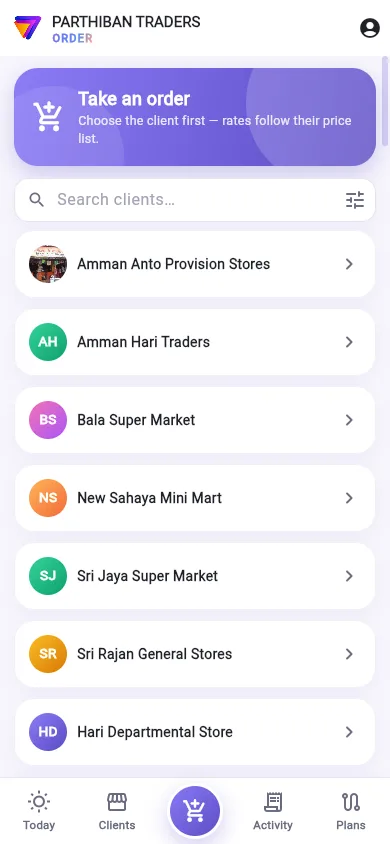
Choose the client
- Tap the round order button.
- Under Take an order, find the client with Search clients… or the filter button.
- Tap the client.
Clients with an open cart are at the top, marked Cart open. You can also start from Order on a client card, or New order on the Today tab.
Each client keeps their own cart while the app is open. You can leave the cart, go to another tab, and come back to it.
Bill or Order
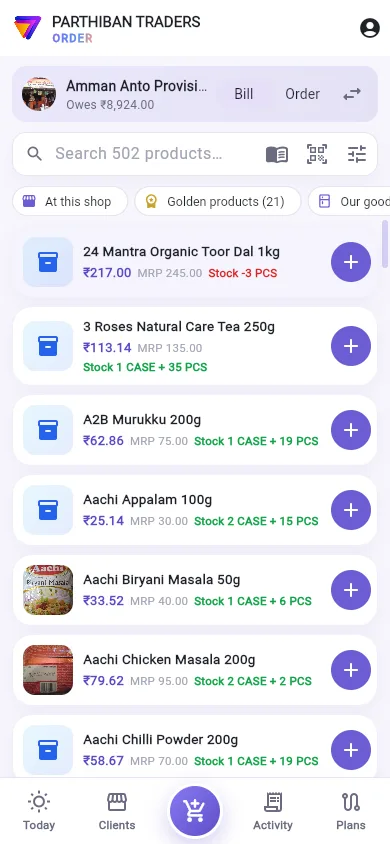
The bar at the top shows the client and what they owe (Owes ₹… or No dues).
- Bill: a sales bill now. It goes into the books when the server posts it.
- Order: a sales order. The office makes the bill later.
You see both only if your role and your employee record allow both. The swap button changes the client.
Find products
- Search … products…: search by name, code, barcode, brand, group or local name.
- The book button: Send the price list on WhatsApp. It sends the products shown, at this client's rates.
- The scanner button: Scan a barcode. The product is added to the cart. If no product has that code, you see No product with code ….
- The filter button opens Product filter: Brand, Group and Division.
The chips under the search:
- At this shop: only what this shop has ordered in the last six months, most ordered first.
- Golden products (…): products under a full-price incentive for you today. It shows only when there are some.
- Our goods at the shop: the racks, freezers or crates at this shop. It shows when Goods at shops in the catalogue is on in your profile menu.
- In stock, All brands, and a chip for each brand. Tap several brands to see them together.
What each product shows
- The client's rate, and the MRP. No rate in red means there is no rate for this client.
- Stock: what the godown (or your van) has, in big and small units, such as Stock 1 CASE + 35 PCS. Green means some is in stock. Red means none, or below zero.
- −… on this phone or −… waiting: your own bills not yet sent, or waiting for approval. They still hold stock back.
- Scheme when a scheme applies.
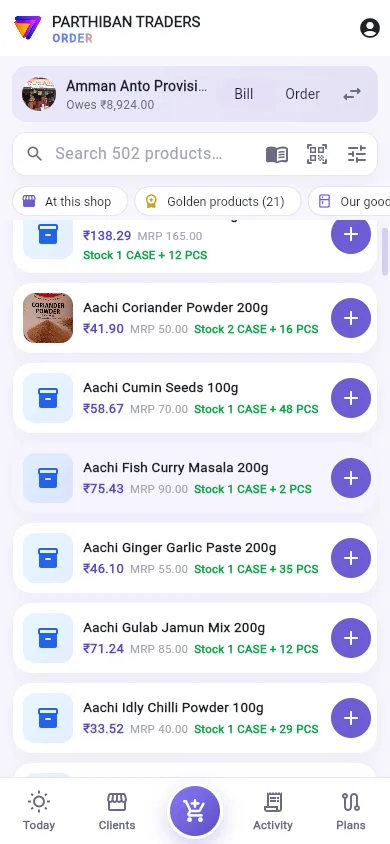
Add products
- Tap the purple add button on a product. If the product has several MRPs or batches, choose one.
- Use the minus and plus buttons to change the quantity.
- Tap the product to change its rate, free quantity, discount or batch.
If the office does not allow billing more than the stock, Score takes the extra quantity off at once and tells you why.
Check the cart and save
- Tap … items · ₹… — review at the bottom.
- Check each line. Tap a line to change it.
- Use Apply available schemes or Remove applied schemes if you need them.
- Under Bill, set what your office allows: Credit or Cash now, Expected date to pay, Series, Vehicle no. (optional), Sell from, Bill discount ₹ or or %, and Note on the bill.
- Check the totals, down to Total. My incentive on this order shows what you earn.
- Tap Save bill (or Save order). On a bill, Save & print saves it and prints it on the Bluetooth printer.
Before a bill is saved, Score shows a Warning if stock is short or the client already owes money. Tap Save anyway to go on.
After saving
The Bill saved (or Order saved) screen shows the number and the total. Tap:
- Print: the Bluetooth printer.
- Share PDF.
- WhatsApp: a message to the client with the number and amount.
- A4 / system print.
- Done.
Good to know
- If you may not give credit, the bill is a cash bill. You see Cash bill — you may not give credit.
- Your office may ask Select bill type (Cash or Credit) on every bill.
- With Sales need approval on, your bill waits for approval before it is numbered and posted.
- With Score: check in before taking orders on, you see Check in first until you check in.
- Use advance (money on account) sets the client's advance against this bill.
- Plan: bills work on every plan. Orders need Pro or higher.
Related
- Clients: start an order from a client
- Printing: set up the Bluetooth printer
- Activity: find and change a saved bill
- Sales: the same bill in Office
- Sales Order: orders the office bills later
கீழ்ப் பட்டையின் நடுவில் உள்ள வட்ட பட்டன் ஆர்டர் (Order) திறக்கும். வாடிக்கையாளரைத் தேர்ந்தெடுத்து, பொருட்களைச் சேர்த்து, இப்போதே பில்லாகவோ, அலுவலகம் பிறகு பில் போடுவதற்கான ஆர்டராகவோ சேமிக்கலாம்.
வாடிக்கையாளரைத் தேர்ந்தெடுத்தல்
- வட்டமான ஆர்டர் பட்டனைத் தட்டுங்க.
- ஆர்டர் எடு (Take an order) கீழ், வாடிக்கையாளர்களைத் தேடு… (Search clients…) அல்லது வடிகட்டி பட்டன் மூலம் வாடிக்கையாளரைக் கண்டுபிடிங்க.
- வாடிக்கையாளரைத் தட்டுங்க.
கார்ட் திறந்திருக்கும் வாடிக்கையாளர்கள் மேலே, கார்ட் திறந்துள்ளது (Cart open) என்ற குறியுடன் இருப்பார்கள். வாடிக்கையாளர் அட்டையில் உள்ள ஆர்டர் (Order) அல்லது இன்று டேபில் உள்ள புதிய ஆர்டர் (New order) மூலமும் தொடங்கலாம்.
ஆப் திறந்திருக்கும் வரை ஒவ்வொரு வாடிக்கையாளருக்கும் தனிக் கார்ட் இருக்கும். கார்டை விட்டுவிட்டு வேறு டேபுக்குப் போய், திரும்ப வந்து தொடரலாம்.
பில் அல்லது ஆர்டர்
மேலே உள்ள பட்டை வாடிக்கையாளரையும் அவர் தர வேண்டியதையும் காட்டும் (நிலுவை ₹… (Owes ₹…) அல்லது நிலுவை இல்லை (No dues)).
- பில் (Bill): இப்போதே ஒரு விற்பனை பில். சர்வர் அதைப் பதிவு செய்ததும் கணக்கில் ஏறும்.
- ஆர்டர் (Order): ஒரு விற்பனை ஆர்டர். அலுவலகம் பிறகு பில் போடும்.
உங்கள் பொறுப்பும் பணியாளர் பதிவும் இரண்டுக்கும் அனுமதித்தால் மட்டுமே இரண்டும் தெரியும். மாற்று (swap) பட்டன் வாடிக்கையாளரை மாற்றும்.
பொருட்களைக் கண்டுபிடித்தல்
- … பொருட்களில் தேடு… (Search … products…): பெயர், குறியீடு, பார்கோடு, பிராண்ட், குழு அல்லது உள்ளூர் பெயர் மூலம் தேட.
- புத்தக பட்டன்: வாட்ஸ்அப்பில் விலைப்பட்டியல் அனுப்பு (Send the price list on WhatsApp). திரையில் உள்ள பொருட்களை இந்த வாடிக்கையாளருக்கான விலையில் அனுப்பும்.
- ஸ்கேனர் பட்டன்: பார்கோடு ஸ்கேன் செய் (Scan a barcode). பொருள் கார்டில் சேரும். அந்தக் குறியீட்டில் எந்தப் பொருளும் இல்லை என்றால், … குறியீட்டில் பொருள் இல்லை (No product with code …) என்று வரும்.
- வடிகட்டி பட்டன் பொருள் வடிகட்டி (Product filter) திறக்கும்: பிராண்ட் (Brand), குழு (Group), பிரிவு (Division).
தேடலுக்குக் கீழே உள்ள சிப்கள்:
- இந்தக் கடையில் (At this shop): கடந்த ஆறு மாதங்களில் இந்தக் கடை ஆர்டர் செய்தவை மட்டும், அதிகம் ஆர்டர் செய்தது முதலில்.
- தங்கப் பொருட்கள் (…) (Golden products (…)): இன்று உங்களுக்கு முழு-விலை ஊக்கத்தொகை உள்ள பொருட்கள். அப்படிப் பொருட்கள் இருந்தால் மட்டுமே தெரியும்.
- கடையில் உள்ள நம் பொருட்கள் (Our goods at the shop): இந்தக் கடையில் உள்ள ரேக்குகள், ஃப்ரீசர்கள் அல்லது கிரேட்கள். உங்கள் புரொஃபைல் மெனுவில் கடைகளில் உள்ள பொருட்கள் பட்டியலில் (Goods at shops in the catalogue) ஆன் ஆக இருந்தால் தெரியும்.
- இருப்பில் (In stock), எல்லா பிராண்டுகளும் (All brands), ஒவ்வொரு பிராண்டுக்கும் ஒரு சிப். பல பிராண்டுகளைச் சேர்த்துப் பார்க்க, பலவற்றைத் தட்டுங்க.
ஒவ்வொரு பொருளும் என்ன காட்டும்
- வாடிக்கையாளருக்கான விலை, MRP. சிவப்பில் விலை இல்லை (No rate) என்றால் இந்த வாடிக்கையாளருக்கு விலை இல்லை.
- இருப்பு (Stock): குடோனில் (அல்லது உங்கள் வேனில்) இருப்பது, பெரிய, சிறிய யூனிட்களில், உதாரணமாக இருப்பு 1 CASE + 35 PCS (Stock 1 CASE + 35 PCS). பச்சை என்றால் கொஞ்சம் இருப்பு உள்ளது. சிவப்பு என்றால் இல்லை, அல்லது பூஜ்யத்துக்குக் கீழே.
- −… இந்த போனில் (−… on this phone) அல்லது −… காத்திருக்கிறது (−… waiting): இன்னும் அனுப்பப்படாத, அல்லது ஒப்புதலுக்குக் காத்திருக்கும் உங்கள் சொந்த பில்கள். இவையும் இருப்பைப் பிடித்து வைத்திருக்கும்.
- ஒரு திட்டம் பொருந்தினால் திட்டம் (Scheme).
பொருட்களைச் சேர்த்தல்
- பொருளில் உள்ள ஊதா நிற சேர் பட்டனைத் தட்டுங்க. பொருளுக்குப் பல MRP அல்லது பேட்ச்கள் இருந்தால், ஒன்றைத் தேர்ந்தெடுங்க.
- அளவை மாற்ற மைனஸ், பிளஸ் பட்டன்களைப் பயன்படுத்துங்க.
- விலை, இலவச அளவு, தள்ளுபடி அல்லது பேட்சை மாற்ற பொருளைத் தட்டுங்க.
இருப்பை விட அதிகமாக பில் போட அலுவலகம் அனுமதிக்கவில்லை என்றால், Score கூடுதல் அளவை உடனே குறைத்து, காரணத்தைச் சொல்லும்.
கார்டைச் சரிபார்த்துச் சேமித்தல்
- கீழே உள்ள … பொருட்கள் · ₹… — சரிபார் (… items · ₹… — review) தட்டுங்க.
- ஒவ்வொரு வரியையும் சரிபாருங்க. மாற்ற வரியைத் தட்டுங்க.
- தேவைப்பட்டால் கிடைக்கும் சலுகைகளைப் பயன்படுத்து (Apply available schemes) அல்லது பயன்படுத்திய சலுகைகளை நீக்கு (Remove applied schemes) பயன்படுத்துங்க.
- பில் (Bill) கீழ், உங்கள் அலுவலகம் அனுமதிப்பதை அமையுங்க: கடன் (Credit) அல்லது இப்போதே பணம் (Cash now), செலுத்த எதிர்பார்க்கும் தேதி (Expected date to pay), தொடர் (Series), வாகன எண் (விருப்பம்) (Vehicle no. (optional)), எங்கிருந்து விற்பனை (Sell from), பில் தள்ளுபடி ₹ (Bill discount ₹) அல்லது அல்லது % (or %), பில்லில் குறிப்பு (Note on the bill).
- மொத்தம் (Total) வரை மொத்தங்களைச் சரிபாருங்க. இந்த ஆர்டரில் என் ஊக்கத்தொகை (My incentive on this order) நீங்கள் பெறுவதைக் காட்டும்.
- பில்லைச் சேமி (Save bill) (அல்லது வரிசையைச் சேமி (Save order)) தட்டுங்க. பில்லில், சேமித்து அச்சிடு (Save & print) சேமித்து புளூடூத் பிரிண்டரில் அச்சிடும்.
பில் சேமிக்கும் முன், இருப்பு குறைவாக இருந்தாலோ வாடிக்கையாளர் ஏற்கனவே பணம் தர வேண்டியிருந்தாலோ, Score ஒரு எச்சரிக்கை (Warning) காட்டும். தொடர பரவாயில்லை, சேமி (Save anyway) தட்டுங்க.
சேமித்த பிறகு
பில் சேமிக்கப்பட்டது (Bill saved) (அல்லது ஆர்டர் சேமிக்கப்பட்டது (Order saved)) திரை எண்ணையும் மொத்தத்தையும் காட்டும். தட்டுங்க:
- அச்சிடு (Print): புளூடூத் பிரிண்டர்.
- PDF பகிர் (Share PDF).
- WhatsApp: எண், தொகையுடன் வாடிக்கையாளருக்கு ஒரு செய்தி.
- A4 / சாதாரண அச்சு (A4 / system print).
- முடிந்தது (Done).
தெரிந்துகொள்ள வேண்டியது
- நீங்கள் கடன் தர அனுமதி இல்லை என்றால், பில் ரொக்க பில்லாகும். ரொக்க பில் — நீங்கள் கடன் தர முடியாது (Cash bill — you may not give credit) என்று வரும்.
- ஒவ்வொரு பில்லிலும் பில் வகையைத் தேர்ந்தெடு (Select bill type) (ரொக்கம் (Cash) அல்லது கடன் (Credit)) என்று உங்கள் அலுவலகம் கேட்க வைக்கலாம்.
- விற்பனைக்கு ஒப்புதல் தேவை (Sales need approval) ஆன் ஆக இருந்தால், உங்கள் பில் எண் வழங்கப்பட்டுப் பதிவாவதற்கு முன் ஒப்புதலுக்குக் காத்திருக்கும்.
- Score: ஆர்டர் எடுக்கும் முன் செக் இன் (Score: check in before taking orders) ஆன் ஆக இருந்தால், வருகை பதிவு செய்யும் வரை முதலில் செக் இன் செய்யவும் (Check in first) என்று வரும்.
- முன்பணத்தைப் பயன்படுத்து (கணக்கில் உள்ள பணம்) (Use advance (money on account)) வாடிக்கையாளரின் முன்பணத்தை இந்த பில்லுக்கு எதிராகக் கழிக்கும்.
- பிளான்: பில்கள் எல்லா பிளானிலும் வேலை செய்யும். ஆர்டர்களுக்கு Pro அல்லது அதற்கு மேல் வேண்டும்.
தொடர்புடையவை
- வாடிக்கையாளர்கள்: வாடிக்கையாளரில் இருந்து ஆர்டர் தொடங்க
- அச்சிடுதல்: புளூடூத் பிரிண்டரை அமைக்க
- செயல்பாடு: சேமித்த பில்லைக் கண்டுபிடித்து மாற்ற
- விற்பனை: Office-இல் அதே பில்
- விற்பனை ஆர்டர்: அலுவலகம் பிறகு பில் போடும் ஆர்டர்கள்