User manualபயனர் கையேடு · Office: TransactionsOffice: பரிவர்த்தனைகள் (Transactions)
Online Ordersஆன்லைன் ஆர்டர்கள் (Online Orders)
See orders placed on your online order page, then bill them, give them for delivery or reject them.உங்க ஆன்லைன் ஆர்டர் பக்கத்தில் வந்த ஆர்டர்களைப் பாருங்க, பிறகு அவற்றை பில் போடுங்க, டெலிவரிக்குக் கொடுங்க அல்லது நிராகரியுங்க.
- Where to find itஎங்கே இருக்கிறது
- Office → Transactions → Online Orders
- Who uses itயார் பயன்படுத்துவார்கள்
- Billing staff, sales staff, delivery staffபில்லிங் ஊழியர்கள், விற்பனை ஊழியர்கள், டெலிவரி ஊழியர்கள்
Shops and consumers can order from a web page that lists your products and selling rates. Their orders arrive here for you to act on.
What you see
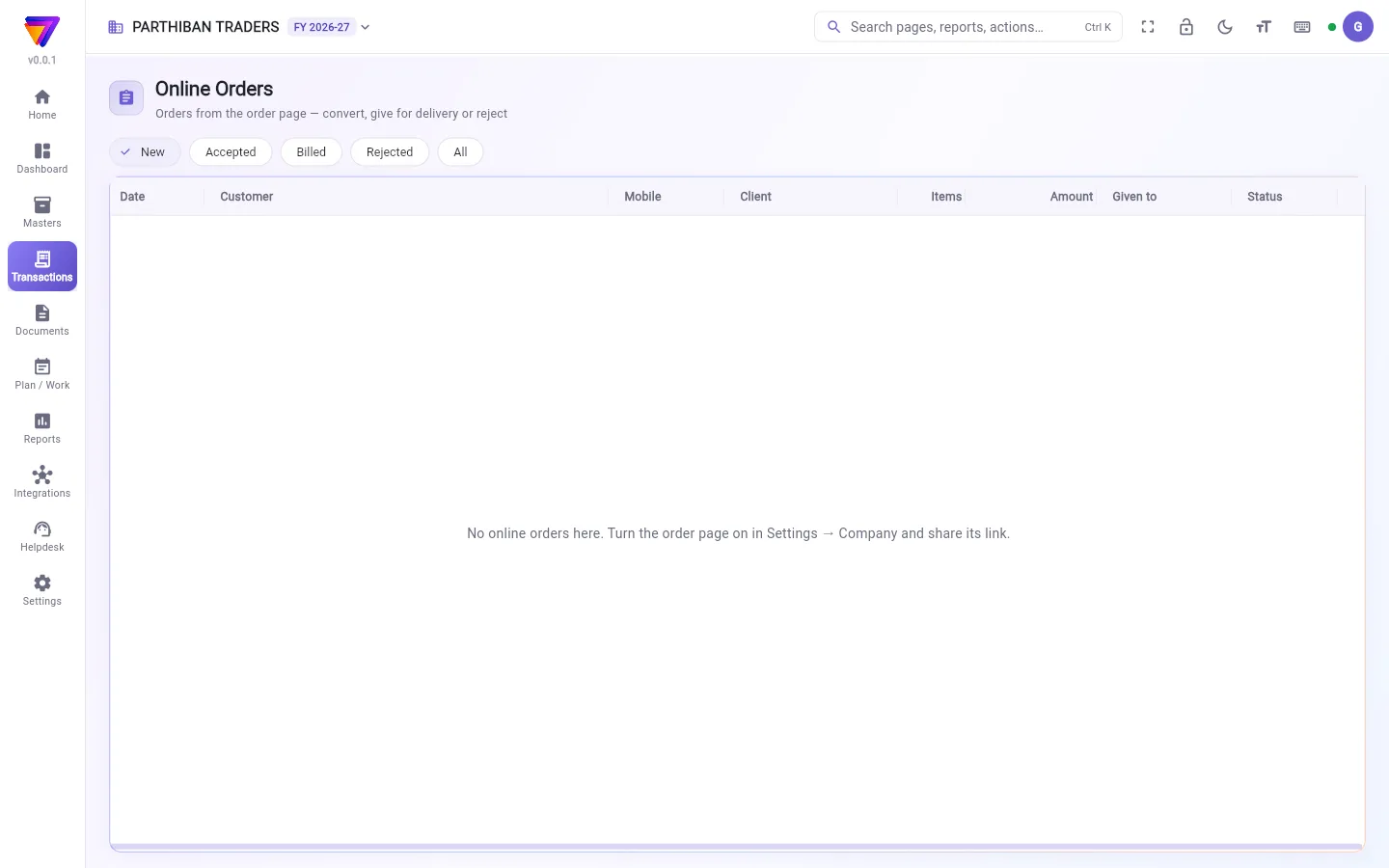
The tabs at the top filter the orders: New, Accepted, Billed, Rejected and All. The page opens on New.
The list shows Date, Customer, Mobile, Client, Items, Amount, Given to and Status.
If the list is empty and says to turn the order page on, the order page is off for your company.
Turn on the order page
- Go to Settings → Company.
- Turn on Take orders online.
- Click Copy link and share the link with your shops and consumers.
You need permission to change company settings.
Act on an order
- Click an order in the list. Its details open above the list: name, mobile, address, note, each product with quantity and rate, and the total.
- Choose what to do:
- Convert to sale opens a new sale with the client, products, quantities and rates. Check it and save it.
- Make sales order opens a new sales order the same way.
- Give for delivery lets you pick a staff member. The order moves to Accepted and shows their name in Given to.
- Reject asks Why (the office sees it). Type the reason and click Reject.
If the person who ordered is not a client yet, you are asked New client?. Click Add client, fill the client form and save. Then the bill opens.
Who can do what
- The page has view and edit. With edit you see the buttons above.
- Convert to sale needs permission to create sales. Make sales order needs permission to create sales orders.
- Billed and rejected orders show no buttons.
Good to know
- Online Orders is on every plan.
- The order moves to Billed as soon as the sale or sales order opens, before you save it. If you close the bill without saving, the order still shows Billed. Check the Sales register to be sure the bill was made.
- A product that no longer exists is left off the bill.
- You can be told about new online orders. See Notifications in Settings.
Related
- Sales: the bill made from the order
- Sales Order: orders to bill later
- Client: the client added from an order
- Company: the Take orders online switch
- Notifications: alerts for new orders
கடைகளும் நுகர்வோரும் உங்க பொருட்களையும் விற்பனை விலைகளையும் காட்டும் ஒரு வெப் பக்கத்திலிருந்து ஆர்டர் செய்யலாம். அவர்களின் ஆர்டர்கள் நீங்க நடவடிக்கை எடுக்க இங்கே வரும்.
திரையில் என்ன தெரியும்
மேலே உள்ள டேப்கள் ஆர்டர்களை வடிகட்டும்: புதிய (New), ஏற்கப்பட்டது (Accepted), பில் போட்டது (Billed), நிராகரிக்கப்பட்டது (Rejected), அனைத்தும் (All). பக்கம் புதிய (New) டேப்பில் திறக்கும்.
பட்டியலில் தேதி (Date), வாடிக்கையாளர் (Customer), மொபைல் (Mobile), வாடிக்கையாளர் (Client), பொருட்கள் (Items), தொகை (Amount), கொடுக்கப்பட்டது (Given to), நிலை (Status) தெரியும்.
பட்டியல் காலியாக இருந்து, ஆர்டர் பக்கத்தை இயக்கச் சொன்னால், உங்க நிறுவனத்துக்கு ஆர்டர் பக்கம் அணைக்கப்பட்டிருக்கிறது என்று அர்த்தம்.
ஆர்டர் பக்கத்தை இயக்குவது
- அமைப்புகள் → நிறுவனம் (Settings → Company) போங்க.
- ஆன்லைனில் ஆர்டர் பெறு (Take orders online) இயக்குங்க.
- இணைப்பை நகலெடு (Copy link) கிளிக் செய்து, அந்த லிங்கை உங்க கடைகளுக்கும் நுகர்வோருக்கும் அனுப்புங்க.
நிறுவன அமைப்புகளை மாற்றும் அனுமதி தேவை.
ஆர்டரின் மேல் நடவடிக்கை
- பட்டியலில் ஒரு ஆர்டரைக் கிளிக் செய்யுங்க. அதன் விவரங்கள் பட்டியலுக்கு மேலே திறக்கும்: பெயர், மொபைல், முகவரி, குறிப்பு, ஒவ்வொரு பொருளும் அளவு, விலையுடன், மொத்தம்.
- என்ன செய்வது என்று தேர்ந்தெடுங்க:
- விற்பனையாக மாற்று (Convert to sale) வாடிக்கையாளர், பொருட்கள், அளவுகள், விலைகளுடன் ஒரு புதிய விற்பனையைத் திறக்கும். சரிபார்த்து சேமியுங்க.
- விற்பனை ஆர்டர் ஆக்கு (Make sales order) அதே போல ஒரு புதிய விற்பனை ஆர்டரைத் திறக்கும்.
- டெலிவரிக்குக் கொடு (Give for delivery) ஒரு ஊழியரைத் தேர்ந்தெடுக்க விடும். ஆர்டர் ஏற்கப்பட்டது (Accepted) டேப்புக்கு மாறும்; கொடுக்கப்பட்டது (Given to) நெடுவரிசையில் அவர் பெயர் தெரியும்.
- நிராகரி (Reject) காரணம் (அலுவலகம் பார்க்கும்) (Why (the office sees it)) என்று கேட்கும். காரணத்தை டைப் செய்து நிராகரி (Reject) கிளிக் செய்யுங்க.
ஆர்டர் செய்தவர் இன்னும் வாடிக்கையாளராக இல்லையென்றால், புதிய வாடிக்கையாளரா? (New client?) என்று கேட்கும். வாடிக்கையாளரைச் சேர் (Add client) கிளிக் செய்து, வாடிக்கையாளர் படிவத்தை நிரப்பி சேமியுங்க. அதன் பிறகு பில் திறக்கும்.
யார் என்ன செய்யலாம்
- இந்தப் பக்கத்தில் பார்க்க, திருத்த அனுமதிகள் உண்டு. திருத்த அனுமதி இருந்தால் மேலே சொன்ன பொத்தான்கள் தெரியும்.
- விற்பனையாக மாற்று (Convert to sale) செய்ய விற்பனை உருவாக்கும் அனுமதி தேவை. விற்பனை ஆர்டர் ஆக்கு (Make sales order) செய்ய விற்பனை ஆர்டர் உருவாக்கும் அனுமதி தேவை.
- பில் போட்ட, நிராகரித்த ஆர்டர்களில் பொத்தான்கள் தெரியாது.
தெரிந்துகொள்ள வேண்டியது
- ஆன்லைன் ஆர்டர்கள் எல்லா திட்டங்களிலும் (plan) உண்டு.
- விற்பனை அல்லது விற்பனை ஆர்டர் திறந்தவுடனேயே — நீங்க சேமிப்பதற்கு முன்பே — ஆர்டர் பில் போட்டது (Billed) நிலைக்கு மாறிவிடும். சேமிக்காமல் பில்லை மூடிவிட்டாலும், ஆர்டர் பில் போட்டது (Billed) என்றே காட்டும். பில் உண்மையில் போடப்பட்டதா என்று விற்பனை பதிவேட்டில் சரிபாருங்க.
- இப்போது இல்லாத பொருள் பில்லில் சேராது.
- புதிய ஆன்லைன் ஆர்டர்கள் வந்தால் உங்களுக்குத் தெரிவிக்கப்படலாம். அமைப்புகளில் அறிவிப்புகள் (Notifications) பாருங்க.
தொடர்புடையவை
- விற்பனை (Sales): ஆர்டரிலிருந்து போட்ட பில்
- விற்பனை ஆர்டர் (Sales Order): பிறகு பில் போட வேண்டிய ஆர்டர்கள்
- வாடிக்கையாளர் (Client): ஆர்டரிலிருந்து சேர்த்த வாடிக்கையாளர்
- நிறுவனம் (Company): ஆன்லைனில் ஆர்டர் பெறு (Take orders online) ஸ்விட்ச்
- அறிவிப்புகள் (Notifications): புதிய ஆர்டர்களுக்கான அறிவிப்புகள்