User manualபயனர் கையேடு · Office: Helpdesk and SettingsOffice: உதவி மையம், அமைப்புகள்
Notificationsஅறிவிப்புகள் (Notifications)
Choose which SMS go to your clients and to you, and which push messages reach the Office and Score apps.உங்கள் வாடிக்கையாளர்களுக்கும் உங்களுக்கும் எந்த SMS போக வேண்டும், Office, Score செயலிகளுக்கு எந்த புஷ் செய்திகள் வர வேண்டும் என்று தேர்ந்தெடுங்க.
- Where to find itஎங்கே இருக்கிறது
- Office → Settings → Notifications
- Who uses itயார் பயன்படுத்துவார்கள்
- Owner, Adminஉரிமையாளர், நிர்வாகி
This page lists every message Stockflow sends by itself. Each SMS is off until you switch it on here.
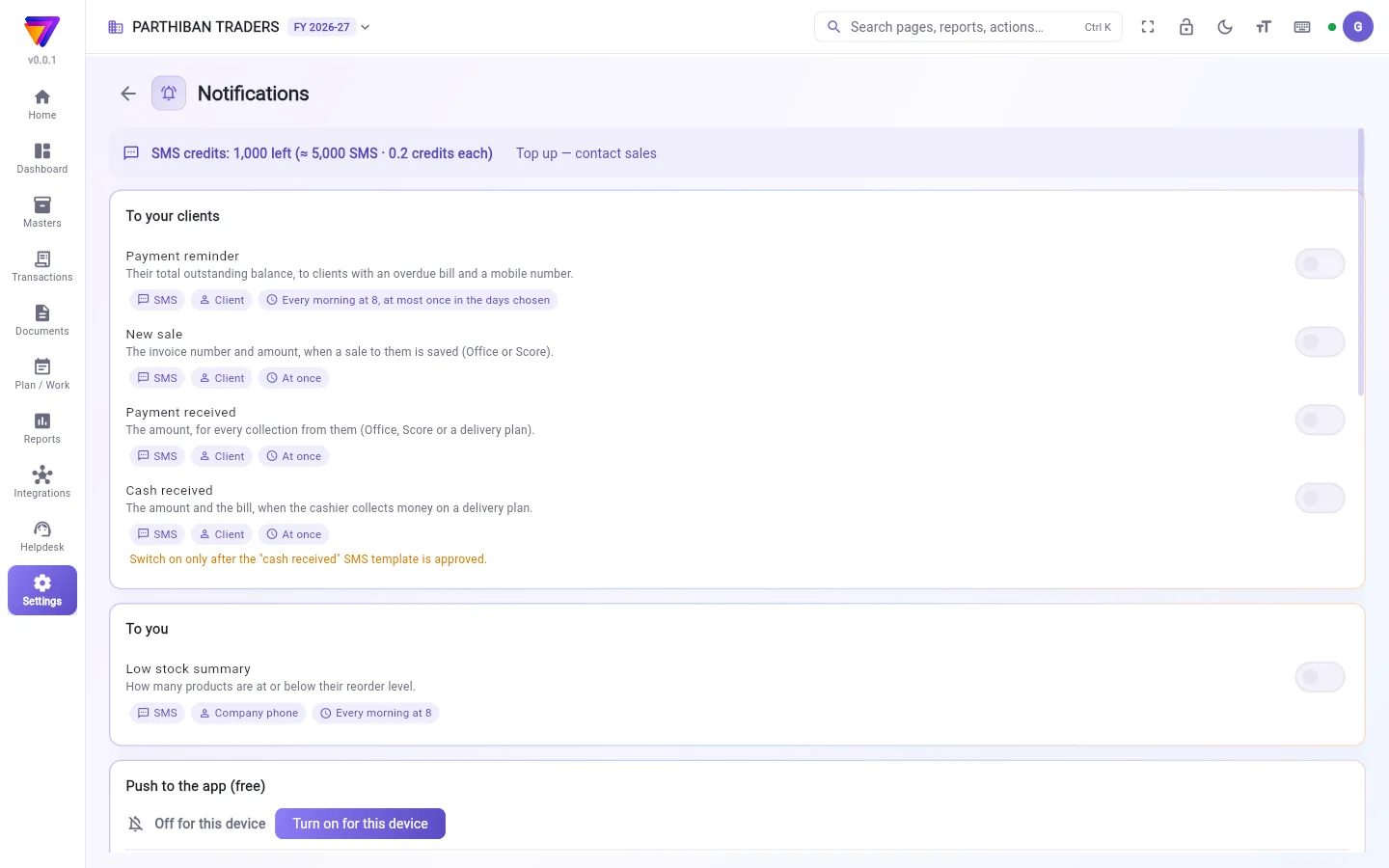
What you see
- SMS credits at the top: how many credits are left, about how many SMS that is, and what one SMS costs. The owner and admins also see Top up — contact sales.
- To your clients: SMS that go to your clients.
- Payment reminder: their total outstanding balance, to clients with an overdue bill and a mobile number. Sent every morning at 8.
- New sale: the invoice number and amount when a sale to them is saved, in Office or Score.
- Payment received: the amount, for every collection from them.
- Cash received: the amount and the bill when the cashier collects money on a delivery plan.
- To you: Low stock summary, an SMS to the company phone every morning at 8 with how many products are at or below their reorder level.
- Push to the app (free): messages to the app on phones and browsers, such as Cash collected, New delivery plan, Leave request, Waiting for approval and New online order.
Under each one, small tags show how it is sent, to whom and when.
Switch on an SMS
- Turn on the switch next to the message, for example Payment reminder.
- For Payment reminder, pick how often in Remind a client at most: Every 3 days, Once a week, Every 15 days or Once a month.
- Scroll down and click Save. You see Notifications saved.
Switches on this page do not save by themselves. Save stays grey until you change something.
Get push messages on this device
- In Push to the app (free), look at the line for this device. It reads Off for this device when push is off.
- Click Turn on for this device.
- Allow notifications when the phone or browser asks.
If it reads Blocked on this device, allow notifications for Stockflow in the phone or browser settings. To stop them, click Turn off for this device.
Who can do what
- Changing switches needs the edit permission on this page. Owner and Admin have it.
- Only the owner and admins see Top up — contact sales.
Good to know
- Available on every plan.
- SMS go out from the sender STKFLW. A client needs a mobile number on the client record. A client marked "No SMS" never gets one.
- Each SMS uses credits. When credits are low, the credits line turns red.
- Switch on Cash received only after its SMS template is approved. The page shows this note in orange.
- For Low stock summary, the company phone in Settings → Company must be a 10-digit mobile number. If it is not, a warning shows at the top of this page.
- Push messages are on unless you switch them off here. Each person must also allow them on their own phone or browser.
Related
- Company: the company phone that gets your SMS.
- Client: mobile numbers and "No SMS".
- Online Orders: orders behind the New online order push.
- Delivery Plan: where cash is collected on a trip.
Stockflow தானாக அனுப்பும் ஒவ்வொரு செய்தியும் இந்தப் பக்கத்தில் பட்டியலிடப்பட்டிருக்கும். நீங்கள் இங்கே ஆன் செய்யும் வரை ஒவ்வொரு SMS-உம் ஆஃப் ஆகவே இருக்கும்.
திரையில் என்ன தெரியும்
- மேலே SMS கிரெடிட் (SMS credits): எத்தனை கிரெடிட் மீதம் உள்ளது, அது ஏறக்குறைய எத்தனை SMS, ஒரு SMS-க்கு எவ்வளவு செலவு. உரிமையாளரும் நிர்வாகிகளும் டாப்-அப் — விற்பனைக் குழுவைத் தொடர்புகொள்ளுங்கள் (Top up — contact sales) என்பதையும் பார்ப்பார்கள்.
- உங்கள் வாடிக்கையாளர்களுக்கு (To your clients): உங்கள் வாடிக்கையாளர்களுக்குப் போகும் SMS.
- பணம் நினைவூட்டல் (Payment reminder): அவர்களின் மொத்த நிலுவைத் தொகை. காலாவதியான பில்லும் மொபைல் எண்ணும் உள்ள வாடிக்கையாளர்களுக்குப் போகும். தினமும் காலை 8 மணிக்கு அனுப்பப்படும்.
- புதிய விற்பனை (New sale): Office அல்லது Score-இல் அவர்களுக்கான விற்பனை சேமிக்கப்படும்போது விலைப்பட்டியல் எண்ணும் தொகையும்.
- பணம் பெறப்பட்டது (Payment received): அவர்களிடமிருந்து வரும் ஒவ்வொரு வசூலுக்கும் தொகை.
- பணம் பெறப்பட்டது (Cash received): டெலிவரி திட்டத்தில் காசாளர் பணம் வசூலிக்கும்போது தொகையும் பில்லும்.
- உங்களுக்கு (To you): குறைந்த இருப்பு சுருக்கம் (Low stock summary). தினமும் காலை 8 மணிக்கு நிறுவனத் தொலைபேசிக்கு ஒரு SMS: எத்தனை பொருட்கள் அவற்றின் மறு ஆர்டர் நிலைக்குச் சமமாக அல்லது கீழே உள்ளன என்று.
- ஆப்புக்கு புஷ் (இலவசம்) (Push to the app (free)): போன்களிலும் பிரவுசர்களிலும் உள்ள செயலிக்கு வரும் செய்திகள், உதாரணமாக வசூலான ரொக்கம் (Cash collected), புதிய டெலிவரி திட்டம் (New delivery plan), விடுப்புக் கோரிக்கை (Leave request), அனுமதிக்குக் காத்திருக்கிறது (Waiting for approval), புதிய ஆன்லைன் ஆர்டர் (New online order).
ஒவ்வொன்றின் கீழும் உள்ள சிறிய குறிகள் அது எப்படி, யாருக்கு, எப்போது அனுப்பப்படும் என்று காட்டும்.
ஒரு SMS-ஐ ஆன் செய்ய
- செய்திக்கு அருகில் உள்ள சுவிட்சை ஆன் செய்யுங்க, உதாரணமாக பணம் நினைவூட்டல் (Payment reminder).
- பணம் நினைவூட்டல் (Payment reminder) என்றால், ஒரு வாடிக்கையாளருக்கு அதிகபட்சம் நினைவூட்டுவது (Remind a client at most) பெட்டியில் எத்தனை முறை என்று தேர்ந்தெடுங்க: 3 நாட்களுக்கு ஒருமுறை (Every 3 days), வாரம் ஒருமுறை (Once a week), 15 நாட்களுக்கு ஒருமுறை (Every 15 days) அல்லது மாதம் ஒருமுறை (Once a month).
- கீழே போய் சேமி (Save) கிளிக் செய்யுங்க. அறிவிப்புகள் சேமிக்கப்பட்டன (Notifications saved) என்று தெரியும்.
இந்தப் பக்கத்தில் உள்ள சுவிட்சுகள் தானாகச் சேமிக்கப்படாது. நீங்கள் ஏதாவது மாற்றும் வரை சேமி (Save) சாம்பல் நிறத்தில் இருக்கும்.
இந்தச் சாதனத்தில் புஷ் செய்திகள் பெற
- ஆப்புக்கு புஷ் (இலவசம்) (Push to the app (free)) பகுதியில் இந்தச் சாதனத்துக்கான வரியைப் பாருங்க. புஷ் ஆஃப் ஆக இருந்தால் இந்தச் சாதனத்தில் அணைக்கப்பட்டுள்ளது (Off for this device) என்று இருக்கும்.
- இந்தச் சாதனத்தில் இயக்கு (Turn on for this device) கிளிக் செய்யுங்க.
- போன் அல்லது பிரவுசர் கேட்கும்போது அறிவிப்புகளை அனுமதியுங்க.
Blocked on this device (இந்தச் சாதனத்தில் தடுக்கப்பட்டுள்ளது) என்று இருந்தால், போன் அல்லது பிரவுசர் அமைப்புகளில் Stockflow-க்கு அறிவிப்புகளை அனுமதியுங்க. நிறுத்த, இந்தச் சாதனத்தில் அணை (Turn off for this device) கிளிக் செய்யுங்க.
யார் என்ன செய்யலாம்
- சுவிட்சுகளை மாற்ற இந்தப் பக்கத்தில் திருத்து (edit) அனுமதி வேண்டும். உரிமையாளர், நிர்வாகிக்கு அது உண்டு.
- டாப்-அப் — விற்பனைக் குழுவைத் தொடர்புகொள்ளுங்கள் (Top up — contact sales) உரிமையாளருக்கும் நிர்வாகிகளுக்கும் மட்டுமே தெரியும்.
தெரிந்துகொள்ள வேண்டியது
- எல்லாத் திட்டங்களிலும் உண்டு.
- SMS-கள் STKFLW என்ற அனுப்புநர் பெயரில் போகும். வாடிக்கையாளர் பதிவில் மொபைல் எண் இருக்க வேண்டும். "No SMS" என்று குறிக்கப்பட்ட வாடிக்கையாளருக்கு ஒருபோதும் SMS போகாது.
- ஒவ்வொரு SMS-உம் கிரெடிட்டைப் பயன்படுத்தும். கிரெடிட் குறைவாக இருக்கும்போது கிரெடிட் வரி சிவப்பாக மாறும்.
- பணம் பெறப்பட்டது (Cash received) SMS-ஐ அதன் டெம்ப்ளேட் அங்கீகரிக்கப்பட்ட பிறகுதான் ஆன் செய்யுங்க. இந்தக் குறிப்பைப் பக்கம் ஆரஞ்சு நிறத்தில் காட்டும்.
- குறைந்த இருப்பு சுருக்கம் (Low stock summary) வர, அமைப்புகள் → நிறுவனம் (Settings → Company) பக்கத்தில் உள்ள நிறுவனத் தொலைபேசி 10 இலக்க மொபைல் எண்ணாக இருக்க வேண்டும். இல்லையென்றால் இந்தப் பக்கத்தின் மேலே ஒரு எச்சரிக்கை தெரியும்.
- புஷ் செய்திகளை இங்கே நீங்கள் ஆஃப் செய்யாத வரை அவை ஆனில் இருக்கும். ஒவ்வொருவரும் தங்கள் போன் அல்லது பிரவுசரிலும் அவற்றை அனுமதிக்க வேண்டும்.
தொடர்புடையவை
- நிறுவனம்: உங்கள் SMS வரும் நிறுவனத் தொலைபேசி.
- வாடிக்கையாளர்: மொபைல் எண்களும் "No SMS"-உம்.
- ஆன்லைன் ஆர்டர்கள்: புதிய ஆன்லைன் ஆர்டர் (New online order) புஷ்ஷுக்குப் பின்னால் உள்ள ஆர்டர்கள்.
- டெலிவரி திட்டம்: பயணத்தில் பணம் வசூலிக்கப்படும் இடம்.