User manualபயனர் கையேடு · Office: Home and DashboardOffice: முகப்பு, டாஷ்போர்டு
Dashboardடாஷ்போர்டு (Dashboard)
Your business at a glance for a period: sales, collections, purchases, dues, cash, profit and stock, each opening its report.ஒரு காலத்துக்கான உங்கள் தொழில் ஒரே பார்வையில்: விற்பனை, வசூல், கொள்முதல், நிலுவைகள், ரொக்கம், லாபம், இருப்பு; ஒவ்வொன்றும் அதன் அறிக்கையைத் திறக்கும்.
- Where to find itஎங்கே இருக்கிறது
- Office → Dashboard
- Who uses itயார் பயன்படுத்துவார்கள்
- Owner, Admin, Accountant; Sales staff see the sales partஉரிமையாளர், நிர்வாகி, கணக்காளர்; விற்பனை ஊழியர்களுக்கு விற்பனைப் பகுதி மட்டும்
The Dashboard shows how the business is doing for a period you choose. Every figure comes from the same server report as the Reports page, so the two always agree. Click any card or chart to open the report behind it.
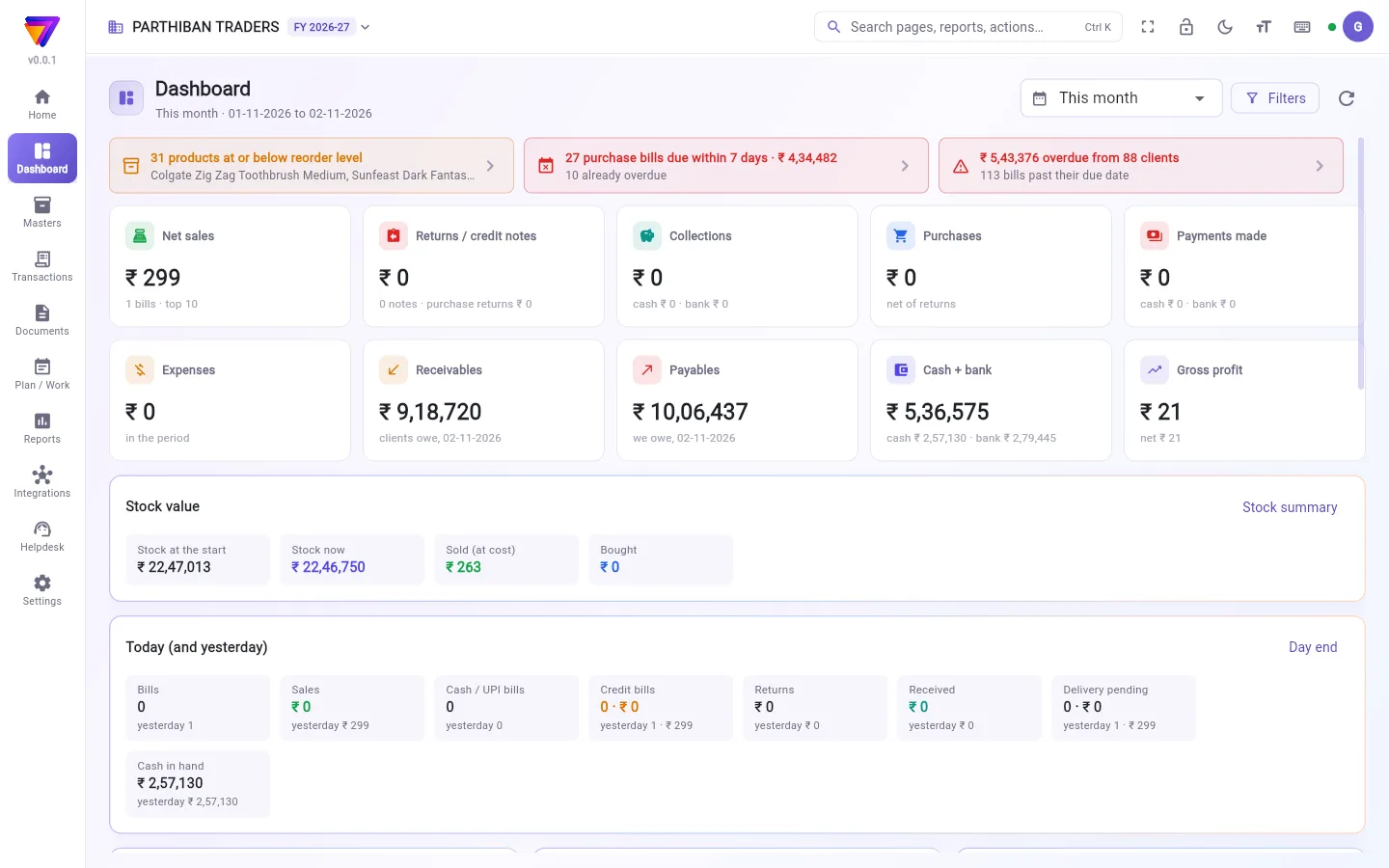
What you see
Top bar of the page. The period (default This month), Filters, and the refresh button. Under the title you see the period name and its dates.
Getting started. A new company sees a checklist first: Add your bank account, Enter opening balances (cash, bank, capital), Add products (with opening stock), Add clients (with their unpaid bills) and Raise your first bill. Each step has an Open button. The card goes away when the first four are done.
Alerts. Up to three coloured strips, as of today:
- products at or below their reorder level, with the first few names
- purchase bills due within 7 days, with the total and how many are already overdue
- money overdue from clients, with the number of clients and bills past their due date
Figure cards. Net sales, Returns / credit notes, Collections, Purchases, Payments made, Expenses, Receivables, Payables, Cash + bank and Gross profit. Receivables, Payables and Cash + bank are the balances on the last day of the period.
Stock value. Stock at the start, Stock now, Sold (at cost) and Bought, with a Stock summary link.
Today (and yesterday). Bills, Sales, Cash / UPI bills, Credit bills, Returns, Received, Delivery pending and Cash in hand. Each shows yesterday's figure under it. Day end opens the day-end report.
Charts. Sales by day, Collections, Top brands, Top products, Top clients, Salesman-wise and Profit & loss. Each has Open report.
Reorder. A table of products to reorder: Product, In stock, Reorder level and To order, with a Low stock report link.
If visits have follow-ups due today, a Follow-ups today card shows at the top with a Visits link.
Choose a period
- Open the period list at the top right.
- Pick Today, Yesterday, This week, Last week, This month, Last month, This financial year or Last financial year.
- For other dates, pick Choose dates…, set From and To, and press Show.
Weeks start on Monday. The period stays while the app is open.
Narrow it to a salesman or route
- Press Filters.
- Tick one or more Salesmen and Routes.
- Choose a Bill series if you want one series only.
- Press Apply.
The button then shows how many filters are on, for example Filters (2). Filters narrow sales, returns and collections only. Purchases, payments and balances stay for the whole company. Press Clear all in the dialog, or the clear-filters button next to Filters, to remove them.
See the bills behind Net sales
Click the Net sales card. A Sales bills box opens with two tabs, Top 10 and Last 10. Click a bill to open it. Press All bills or Sales and returns to open the full sales register.
Who can do what
The role decides which parts you see:
- Sales figures: net sales, returns, collections, receivables, the rankings and the Today card.
- Cash and bank figures: purchases, payments, expenses, payables, and cash and bank.
- Profit figures: gross profit, the profit and loss chart and stock value.
The built-in Sales role sees the sales figures only. If your role has none of these, the page says Nothing to show for your role. Opening a report your role does not include says Your role does not include that report.
Good to know
- The Dashboard is part of every plan.
- After sign-in, Office opens on the Dashboard for anyone whose role can see it.
- Receivables for a Sales login is the whole company's figure, not only that person's clients.
Related
நீங்கள் தேர்ந்தெடுக்கும் காலத்தில் தொழில் எப்படிப் போகிறது என்பதை டாஷ்போர்டு காட்டும். ஒவ்வொரு எண்ணும் அறிக்கைகள் பக்கம் பயன்படுத்தும் அதே சர்வர் அறிக்கையிலிருந்து வருகிறது, அதனால் இரண்டும் எப்போதும் ஒத்துப்போகும். பின்னால் உள்ள அறிக்கையைத் திறக்க எந்த அட்டையையோ வரைபடத்தையோ கிளிக் செய்யுங்க.
திரையில் என்ன தெரியும்
பக்கத்தின் மேல் பட்டை (Top bar of the page). காலம் (இயல்பாக இந்த மாதம் (This month)), வடிகட்டிகள் (Filters), புதுப்பிக்கும் (refresh) பட்டன். தலைப்பின் கீழ் காலத்தின் பெயரும் அதன் தேதிகளும் தெரியும்.
தொடங்குவது எப்படி (Getting started.). புதிய நிறுவனத்துக்கு முதலில் ஒரு சரிபார்ப்புப் பட்டியல் தெரியும்: உங்கள் வங்கிக் கணக்கைச் சேர் (Add your bank account), தொடக்க இருப்புகளை உள்ளிடு (ரொக்கம், வங்கி, முதலீடு) (Enter opening balances (cash, bank, capital)), பொருட்களைச் சேர் (தொடக்க இருப்புடன்) (Add products (with opening stock)), வாடிக்கையாளர்களைச் சேர் (செலுத்தாத பில்களுடன்) (Add clients (with their unpaid bills)), உங்கள் முதல் பில்லைப் போடுங்கள் (Raise your first bill). ஒவ்வொரு படிக்கும் திற (Open) பட்டன் உண்டு. முதல் நான்கும் முடிந்ததும் அட்டை மறைந்துவிடும்.
எச்சரிக்கைகள் (Alerts). இன்றைய நிலவரப்படி அதிகபட்சம் மூன்று வண்ணப் பட்டைகள்:
- மறு ஆர்டர் நிலையிலோ அதற்குக் கீழோ உள்ள பொருட்கள், முதல் சில பெயர்களுடன்
- 7 நாட்களுக்குள் செலுத்த வேண்டிய கொள்முதல் பில்கள், மொத்தத்துடனும் ஏற்கெனவே எத்தனை காலம் கடந்தவை என்பதுடனும்
- வாடிக்கையாளர்களிடமிருந்து காலம் கடந்த நிலுவை, கெடு தாண்டிய வாடிக்கையாளர்கள், பில்களின் எண்ணிக்கையுடன்
எண் அட்டைகள் (Figure cards). நிகர விற்பனை (Net sales), திருப்பங்கள் / வரவுக் குறிப்புகள் (Returns / credit notes), வசூல்கள் (Collections), கொள்முதல்கள் (Purchases), செலுத்திய பணம் (Payments made), செலவுகள் (Expenses), வர வேண்டியவை (Receivables), செலுத்த வேண்டியவை (Payables), ரொக்கம் + வங்கி (Cash + bank), மொத்த லாபம் (Gross profit). வர வேண்டியவை, செலுத்த வேண்டியவை, ரொக்கம் + வங்கி மூன்றும் காலத்தின் கடைசி நாள் இருப்புகள்.
இருப்பு மதிப்பு (Stock value.). தொடக்க இருப்பு மதிப்பு (Stock at the start), தற்போதைய இருப்பு (Stock now), விற்றது (அடக்கவிலையில்) (Sold (at cost)), வாங்கியது (Bought), கூடவே இருப்புச் சுருக்கம் (Stock summary) இணைப்பு.
இன்று (மற்றும் நேற்று) (Today (and yesterday).). பில்கள் (Bills), விற்பனை (Sales), ரொக்கம் / UPI பில்கள் (Cash / UPI bills), கடன் பில்கள் (Credit bills), திருப்பங்கள் (Returns), பெறப்பட்டது (Received), டெலிவரி நிலுவையில் (Delivery pending), கையிருப்பு ரொக்கம் (Cash in hand). ஒவ்வொன்றின் கீழும் நேற்றைய எண் தெரியும். நாள் முடிவு (Day end) நாள் முடிவு அறிக்கையைத் திறக்கும்.
வரைபடங்கள் (Charts). நாள்வாரி விற்பனை (Sales by day), வசூல்கள் (Collections), முன்னணி பிராண்டுகள் (Top brands), முன்னணிப் பொருட்கள் (Top products), முன்னணி வாடிக்கையாளர்கள் (Top clients), விற்பனைப் பிரதிநிதி வாரியாக (Salesman-wise), லாப நஷ்டம் (Profit & loss). ஒவ்வொன்றிலும் அறிக்கையைத் திற (Open report) உண்டு.
மறு ஆர்டர் (Reorder). மறு ஆர்டர் செய்ய வேண்டிய பொருட்களின் அட்டவணை: பொருள் (Product), இருப்பில் (In stock), மறு ஆர்டர் நிலை (Reorder level), ஆர்டர் செய்ய (To order), கூடவே குறைந்த இருப்பு அறிக்கை (Low stock report) இணைப்பு.
இன்று மீள்சந்திப்பு (follow-up) செய்ய வேண்டிய சந்திப்புகள் இருந்தால், மேலே இன்றைய மீள்சந்திப்புகள் (Follow-ups today) அட்டை சந்திப்புகள் (Visits) இணைப்புடன் தெரியும்.
காலத்தைத் தேர்ந்தெடுப்பது
- மேல் வலதுபுறம் காலப் பட்டியலைத் திறங்க.
- இன்று (Today), நேற்று (Yesterday), இந்த வாரம் (This week), கடந்த வாரம் (Last week), இந்த மாதம் (This month), கடந்த மாதம் (Last month), இந்த நிதியாண்டு (This financial year) அல்லது கடந்த நிதியாண்டு (Last financial year) தேர்ந்தெடுங்க.
- வேறு தேதிகளுக்கு தேதிகளைத் தேர்ந்தெடு… (Choose dates…) தேர்ந்தெடுத்து, முதல் (From), வரை (To) அமைத்து, காட்டு (Show) அழுத்துங்க.
வாரம் திங்கள்கிழமை தொடங்கும். செயலி திறந்திருக்கும் வரை காலம் அப்படியே இருக்கும்.
ஒரு விற்பனைப் பிரதிநிதி அல்லது வழித்தடத்துக்குச் சுருக்குவது
- வடிகட்டிகள் (Filters) அழுத்துங்க.
- ஒன்று அல்லது அதற்கு மேற்பட்ட விற்பனைப் பிரதிநிதிகள் (Salesmen), வழித்தடங்கள் (Routes) டிக் செய்யுங்க.
- ஒரே ஒரு தொடர் மட்டும் வேண்டுமென்றால் பில் தொடர் (Bill series) தேர்ந்தெடுங்க.
- பயன்படுத்து (Apply) அழுத்துங்க.
பிறகு பட்டன் எத்தனை வடிகட்டிகள் இயங்குகின்றன என்று காட்டும், உதாரணமாக வடிகட்டிகள் (2) (Filters (2)). வடிகட்டிகள் விற்பனை, திருப்பங்கள், வசூல்களை மட்டுமே சுருக்கும். கொள்முதல்கள், பணம் செலுத்துதல்கள், இருப்புகள் முழு நிறுவனத்துக்குமானவையாகவே இருக்கும். அவற்றை நீக்க, சாளரத்தில் அனைத்தையும் அழி (Clear all), அல்லது வடிகட்டிகள் (Filters)-க்கு அருகில் உள்ள வடிகட்டிகளை அழிக்கும் பட்டனை அழுத்துங்க.
நிகர விற்பனைக்குப் பின்னால் உள்ள பில்களைப் பார்ப்பது
நிகர விற்பனை (Net sales) அட்டையைக் கிளிக் செய்யுங்க. முதல் 10 (Top 10), கடைசி 10 (Last 10) என்ற இரண்டு தாவல்களுடன் விற்பனை பில்கள் (Sales bills) பெட்டி திறக்கும். ஒரு பில்லைத் திறக்க அதைக் கிளிக் செய்யுங்க. முழு விற்பனைப் பதிவேட்டைத் திறக்க எல்லா பில்களும் (All bills) அல்லது விற்பனையும் திருப்பங்களும் (Sales and returns) அழுத்துங்க.
யார் என்ன செய்யலாம்
நீங்கள் எந்தப் பகுதிகளைப் பார்க்கலாம் என்பதைப் பொறுப்பு முடிவு செய்யும்:
- விற்பனை விவரங்கள் (Sales figures): நிகர விற்பனை, திருப்பங்கள், வசூல்கள், வர வேண்டியவை, தரவரிசைகள், இன்று அட்டை.
- ரொக்கம், வங்கி விவரங்கள் (Cash and bank figures): கொள்முதல்கள், பணம் செலுத்துதல்கள், செலவுகள், செலுத்த வேண்டியவை, ரொக்கம், வங்கி.
- லாப விவரங்கள் (Profit figures): மொத்த லாபம், லாப நஷ்ட வரைபடம், இருப்பு மதிப்பு.
தயாராக வரும் விற்பனைப் பொறுப்பு (Sales role) விற்பனை விவரங்களை மட்டுமே பார்க்கும். உங்கள் பொறுப்பில் இவற்றில் எதுவும் இல்லையென்றால், பக்கம் உங்கள் பொறுப்புக்குக் காட்ட எதுவும் இல்லை (Nothing to show for your role) என்று சொல்லும். உங்கள் பொறுப்பில் இல்லாத அறிக்கையைத் திறந்தால் உங்கள் பொறுப்பில் அந்த அறிக்கை இல்லை (Your role does not include that report) என்று சொல்லும்.
தெரிந்துகொள்ள வேண்டியது
- டாஷ்போர்டு எல்லாத் திட்டங்களிலும் உண்டு.
- உள்நுழைந்த பிறகு, டாஷ்போர்டைப் பார்க்கக்கூடிய பொறுப்பு உள்ள எவருக்கும் Office டாஷ்போர்டில் திறக்கும்.
- விற்பனை உள்நுழைவுக்கு வர வேண்டியவை (Receivables) முழு நிறுவனத்தின் எண், அந்த நபரின் வாடிக்கையாளர்களுக்கு மட்டுமானது அல்ல.
தொடர்புடையவை
- முகப்பு: விரைவுச் செயல்களும் "தொடங்கும் முன்" பாப்-அப்பும்
- அறிக்கைகள்: அட்டைகள் திறக்கும் எல்லா அறிக்கைகளும்
- பொருள்: குறைந்த இருப்பு இங்கே தெரிய மறு ஆர்டர் நிலையை அமைப்பது
- சந்திப்புகள்: டாஷ்போர்டில் தெரியும் மீள்சந்திப்புகள்