User manualபயனர் கையேடு · Score: the salesman appScore: சேல்ஸ்மேன் ஆப்
Start and end the dayநாளைத் தொடங்குதல், முடித்தல் (Start and end the day)
Check in with a selfie, take a break, end the day, and see your sales, collections, expenses and cash in hand on the Today tab.செல்ஃபியுடன் வருகை பதிவு செய்யுங்க, இடைவேளை எடுங்க, நாளை முடியுங்க, இன்று டேபில் உங்கள் விற்பனை, வசூல், செலவு, கையிருப்பு ரொக்கத்தைப் பாருங்க.
- Where to find itஎங்கே இருக்கிறது
- Score → Score → Today
- Who uses itயார் பயன்படுத்துவார்கள்
- Salesmen, delivery staff, collection staffசேல்ஸ்மேன்கள், டெலிவரி பணியாளர்கள், வசூல் பணியாளர்கள்
The Today tab is where your working day starts and ends. It holds your attendance, your shortcuts and the day's money.
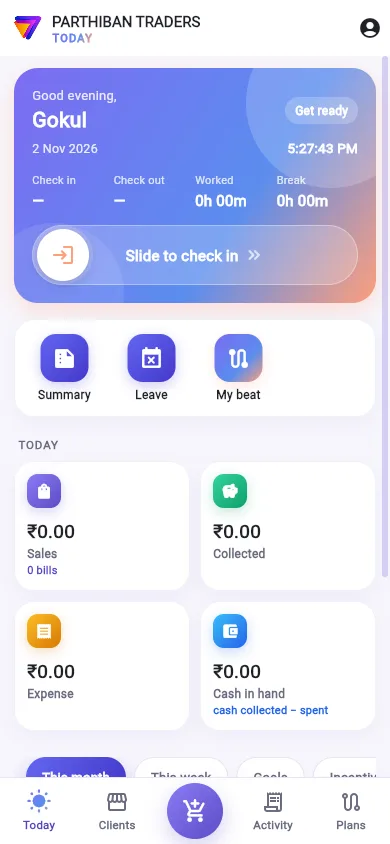
What you see
- The day card: a greeting, your name, the date and the time. The tag at the top right shows where your day is: Get ready, On duty, On break or Day completed. Under it are Check in, Check out, Worked and Break, and the routes you chose.
- The shortcuts: one tap for each job your role allows, such as New order, Collect, Visit, Expense, Expense history, Denomination, Summary, Leave, My van, Deliveries and My beat.
- Today: four money cards. See below.
- This month, This week, Goals and Incentives: your attendance calendar, this week's working hours, and your goals. See Goals and incentives.
Check in
- On the day card, slide Slide to check in to the right.
- Under Routes for today, tick the routes you will work today. Your own routes for today are ticked already.
- Tap Take a selfie and check in.
- Take the photo. Score asks Is this photo clear? Tap Confirm, or Retake.
You see Check-in successful! The tag changes to On duty. Score also saves where you were.
If your office follows field staff on duty, Score first explains this under Your location while on duty. Tap Accept or No thanks.
Take a break and come back
- Tap Take a break under the slider. You see Break started.
- When you are back, slide Slide to resume work and take a new selfie.
End the day
- Slide Slide to check out.
- Under Confirm check out, choose one:
- End of day — with a photo: take a selfie, then Confirm.
- End of day — without a photo.
- Break: this starts a break instead.
You see Day completed! If you need to work again, slide Slide to check in again.
The money cards
- Sales: the value of your bills today, with the number of bills.
- Collected: the money you collected today.
- Expense: what you spent today.
- Cash in hand: cash collected minus what you spent.
Tap Sales or Collected to open Activity. An Incentive card shows too when your sales earn a product incentive.
Add an expense
- Tap Expense.
- Choose the Expense category.
- Enter the Amount and the Date.
- Choose Paid from.
- Add a Description, and Photo of the bill (optional) if you have one.
- Tap Save expense.
Expense history lists your expenses for a month, with a search and the total.
Count your cash (Denomination)
- Tap Denomination.
- For each note and coin, tap the plus button or type how many you have. The top shows Counted against what is expected.
- Under The day, enter Vehicle no. *, and if you like Start km, End km and Remarks.
- Check From the bills: the bills, cash, credit, collections, returns and cash expenses, down to Cash expected in hand.
- Tap Save denomination.
The office checks it as your cash closing. You can open it again and change it until the office approves it. Then it says Approved by the office — it cannot change.
Summary and leave
- Summary opens Employee summary. Choose From, To, Voucher, Vehicle, Brand (load chart) and Routes, then tap Summary PDF, Load chart PDF (product-wise), Return report or Brand totals.
- Leave opens Apply for leave. Choose the Kind, From and To, give a Reason, and tap Send. The office approves or rejects it. Follow it in the profile menu under My leave requests.
- My beat opens the Plans tab. See Plans.
Good to know
- Check in, break and check out need a connection.
- Your office can ask for a route before check in (Score: a route is needed to check in). You then see Please select at least one route before checking in.
- If your number is on no employee, the day card says so. An owner or manager can tap Link my number to an employee there.
- With Follow field staff while on duty on, Score sends your location from check in until a break or check out. It stops after check out.
Related
- Clients: the routes you chose decide the list
- Cash Closing: where the office checks your denomination
- Expenses: your expenses in the books
- Attendance: your check in and out in Office
இன்று (Today) டேபில் தான் உங்கள் வேலை நாள் தொடங்கி முடிகிறது. உங்கள் வருகை, ஷார்ட்கட்கள், அன்றைய பணம் எல்லாம் இங்கே இருக்கும்.
திரையில் என்ன தெரியும்
- The day card (நாள் அட்டை): ஒரு வணக்கம், உங்கள் பெயர், தேதி, நேரம். மேலே வலது பக்கம் உள்ள டேக் உங்கள் நாள் எந்த நிலையில் இருக்கிறது என்று காட்டும்: தயாராகுங்கள் (Get ready), பணியில் (On duty), இடைவேளையில் (On break) அல்லது நாள் முடிந்தது (Day completed). அதன் கீழ் வருகை பதிவு (Check in), வெளியேறும் பதிவு (Check out), வேலை செய்தது (Worked), இடைவேளை (Break), நீங்கள் தேர்ந்தெடுத்த வழித்தடங்கள் தெரியும்.
- The shortcuts (ஷார்ட்கட்கள்): உங்கள் பொறுப்புக்கு அனுமதி உள்ள ஒவ்வொரு வேலைக்கும் ஒரு தட்டு. உதாரணமாக புதிய ஆர்டர் (New order), வசூலி (Collect), சந்திப்பு (Visit), செலவு (Expense), செலவு வரலாறு (Expense history), நோட்டு எண்ணிக்கை (Denomination), சுருக்கம் (Summary), விடுப்பு (Leave), என் வேன் (My van), டெலிவரிகள் (Deliveries), என் பீட் (My beat).
- இன்று (Today): நான்கு பண அட்டைகள். கீழே பாருங்க.
- இந்த மாதம் (This month), இந்த வாரம் (This week), இலக்குகள் (Goals), ஊக்கத்தொகைகள் (Incentives): உங்கள் வருகை காலண்டர், இந்த வாரத்தின் வேலை நேரம், உங்கள் இலக்குகள். பாருங்க: இலக்குகள், ஊக்கத்தொகைகள்.
வருகை பதிவு
- நாள் அட்டையில், செக் இன் செய்ய ஸ்லைடு செய் (Slide to check in) என்பதை வலது பக்கம் தள்ளுங்க.
- இன்றைய வழித்தடங்கள் (Routes for today) கீழ், இன்று நீங்கள் போகும் வழித்தடங்களை டிக் செய்யுங்க. இன்றைக்கான உங்கள் சொந்த வழித்தடங்கள் ஏற்கனவே டிக் ஆகியிருக்கும்.
- செல்ஃபி எடுத்து செக்-இன் செய் (Take a selfie and check in) தட்டுங்க.
- போட்டோ எடுங்க. Score இந்தப் புகைப்படம் தெளிவாக உள்ளதா? (Is this photo clear?) என்று கேட்கும். உறுதி செய் (Confirm) அல்லது மீண்டும் எடு (Retake) தட்டுங்க.
செக் இன் வெற்றி! (Check-in successful!) என்று வரும். டேக் பணியில் (On duty) என்று மாறும். நீங்கள் எங்கே இருந்தீங்க என்பதையும் Score சேமிக்கும்.
பணியில் இருக்கும் ஃபீல்டு பணியாளர்களை உங்கள் அலுவலகம் பின்தொடர்ந்தால், Score முதலில் பணியில் இருக்கும்போது உங்கள் இருப்பிடம் (Your location while on duty) கீழ் அதை விளக்கும். ஏற்கிறேன் (Accept) அல்லது வேண்டாம் (No thanks) தட்டுங்க.
இடைவேளை எடுத்து திரும்ப வருதல்
- ஸ்லைடருக்குக் கீழே உள்ள இடைவேளை எடு (Take a break) தட்டுங்க. இடைவேளை தொடங்கியது (Break started) என்று வரும்.
- திரும்ப வந்ததும், வேலையைத் தொடர ஸ்லைடு செய் (Slide to resume work) தள்ளி, புதிய செல்ஃபி எடுங்க.
நாளை முடித்தல்
- செக் அவுட் செய்ய ஸ்லைடு செய் (Slide to check out) தள்ளுங்க.
- செக் அவுட் உறுதி செய் (Confirm check out) கீழ், ஒன்றைத் தேர்ந்தெடுங்க:
- நாள் முடிவு — புகைப்படத்துடன் (End of day — with a photo): செல்ஃபி எடுத்து, உறுதி செய் (Confirm).
- நாள் முடிவு — புகைப்படம் இல்லாமல் (End of day — without a photo).
- இடைவேளை (Break): இது நாளை முடிக்காமல் இடைவேளையைத் தொடங்கும்.
நாள் முடிந்தது! (Day completed!) என்று வரும். மறுபடியும் வேலை செய்ய வேண்டும் என்றால், மீண்டும் செக் இன் செய்ய ஸ்லைடு செய் (Slide to check in again) தள்ளுங்க.
பண அட்டைகள்
- விற்பனை (Sales): இன்றைய உங்கள் பில்களின் மதிப்பு, பில்களின் எண்ணிக்கையுடன்.
- வசூலானது (Collected): இன்று நீங்கள் வசூலித்த பணம்.
- செலவு (Expense): இன்று நீங்கள் செலவழித்தது.
- கையிருப்பு ரொக்கம் (Cash in hand): வசூலித்த ரொக்கத்தில் இருந்து செலவைக் கழித்தது.
விற்பனை (Sales) அல்லது வசூலானது (Collected) தட்டினால் செயல்பாடு திறக்கும். உங்கள் விற்பனைக்கு பொருள் ஊக்கத்தொகை கிடைக்கும் போது ஒரு ஊக்கத்தொகை (Incentive) அட்டையும் தெரியும்.
செலவு சேர்த்தல்
- செலவு (Expense) தட்டுங்க.
- செலவு வகை (Expense category) தேர்ந்தெடுங்க.
- தொகை (Amount), தேதி (Date) போடுங்க.
- செலுத்திய கணக்கு (Paid from) தேர்ந்தெடுங்க.
- விவரம் (Description) சேருங்க, பில் இருந்தால் பில்லின் புகைப்படம் (விருப்பம்) (Photo of the bill (optional)) சேருங்க.
- செலவைச் சேமி (Save expense) தட்டுங்க.
செலவு வரலாறு (Expense history) ஒரு மாதத்தின் உங்கள் செலவுகளைத் தேடல், மொத்தத்துடன் காட்டும்.
ரொக்கத்தை எண்ணுதல் (நோட்டு எண்ணிக்கை)
- நோட்டு எண்ணிக்கை (Denomination) தட்டுங்க.
- ஒவ்வொரு நோட்டுக்கும் காசுக்கும், பிளஸ் பட்டனைத் தட்டுங்க அல்லது எத்தனை இருக்கிறது என்று டைப் செய்யுங்க. மேலே எண்ணியது (Counted) தொகையும், இருக்க வேண்டிய தொகையும் தெரியும்.
- இன்றைய நாள் (The day) கீழ், வாகன எண் * (Vehicle no. *) போடுங்க, விரும்பினால் தொடக்க கி.மீ. (Start km), முடிவு கி.மீ. (End km), குறிப்புகள் (Remarks) போடுங்க.
- பில்களிலிருந்து (From the bills) பகுதியைச் சரிபாருங்க: பில்கள், ரொக்கம், கடன், வசூல்கள், திருப்பங்கள், ரொக்கச் செலவுகள், கடைசியில் கையில் இருக்க வேண்டிய ரொக்கம் (Cash expected in hand) வரை.
- நோட்டு எண்ணிக்கையைச் சேமி (Save denomination) தட்டுங்க.
அலுவலகம் இதை உங்கள் ரொக்க முடிவாகச் சரிபார்க்கும். அலுவலகம் அங்கீகரிக்கும் வரை இதைத் திறந்து மாற்றலாம். அதன் பிறகு அலுவலகம் அங்கீகரித்தது — மாற்ற முடியாது (Approved by the office — it cannot change) என்று காட்டும்.
சுருக்கம், விடுப்பு
- சுருக்கம் (Summary) தட்டினால் பணியாளர் சுருக்கம் (Employee summary) திறக்கும். முதல் (From), வரை (To), வவுச்சர் (Voucher), வாகனம் (Vehicle), பிராண்ட் (லோடு அட்டவணை) (Brand (load chart)), வழித்தடங்கள் (Routes) தேர்ந்தெடுத்து, சுருக்கம் PDF (Summary PDF), லோடு அட்டவணை PDF (பொருள் வாரியாக) (Load chart PDF (product-wise)), திருப்ப அறிக்கை (Return report) அல்லது பிராண்ட் வாரியான மொத்தம் (Brand totals) தட்டுங்க.
- விடுப்பு (Leave) தட்டினால் விடுப்புக்கு விண்ணப்பி (Apply for leave) திறக்கும். வகை (Kind), முதல் (From), வரை (To) தேர்ந்தெடுத்து, காரணம் (Reason) கொடுத்து, அனுப்பு (Send) தட்டுங்க. அலுவலகம் அதை அங்கீகரிக்கும் அல்லது நிராகரிக்கும். புரொஃபைல் மெனுவில் என் விடுப்பு கோரிக்கைகள் (My leave requests) கீழ் அதைப் பின்தொடருங்க.
- என் பீட் (My beat) தட்டினால் திட்டங்கள் டேப் திறக்கும். பாருங்க: திட்டங்கள்.
தெரிந்துகொள்ள வேண்டியது
- வருகை பதிவு, இடைவேளை, வெளியேறும் பதிவுக்கு இணைப்பு தேவை.
- வருகை பதிவுக்கு முன் வழித்தடம் கட்டாயம் என்று உங்கள் அலுவலகம் வைக்கலாம் (Score: செக் இன் செய்ய வழித்தடம் தேவை (Score: a route is needed to check in)). அப்போது செக் இன் செய்யும் முன் குறைந்தது ஒரு வழித்தடத்தைத் தேர்ந்தெடுக்கவும் (Please select at least one route before checking in) என்று வரும்.
- உங்கள் எண் எந்தப் பணியாளர் பதிவிலும் இல்லை என்றால், நாள் அட்டை அதைச் சொல்லும். உரிமையாளர் அல்லது மேனேஜர் அங்கே என் எண்ணை ஒரு பணியாளருடன் இணை (Link my number to an employee) தட்டலாம்.
- பணியில் இருக்கும் களப் பணியாளர்களைப் பின்தொடர் (Follow field staff while on duty) ஆன் ஆக இருந்தால், வருகை பதிவில் இருந்து இடைவேளை அல்லது வெளியேறும் பதிவு வரை Score உங்கள் இருப்பிடத்தை அனுப்பும். வெளியேறும் பதிவுக்குப் பிறகு நின்றுவிடும்.
தொடர்புடையவை
- வாடிக்கையாளர்கள்: நீங்கள் தேர்ந்தெடுத்த வழித்தடங்களை வைத்துத்தான் பட்டியல் வரும்
- ரொக்க முடிவு: அலுவலகம் உங்கள் நோட்டு எண்ணிக்கையைச் சரிபார்க்கும் இடம்
- செலவுகள்: கணக்கில் உங்கள் செலவுகள்
- வருகைப் பதிவு: Office-இல் உங்கள் வருகை, வெளியேறும் பதிவு