User manualபயனர் கையேடு · Office: MastersOffice: முதன்மைப் பதிவுகள் (Masters)
Vouchersவவுச்சர்கள் (Vouchers)
Set how bills and vouchers are numbered, and add extra series for a branch, counter or salesman.பில்களும் வவுச்சர்களும் எப்படி எண்ணிடப்படணும்னு அமைக்க; ஒரு கிளை, கவுண்டர் அல்லது விற்பனைப் பிரதிநிதிக்குக் கூடுதல் தொடர்களைச் சேர்க்க.
- Where to find itஎங்கே இருக்கிறது
- Office → Masters → Vouchers
- Who uses itயார் பயன்படுத்துவார்கள்
- Owner, Admin (Accountant can look)உரிமையாளர், நிர்வாகி (கணக்காளர் பார்க்க மட்டும் முடியும்)
This page sets the numbers on your bills and vouchers. Each voucher type has a series with a prefix, such as S/ for sales. Numbers restart each financial year and never skip.
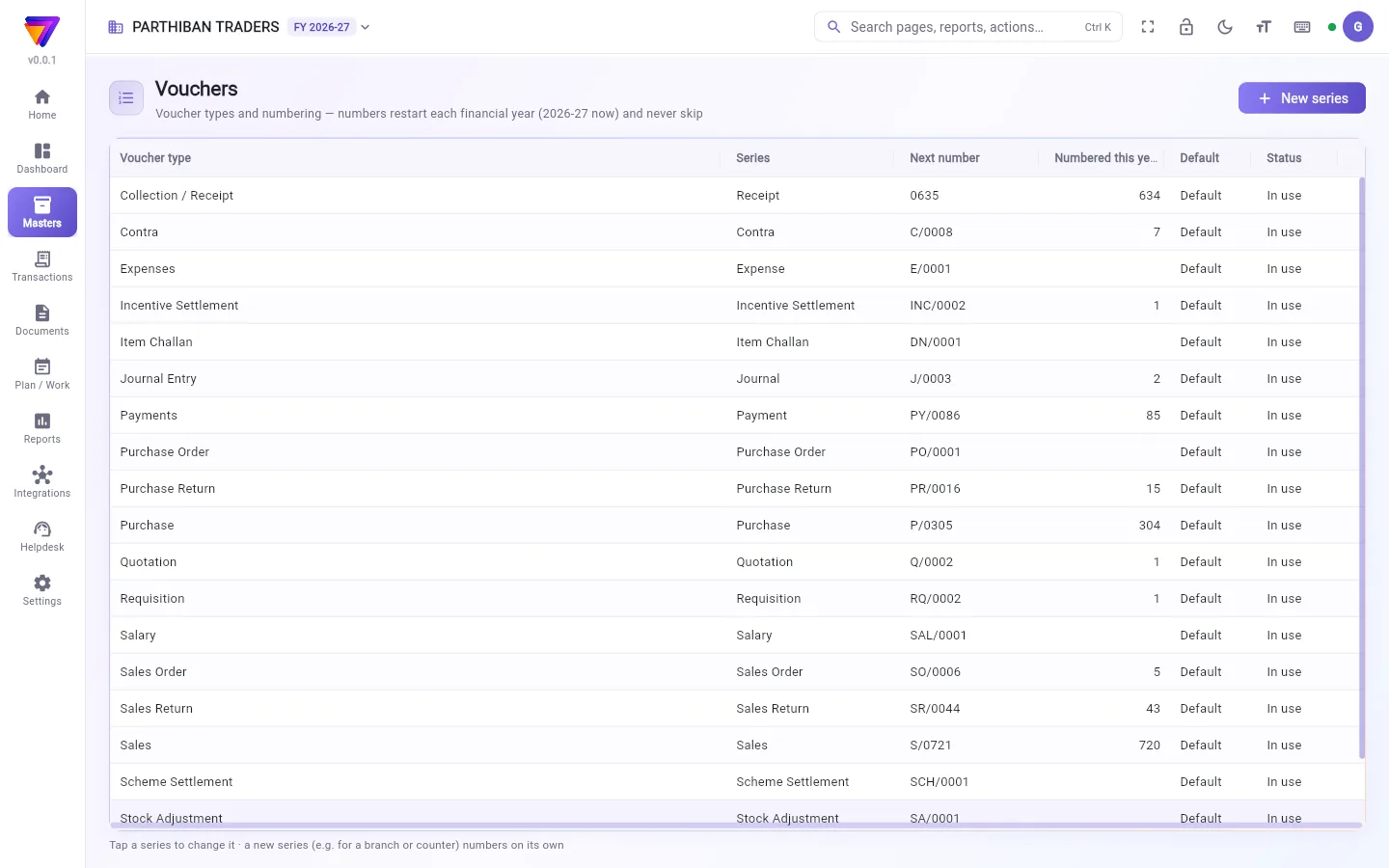
What you see
- New series at the top right.
- One row per series: Voucher type, Series, Next number, Numbered this year, Default and Status (In use or off).
- The owner also sees a button on each row to move the next number up.
Every company starts with one series for each voucher type, for example S/ for Sales, P/ for Purchase and PY/ for Payments, with 4 digits.
Change how a series numbers
- Click the series row. The Numbering window opens.
- Change the Prefix (optional) or Suffix (optional). Leave both empty for plain numbers (1, 2, 3 …). Type {fy} to put the financial year, for example 26-27.
- Pick the number of Digits.
- Change the Start number (each year) if you need to.
- Check the example line Numbers look like ….
- Click Save.
A new start number counts from the next financial year, because this year has started already.
Add a new series
Use a new series for a branch, a second counter or one salesman. It numbers on its own.
- Click New series.
- Pick the Voucher type and type a Series name, for example Counter 2.
- Set the Prefix (optional), Suffix (optional), Digits and Start number (each year).
- For sales, sales returns, sales orders, quotations and item challans you can also pick For buyers (Anyone, GST registered (B2B) or Not registered (B2C)) and a Salesman's own series.
- Switch on Default for new … vouchers if new vouchers of this type should use it.
- Click Save.
New bills pick a series by themselves: a salesman's own series first, then the one for the buyer's kind.
Move the next number up
Only the owner can do this.
- Click the Move the next number up button at the end of the row.
- Type the new Next number. It can only go up, never down.
- Click Set.
Good to know
- Vouchers is part of every plan, including Basic.
- A series name needs at least 2 letters.
- Two series of the same type cannot have the same prefix and suffix. The numbers would look the same.
- Only one series per type is the default. Marking a new default removes the mark from the others.
- There is no delete. Switch In use off to stop using a series.
- Moving the next number up leaves a gap in the numbers. Each change is recorded.
Who can do what
- The owner and admins can add and change series. The Accountant role can only view this page.
- Only the owner can move the next number up.
Related
- Sales: bills use these numbers
- Financial Year & Locks: the financial year the numbers restart in
உங்க பில்களிலும் வவுச்சர்களிலும் வரும் எண்களை இந்தப் பக்கம்தான் அமைக்குது. ஒவ்வொரு வவுச்சர் வகைக்கும் ஒரு முன்னொட்டுடன் ஒரு தொடர் இருக்கு, உதாரணமா விற்பனைக்கு S/. ஒவ்வொரு நிதியாண்டும் எண்கள் மறுபடி தொடங்கும், இடையில் எந்த எண்ணும் விடுபடாது.
திரையில் என்ன தெரியும்
- மேல் வலது மூலையில் புதிய தொடர் (New series).
- ஒவ்வொரு தொடருக்கும் ஒரு வரி: வவுச்சர் வகை (Voucher type), தொடர் (Series), அடுத்த எண் (Next number), இந்த ஆண்டு எண்ணிடப்பட்டவை (Numbered this year), இயல்புநிலை (Default), நிலை (Status) (பயன்பாட்டில் (In use) அல்லது ஆஃப்).
- உரிமையாளருக்கு ஒவ்வொரு வரியிலும் அடுத்த எண்ணை உயர்த்த ஒரு பொத்தானும் தெரியும்.
ஒவ்வொரு நிறுவனமும் ஒவ்வொரு வவுச்சர் வகைக்கும் ஒரு தொடரோட, 4 இலக்கங்களோட தொடங்கும் — உதாரணமா விற்பனைக்கு S/, கொள்முதலுக்கு P/, பணம் செலுத்துதல்களுக்கு PY/.
ஒரு தொடர் எண்ணிடும் முறையை மாற்ற
- தொடர் வரியைக் கிளிக் பண்ணுங்க. Numbering (எண்ணிடல்) சாளரம் திறக்கும்.
- முன்னொட்டு (விருப்பம்) (Prefix (optional)) அல்லது பின்னொட்டு (விருப்பம்) (Suffix (optional)) மாற்றுங்க. வெறும் எண்கள் (1, 2, 3 …) வேணும்னா இரண்டையும் காலியா விடுங்க. நிதியாண்டைச் சேர்க்க {fy} டைப் பண்ணுங்க, உதாரணமா 26-27.
- இலக்கங்கள் (Digits) எண்ணிக்கையைத் தேர்ந்தெடுங்க.
- தேவைப்பட்டா தொடக்க எண் (ஒவ்வொரு ஆண்டும்) (Start number (each year)) மாற்றுங்க.
- Numbers look like … (எண்கள் இப்படி இருக்கும் …) மாதிரி வரியைச் சரிபாருங்க.
- சேமி (Save) கிளிக் பண்ணுங்க.
இந்த ஆண்டு ஏற்கனவே தொடங்கிவிட்டதால், புதிய தொடக்க எண் அடுத்த நிதியாண்டிலிருந்துதான் கணக்கில் வரும்.
புதிய தொடரைச் சேர்க்க
ஒரு கிளை, இரண்டாவது கவுண்டர் அல்லது ஒரு விற்பனைப் பிரதிநிதிக்குப் புதிய தொடரைப் பயன்படுத்துங்க. அது தனியா எண்ணிடும்.
- புதிய தொடர் (New series) கிளிக் பண்ணுங்க.
- வவுச்சர் வகை (Voucher type) தேர்ந்தெடுத்து தொடரின் பெயர் (Series name) டைப் பண்ணுங்க, உதாரணமா Counter 2.
- முன்னொட்டு (விருப்பம்) (Prefix (optional)), பின்னொட்டு (விருப்பம்) (Suffix (optional)), இலக்கங்கள் (Digits), தொடக்க எண் (ஒவ்வொரு ஆண்டும்) (Start number (each year)) அமைங்க.
- விற்பனை, விற்பனைத் திருப்பம், விற்பனை ஆர்டர், மதிப்பீடு, பொருள் சலான்களுக்கு வாங்குபவர்களுக்கு (For buyers) (யாருக்கும் (Anyone), GST பதிவு உள்ளவர் (B2B) (GST registered (B2B)) அல்லது பதிவு இல்லாதவர் (B2C) (Not registered (B2C))), அதோடு விற்பனையாளரின் சொந்தத் தொடர் (Salesman's own series) தேர்ந்தெடுக்கலாம்.
- இந்த வகையின் புதிய வவுச்சர்கள் இதைப் பயன்படுத்தணும்னா Default for new … vouchers (புதிய … வவுச்சர்களுக்கு இயல்புநிலை) ஆன் பண்ணுங்க.
- சேமி (Save) கிளிக் பண்ணுங்க.
புதிய பில்கள் தானாகவே ஒரு தொடரைத் தேர்ந்தெடுக்கும்: முதலில் விற்பனைப் பிரதிநிதியின் சொந்தத் தொடர், பிறகு வாங்குபவர் வகைக்கான தொடர்.
அடுத்த எண்ணை உயர்த்த
உரிமையாளர் மட்டுமே இதைச் செய்ய முடியும்.
- வரியின் கடைசியில் உள்ள அடுத்த எண்ணை உயர்த்து (Move the next number up) பொத்தானைக் கிளிக் பண்ணுங்க.
- புதிய அடுத்த எண் (Next number) டைப் பண்ணுங்க. அது மேலே மட்டும்தான் போகும், கீழே இறங்காது.
- செட் (Set) கிளிக் பண்ணுங்க.
தெரிந்துகொள்ள வேண்டியது
- Basic உட்பட எல்லா பிளான்களிலும் வவுச்சர்கள் பக்கம் இருக்கு.
- தொடரின் பெயரில் குறைந்தது 2 எழுத்துகள் வேணும்.
- ஒரே வகையின் இரண்டு தொடர்களுக்கு ஒரே முன்னொட்டும் பின்னொட்டும் இருக்கக் கூடாது. இருந்தா எண்கள் ஒரே மாதிரி தெரியும்.
- ஒரு வகைக்கு ஒரு தொடர் மட்டுமே இயல்புநிலையா இருக்கும். புதியதை இயல்புநிலையா குறிச்சா, மற்றவற்றிலிருந்து அந்தக் குறி நீங்கிடும்.
- நீக்கும் வசதி இல்லை. ஒரு தொடரைப் பயன்படுத்துவதை நிறுத்த பயன்பாட்டில் (In use)-ஐ ஆஃப் பண்ணுங்க.
- அடுத்த எண்ணை உயர்த்தினா எண்களில் இடைவெளி வரும். ஒவ்வொரு மாற்றமும் பதிவு செய்யப்படும்.
யார் என்ன செய்யலாம்
- உரிமையாளரும் நிர்வாகிகளும் தொடர்களைச் சேர்க்கலாம், மாற்றலாம். கணக்காளர் பணிப்பொறுப்பு இந்தப் பக்கத்தைப் பார்க்க மட்டும் முடியும்.
- அடுத்த எண்ணை உயர்த்த உரிமையாளரால் மட்டுமே முடியும்.
தொடர்புடையவை
- விற்பனை (Sales): பில்கள் இந்த எண்களைப் பயன்படுத்தும்
- நிதியாண்டு & பூட்டுகள் (Financial Year & Locks): எண்கள் மறுபடி தொடங்கும் நிதியாண்டு