User manualபயனர் கையேடு · Office: Helpdesk and SettingsOffice: உதவி மையம், அமைப்புகள்
Users & Rolesபயனர்கள் & பொறுப்புகள் (Users & Roles)
Invite your staff, give each one a role, switch logins off, and make your own roles with the permissions you choose.உங்கள் பணியாளர்களை அழையுங்க, ஒவ்வொருவருக்கும் ஒரு பொறுப்பு கொடுங்க, உள்நுழைவுகளை நிறுத்துங்க, நீங்கள் தேர்ந்தெடுக்கும் அனுமதிகளுடன் உங்கள் சொந்தப் பொறுப்புகளை உருவாக்குங்க.
- Where to find itஎங்கே இருக்கிறது
- Office → Settings → Users & Roles
- Who uses itயார் பயன்படுத்துவார்கள்
- Owner, Adminஉரிமையாளர், நிர்வாகி
This page lists everyone who can log in to your company and what each role may do. Use it to add staff, change their role, or make a role of your own.
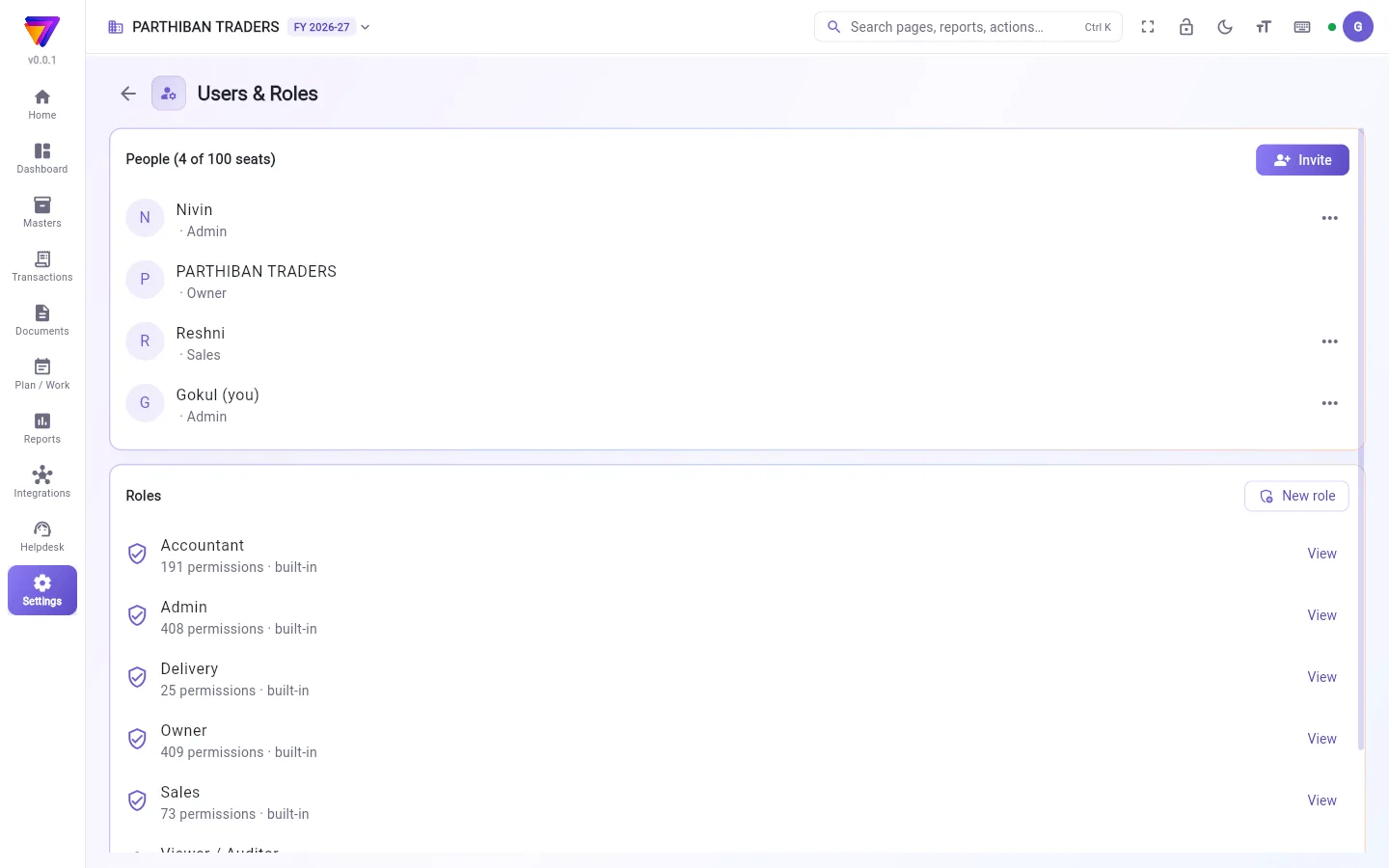
What you see
- People: everyone with a login, with their role. The heading shows how many seats your plan has and how many are used, such as People (4 of 100 seats). Each person (except the owner) has a ... menu.
- Roles: the built-in roles and any role you made. Each row shows how many permissions it has. Built-in roles are marked built-in and have a View button. Your own roles have Edit and a delete button.
The built-in roles are Owner, Admin, Accountant, Sales, Warehouse, Delivery and Viewer / Auditor.
Invite someone
- Click Invite.
- In Their email or mobile number, type their email or 10-digit mobile number.
- Pick a Role.
- Click Invite.
If they already use Stockflow, they are added at once and you see Added. If not, you see Invitation saved — they join at their first sign-in. They join when they first sign in with that email or number.
Change someone's role
- Click ... next to the person.
- Click Make followed by the role you want, for example Make Sales.
You see Role changed.
Switch a login off or on
- Click ... next to the person.
- Click Deactivate. Their row now says inactive, and the company is taken off their login.
- To let them back, click ... and then Activate.
An inactive person does not take a seat.
Make your own role
- Click New role.
- Type a Role name.
- Tick the permissions the role should have. They are grouped by section and page. Each page has its actions (such as view, create, edit, cancel) and extra items such as See purchase rate or Give discount. Reports are at the end.
- Click Save. You see Role saved.
To change it later, click Edit on the role. To remove it, click the delete button next to Edit.
Who can do what
- Invite needs the create permission on this page.
- The ... menu, New role, Edit and delete need the edit permission.
- Owner and Admin have both.
Good to know
- Available on every plan. The number of seats comes from your plan: Basic has 2 users, Pro has 3, Pro · Large Stockist has 15 and Enterprise has 100.
- On the Pro plan, the logins besides the owner are 1 Admin and 1 Sales. Inviting another role, or a second Admin or Sales, is refused.
- When all seats are in use, an invite or Activate is refused with a message about the plan.
- There is one owner. The owner's role cannot be changed here, and nobody can be made owner from this page.
- You cannot give a role more permissions than you have yourself.
- A role cannot be deleted while someone still has it. Built-in roles cannot be deleted.
Related
- Plans and roles: what each plan and built-in role includes.
- Employee: staff records, separate from logins.
- Company: settings that the Owner and Admin control.
உங்கள் நிறுவனத்தில் உள்நுழையக்கூடிய எல்லோரும், ஒவ்வொரு பொறுப்பும் என்ன செய்யலாம் என்பதும் இந்தப் பக்கத்தில் இருக்கும். பணியாளர்களைச் சேர்க்க, அவர்களின் பொறுப்பை மாற்ற, அல்லது உங்கள் சொந்தப் பொறுப்பை உருவாக்க இதைப் பயன்படுத்துங்க.
திரையில் என்ன தெரியும்
- நபர்கள் (People): உள்நுழைவு உள்ள எல்லோரும், அவர்களின் பொறுப்புடன். உங்கள் திட்டத்தில் எத்தனை இடங்கள் (seats) உள்ளன, எத்தனை பயன்பாட்டில் உள்ளன என்று தலைப்பு காட்டும், உதாரணமாக நபர்கள் (100 இடங்களில் 4) (People (4 of 100 seats)). ஒவ்வொருவருக்கும் (உரிமையாளரைத் தவிர) ஒரு ... மெனு இருக்கும்.
- பொறுப்புகள் (Roles): உள்ளமைந்த பொறுப்புகளும் நீங்கள் உருவாக்கிய பொறுப்புகளும். ஒவ்வொரு வரியிலும் அதற்கு எத்தனை அனுமதிகள் உள்ளன என்று தெரியும். உள்ளமைந்த பொறுப்புகளில் உள்ளமைந்தது (built-in) என்ற குறியும் பார் (View) பொத்தானும் இருக்கும். உங்கள் சொந்தப் பொறுப்புகளில் திருத்து (Edit) பொத்தானும் நீக்கும் பொத்தானும் இருக்கும்.
உள்ளமைந்த பொறுப்புகள்: உரிமையாளர் (Owner), நிர்வாகி (Admin), கணக்காளர் (Accountant), விற்பனை (Sales), கிடங்கு (Warehouse), டெலிவரி (Delivery), பார்வையாளர் / தணிக்கையாளர் (Viewer / Auditor).
ஒருவரை அழைக்க
- அழை (Invite) கிளிக் செய்யுங்க.
- அவர்களின் மின்னஞ்சல் அல்லது மொபைல் எண் (Their email or mobile number) பெட்டியில் அவர்களின் மின்னஞ்சல் அல்லது 10 இலக்க மொபைல் எண்ணை டைப் செய்யுங்க.
- ஒரு பொறுப்பு (Role) தேர்ந்தெடுங்க.
- அழை (Invite) கிளிக் செய்யுங்க.
அவர்கள் ஏற்கனவே Stockflow பயன்படுத்தினால் உடனே சேர்க்கப்படுவார்கள், சேர்க்கப்பட்டது (Added) என்று தெரியும். இல்லையென்றால் அழைப்பு சேமிக்கப்பட்டது — முதன்முறை உள்நுழையும்போது சேர்வார்கள் (Invitation saved — they join at their first sign-in) என்று தெரியும். அந்த மின்னஞ்சல் அல்லது எண்ணுடன் முதல் முறை உள்நுழையும்போது அவர்கள் சேர்வார்கள்.
ஒருவரின் பொறுப்பை மாற்ற
- அந்த நபருக்கு அருகில் உள்ள ... கிளிக் செய்யுங்க.
- நீங்கள் விரும்பும் பொறுப்புடன் வரும் ஆக்கு (Make) கிளிக் செய்யுங்க, உதாரணமாக விற்பனை ஆக்கு (Make Sales).
பொறுப்பு மாற்றப்பட்டது (Role changed) என்று தெரியும்.
ஒரு உள்நுழைவை நிறுத்த அல்லது மீண்டும் இயக்க
- அந்த நபருக்கு அருகில் உள்ள ... கிளிக் செய்யுங்க.
- செயலற்றதாக்கு (Deactivate) கிளிக் செய்யுங்க. அவர்களின் வரியில் இப்போது செயலற்றவர் (inactive) என்று இருக்கும், நிறுவனம் அவர்களின் உள்நுழைவிலிருந்து நீக்கப்படும்.
- அவர்களை மீண்டும் அனுமதிக்க, ... கிளிக் செய்து செயலில் வை (Activate) கிளிக் செய்யுங்க.
செயலற்ற நபர் ஒரு இடத்தை (seat) எடுத்துக்கொள்ள மாட்டார்.
உங்கள் சொந்தப் பொறுப்பை உருவாக்க
- புதிய பொறுப்பு (New role) கிளிக் செய்யுங்க.
- பொறுப்பின் பெயர் (Role name) டைப் செய்யுங்க.
- அந்தப் பொறுப்புக்கு வேண்டிய அனுமதிகளை டிக் செய்யுங்க. அவை பிரிவு, பக்கம் வாரியாகக் குழுவாக இருக்கும். ஒவ்வொரு பக்கத்துக்கும் அதன் செயல்கள் (பார்ப்பது, உருவாக்குவது, திருத்துவது, ரத்து செய்வது போன்றவை) இருக்கும், கொள்முதல் விலையைப் பார் (See purchase rate), தள்ளுபடி கொடு (Give discount) போன்ற கூடுதல் அனுமதிகளும் இருக்கும். அறிக்கைகள் கடைசியில் இருக்கும்.
- சேமி (Save) கிளிக் செய்யுங்க. பொறுப்பு சேமிக்கப்பட்டது (Role saved) என்று தெரியும்.
பின்னர் மாற்ற, அந்தப் பொறுப்பில் திருத்து (Edit) கிளிக் செய்யுங்க. நீக்க, திருத்து (Edit) அருகில் உள்ள நீக்கும் பொத்தானைக் கிளிக் செய்யுங்க.
யார் என்ன செய்யலாம்
- அழை (Invite) செய்ய இந்தப் பக்கத்தில் உருவாக்கு (create) அனுமதி வேண்டும்.
- ... மெனு, புதிய பொறுப்பு (New role), திருத்து (Edit), நீக்குவது ஆகியவற்றுக்கு திருத்து (edit) அனுமதி வேண்டும்.
- உரிமையாளர், நிர்வாகி இருவருக்கும் இரண்டும் உண்டு.
தெரிந்துகொள்ள வேண்டியது
- எல்லாத் திட்டங்களிலும் உண்டு. இடங்களின் எண்ணிக்கை உங்கள் திட்டத்தைப் பொறுத்தது: Basic-இல் 2 பயனர்கள், Pro-வில் 3, Pro · பெரிய ஸ்டாக்கிஸ்ட்-இல் 15, என்டர்பிரைஸ்-இல் 100.
- Pro பிளானில், உரிமையாளர் தவிர உள்ள உள்நுழைவுகள் 1 நிர்வாகி, 1 விற்பனை. வேறு பொறுப்பை அழைத்தாலோ, இரண்டாவது நிர்வாகி அல்லது விற்பனையை அழைத்தாலோ ஏற்கப்படாது.
- எல்லா இடங்களும் பயன்பாட்டில் இருந்தால், அழைப்பும் செயலில் வை (Activate) இரண்டும் திட்டத்தைப் பற்றிய செய்தியுடன் மறுக்கப்படும்.
- உரிமையாளர் ஒருவர் மட்டுமே. உரிமையாளரின் பொறுப்பை இங்கே மாற்ற முடியாது, இந்தப் பக்கத்திலிருந்து யாரையும் உரிமையாளர் ஆக்கவும் முடியாது.
- உங்களிடம் உள்ளதை விட அதிக அனுமதிகளை ஒரு பொறுப்புக்குக் கொடுக்க முடியாது.
- ஒரு பொறுப்பு இன்னும் யாரிடமாவது இருந்தால் அதை நீக்க முடியாது. உள்ளமைந்த பொறுப்புகளை நீக்க முடியாது.
தொடர்புடையவை
- திட்டங்களும் பொறுப்புகளும்: ஒவ்வொரு திட்டத்திலும் உள்ளமைந்த பொறுப்பிலும் என்ன உள்ளது.
- பணியாளர்: பணியாளர் பதிவுகள், உள்நுழைவுகளிலிருந்து தனி.
- நிறுவனம்: உரிமையாளரும் நிர்வாகியும் கட்டுப்படுத்தும் அமைப்புகள்.