User manualபயனர் கையேடு · Office: DocumentsOffice: ஆவணங்கள் (Documents)
Sales Orderவிற்பனை ஆர்டர் (Sales Order)
Take a client's order, follow it up, and bill it later, one at a time or many together.வாடிக்கையாளரின் ஆர்டரை எடுங்க, அதைப் பின்தொடருங்க, பிறகு ஒவ்வொன்றாகவோ பலவற்றை ஒன்றாகவோ பில் போடுங்க.
- Where to find itஎங்கே இருக்கிறது
- Office → Documents → Sales Order
- Who uses itயார் பயன்படுத்துவார்கள்
- Salesmen, office, billing staffவிற்பனைப் பிரதிநிதிகள், அலுவலகம், பில்லிங் ஊழியர்கள்
A sales order records what a client wants before you bill it. It does not touch your stock or your books. When you bill the order, the sale takes its lines and the order closes.
What you see
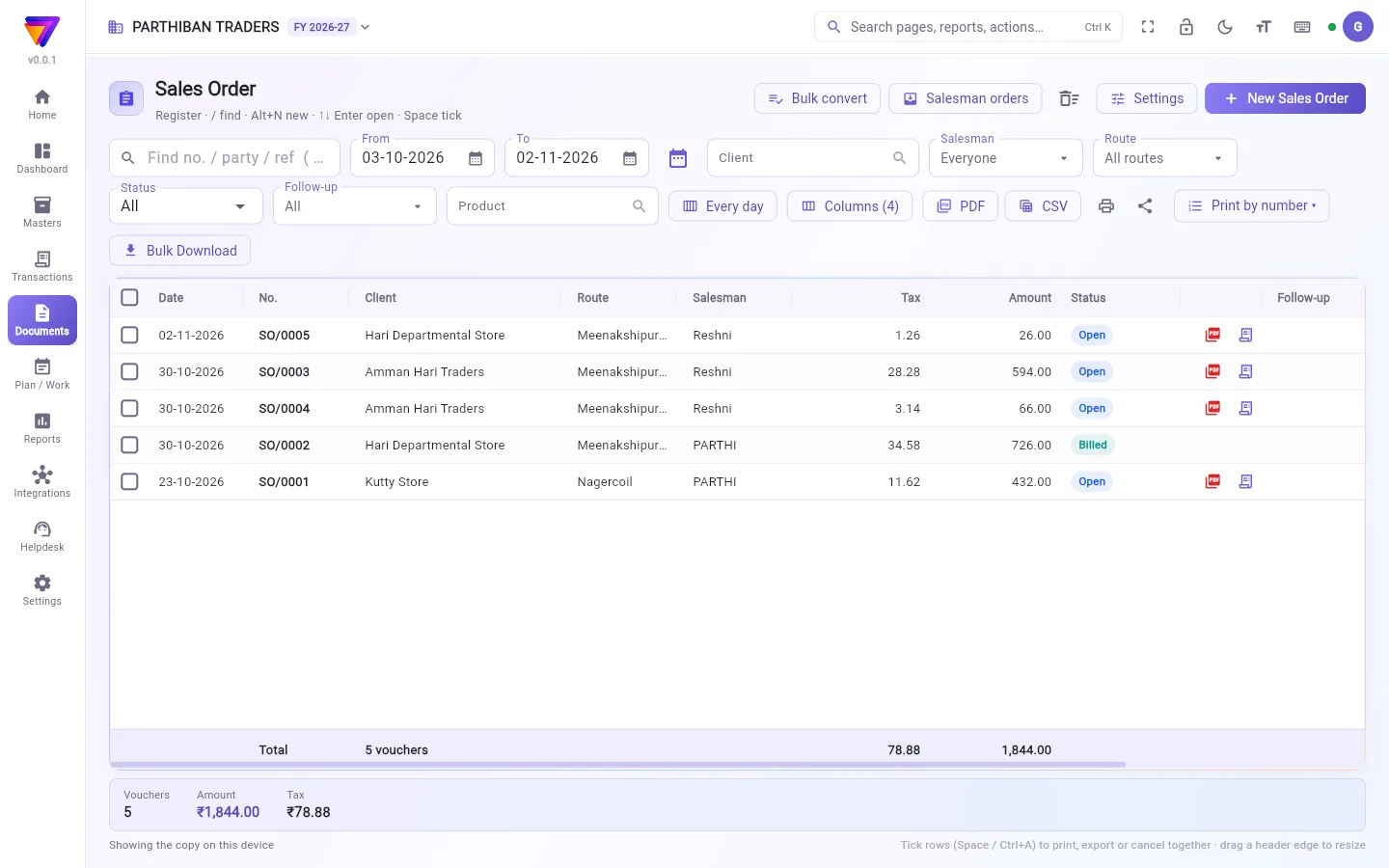
The register lists your orders, numbered SO/0001, SO/0002 and so on. It works like every other voucher register. See The register: finding, filtering and exporting bills.
Sales orders add a few things:
- Status Open (not billed yet) or Billed.
- A Follow-up filter: Follow-up due, Follow-up later, Open, no follow-up.
- A Follow-up column. You can also show Follow-up note, Expected, Bill and Rejected because from Columns.
Take an order
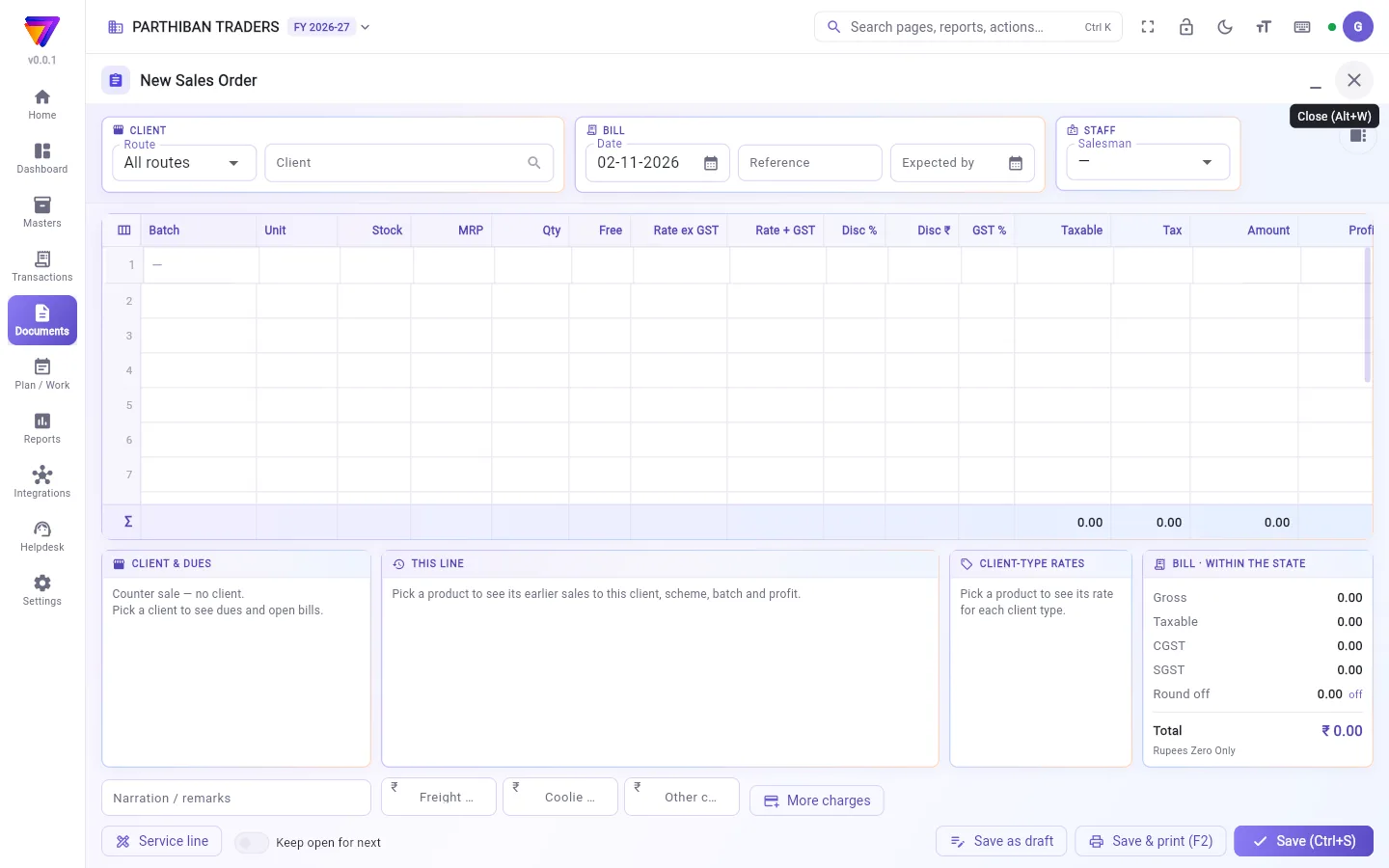
- Click New Sales Order.
- Choose the Client.
- To start from a quotation, click From quotation and pick one. Its lines are copied.
- Add or change products, quantities and rates.
- Set Expected by if the client needs it on a date.
- Save.
Bill one order
- Find the Open order.
- Click the bill icon in its row (Convert to sale).
- A new sale opens with the client and lines. Check it and save.
When the sale posts, the order shows Billed and the Bill column shows the bill number. If you cancel that sale, the order opens again.
Bill many orders: Bulk convert
- Click Bulk convert. The Bulk sale approval screen opens on today's open sales orders.
- Narrow with From, Till, Employee, Route or Find a client.
- Tick orders on the left. They appear on the right with a total per route.
- Click View product stock details to check stock first.
- Click Convert selected to sales.
- Choose Vehicle number, Delivery by, Cashier and Numbering series if needed, then click Convert.
At the end you see which bills were made and which orders were not, with the reason.
Follow up an order
- Tick one or more open orders.
- Click Follow-up.
- Set Follow up on, Client expects it on and a Note (what to check).
- Click Save.
Salesman orders
Click Salesman orders to see open orders taken by logins that cannot approve orders. Use Taken in the last to choose 7, 30 or 90 days. Tick orders, then click Accept → sale to open each as a sale, or Reject to cancel them with a reason.
Reject an order
Tick open orders and click Reject order. Type a reason, for example "credit limit". The order is cancelled and the reason is kept.
Who can do what
- The Sales role can see, make, change and print sales orders. It cannot cancel or reject them.
- Converting to a sale, Bulk convert and Salesman orders need permission to create sales.
- Reject order needs the cancel permission on sales orders.
- Settings (the page's switches) needs permission to change Company settings.
Good to know
- Available on the Pro plan and above.
- Under Settings you can turn on Sales orders: a "committed price" on each line. The promised price is then shown when the order is billed.
- A billed order cannot be changed. Cancel the bill first.
Related
- Quotation: the step before an order.
- Sales: the bill, and the shared register.
- Delivery Challan: a morning load sheet from open sales orders.
- Order in the Score app: taking orders on the phone.
விற்பனை ஆர்டர் என்பது பில் போடுவதற்கு முன்பு வாடிக்கையாளருக்கு என்ன வேண்டும் என்று பதிவு செய்வது. இது உங்கள் இருப்பையோ கணக்குகளையோ தொடாது. ஆர்டருக்கு பில் போட்டதும், விற்பனை அதன் வரிகளை எடுத்துக்கொள்ளும், ஆர்டர் மூடிவிடும்.
திரையில் என்ன தெரியும்
பதிவேட்டில் உங்கள் ஆர்டர்கள் SO/0001, SO/0002 என்று எண்ணிட்டுத் தெரியும். இது மற்ற எல்லா வவுச்சர் பதிவேடுகள் போலவே வேலை செய்யும். பதிவேடு: பில்களைத் தேடுவது, வடிகட்டுவது, பதிவிறக்குவது பாருங்க.
விற்பனை ஆர்டர்களில் கூடுதலாகச் சில உண்டு:
- நிலை நிலுவையில் (Open) (இன்னும் பில் போடவில்லை) அல்லது பில் போட்டது (Billed).
- ஒரு பின்தொடர்வு (Follow-up) வடிகட்டி: பின்தொடர்வு நாள் வந்தது (Follow-up due), பின்தொடர்வு பின்னர் (Follow-up later), நிலுவை, பின்தொடர்வு இல்லை (Open, no follow-up).
- ஒரு பின்தொடர்வு (Follow-up) நெடுவரிசை. நெடுவரிசைகள் (Columns)-இலிருந்து பின்தொடர்வுக் குறிப்பு (Follow-up note), எதிர்பார்ப்பு (Expected), பில் (Bill), நிராகரிப்புக் காரணம் (Rejected because) ஆகியவற்றையும் காட்டலாம்.
ஆர்டர் எடுப்பது
- புதிய விற்பனை ஆர்டர் (New Sales Order) கிளிக் செய்யுங்க.
- வாடிக்கையாளர் (Client) தேர்ந்தெடுங்க.
- ஒரு மதிப்பீட்டிலிருந்து தொடங்க, மேற்கோளிலிருந்து (From quotation) கிளிக் செய்து ஒன்றைத் தேர்ந்தெடுங்க. அதன் வரிகள் நகலாகும்.
- பொருட்கள், அளவுகள், விலைகளைச் சேருங்க அல்லது மாற்றுங்க.
- வாடிக்கையாளருக்கு ஒரு குறிப்பிட்ட தேதியில் வேண்டுமென்றால் எதிர்பார்க்கும் தேதி (Expected by) அமையுங்க.
- சேமியுங்க.
ஒரு ஆர்டருக்கு பில் போடுவது
- நிலுவையில் (Open) உள்ள ஆர்டரைக் கண்டுபிடிங்க.
- அதன் வரிசையில் உள்ள பில் ஐகானைக் கிளிக் செய்யுங்க (விற்பனையாக மாற்று (Convert to sale)).
- வாடிக்கையாளர், வரிகளுடன் ஒரு புதிய விற்பனை திறக்கும். சரிபார்த்து சேமியுங்க.
விற்பனை பதிவானதும், ஆர்டர் பில் போட்டது (Billed) என்று காட்டும், பில் (Bill) நெடுவரிசையில் பில் எண் தெரியும். அந்த விற்பனையை ரத்து செய்தால், ஆர்டர் மீண்டும் திறந்துவிடும்.
பல ஆர்டர்களுக்கு பில் போடுவது: மொத்த மாற்றம்
- மொத்த மாற்றம் (Bulk convert) கிளிக் செய்யுங்க. இன்றைய நிலுவை விற்பனை ஆர்டர்களுடன் மொத்த விற்பனை ஒப்புதல் (Bulk sale approval) திரை திறக்கும்.
- முதல் (From), வரை (Till), பணியாளர் (Employee), வழித்தடம் (Route) அல்லது வாடிக்கையாளரைத் தேடு (Find a client) கொண்டு பட்டியலைக் குறையுங்க.
- இடப்பக்கம் ஆர்டர்களை டிக் செய்யுங்க. அவை வலப்பக்கம் வழித்தடம் வாரியான மொத்தத்துடன் தெரியும்.
- முதலில் இருப்பைச் சரிபார்க்க பொருள் இருப்பு விவரங்களைப் பார் (View product stock details) கிளிக் செய்யுங்க.
- தேர்ந்தவற்றை விற்பனையாக மாற்று (Convert selected to sales) கிளிக் செய்யுங்க.
- தேவைப்பட்டால் வாகன எண் (Vehicle number), டெலிவரி செய்பவர் (Delivery by), காசாளர் (Cashier), எண் வரிசை (Numbering series) தேர்ந்தெடுத்து, மாற்று (Convert) கிளிக் செய்யுங்க.
கடைசியில் எந்த பில்கள் போட்டது, எந்த ஆர்டர்கள் போடவில்லை, ஏன் என்ற காரணத்துடன் தெரியும்.
ஆர்டரைப் பின்தொடர்வது
- ஒன்று அல்லது அதற்கு மேற்பட்ட நிலுவை ஆர்டர்களை டிக் செய்யுங்க.
- பின்தொடர்வு (Follow-up) கிளிக் செய்யுங்க.
- பின்தொடர்வு தேதி (Follow up on), வாடிக்கையாளர் எதிர்பார்க்கும் தேதி (Client expects it on), ஒரு குறிப்பு (என்ன சரிபார்க்க வேண்டும்) (Note (what to check)) அமையுங்க.
- சேமி (Save) கிளிக் செய்யுங்க.
விற்பனைப் பிரதிநிதி ஆர்டர்கள்
ஆர்டர்களை ஒப்புக்கொள்ள அனுமதி இல்லாத லாகின்கள் எடுத்த நிலுவை ஆர்டர்களைப் பார்க்க விற்பனைப் பிரதிநிதி ஆர்டர்கள் (Salesman orders) கிளிக் செய்யுங்க. 7, 30 அல்லது 90 நாட்கள் தேர்ந்தெடுக்க கடந்த காலத்தில் எடுத்தவை (Taken in the last) பயன்படுத்துங்க. ஆர்டர்களை டிக் செய்து, ஒவ்வொன்றையும் விற்பனையாகத் திறக்க ஏற்று → விற்பனை (Accept → sale) கிளிக் செய்யுங்க, அல்லது காரணத்துடன் ரத்து செய்ய நிராகரி (Reject) கிளிக் செய்யுங்க.
ஆர்டரை நிராகரிப்பது
நிலுவை ஆர்டர்களை டிக் செய்து ஆர்டரை நிராகரி (Reject order) கிளிக் செய்யுங்க. ஒரு காரணம் டைப் செய்யுங்க, உதாரணமாக "கடன் வரம்பு". ஆர்டர் ரத்தாகும், காரணம் சேமிக்கப்படும்.
யார் என்ன செய்யலாம்
- விற்பனை (Sales) பொறுப்பு விற்பனை ஆர்டர்களைப் பார்க்கலாம், போடலாம், மாற்றலாம், அச்சிடலாம். ரத்து செய்யவோ நிராகரிக்கவோ முடியாது.
- விற்பனையாக மாற்றுவது, மொத்த மாற்றம் (Bulk convert), விற்பனைப் பிரதிநிதி ஆர்டர்கள் (Salesman orders) ஆகியவற்றுக்கு விற்பனை உருவாக்கும் அனுமதி தேவை.
- ஆர்டரை நிராகரி (Reject order)-க்கு விற்பனை ஆர்டர்களில் ரத்து செய்யும் அனுமதி தேவை.
- அமைப்புகள் (Settings) (பக்கத்தின் ஸ்விட்சுகள்)-க்கு நிறுவன அமைப்புகளை மாற்றும் அனுமதி தேவை.
தெரிந்துகொள்ள வேண்டியது
- Pro பிளானிலும் அதற்கு மேலும் கிடைக்கும்.
- அமைப்புகள் (Settings)-இல் விற்பனை ஆர்டர்கள்: ஒவ்வொரு வரியிலும் "உறுதியளித்த விலை" (Sales orders: a "committed price" on each line) ஆன் செய்யலாம். அப்போது ஆர்டருக்கு பில் போடும்போது உறுதியளித்த விலை காட்டப்படும்.
- பில் போட்ட ஆர்டரை மாற்ற முடியாது. முதலில் பில்லை ரத்து செய்யுங்க.
தொடர்புடையவை
- மதிப்பீடு (Quotation): ஆர்டருக்கு முந்தைய படி.
- விற்பனை (Sales): பில்லும், பொதுவான பதிவேடும்.
- டெலிவரி சலான் (Delivery Challan): நிலுவை விற்பனை ஆர்டர்களிலிருந்து காலை லோடு ஷீட்.
- Score செயலியில் ஆர்டர் (Order in the Score app): போனில் ஆர்டர் எடுப்பது.