User manualபயனர் கையேடு · Office: IntegrationsOffice: இணைப்புகள் (Integrations)
Integrationsஇணைப்புகள் (Integrations)
Send your vouchers and item-wise bills to Tally, and make e-invoices and e-way bills on the GST portal from Stockflow.உங்கள் வவுச்சர்களையும் பொருள் வாரியான பில்களையும் Tally-க்கு அனுப்புங்க; GST போர்ட்டலில் e-invoice, e-way bill-ஐ Stockflow-இலிருந்தே உருவாக்குங்க.
- Where to find itஎங்கே இருக்கிறது
- Office → Integrations
- Who uses itயார் பயன்படுத்துவார்கள்
- Owner, Admin, Accountantஉரிமையாளர், நிர்வாகி, கணக்காளர்
Stockflow connects to two outside systems: Tally, and the government GST portal for e-invoices and e-way bills. The Tally exports are on this page. The e-invoice and e-way bill login is set up in Settings; the work is done on the E-invoice and E-way Bill pages (under Integrations), or from the Sales register.
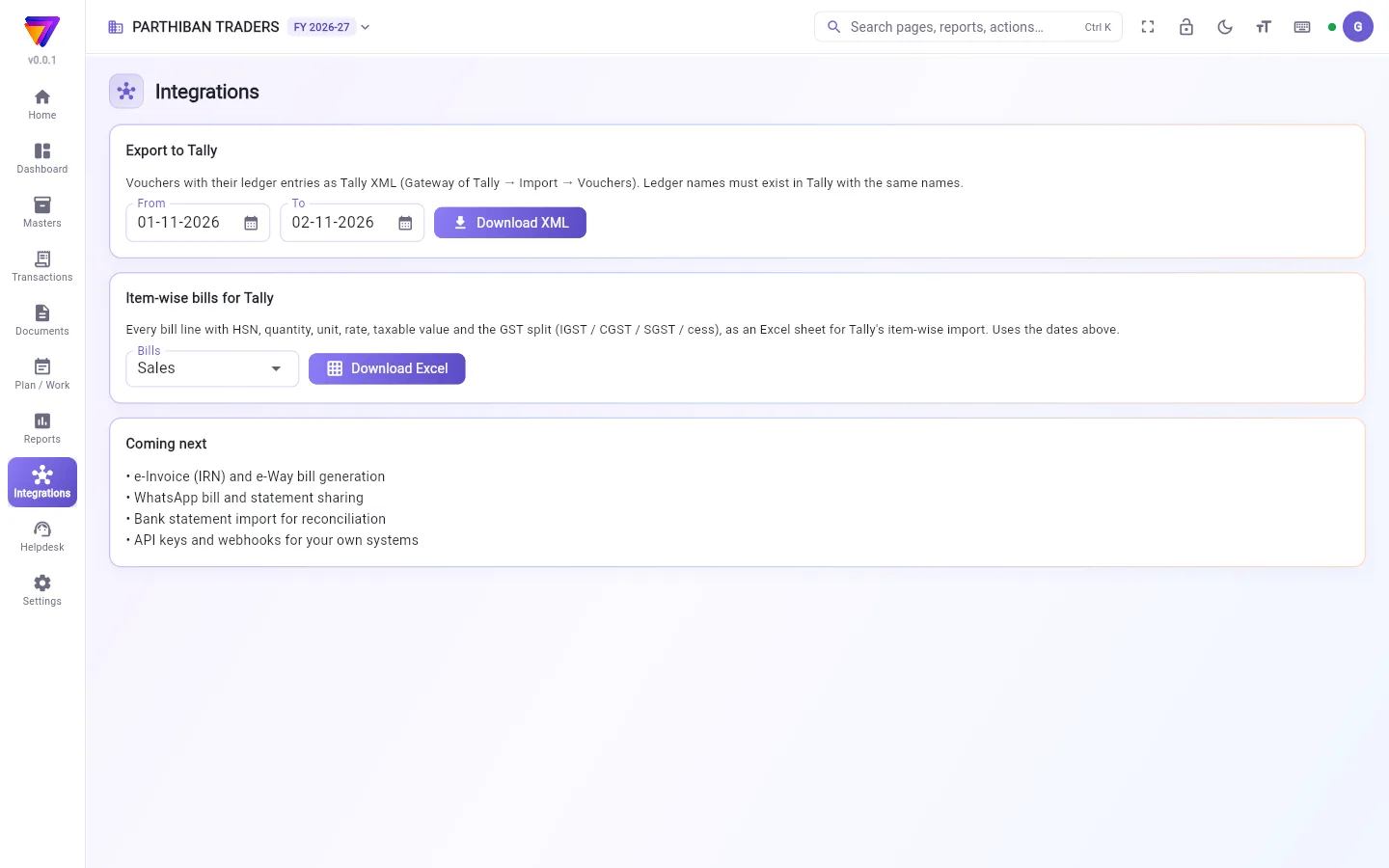
What you see
- Export to Tally: From, To and Download XML.
- Item-wise bills for Tally: Bills and Download Excel. It uses the dates above.
- Coming next: work that is planned (bank statement import, API keys and webhooks).
Export vouchers to Tally
- Set From and To.
- Click Download XML. Stockflow saves a file named like
tally_<from>_<to>.xmland says how many vouchers it holds. - In Tally, go to Gateway of Tally → Import → Vouchers and pick the file.
The file holds each voucher with its ledger entries. Sales go in as Sales, sales returns as Credit Note, purchases as Purchase, purchase returns as Debit Note, receipts as Receipt, payments and expenses as Payment, contra as Contra, and the rest as Journal.
Every ledger name must already exist in Tally, spelled the same as in Stockflow. Create missing ledgers in Tally first.
Export item-wise bills for Tally
- Set From and To in the card above.
- In Bills, choose Sales, Sales returns, Purchases or Purchase returns.
- Click Download Excel.
The sheet has one row per bill line: date, bill number, party, state, GSTIN, item, HSN, quantity, unit, rate, discount, taxable amount, tax %, the IGST / CGST / SGST / cess amounts and the total. Use it with Tally's item-wise import.
Set up e-invoice and e-way bill
Stockflow sends bills to the GST portal through MasterGST. You need an API login from the e-invoice portal.
- On einvoice1.gst.gov.in, use API Registration to create an API user for "MasterGST".
- In Stockflow, open Settings → Company and find the card E-invoice and e-way bill.
- Enter the API username and API password.
- Click Save login.
The password is kept on the server only. Nobody can see it again in Stockflow. To change the login, enter a New API username and password and click Change login. Remove deletes the saved login.
The E-invoice and E-way Bill pages
Under Integrations, E-invoice and E-way Bill list the bills the portal needs, like the API pages of Stockflow 3.0. Both show a warning with Open settings until the portal login is saved.
- E-invoice: posted sale bills and credit notes to buyers with a GSTIN, this month to today at first. Filter by document type and by state (Not generated, Generated, Cancelled). Tick bills and click Generate or Cancel; Stockflow sends them one by one and then lists which went through and why the portal refused the others. E-invoice JSON saves the file for the portal's bulk upload.
- E-way Bill: bills of ₹50,000 and above at first (choose All bills to see every bill). Each row has Generate and Print. Generate fills in the route's distance and the vehicle; for many bills, enter the vehicle, mode and transporter once and a distance for each bill. Print makes the e-way bill as a PDF with its QR code and barcode, one page a bill.
Make an e-invoice or e-way bill from the register
- Open the Sales register (or Sales Return register).
- Tick one saved bill.
- Click Generate e-invoice, then Generate. The bill gets its IRN and QR code. Print the bill to show them.
- For an e-way bill, click Generate e-way bill. Enter Distance (km), Vehicle no. or Transporter GSTIN / ID (optional), and Mode, then Generate.
If the portal refuses, a box lists what to fix. The register's E-invoice column shows IRN once made. The E-way bill column is hidden at first; add it with Columns.
Cancel an e-invoice
- Tick the bill and click Cancel e-invoice.
- Choose a Reason and add a Remark.
- Click Cancel e-invoice.
The portal allows this only within 24 hours of making it. Cancelling the e-invoice does not cancel the bill.
Files without a portal login
On the Sales and Sales Return registers, ticked bills also have E-invoice JSON, E-way bill JSON and, for more than one bill, Consolidated e-way bill. These save files for the portal's bulk upload. They do not need the login.
Who can do what
- Download XML needs the right to view Accounts.
- Download Excel needs the Bill-wise Products report.
- Saving the e-invoice login needs the right to edit Company settings.
- Making an e-invoice or e-way bill needs the right to create or edit that bill. Cancelling an e-invoice needs the right to cancel it.
Good to know
- The Integrations page comes with the Enterprise plan. The E-invoice and E-way Bill pages come with Pro and above.
- A bill with a live e-invoice cannot be changed or cancelled. Cancel the e-invoice first.
- A bill must be saved (posted) before it can go to the GST portal.
Related
- Company: the E-invoice and e-way bill login card.
- Sales: the register where you tick bills.
- Sales Return: e-invoices for credit notes.
- Reports: GSTR-1 JSON and GST Excel files.
Stockflow இரண்டு வெளி அமைப்புகளுடன் இணைகிறது: Tally, மற்றும் e-invoice, e-way bill-க்கான அரசின் GST போர்ட்டல். Tally ஏற்றுமதிகள் இந்தப் பக்கத்தில் உள்ளன. e-invoice, e-way bill வேலை அமைப்புகளில் அமைக்கப்பட்டு, விற்பனைப் பதிவேட்டிலிருந்து செய்யப்படுகிறது.
திரையில் என்ன தெரியும்
- Tally-க்கு ஏற்றுமதி (Export to Tally): முதல் (From), வரை (To), XML பதிவிறக்கு (Download XML).
- Tally-க்கான பொருள் வாரியான பில்கள் (Item-wise bills for Tally): பில்கள் (Bills), Excel பதிவிறக்கு (Download Excel). இது மேலே உள்ள தேதிகளையே பயன்படுத்தும்.
- அடுத்து வருபவை (Coming next): திட்டமிட்ட வேலைகள். இந்த அட்டை இன்னும் e-invoice, e-way bill-ஐப் பட்டியலிடுகிறது, ஆனால் அவை ஏற்கெனவே வேலை செய்கின்றன; கீழே பாருங்க.
வவுச்சர்களை Tally-க்கு ஏற்றுமதி செய்வது
- முதல் (From), வரை (To) அமையுங்க.
- XML பதிவிறக்கு (Download XML) கிளிக் செய்யுங்க. Stockflow
tally_<from>_<to>.xmlபோன்ற பெயரில் ஒரு கோப்பைச் சேமித்து, அதில் எத்தனை வவுச்சர்கள் உள்ளன என்று சொல்லும். - Tally-இல் Gateway of Tally → Import → Vouchers போய், அந்தக் கோப்பைத் தேர்ந்தெடுங்க.
கோப்பில் ஒவ்வொரு வவுச்சரும் அதன் பேரேடு (ledger) பதிவுகளுடன் இருக்கும். விற்பனை Sales ஆகவும், விற்பனை திருப்பங்கள் Credit Note ஆகவும், கொள்முதல்கள் Purchase ஆகவும், கொள்முதல் திருப்பங்கள் Debit Note ஆகவும், வசூல்கள் Receipt ஆகவும், பணம் செலுத்துதல்களும் செலவுகளும் Payment ஆகவும், கான்ட்ரா Contra ஆகவும், மற்றவை Journal ஆகவும் Tally-க்குள் போகும்.
ஒவ்வொரு பேரேட்டுப் பெயரும் Stockflow-இல் உள்ள அதே எழுத்துக்கூட்டலில் Tally-இல் ஏற்கெனவே இருக்க வேண்டும். இல்லாத பேரேடுகளை முதலில் Tally-இல் உருவாக்குங்க.
பொருள் வாரியான பில்களை Tally-க்கு ஏற்றுமதி செய்வது
- மேலே உள்ள அட்டையில் முதல் (From), வரை (To) அமையுங்க.
- பில்கள் (Bills)-இல் விற்பனை (Sales), விற்பனை திருப்பங்கள் (Sales returns), கொள்முதல்கள் (Purchases) அல்லது கொள்முதல் திருப்பங்கள் (Purchase returns) தேர்ந்தெடுங்க.
- Excel பதிவிறக்கு (Download Excel) கிளிக் செய்யுங்க.
தாளில் ஒவ்வொரு பில் வரிக்கும் ஒரு வரிசை: தேதி, பில் எண், தரப்பினர், மாநிலம், GSTIN, பொருள், HSN, அளவு, அலகு, விலை, தள்ளுபடி, வரி விதிக்கத்தக்க தொகை, வரி %, IGST / CGST / SGST / cess தொகைகள், மொத்தம். இதை Tally-இன் பொருள் வாரியான இறக்குமதிக்குப் (item-wise import) பயன்படுத்துங்க.
e-invoice, e-way bill அமைப்பது
Stockflow பில்களை MasterGST மூலம் GST போர்ட்டலுக்கு அனுப்புகிறது. உங்களுக்கு e-invoice போர்ட்டலில் இருந்து ஒரு API உள்நுழைவு தேவை.
- einvoice1.gst.gov.in-இல், API Registration பயன்படுத்தி "MasterGST"-க்கு ஒரு API பயனரை உருவாக்குங்க.
- Stockflow-இல் அமைப்புகள் → நிறுவனம் (Settings → Company) திறந்து, e-invoice மற்றும் e-way bill (E-invoice and e-way bill) அட்டையைக் கண்டுபிடிங்க.
- API பயனர்பெயர் (API username), API கடவுச்சொல் (API password) உள்ளிடுங்க.
- உள்நுழைவைச் சேமி (Save login) கிளிக் செய்யுங்க.
கடவுச்சொல் சர்வரில் மட்டுமே வைக்கப்படும். Stockflow-இல் யாரும் அதை மீண்டும் பார்க்க முடியாது. உள்நுழைவை மாற்ற, புதிய API பயனர்பெயர் (New API username), கடவுச்சொல் உள்ளிட்டு உள்நுழைவை மாற்று (Change login) கிளிக் செய்யுங்க. அகற்று (Remove) சேமித்த உள்நுழைவை நீக்கும்.
e-invoice அல்லது e-way bill உருவாக்குவது
- விற்பனைப் பதிவேட்டை (அல்லது விற்பனைத் திருப்பப் பதிவேட்டை) திறங்க.
- சேமித்த ஒரு பில்லை டிக் செய்யுங்க.
- e-invoice உருவாக்கு (Generate e-invoice), பிறகு உருவாக்கு (Generate) கிளிக் செய்யுங்க. பில்லுக்கு அதன் IRN-உம் QR குறியீடும் கிடைக்கும். அவற்றைக் காட்ட பில்லை அச்சிடுங்க.
- e-way bill-க்கு e-way bill உருவாக்கு (Generate e-way bill) கிளிக் செய்யுங்க. தூரம் (கி.மீ) (Distance (km)), வாகன எண் (Vehicle no.) அல்லது போக்குவரத்தாளர் GSTIN / ID (விருப்பம்) (Transporter GSTIN / ID (optional)), முறை (Mode) உள்ளிட்டு, உருவாக்கு (Generate) அழுத்துங்க.
போர்ட்டல் மறுத்தால், எதைச் சரிசெய்ய வேண்டும் என்று ஒரு பெட்டி பட்டியலிடும். உருவானதும் பதிவேட்டின் E-invoice நெடுவரிசை IRN என்று காட்டும். E-way bill நெடுவரிசை முதலில் மறைந்திருக்கும்; நெடுவரிசைகள் (Columns) மூலம் சேருங்க.
e-invoice ரத்து செய்வது
- பில்லை டிக் செய்து e-invoice ரத்து செய் (Cancel e-invoice) கிளிக் செய்யுங்க.
- ஒரு காரணம் (Reason) தேர்ந்தெடுத்து குறிப்பு (Remark) சேருங்க.
- e-invoice ரத்து செய் (Cancel e-invoice) கிளிக் செய்யுங்க.
உருவாக்கிய 24 மணி நேரத்துக்குள் மட்டுமே போர்ட்டல் இதை அனுமதிக்கும். e-invoice-ஐ ரத்து செய்தால் பில் ரத்தாகாது.
போர்ட்டல் உள்நுழைவு இல்லாமல் கோப்புகள்
விற்பனை, விற்பனைத் திருப்பப் பதிவேடுகளில், டிக் செய்த பில்களுக்கு E-invoice JSON, E-way bill JSON, ஒன்றுக்கு மேற்பட்ட பில்களுக்கு ஒருங்கிணைந்த இ-வே பில் (Consolidated e-way bill) ஆகியவையும் உண்டு. இவை போர்ட்டலின் மொத்தப் பதிவேற்றத்துக்கான (bulk upload) கோப்புகளைச் சேமிக்கும். இவற்றுக்கு உள்நுழைவு தேவையில்லை.
யார் என்ன செய்யலாம்
- XML பதிவிறக்கு (Download XML)-க்குக் கணக்குகளைப் பார்க்கும் அனுமதி தேவை.
- Excel பதிவிறக்கு (Download Excel)-க்கு பில் வாரியான பொருட்கள் (Bill-wise Products) அறிக்கை அனுமதி தேவை.
- e-invoice உள்நுழைவைச் சேமிக்க நிறுவன அமைப்புகளைத் திருத்தும் அனுமதி தேவை.
- e-invoice அல்லது e-way bill உருவாக்க அந்தப் பில்லை உருவாக்கும் அல்லது திருத்தும் அனுமதி தேவை. e-invoice-ஐ ரத்து செய்ய அதை ரத்து செய்யும் அனுமதி தேவை.
தெரிந்துகொள்ள வேண்டியது
- இணைப்புகள் பக்கம் என்டர்பிரைஸ் (Enterprise) பிளானில் வரும்.
- நடப்பில் உள்ள e-invoice கொண்ட பில்லை மாற்றவோ ரத்து செய்யவோ முடியாது. முதலில் e-invoice-ஐ ரத்து செய்யுங்க.
- GST போர்ட்டலுக்குப் போகும் முன் பில் சேமிக்கப்பட்டு (கணக்கில் பதிவாகி) இருக்க வேண்டும்.
தொடர்புடையவை
- நிறுவனம்: e-invoice மற்றும் e-way bill (E-invoice and e-way bill) உள்நுழைவு அட்டை.
- விற்பனை: பில்களை டிக் செய்யும் பதிவேடு.
- விற்பனைத் திருப்பம்: வரவுக் குறிப்புகளுக்கான e-invoice.
- அறிக்கைகள்: GSTR-1 JSON, GST Excel கோப்புகள்.