User manualபயனர் கையேடு · Office: ReportsOffice: அறிக்கைகள் (Reports)
Reportsஅறிக்கைகள் (Reports)
Find a report, set its filters, choose its columns, save a template, and print or export it.ஒரு அறிக்கையைக் கண்டுபிடிங்க, அதன் வடிகட்டிகளை அமையுங்க, நெடுவரிசைகளைத் தேர்ந்தெடுங்க, வார்ப்புருவாகச் சேமியுங்க, அச்சிடுங்க அல்லது பதிவிறக்குங்க.
- Where to find itஎங்கே இருக்கிறது
- Office → Reports
- Who uses itயார் பயன்படுத்துவார்கள்
- Owner, Admin, Accountant; other roles see the reports their role allowsஉரிமையாளர், நிர்வாகி, கணக்காளர்; மற்ற பொறுப்புகள் அவர்களின் பொறுப்புக்கு அனுமதி உள்ள அறிக்கைகளை மட்டும் பார்க்கலாம்
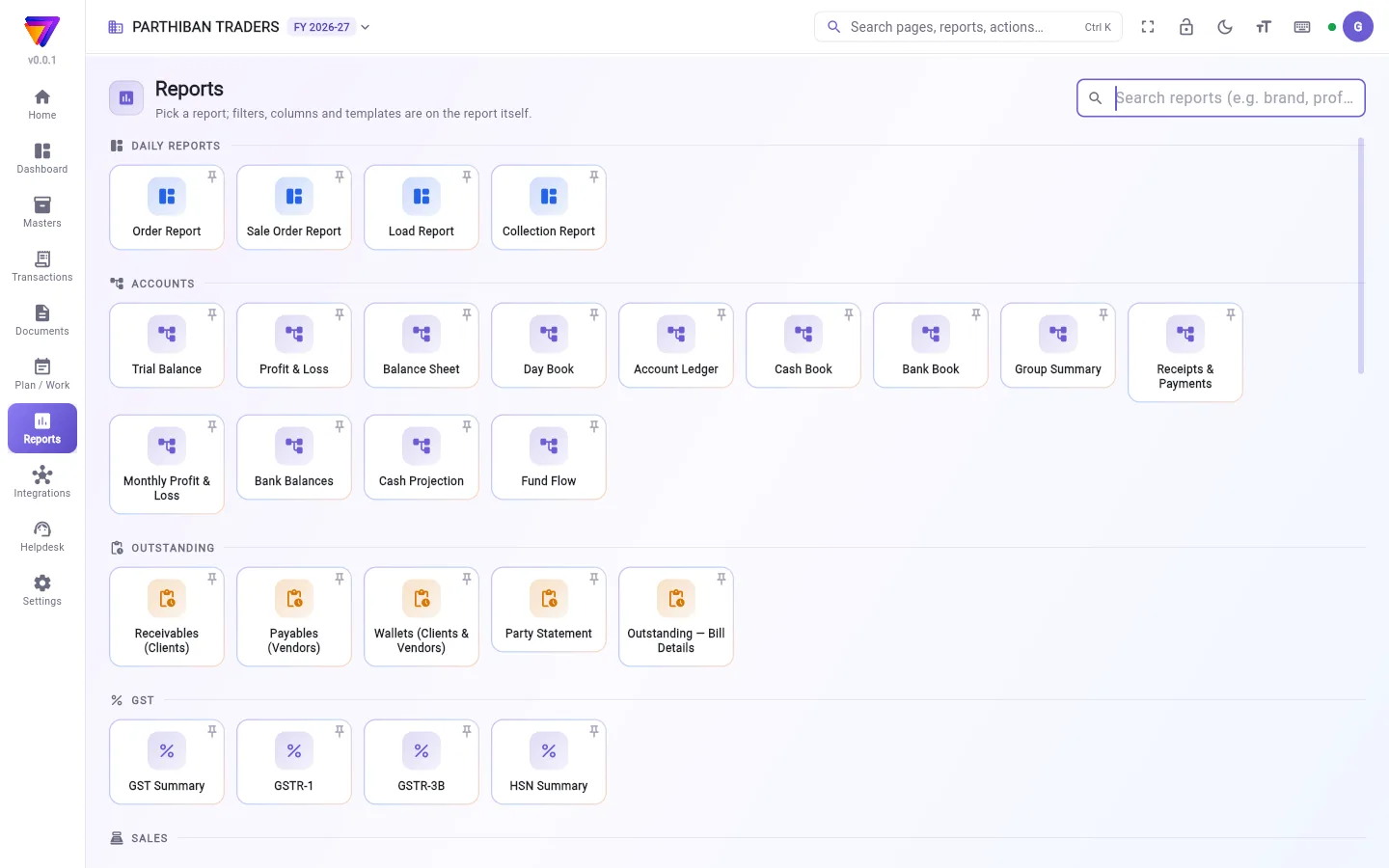
The Reports page lists every report you may open, grouped by kind. Every report works the same way: filters on top, a table below, and buttons to print or export.
What you see
- A search box: Search reports (e.g. brand, profit, GST). It looks in report names, descriptions and column names.
- Tiles grouped by kind: Daily Reports, Accounts, Outstanding, GST, Sales, Purchase, Stock, Product Analysis, Orders, Customer Analysis and Registers.
- A pin on each tile. Pinned reports show first, under Pinned. Pins are kept on this device only.
- A tile with a lock belongs to a higher plan. Clicking it tells you so.
See Report list for every report and what it answers.
Run a report
- Search for the report, or find its tile, and click it.
- Set the filters at the top, for example From and To, Client or Route. The report runs again by itself after each change.
- If a filter is required, the page says Choose the required filters above to run this report.
- Read the table. The line under it gives the number of rows.
- Click a row to go deeper: to the next report (for example from a month to its days) or to the bill itself.
Type in Find in results to search the rows on screen. The refresh button runs the report again.
Choose the columns
- Click Columns.
- Tick the columns to show. Drag them to change their order.
- Click Apply. Reset goes back to the standard columns.
Many reports have more columns than they show at first. Look in Columns before you decide a figure is missing.
Save a template
A template keeps the columns, their order and the current filters.
- Open the menu that shows Standard layout.
- Click Save as new template…, enter a Template name and click Save.
- To open the report this way every time, choose Open with this template by default.
If your role allows it, tick Share with everyone in the company so others can pick the template too. Only the person who made a template can change or delete it.
Print and export
- PDF, CSV and the print icon export what is on screen, with the columns you chose.
- The share icon gives Share as PDF link or Share as CSV link.
- Formats offers ready layouts: the columns on screen, layouts From Stockflow v3, and your own designs. Tick one or more, then View, PDF, Excel or CSV.
- To export only some rows, click the checklist icon (Tick rows to export only those) and tick them. The totals follow the ticked rows.
- GSTR-1 also has GSTR-1 JSON. GSTR-1, GSTR-3B, HSN Summary and Purchase HSN Summary have Excel (GST format).
Exports stay in English, as accountants read them.
Who can do what
- Each report needs its own view right. A role may see only some reports.
- Export buttons need the export right on Reports.
- Sharing templates with everyone needs Share report templates with everyone.
Good to know
- Reports are in every plan. Each report also needs its own module, so some tiles are locked on lower plans.
- If accounts figures do not balance, a red note sends you to Settings → Financial Year & Locks → Books health.
- Keys: / finds in results, Alt+C opens columns, Alt+R refreshes.
- A password on exported PDFs can be set in Company settings, under Printing.
Related
- Report list: every report, grouped as on this page.
- Financial Year & Locks: Books health.
- Plans and roles: which plan has which report.
- Users and roles: give a role its reports.
அறிக்கைகள் பக்கம் நீங்கள் திறக்கக்கூடிய எல்லா அறிக்கைகளையும், வகை வாரியாகக் குழுவாகப் பட்டியலிடும். எல்லா அறிக்கைகளும் ஒரே மாதிரி வேலை செய்யும்: மேலே வடிகட்டிகள், கீழே ஒரு அட்டவணை, அச்சிட அல்லது பதிவிறக்க பட்டன்கள்.
திரையில் என்ன தெரியும்
- ஒரு தேடல் பெட்டி: அறிக்கைகளைத் தேடு (எ.கா. பிராண்ட், லாபம், GST) (Search reports (e.g. brand, profit, GST)). இது அறிக்கைப் பெயர்கள், விளக்கங்கள், நெடுவரிசைப் பெயர்களில் தேடும்.
- வகை வாரியாகக் குழுவான ஓடுகள் (tiles): தினசரி அறிக்கைகள் (Daily Reports), கணக்குகள் (Accounts), நிலுவை (Outstanding), GST, விற்பனை (Sales), கொள்முதல் (Purchase), இருப்பு (Stock), பொருள் பகுப்பாய்வு (Product Analysis), ஆர்டர்கள் (Orders), வாடிக்கையாளர் பகுப்பாய்வு (Customer Analysis), பதிவேடுகள் (Registers).
- ஒவ்வொரு ஓட்டிலும் ஒரு பின். பின் செய்த அறிக்கைகள் பின் செய்தவை (Pinned)-இன் கீழ் முதலில் தெரியும். பின்கள் இந்தக் கருவியில் (device) மட்டுமே சேமிக்கப்படும்.
- பூட்டு உள்ள ஓடு மேல் திட்டத்தைச் சேர்ந்தது. அதைக் கிளிக் செய்தால் அப்படிச் சொல்லும்.
எல்லா அறிக்கைகளும், அவை எந்தக் கேள்விக்குப் பதில் தருகின்றன என்பதும் அறிக்கைப் பட்டியல் (Report list)-இல் உள்ளன.
அறிக்கையை ஓட்டுவது
- அறிக்கையைத் தேடுங்க, அல்லது அதன் ஓட்டைக் கண்டுபிடித்து கிளிக் செய்யுங்க.
- மேலே உள்ள வடிகட்டிகளை அமையுங்க, உதாரணமாக முதல் (From), வரை (To), வாடிக்கையாளர் (Client) அல்லது வழித்தடம் (Route). ஒவ்வொரு மாற்றத்துக்குப் பிறகும் அறிக்கை தானாக மீண்டும் ஓடும்.
- ஒரு வடிகட்டி கட்டாயம் என்றால், பக்கம் இந்த அறிக்கையைப் பெற மேலே தேவையான வடிகட்டிகளைத் தேர்ந்தெடுக்கவும். (Choose the required filters above to run this report.) என்று சொல்லும்.
- அட்டவணையைப் படியுங்க. அதன் கீழே உள்ள வரி வரிசைகளின் எண்ணிக்கையைச் சொல்லும்.
- ஆழமாகப் போக ஒரு வரிசையைக் கிளிக் செய்யுங்க: அடுத்த அறிக்கைக்கு (உதாரணமாக ஒரு மாதத்திலிருந்து அதன் நாட்களுக்கு) அல்லது அந்த பில்லுக்கே.
திரையில் உள்ள வரிசைகளில் தேட முடிவுகளில் தேடு (Find in results)-இல் டைப் செய்யுங்க. ரிஃப்ரெஷ் பட்டன் அறிக்கையை மீண்டும் ஓட்டும்.
நெடுவரிசைகளைத் தேர்ந்தெடுப்பது
- நெடுவரிசைகள் (Columns) கிளிக் செய்யுங்க.
- காட்ட வேண்டிய நெடுவரிசைகளை டிக் செய்யுங்க. வரிசையை மாற்ற அவற்றை இழுங்க.
- பயன்படுத்து (Apply) கிளிக் செய்யுங்க. மீட்டமை (Reset) நிலையான நெடுவரிசைகளுக்குத் திரும்பும்.
பல அறிக்கைகளில் முதலில் தெரிவதை விட அதிக நெடுவரிசைகள் உண்டு. ஒரு எண் இல்லை என்று முடிவு செய்யும் முன் நெடுவரிசைகள் (Columns)-இல் பாருங்க.
வார்ப்புருவாகச் சேமிப்பது
வார்ப்புரு (template) நெடுவரிசைகள், அவற்றின் வரிசை, தற்போதைய வடிகட்டிகளைச் சேமித்து வைக்கும்.
- நிலையான அமைப்பு (Standard layout) காட்டும் மெனுவைத் திறங்க.
- புதிய வார்ப்புருவாகச் சேமி… (Save as new template…) கிளிக் செய்து, வார்ப்புருவின் பெயர் (Template name) போட்டு, சேமி (Save) கிளிக் செய்யுங்க.
- ஒவ்வொரு முறையும் அறிக்கை இப்படியே திறக்க, இயல்பாக இந்த வார்ப்புருவில் திற (Open with this template by default) தேர்ந்தெடுங்க.
உங்கள் பொறுப்புக்கு அனுமதி இருந்தால், மற்றவர்களும் வார்ப்புருவைப் பயன்படுத்த நிறுவனத்தில் அனைவருடனும் பகிர் (Share with everyone in the company) டிக் செய்யுங்க. வார்ப்புருவை உருவாக்கியவர் மட்டுமே அதை மாற்றவோ நீக்கவோ முடியும்.
அச்சிடுவதும் பதிவிறக்குவதும்
- PDF, CSV, அச்சு ஐகான் ஆகியவை திரையில் உள்ளதை, நீங்கள் தேர்ந்தெடுத்த நெடுவரிசைகளுடன் பதிவிறக்கும்.
- பகிர்வு ஐகான் PDF இணைப்பாகப் பகிர் (Share as PDF link) அல்லது CSV இணைப்பாகப் பகிர் (Share as CSV link) தரும்.
- வடிவங்கள் (Formats) தயார் அமைப்புகளைத் தரும்: திரையில் உள்ள நெடுவரிசைகள், Stockflow v3-இலிருந்து (From Stockflow v3) வந்த அமைப்புகள், உங்கள் சொந்த வடிவமைப்புகள். ஒன்று அல்லது பலவற்றை டிக் செய்து, பார் (View), PDF, Excel அல்லது CSV கிளிக் செய்யுங்க.
- சில வரிசைகளை மட்டும் பதிவிறக்க, செக்லிஸ்ட் ஐகானைக் கிளிக் செய்து (தேர்ந்தெடுத்த வரிசைகளை மட்டும் பதிவிறக்க டிக் செய் (Tick rows to export only those)) அவற்றை டிக் செய்யுங்க. மொத்தங்கள் டிக் செய்த வரிசைகளுக்கு மட்டும் வரும்.
- GSTR-1-இல் GSTR-1 JSON-உம் உண்டு. GSTR-1, GSTR-3B, HSN சுருக்கம் (HSN Summary), கொள்முதல் HSN சுருக்கம் (Purchase HSN Summary) ஆகியவற்றில் Excel (GST வடிவம்) (Excel (GST format)) உண்டு.
கணக்காளர்கள் படிப்பதால், பதிவிறக்கங்கள் ஆங்கிலத்திலேயே இருக்கும்.
யார் என்ன செய்யலாம்
- ஒவ்வொரு அறிக்கைக்கும் அதன் சொந்தப் பார்க்கும் அனுமதி தேவை. ஒரு பொறுப்பு சில அறிக்கைகளை மட்டுமே பார்க்கலாம்.
- பதிவிறக்க பட்டன்களுக்கு அறிக்கைகளில் பதிவிறக்கும் அனுமதி தேவை.
- வார்ப்புருக்களை அனைவருடனும் பகிர அறிக்கை வார்ப்புருக்களை அனைவருடனும் பகிர் (Share report templates with everyone) அனுமதி தேவை.
தெரிந்துகொள்ள வேண்டியது
- அறிக்கைகள் எல்லாத் திட்டங்களிலும் உண்டு. ஒவ்வொரு அறிக்கைக்கும் அதன் சொந்த மாட்யூல் தேவை, அதனால் கீழ்த் திட்டங்களில் சில ஓடுகள் பூட்டியிருக்கும்.
- கணக்கு எண்கள் டேலி ஆகவில்லை என்றால், ஒரு சிவப்புக் குறிப்பு உங்களை அமைப்புகள் → நிதியாண்டு & பூட்டுகள் → கணக்குகளின் நிலை (Settings → Financial Year & Locks → Books health)-க்கு அனுப்பும்.
- விசைகள்: / முடிவுகளில் தேடும், Alt+C நெடுவரிசைகளைத் திறக்கும், Alt+R ரிஃப்ரெஷ் செய்யும்.
- பதிவிறக்கிய PDF-களுக்கு கடவுச்சொல்லை நிறுவன அமைப்புகளில், அச்சிடுதல் (Printing)-இன் கீழ் அமைக்கலாம்.
தொடர்புடையவை
- அறிக்கைப் பட்டியல் (Report list): எல்லா அறிக்கைகளும், இந்தப் பக்கத்தில் உள்ளபடியே குழுவாக.
- நிதியாண்டு & பூட்டுகள் (Financial Year & Locks): கணக்குகளின் நிலை (Books health).
- திட்டங்களும் பொறுப்புகளும் (Plans and roles): எந்தத் திட்டத்தில் எந்த அறிக்கை.
- பயனர்கள் & பொறுப்புகள் (Users and roles): ஒரு பொறுப்புக்கு அதன் அறிக்கைகளைக் கொடுப்பது.