User manualபயனர் கையேடு · Office: TransactionsOffice: பரிவர்த்தனைகள் (Transactions)
Salesவிற்பனை (Sales)
Make GST sale bills, find and export them, approve, edit, cancel and print, and see who may change rates and discounts.GST விற்பனை பில் போடுங்க, பழைய பில்களைத் தேடி எக்ஸ்போர்ட் செய்யுங்க, ஒப்புதல், திருத்தம், ரத்து, அச்சு எல்லாம் இங்கே. விலையையும் தள்ளுபடியையும் யார் மாற்றலாம் என்பதும் இங்கே தெரியும்.
- Where to find itஎங்கே இருக்கிறது
- Office → Transactions → Sales
- Who uses itயார் பயன்படுத்துவார்கள்
- Billing staff, accountants, ownersபில்லிங் ஊழியர்கள், கணக்காளர்கள், உரிமையாளர்கள்
The Sales page is the register of all your sale bills. From here you make new bills, find old ones, and print, export, approve or cancel them.
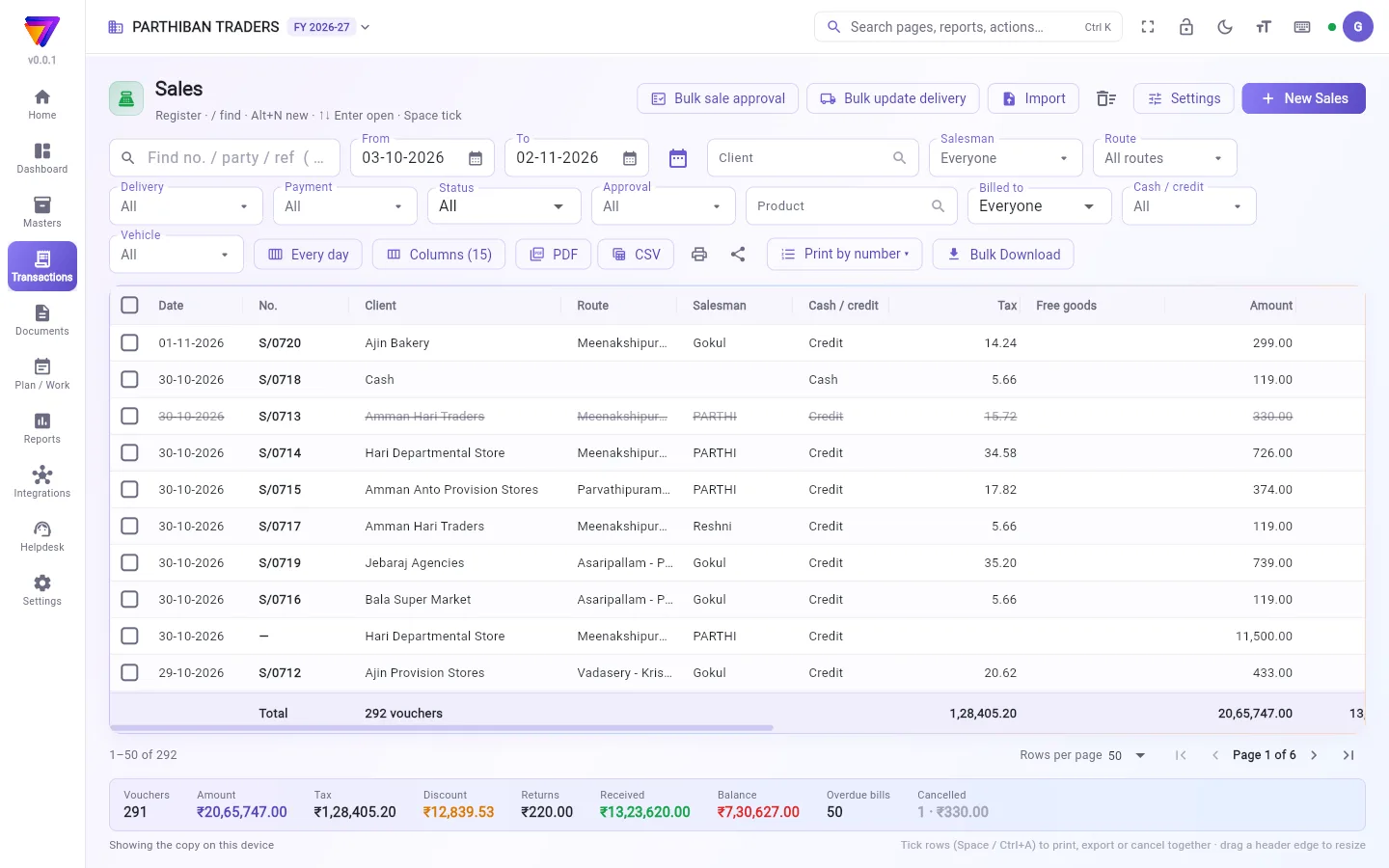
What you see
At the top are the buttons Bulk sale approval, Bulk update delivery, Import, the Trash icon, Settings and New Sales. You see a button only if your role allows it.
Under them are the filters, then the bill list. The strip at the bottom adds up the bills shown: Vouchers, Amount, Tax, Discount, Returns, Received, Balance, Overdue bills and Cancelled. Cancelled bills are shown struck through and are not counted in the totals.
The register: finding, filtering and exporting bills
Every voucher page (Sales, Purchase, Collection / Receipt and the rest) has this same register. Only some filters and columns change.
Find a bill
- Type in Find no. / party / ref. Press / to jump to this box from anywhere on the page.
- Set From and To. The page opens on the last 30 days. The calendar button next to them gives quick periods.
- Use ↑ and ↓ to move in the list and Enter to open a bill. Alt+N starts a new one.
Filters
- Client (or Vendor), Salesman, Route, Product.
- Status: Posted, Draft, Awaiting approval, On this device (saved offline, not yet sent), Needs attention (the server refused it) and Cancelled.
- Payment: Paid, Not fully paid, Unpaid, Part paid, Overdue.
- Sales also has Delivery, Approval, Billed to (Consumers or Shops (clients)), Cash / credit and Vehicle.
- Every day picks days of the week.
- Clear filters appears when any filter is on.
Columns. Click Columns to show or hide columns, such as Ref, Items, Taxable, Due, Series or Cancel reason. Drag a header edge to make a column wider.
Export and print the list. PDF and CSV export the rows shown. The printer icon prints the list. The share icon makes a link to a PDF or CSV.
Print by number. Click Print by number, choose the paper, type From no. and To no. (for example S/0101 to S/0150) and click Find. Only posted bills in the dates shown are printed.
Bulk Download. This opens a page to download many bill PDFs at once, as One PDF or A PDF a bill (ZIP). If you type Bill no. from and Bill no. to, the dates are ignored and the whole year is searched.
Work on ticked bills. Tick rows (or press Space; Ctrl+A ticks all). A bar appears with Print all, Download PDFs, Collect, Make return, WhatsApp / share, Edit history, E-invoice JSON, E-way bill JSON, Delivery…, Restore and Cancel. Each button shows only when it fits the ticked bills and your role.
Make a sale bill
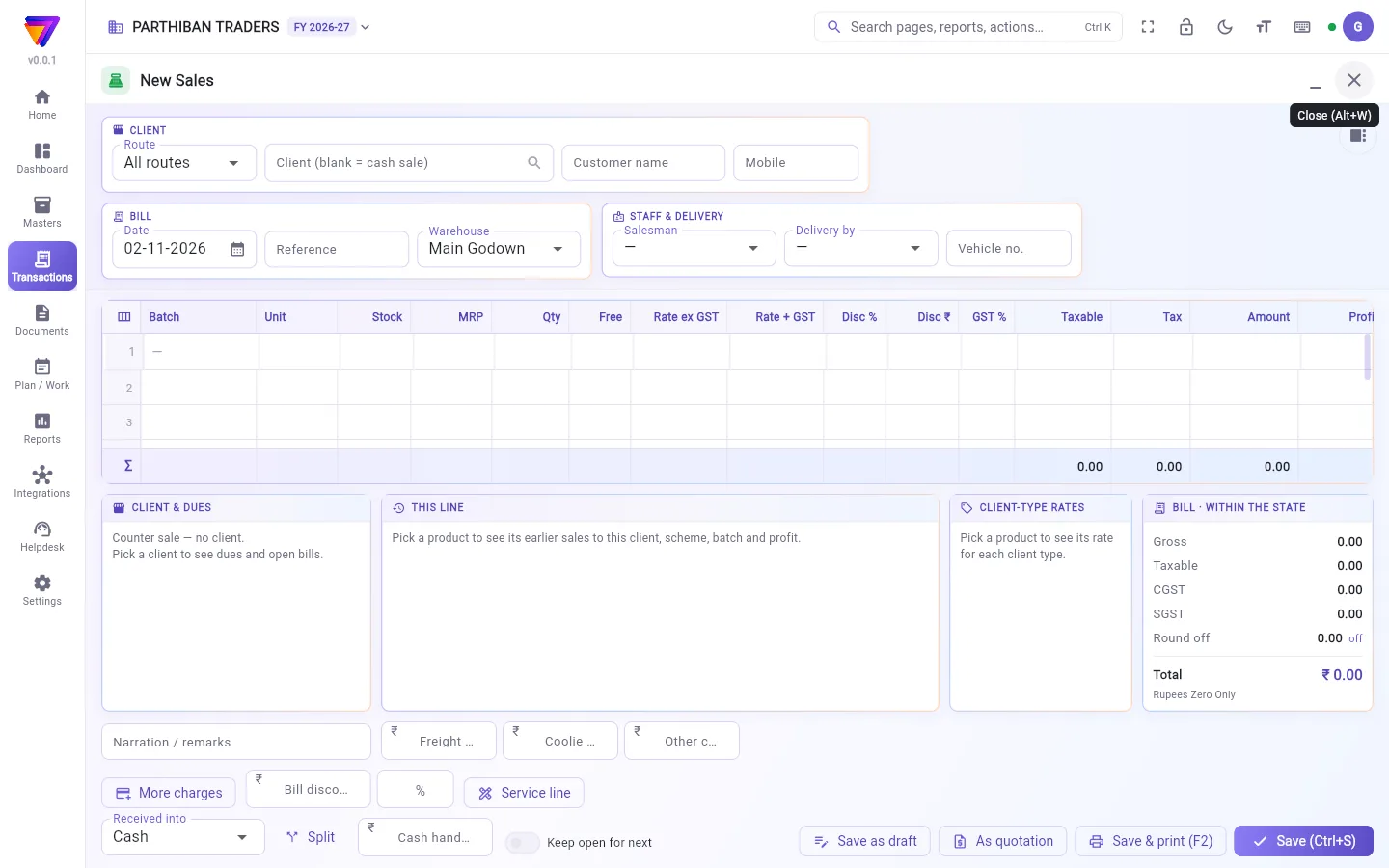
- Click New Sales.
- Choose the client in Client (blank = cash sale). Leave it empty for a counter sale and type Customer name and Mobile if you want.
- Check Date, Bill type (Credit or Cash) and Due date. Add a Reference if you need one.
- If you have staff, choose Salesman, Delivery by and Vehicle no.
- In the sheet, type the product name or scan its barcode. Fill Qty. The rate fills in from the product.
- To take cash now, use the Received now into box at the bottom. Split takes part cash and part UPI, card or bank.
- Click Save (Ctrl+S), or Save & print (F2).
The boxes under the sheet show the client's dues and credit limit, the last sales of the product to this client, and the bill totals. Ctrl+B hides them.
Batch, free goods, discount, scheme and price level
- Batch: leave it on Auto (FIFO) and the bill takes the batch that expires first.
- Free: free quantity on the line. Its value shows in the Free goods column of the register.
- Disc % or Disc ₹ give a line discount. Bill discount (or or %) gives a discount on the whole bill.
- Scheme: if a scheme applies, the line gets a Scheme tag and free goods are added. Alt+X turns the scheme off or on for the line.
- Rate of client type (side panel) bills the line at another price level's rate.
- Use last rate (Alt+L) copies the rate and discount of the last sale to this client.
Save, approval, edit and cancel
- Save as draft keeps an unnumbered draft. It is not in the books.
- If Sales need approval is on (page Settings), a sale saved by someone who cannot approve waits as Awaiting approval, with no number. An approver uses Bulk sale approval, or ticks the bills and clicks Approve (it shows the count). They can then choose the number series, delivery person, cashier, vehicle and date, and what to do with lines short of stock.
- To change a posted bill, open it, edit, and click Save changes (Ctrl+S). A fully paid bill opens read-only: click Edit first.
- To cancel, open the bill, click the More menu and choose Cancel voucher. Pick a reason and click Cancel voucher. The number stays used. If collections are set against the bill, you are asked to take them off first. The money stays on the client's account.
- A cancelled bill can be brought back with Restore (post again).
Print formats
The PDF icon on a row, or PDF — view, download, print in the More menu, opens the bill. The paper sizes are A4, A5 (half page), A5 landscape, Thermal roll 3 inch and Thermal roll 2 inch. You see your usual size, plus any others switched on in your print settings.
Who can do what
Besides view, create, edit, cancel, approve, export and print, a role can be given these:
| Permission | What it allows |
|---|---|
| Change rate on bill | Type a different rate on a line. Without it the rate is fixed. |
| Give discount | Type line discounts and a bill discount. |
| Bill on a past date | Save a bill dated before today. Without it, the server refuses the bill. |
| Sell below cost | Save a bill below purchase cost when Stop selling below purchase cost is on. |
| Sell outside a product's lowest / highest rate | Bill outside the product's rate limits when Stop selling below a product's lowest allowed rate is on. |
| Update delivery | Mark bills delivered and set the person and vehicle. |
| Give free goods | Type a Free quantity. |
| Change bills older than the edit window | Edit bills older than the days set in Settings, or from an earlier month. |
| Bill at another client type's price | Use Rate of client type. |
Good to know
- Sales is on every plan. On the free Basic plan you can save up to 20 new bills a day.
- A bill cannot be changed once its date is in a locked period.
- A bill with a live e-invoice must have the e-invoice cancelled before you change or cancel it.
- The page's Settings button holds the sale switches, such as No credit to a client who already owes and Stop selling below purchase cost.
Related
- Sales Return: take goods back against a bill
- Collection / Receipt: record money against bills
- Client: credit limit, price level and route
- Price Levels: rates for each client type
- Scheme: free goods and scheme discounts
- Vouchers: number series for bills
- Bill designs: how the printed bill looks
விற்பனை பக்கம் உங்க எல்லா விற்பனை பில்களின் பதிவேடு. இங்கிருந்து புது பில் போடலாம், பழைய பில்களைத் தேடலாம், அச்சிடலாம், எக்ஸ்போர்ட் செய்யலாம், ஒப்புதல் கொடுக்கலாம் அல்லது ரத்து செய்யலாம்.
திரையில் என்ன தெரியும்
மேலே இந்த பொத்தான்கள் இருக்கும்: மொத்த விற்பனை ஒப்புதல் (Bulk sale approval), மொத்த டெலிவரி புதுப்பிப்பு (Bulk update delivery), இறக்குமதி (Import), குப்பை (Trash) ஐகான், அமைப்புகள் (Settings), புதிய விற்பனை (New Sales). உங்க பொறுப்புக்கு (role) அனுமதி இருந்தால் மட்டுமே ஒரு பொத்தான் தெரியும்.
அதற்குக் கீழே வடிகட்டிகள், அப்புறம் பில் பட்டியல். அடியில் உள்ள பட்டை, காட்டப்படும் பில்களைக் கூட்டிக் காட்டும்: வவுச்சர்கள் (Vouchers), தொகை (Amount), வரி (Tax), தள்ளுபடி (Discount), திருப்பங்கள் (Returns), பெறப்பட்டது (Received), இருப்புத் தொகை (Balance), காலம் கடந்த பில்கள் (Overdue bills), ரத்து செய்யப்பட்டது (Cancelled). ரத்தான பில்கள் அடித்த கோட்டுடன் தெரியும்; அவை மொத்தத்தில் சேராது.
பதிவேடு: பில்களைத் தேடுதல், வடிகட்டுதல், எக்ஸ்போர்ட் செய்தல்
எல்லா வவுச்சர் பக்கங்களிலும் (விற்பனை, கொள்முதல், வசூல் மற்றும் பிற) இதே பதிவேடு தான் இருக்கும். சில வடிகட்டிகளும் நெடுவரிசைகளும் மட்டும் மாறும்.
பில்லைத் தேட (Find a bill)
- எண் / தரப்பினர் / குறிப்பு தேடு (Find no. / party / ref) பெட்டியில் டைப் செய்யுங்க. பக்கத்தில் எங்கிருந்தாலும் / அழுத்தினால் இந்தப் பெட்டிக்கு வந்துவிடும்.
- முதல் (From), வரை (To) தேதிகளை அமைங்க. பக்கம் கடைசி 30 நாட்களோடு திறக்கும். பக்கத்தில் உள்ள காலண்டர் பொத்தான் வேகமாக காலத்தைத் தேர்வு செய்ய உதவும்.
- பட்டியலில் நகர ↑, ↓ பயன்படுத்துங்க; பில்லைத் திறக்க Enter. புது பில்லுக்கு Alt+N.
வடிகட்டிகள் (Filters)
- வாடிக்கையாளர் (Client) (அல்லது சப்ளையர் (Vendor)), விற்பனைப் பிரதிநிதி (Salesman), வழித்தடம் (Route), பொருள் (Product).
- நிலை (Status): பதிவானது (Posted), வரைவு (Draft), ஒப்புதலுக்குக் காத்திருக்கிறது (Awaiting approval), இந்தச் சாதனத்தில் (On this device) (ஆஃப்லைனில் சேமித்தது, இன்னும் அனுப்பவில்லை), கவனம் தேவை (Needs attention) (சர்வர் ஏற்கவில்லை), ரத்து செய்யப்பட்டது (Cancelled).
- பணம் செலுத்துதல் (Payment): செலுத்தப்பட்டது (Paid), முழுமையாகச் செலுத்தாதவை (Not fully paid), செலுத்தவில்லை (Unpaid), பகுதி செலுத்தப்பட்டது (Part paid), காலம் கடந்தது (Overdue).
- விற்பனையில் கூடுதலாக டெலிவரி (Delivery), ஒப்புதல் (Approval), பெறுநர் (Billed to) (நுகர்வோர் (Consumers) அல்லது கடைகள் (வாடிக்கையாளர்கள்) (Shops (clients))), ரொக்கம் / கடன் (Cash / credit), வாகனம் (Vehicle) இருக்கும்.
- ஒவ்வொரு நாளும் (Every day) வாரத்தின் நாட்களைத் தேர்வு செய்யும்.
- ஏதாவது ஒரு வடிகட்டி போட்டிருந்தால் வடிகட்டிகளை அழி (Clear filters) தெரியும்.
நெடுவரிசைகள் (Columns). நெடுவரிசைகளைக் காட்ட அல்லது மறைக்க நெடுவரிசைகள் (Columns) கிளிக் செய்யுங்க — உதாரணமாக குறிப்பு எண் (Ref), பொருட்கள் (Items), வரி விதிக்கத்தக்கது (Taxable), செலுத்த வேண்டியது (Due), தொடர் (Series), ரத்து காரணம் (Cancel reason). நெடுவரிசையை அகலமாக்க தலைப்பின் ஓரத்தை இழுங்க.
பட்டியலை எக்ஸ்போர்ட் செய்து அச்சிட (Export and print the list). PDF, CSV காட்டப்படும் வரிசைகளை எக்ஸ்போர்ட் செய்யும். பிரிண்டர் ஐகான் பட்டியலை அச்சிடும். ஷேர் ஐகான் PDF அல்லது CSV-க்கு ஒரு லிங்க் உருவாக்கும்.
எண் வாரியாக அச்சிடு (Print by number). எண் வாரியாக அச்சிடு (Print by number) கிளிக் செய்து, காகிதத்தைத் தேர்ந்தெடுத்து, எண் முதல் (From no.), எண் வரை (To no.) டைப் செய்யுங்க (உதாரணமாக S/0101 முதல் S/0150 வரை). பிறகு கண்டுபிடி (Find) கிளிக் செய்யுங்க. காட்டப்படும் தேதிகளில் உள்ள பதிவான பில்கள் மட்டுமே அச்சாகும்.
மொத்தப் பதிவிறக்கம் (Bulk Download). இது ஒரே நேரத்தில் பல பில் PDF-களைப் பதிவிறக்க ஒரு பக்கத்தைத் திறக்கும் — ஒரே PDF (One PDF) அல்லது பில்லுக்கு ஒரு PDF (ZIP) (A PDF a bill (ZIP)). பில் எண் முதல் (Bill no. from), பில் எண் வரை (Bill no. to) டைப் செய்தால் தேதிகள் கணக்கில் வராது; முழு ஆண்டும் தேடப்படும்.
டிக் செய்த பில்களில் வேலை (Work on ticked bills). வரிசைகளை டிக் செய்யுங்க (அல்லது Space அழுத்துங்க; Ctrl+A எல்லாவற்றையும் டிக் செய்யும்). ஒரு பட்டை வரும்: அனைத்தையும் அச்சிடு (Print all), PDF-களைப் பதிவிறக்கு (Download PDFs), வசூலி (Collect), திருப்பம் உருவாக்கு (Make return), WhatsApp / பகிர் (WhatsApp / share), திருத்த வரலாறு (Edit history), E-invoice JSON, E-way bill JSON, டெலிவரி… (Delivery…), மீட்டெடு (Restore), ரத்து (Cancel). டிக் செய்த பில்களுக்கும் உங்க பொறுப்புக்கும் பொருந்தும் பொத்தான் மட்டுமே தெரியும்.
விற்பனை பில் போடுவது
- புதிய விற்பனை (New Sales) கிளிக் செய்யுங்க.
- வாடிக்கையாளர் (காலி = ரொக்க விற்பனை) (Client (blank = cash sale)) பெட்டியில் வாடிக்கையாளரைத் தேர்ந்தெடுங்க. கவுண்டர் விற்பனைக்கு அதைக் காலியாக விடுங்க; வேண்டுமானால் வாடிக்கையாளர் பெயர் (Customer name), மொபைல் (Mobile) டைப் செய்யுங்க.
- தேதி (Date), பில் வகை (Bill type) (கடன் (Credit) அல்லது ரொக்கம் (Cash)), செலுத்த வேண்டிய தேதி (Due date) சரிபாருங்க. தேவைப்பட்டால் குறிப்பு எண் (Reference) சேருங்க.
- ஊழியர்கள் இருந்தால் விற்பனைப் பிரதிநிதி (Salesman), டெலிவரி செய்பவர் (Delivery by), வாகன எண் (Vehicle no.) தேர்ந்தெடுங்க.
- ஷீட்டில் பொருளின் பெயரை டைப் செய்யுங்க அல்லது அதன் barcode-ஐ ஸ்கேன் செய்யுங்க. அளவு (Qty) நிரப்புங்க. விலை பொருளிலிருந்து தானாக வரும்.
- இப்போதே பணம் வாங்கினால், அடியில் உள்ள இப்போது பெற்ற கணக்கு (Received now into) பெட்டியைப் பயன்படுத்துங்க. பிரி (Split) மூலம் கொஞ்சம் ரொக்கமாகவும் கொஞ்சம் UPI, கார்டு அல்லது வங்கியாகவும் வாங்கலாம்.
- சேமி (Ctrl+S) (Save (Ctrl+S)) அல்லது சேமித்து அச்சிடு (F2) (Save & print (F2)) கிளிக் செய்யுங்க.
ஷீட்டுக்குக் கீழே உள்ள பெட்டிகள் வாடிக்கையாளரின் நிலுவையும் கடன் வரம்பும், இந்த வாடிக்கையாளருக்கு இந்தப் பொருளின் கடைசி விற்பனைகள், பில் மொத்தங்கள் ஆகியவற்றைக் காட்டும். Ctrl+B அவற்றை மறைக்கும்.
பேட்ச், இலவசப் பொருட்கள், தள்ளுபடி, திட்டம், விலை நிலை
- பேட்ச் (Batch): தானாக (FIFO) (Auto (FIFO)) என்றே விட்டால், முதலில் காலாவதியாகும் பேட்சை பில் எடுத்துக்கொள்ளும்.
- இலவசம் (Free): வரியில் உள்ள இலவச அளவு. அதன் மதிப்பு பதிவேட்டின் இலவசப் பொருட்கள் (Free goods) நெடுவரிசையில் தெரியும்.
- தள்ளுபடி % (Disc %) அல்லது தள்ளுபடி ₹ (Disc ₹) வரிக்குத் தள்ளுபடி கொடுக்கும். பில் தள்ளுபடி (Bill discount) (அல்லது அல்லது % (or %)) முழு பில்லுக்கும் தள்ளுபடி கொடுக்கும்.
- திட்டம் (Scheme): ஒரு திட்டம் பொருந்தினால், வரிக்கு திட்டம் (Scheme) டேக் வரும், இலவசப் பொருட்களும் சேரும். Alt+X அந்த வரிக்குத் திட்டத்தை அணைக்கும் அல்லது இயக்கும்.
- வாடிக்கையாளர் வகையின் விலை (Rate of client type) (பக்கப் பலகை) வேறு விலை நிலையின் விலையில் அந்த வரியை பில் போடும்.
- கடைசி விலை பயன்படுத்து (Alt+L) (Use last rate (Alt+L)) இந்த வாடிக்கையாளருக்குக் கடைசியாக விற்ற விலையையும் தள்ளுபடியையும் நகலெடுக்கும்.
சேமிப்பு, ஒப்புதல், திருத்தம், ரத்து
- வரைவாகச் சேமி (Save as draft) எண் இல்லாத ஒரு வரைவை வைத்துக்கொள்ளும். அது கணக்கில் சேராது.
- விற்பனைக்கு ஒப்புதல் தேவை (Sales need approval) இயக்கத்தில் இருந்தால் (பக்கத்தின் அமைப்புகள் (Settings)), ஒப்புதல் கொடுக்க அனுமதி இல்லாதவர் சேமிக்கும் விற்பனை எண் இல்லாமல் ஒப்புதலுக்குக் காத்திருக்கிறது (Awaiting approval) நிலையில் நிற்கும். ஒப்புதல் கொடுப்பவர் மொத்த விற்பனை ஒப்புதல் (Bulk sale approval) பயன்படுத்தலாம், அல்லது பில்களை டிக் செய்து அங்கீகரி (Approve) கிளிக் செய்யலாம் (அது எண்ணிக்கையைக் காட்டும்). அப்போது எண் தொடர், டெலிவரி நபர், காசாளர், வாகனம், தேதி, இருப்பு குறைவான வரிகளை என்ன செய்வது என்பதையும் தேர்ந்தெடுக்கலாம்.
- பதிவான பில்லை மாற்ற, அதைத் திறந்து திருத்தி, மாற்றங்களைச் சேமி (Ctrl+S) (Save changes (Ctrl+S)) கிளிக் செய்யுங்க. முழுமையாகச் செலுத்திய பில் படிக்க மட்டும் திறக்கும்: முதலில் திருத்து (Edit) கிளிக் செய்யுங்க.
- ரத்து செய்ய, பில்லைத் திறந்து மேலும் (More) மெனுவில் வவுச்சரை ரத்து செய் (Cancel voucher) தேர்ந்தெடுங்க. ஒரு காரணத்தைத் தேர்ந்தெடுத்து வவுச்சரை ரத்து செய் (Cancel voucher) கிளிக் செய்யுங்க. அந்த எண் பயன்படுத்தியதாகவே இருக்கும். பில்லுக்கு எதிராக வசூல்கள் வைத்திருந்தால், முதலில் அவற்றை எடுக்கச் சொல்லும். அந்தப் பணம் வாடிக்கையாளரின் கணக்கிலேயே இருக்கும்.
- ரத்தான பில்லை மீட்டெடு (மீண்டும் பதிவிடு) (Restore (post again)) மூலம் திரும்பக் கொண்டுவரலாம்.
அச்சு வடிவங்கள்
ஒரு வரிசையில் உள்ள PDF ஐகான், அல்லது மேலும் (More) மெனுவில் PDF — பார், பதிவிறக்கு, அச்சிடு (PDF — view, download, print) பில்லைத் திறக்கும். காகித அளவுகள்: A4, A5 நீளவாக்கு (அரைப் பக்கம்) (A5 (half page)), A5 அகலவாக்கு (A5 landscape), தெர்மல் ரோல் 3 அங்குலம் (Thermal roll 3 inch), தெர்மல் ரோல் 2 அங்குலம் (Thermal roll 2 inch). உங்க வழக்கமான அளவும், அச்சு அமைப்புகளில் இயக்கிய பிற அளவுகளும் தெரியும்.
யார் என்ன செய்யலாம்
பார்க்க, உருவாக்க, திருத்த, ரத்து செய்ய, ஒப்புதல் கொடுக்க, எக்ஸ்போர்ட், அச்சு — இவற்றோடு ஒரு பொறுப்புக்கு இவற்றையும் கொடுக்கலாம்:
| அனுமதி | என்ன செய்யலாம் |
|---|---|
| பில்லில் விலையை மாற்று (Change rate on bill) | வரியில் வேறு விலை டைப் செய்யலாம். இது இல்லையென்றால் விலை மாறாது. |
| தள்ளுபடி கொடு (Give discount) | வரித் தள்ளுபடியும் பில் தள்ளுபடியும் டைப் செய்யலாம். |
| முந்தைய தேதியில் பில் போடு (Bill on a past date) | இன்றைக்கு முந்தைய தேதியில் பில் சேமிக்கலாம். இது இல்லையென்றால் சர்வர் பில்லை ஏற்காது. |
| அடக்கவிலைக்குக் கீழ் விற்பனை செய் (Sell below cost) | கொள்முதல் விலைக்குக் கீழ் விற்பதை நிறுத்து (Stop selling below purchase cost) இயக்கத்தில் இருக்கும்போதும் கொள்முதல் விலைக்குக் கீழ் பில் சேமிக்கலாம். |
| பொருளின் குறைந்த / அதிக விலைக்கு வெளியே விற்பனை (Sell outside a product's lowest / highest rate) | பொருளின் குறைந்தபட்ச அனுமதி விலைக்குக் கீழ் விற்பதை நிறுத்து (Stop selling below a product's lowest allowed rate) இயக்கத்தில் இருக்கும்போதும் பொருளின் விலை வரம்புக்கு வெளியே பில் போடலாம். |
| டெலிவரியைப் புதுப்பி (Update delivery) | பில்களை டெலிவரி ஆனதாகக் குறிக்கலாம், நபரையும் வாகனத்தையும் அமைக்கலாம். |
| இலவசப் பொருட்கள் கொடு (Give free goods) | இலவசம் (Free) அளவு டைப் செய்யலாம். |
| மாற்றும் காலம் கடந்த பில்களை மாற்று (Change bills older than the edit window) | அமைப்புகளில் வைத்த நாட்களை விடப் பழைய, அல்லது முந்தைய மாதத்து பில்களைத் திருத்தலாம். |
| வேறு வாடிக்கையாளர் வகையின் விலையில் பில் போடு (Bill at another client type's price) | வாடிக்கையாளர் வகையின் விலை (Rate of client type) பயன்படுத்தலாம். |
தெரிந்துகொள்ள வேண்டியது
- விற்பனை எல்லா திட்டங்களிலும் (plan) உண்டு. இலவச Basic பிளானில் ஒரு நாளைக்கு 20 புது பில்கள் வரை சேமிக்கலாம்.
- பில்லின் தேதி பூட்டிய காலத்தில் (locked period) வந்துவிட்டால், அந்த பில்லை மாற்ற முடியாது.
- E-invoice உயிருடன் உள்ள பில்லை மாற்றவோ ரத்து செய்யவோ, முதலில் அந்த E-invoice-ஐ ரத்து செய்ய வேண்டும்.
- பக்கத்தின் அமைப்புகள் (Settings) பொத்தானில் விற்பனைக்கான ஸ்விட்சுகள் இருக்கும் — உதாரணமாக ஏற்கனவே நிலுவை உள்ள வாடிக்கையாளருக்குக் கடன் இல்லை (No credit to a client who already owes), கொள்முதல் விலைக்குக் கீழ் விற்பதை நிறுத்து (Stop selling below purchase cost).
தொடர்புடையவை
- விற்பனைத் திருப்பம் (Sales Return): ஒரு பில்லுக்கு எதிராகப் பொருட்களைத் திரும்ப வாங்க
- வசூல் (Collection / Receipt): பில்களுக்கு எதிராகப் பணத்தைப் பதிவு செய்ய
- வாடிக்கையாளர் (Client): கடன் வரம்பு, விலை நிலை, வழித்தடம்
- விலை நிலைகள் (Price Levels): ஒவ்வொரு வாடிக்கையாளர் வகைக்குமான விலைகள்
- திட்டம் (Scheme): இலவசப் பொருட்களும் திட்டத் தள்ளுபடிகளும்
- வவுச்சர்கள் (Vouchers): பில்களுக்கான எண் தொடர்
- பில் வடிவமைப்புகள் (Bill designs): அச்சான பில் எப்படித் தெரியும்